Changing Communicator and Plug-in Settings
In some cases you might want to start the Communicator with specific settings, e.g., port setting and log level, or define specific settings for the plug-in during the start up. The following sections give an overview of the available options and the different ways to set them.
Basically, there are three ways to define the desired settings and each has its advantages.
Defining the Settings in the Default .ini File of the Communicator (Communicator.ini)
By default, the Communicator uses the settings defined in the default Communicator.ini file. If you want to change the settings for all sessions without defining them with each start of the Communicator, it might be useful to define them in the Communicator.ini file. For more information, see also the topic The Communicator .ini File.
Defining the Settings in a Separate .ini File
If you need to use multiple instances of the Communicator at the same time, you can define the settings for each additional instance in its own .ini file. The Communicator can then be started with the respective .ini file via the command line. To start the Communicator with a specific .ini file other than the default Communicator.ini, use the following command.
merlic_communicator.exe --ini <FILE>Defining the Settings During the Start Up via the Command Line
If you want to use specific settings only the current session, you can start the Communicator via the command line and define the settings with the respective command line options.
Defining the Ports
Ports for "Events" and Commands
By default, MERLIC uses the port 21590 for "events" and the port 21591 for commands, e.g., "actions". If you want to use different ports, you can set them either in the .ini file or in the command line. In case you want to run multiple instances of the Communicator and MERLIC RTE on the same system independently from one another, you have to define different sets of ports.
The ports of the Communicator and MERLIC RTE must match to establish a connection. If you specify the ports for the Communicator, you have to make sure to also set the respective ports for MERLIC RTE.
Defining the Ports in the .ini File
To make it easier to set up multiple instances of the MERLIC Communicator running on the same machine, the ports can also be specified in an .ini file. Define the ports in the section [Communicator]:
[Communicator]
EventPort=<event port>
CommandPort=<command port>
In case you defined the ports in the default .ini file of the Communicator (Communicator.ini), the Communicator can now be started via the Windows start menu and the new settings will be applied automatically. If you define the ports in a different .ini file, you have to start the Communicator in the command line and specify the respective .ini file as described in the section Defining the Settings in a Separate .ini File.
Defining the Ports via the Command Line
If you want to use specific ports only for the current session of the Communicator, you can define the ports in the command line with the following options when starting the Communicator.
|
Command line option |
Default |
Description |
|---|---|---|
|
--event_port |
21590 |
Defines port that is used for "events". |
|
--command_port |
21591 |
Defines port that is used for commands, e.g., "actions". |
merlic_communicator.exe --plugin <NAME> --event_port <PORT1> --command_port <PORT2>Each flag Command line flags specify options for command line programs. Get more information about availlable flags by using "--help", e.g., "merlic_creator.exe --help". must be followed by a port number in the range of 1‑65535. In each case, the event port 21590 and command port 21591 remain the default.
Ports for the Remote Configuration of Plug-ins
By default, MERLIC uses ephemeral ports for the configuration services for the Communicator plug-ins when connecting to a MERLIC RTE Setup on a remote system to configure Communicator plug-ins. If you want to use fixed ports instead, you can use the command line option "--plugin_config_ports" or the .ini file property "PluginConfigurationPorts" to define the ports.
You have to specify three ports to ensure that the remote configuration works correctly, e.g., "10123;10124;10125". You may use ports in the range of 1024 to 65535. If you define fixed ports, you have to ensure the following conditions are met:
- The specified ports must be free. Otherwise the Communicator will not start and the configuration in the MERLIC RTE Setup cannot be accessed.
- The specified ports should not overlap the ones defined for the property "ImageSourceConfigurationPorts" in the [General] section of the "MERLIC5.ini" file. Otherwise the configuration services cannot operate at the same time.
Defining the Ports in the .ini File
To specify the ports via the .ini file, open the .ini file you want to use and add the ports to the section [Communicator].
PluginConfigurationPorts=<PORT1;PORT2;PORT3>If you specified the port settings in the default .ini file of MERLIC, i.e., MERLIC5.ini, the ports are used automatically when starting the Communicator. If you defined the ports in a different .ini file, you have to start the Communicator with the respective .ini file by starting the Communicator via the command line and specify the respective .ini file as described in the section Defining the Settings in a Separate .ini File.
Defining the Ports via the Command Line
Use the command line option "--plugin_config_ports" to specify the ports.
merlic_communicator.exe --plugin_config_ports <PORT1;PORT2;PORT3>If the command line option "--plugin_config_ports" or the configuration property "PluginConfigurationPorts" in the .ini file is used to define fixed ports, only one instance of the Communicator can be started.
Defining the Log Level
The log level of the Communicator and a Communicator can be set individually. By default, the plug-ins use the same log level as the Communicator. If you want to use a different log level for a plug-in, you can define this when starting the plug-in. The default log level of the Communicator is "info". Thus, this global log level is also used for the Communicator plug-ins by default.
Defining the Global Log Level in the .ini File
To set the global log level for the Communicator in the .ini file add the desired log level to the section [Logging] as shown below:
[Logging]
Threshold=<LOG_LEVEL>
In case you defined the log level in the default .ini file of the Communicator (Communicator.ini), the Communicator can now be started via the Windows start menu and the new settings will be applied automatically. If you define the log level in a different .ini file, you have to start the Communicator in the command line and specify the respective .ini file as described in the section Defining the Settings in a Separate .ini File.
Defining the Global Log Level via the Command Line
To define a global log level for the Communicator and the plug-ins only for the current session, you can to start the Communicator from the command line and specify the log level directly behind the executable with the command line options "--log-level" or "-d". In the following example, the global log level is set to "error".
merlic_communicator.exe --log-level errorDefining a Plug-in Specific Log Level
To define an individual log level for a plug-in that differs from the global setting, you have to start the plug-in from the command line and specify the log level after the name of the plug-in with the command line options "--log-level" or "-d". In the following example, the global log level is set to "debug". However, the log level of the "event-logger" plug-in is set to "error". The "action-sender" plug-in uses the global log level "debug" because no log level has been specified for the plug-in.
merlic_communicator.exe --log-level debug --plugin event-logger d:error --plugin action-senderStarting a Plug-in with Log Level "debug" in the MERLIC RTE Setup
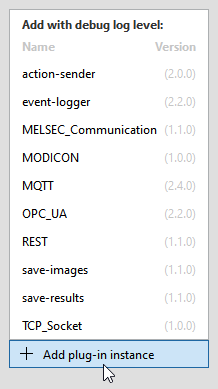
If you want to use the log level "debug" for a plug-in, you can use the graphical user interface of the MERLIC RTE Setup. When adding a new instance of the plug-in via the "Add plug-in instance" button in the "Communication" tab of the MERLIC RTE Setup, you can press the ALT key while selecting the plug-in. The plug-in will then be started with "debug" log level.
Defining the Access Level of a Plug-in
By default the access level of a plug-in corresponds to the capability that has been set in the implementation of the plug-in in the MVInfo function. If the capability eMVCapabilities_MonitorAndControl ("monitor and control") has been set for a plug-in, you have the possibility to restrict the access level of the plug-in to only "monitor" or "control". For this, you have to start the plug-in in the command line with the command line option "a". In the following example, the access level of the OPC UA server plug-in is set to "control".
merlic_communicator.exe --plugin MQTT a:monitorChanging the Plug-in Directory
The plug-in directory represents the location to which all relative plug-ins are related to, i.e., if a plug-in is given only by its name and without its absolute path in the command line option "--plugin", it is expected to be stored in the plug-in directory.
By default, the plug-in directory is the directory in which the executable file of the MERLIC Communicator is located, e.g., in "%PROGRAMFILES%\MVTec\MERLIC-5.5". You can change the plug-in directory or define multiple plug-in directories either in the .ini file or via the command line argument "--plugin_dir" as shown in the following example.
Changing the Plug-in Directory in the .ini File
To set the plug-in directory in the .ini file, add the path to the location to the [Communicator] as shown in the example below:
[Communicator]
PluginDir=C:/communicator/plugins
In case you defined the directory in the default .ini file of the Communicator (Communicator.ini), the Communicator can now be started via the Windows start menu and the new settings will be applied automatically. If you define the directory in a different .ini file, you have to start the Communicator in the command line and specify the respective .ini file as described in the section Defining the Settings in a Separate .ini File.
Changing the Plug-in Directory via the Command Line
You can change the plug-in directory using the command line argument "--plugin_dir" as shown in the following example.
merlic_communicator.exe --plugin_dir C:/communicator/pluginsDefining Multiple Plug-in Directories
You can also define multiple plug-in directories, e.g., if you want to keep your plug-in library in the respective build output directory instead of copying the file to another plug-in directory. This way, you can use Communicator plug-ins from different directories in the same Communicator instance. All specified plug-in directories will be searched for plug-in libraries with the required "pmV" prefix for Communicator plug-ins. In the MERLIC RTE Setup, you will get a list of all Communicator plug-ins that have been found in the specified directories.
To define additional plug-in directories, you can specify the respective paths as a semicolon-separated list.
The following example shows how to define multiple plug-in directories in the .ini file. With this example configuration, Communicator plug-ins are searched in the directory "C:/communicator/plugins" as well as in the default plug-in directory. You can also specify multiple plug-in directories via the command line with a semicolon-separated list.
[Communicator]
PluginDir=C:/communicator/plugins;C:/Program Files/MVTec/MERLIC 5/bin/x64-win64
To use one of the Communicator plug-ins provided by MERLIC, e.g., MQTT, and one of your own Communicator plug-ins in the same Communicator instance, you have to specify the default plug-in directory in addition to the directory in which your Communicator plug-in is stored, e.g., the respective build output directory.
If a plug-in with the same name appears in two or more of the specified plug-in directories, it is only listed once. When adding this plug-in to the MERLIC RTE Setup, the version in the directory which appeared first in the list of plug-in directories is used.
Changing the Configuration Directory of the Plug-ins
The default configuration directory is the standard configuration location of your system, e.g., "%AppData%/MVTec/Communicator/conf" on Windows.
It contains the JSON configuration files for your plug-ins. If no configuration directory is present at the expected location, it will be created automatically when starting the Communicator. You can select a different location, e.g., in case there is no write access to the default configuration directory.
You can change the configuration directory either in the .ini file or via the command line argument "--config_dir".
Changing the Configuration Directory in the .ini File
To set the configuration directory in the .ini file, add the path to the location to the [Communicator] as shown in the example below:
[Communicator]
ConfigDir=D:/communicator/plugin_configuration
Changing the Configuration Directory via the Command Line
To change the configuration directory only for the current session, you can start the Communicator in the command line and specify the desired location with the command line option "--config_dir" as shown in the following example.
merlic_communicator.exe --config_dir D:/communicator/plugin_configurationsIn case you defined the directory in the default .ini file of the Communicator (Communicator.ini), the Communicator can now be started via the Windows start menu and the new settings will be applied automatically. If you define the directory in a different .ini file, you have to start the Communicator in the command line and specify the respective .ini file as described in the section Defining the Settings in a Separate .ini File.
For more information about the creation of configurations, see the topic Life Cycle of a Plug-in Instance in the reference documentation of the Communicator API.
The Communicator plug-ins are configurable by the user but we recommend to adapt configuration files manually only when necessary because information may be overwritten during the MVExpose function.