Tool Flow
The Tool Flow panel shows an overview of all tools that are used in the MERLIC Vision App A MERLIC Vision App represents an image processing application created in MERLIC. It consists of the tools in the MERLIC Creator, the Designer widgets, and all settings that are used in the application.. Furthermore, existing connections between tools are visualized.
When a tool gets activated, it triggers all following, connected tools within its tool flow A Tool Flow is a group of tools that are connected. The connection between the tools may consist of data connections, trigger connections, or a combination of both. It represents the steps of your MERLIC Vision App and visualizes the dependencies between tools..

The Tool Flow panel can be used for the following purposes:
- Orientation within the tool flow A Tool Flow is a group of tools that are connected. The connection between the tools may consist of data connections, trigger connections, or a combination of both. It represents the steps of your MERLIC Vision App and visualizes the dependencies between tools. of your MERLIC Vision App.
- Navigation to a specific tool.
- Arranging and copying the tools of your MERLIC Vision App.
- Checking the current states of tools and connections.
- Checking the tools for previously inserted MVApp parameters An MVApp parameter represents a basic or an additional parameter in a MERLIC Vision App which can be modified via a recipe file when using MERLIC process integration. You can define a tool parameter as an MVApp parameter in the MERLIC Creator. The panel "MVApp Parameters and Results" shows a list of all MVApp parameters that are currently defined. and MVApp results An MVApp result represents an output parameter for the communication with a programmable logic controller (PLC) when using MERLIC process integration. MERLIC tool results that are defined as MVApp results can be transferred to the PLC. You can add a tool result to the MVApp results in the MERLIC Creator. The panel "MVApp Parameters and Results" shows a list of all MVApp results that are currently selected..
- Grouping tools.
Zooming the Tool Flow
With the Tool Flow zoom at the bottom right of the Tool Flow panel you can zoom in and out of the Tool Flow for a better overview of MVApps. The Tool Flow zoom contains the following functionalities:
- Change the current zoom level by dragging the slider. You can also zoom using the mouse wheel while pressing the Ctrl key.
- Display of the current zoom level.
- Reset the zoom level to 100% with a click on the button
 .
. - Export the Tool Flow as an image file via the button
 .
. - Overview of the complete Tool Flow that marks the section of the Tool Flow that is currently displayed. Maximize and minimize the Tool Flow zoom overview window with a click on the
 or
or  icon.
icon.
Display Options
The current setting in the "Display Options" category of the MERLIC preferences marks tools that were not executed in the last iteration with a striped pattern. To activate this option, check the box in the menu "Edit → Preferences → Display Options → Highlight tools that were not executed". Your choice is saved in the MERLIC5.ini in the section [General]. For more information see The MERLIC .ini File.
This option should be used in MVApps that contain a "Branch on Condition" tool. All tools that were not executed in the last iteration of MERLIC, due to the condition set in the "Branch on Condition" tool, are marked with stripes.
For more information about creating conditional branches see the tool reference of Branch on Condition.
Tools in the Tool Flow and connected tools in the Tool Workspace will be displayed as follows:
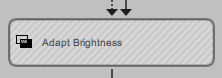
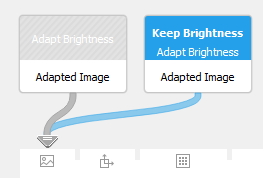
Tools may also be marked after you load or edit an MVApp and before it is executed.
Further Information
Please refer to the following chapters to get information about working with the Tool Flow panel: