Configuring Triggers for the Image Acquisition
To enable the configuration options for a specific camera device, you have to activate the configuration in which the image source is stored. Only then it is possible to configure the camera parameters of a specific image source or to use the preview mode for its image files. After activating the configuration and selecting a camera device to configure, you can now adjust the parameters of your selected camera device, e.g., the trigger mode. MERLIC supports up to three trigger modes for the image acquisition depending on the trigger: hardware, software, and free-running.
As a default, MERLIC sets a software trigger for all connected camera devices. To use a different trigger mode, you have to change the respective camera parameters manually. To do so, you can either use the MVTec EasyParams or the camera parameters in the "All Parameters" tab. The EasyParams present the most important configuration options without having to search for them. However, the camera parameters in the "All Parameters" tab allow for some additional configurations, depending on which parameters are supported by your camera device. In case the trigger mode can not be set for a camera device, the respective default values of the camera are used.
Setting a Trigger Mode in the "EasyParams" Tab
In the "EasyParams" tab you can set the trigger mode with the parameter "Trigger Method". It combines the parameters "Trigger Selector", "Trigger Mode" and "Trigger Source". When selecting the trigger method "Hardware" or "Software", the trigger mode is automatically activated. When selecting the trigger method "Off" however, the trigger mode stays off.
If you would like to work with a trigger selector other than "FrameStart" (or "ExposureStart" if FrameStart is not available), you need to set both the trigger selector and the trigger mode in the "All Parameters" tab.
Setting a Trigger Mode in the "All Parameters" Tab
In the "All Parameters" tab, the trigger mode can be set manually in the category "AcquisitionControl". In this case, the first step is always to set the parameter "Trigger Selector". Then you should refresh the camera parameters by hitting the button in the upper right corner of the "Camera Parameters" tab. It is important to set the trigger selector first because the parameters "Trigger Mode", "Trigger Source", and in some cases "Trigger Software", are bound to the selected value of the parameter "Trigger Selector". If you change the trigger selector, you change the entire configuration of this parameter combination and you have to reconfigure that as well.
If the trigger selector has been set and the desired trigger mode is supported by the camera, you can set the trigger mode by selecting the parameters "Trigger Mode" and "Trigger Source".
Setting the Camera Parameters for Hardware Trigger
The use the live image view of the "Image Sources" tab in hardware trigger mode, you need to make sure that your hardware is triggering the image acquisition.
"EasyParams" Tab
To configure a camera device for the use with a hardware trigger, select a hardware trigger, e.g., Line1, in the EasyParam "Trigger Method". You can only choose hardware triggers of the type "Line<x>". If you would like to work with a different kind of hardware trigger you need to configure the hardware trigger in the "All Parameters" tab.

"All Parameters" Tab
To configure a camera device for the use with a hardware trigger, select the trigger type in the parameter "Trigger Selector" and set the "Trigger Mode" to "On". Then you have to set the parameter "Trigger Source" to the pin, i.e., the physical input line, that has been configured for the hardware trigger. The correct value of "Trigger Source" might differ for each camera device and the trigger device depending on the available connectors and their setup. For information about the appropriate connectors, see the documentation of the respective camera and trigger device.
The following image shows an example configuration for hardware trigger. In this example, the "Trigger Source" is set to "Line1" which means that this trigger type is configured for hardware trigger. Therefore, the trigger device must be connected to the respective pin of "Line1".
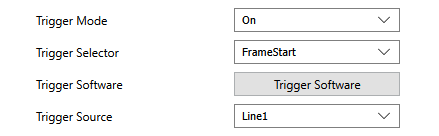
When running the MVApp, a hardware trigger signal must be sent before the timeout duration is reached. Otherwise the image acquisition will time out. By default, the timeout duration is 5 seconds. It can be adjusted by setting the parameter "Grab Timeout" in the category "HALCON Interface".
Setting the Camera Parameters for Software Trigger
To use the live image view of the "Image Sources" tab in software trigger mode, you need to set the camera parameters in one of two ways:
- "EasyParams" tab: Set "Trigger Method" to "Software".
- "All Parameters" tab: Set "Trigger Source" to "Software" and the parameter "Trigger Mode" to "On".
"EasyParams" Tab
To configure a camera device for the use with a software trigger, select the trigger type "Software" in the EasyParam "Trigger Method".

"All Parameters" Tab
To configure a camera device for the use with a software trigger, select the trigger type in the parameter "Trigger Selector" and set the "Trigger Mode" to "On". Then you have to set the parameter "Trigger Source" to "Software".

Setting the Camera Parameters for Free-Running Mode
"EasyParams" Tab
To configure a camera device for the "free-running" mode, you only have to set the EasyParam "Trigger Method" to "Off".

"All Parameters" Tab
If you want to configure a camera device for the "free-running" mode, you only have to set the parameter "Trigger Mode" to "Off" as shown in the image.