Installing MERLIC
MERLIC can be installed online via the MVTec Software Manager (SOM), an installation manager for software packages. It starts a local web server and provides access to a remote catalog of products, among others, the SOM package for MERLIC 5.5.2. Basically, you can start SOM, select the desired MERLIC version and components, and SOM takes over the installation process. Thus, SOM allows you to install MERLIC without downloading the executable file of MERLIC.
If a new maintenance release is available for your MERLIC installation, SOM enables you to update your current installation. SOM also detects MVTec products that have been installed by other means. However, these installations cannot be updated or uninstalled via SOM.
You need at least SOM 1.4 to install MERLIC 5.5.2. If you are using an older SOM version, MERLIC 5.5.2 will not be available for download.
Downloading SOM
SOM is a self-contained application and requires no installation at all. However, you first have to download SOM to access its executable file. For this, you will have to log in with your MVTec account to access the download page. In case you have no MVTec account yet, please register and proceed with your new account.
- Log in to the MVTec download area for the MVTec Software Manager on the following website: www.mvtec.com/downloads/software-manager.
- Choose the desired product version, operating system, and, if applicable, the architecture.
- Click on “MVTec Software Manager" in the "Downloads" section to download the SOM package and then extract the zip file to access the executable file of SOM.

Starting SOM and Installing MERLIC
SOM operates in two modes: user mode and system mode. On the bottom left of the MVTec Software Manager website that opens in your browser when you start SOM you can check which of the two modes you are using.
User Mode
In the user mode, SOM will be running without administrator rights. Therefore, you will be asked to enter administration credentials if you want to perform any actions that require administrator rights. These actions are marked with the icon  .
.
To use SOM in user mode, double-click the executable file "som.exe" that has been extracted from the downloaded zip file of SOM. Alternatively, double-click on the desktop shortcut or the start menu entry "MVTec Software Manager".
System Mode
In the system mode, SOM will be running with elevated rights and you will be able to perform all actions that require administrator rights without having to enter your credentials again.
To use the system mode, you have to start SOM with administrator rights:
- Right-click on the executable file "som.exe" that has been extracted from the downloaded zip file of SOM. If SOM is already installed on your system, you can right-click on the desktop shortcut or the start menu entry "MVTec Software Manager" instead.
- Select "Run as administrator" and enter your credentials.
If you are using SOM in system mode, a red ribbon at the top of the MVTec Software Manager start page will alert you that SOM is running with elevated rights.
We recommend to install MERLIC with administrator rights. This will make sure that it is installed with all required components and firewall settings. In case you want to use SOM without administrator rights, please also refer to the information in the section Consequence of Installing MERLIC without Administrator Rights.
Installation Steps
- Start SOM using one of the following options:
- If SOM is not installed, use the executable "som.exe" to start it.
- If SOM is already installed on your system, you can use the desktop shortcut or the start menu entry "MVTec Software Manager".
Your default browser automatically opens the start page of the MVTec Software Manager website.
If your browser does not come up and you have an installation of SOM, start “MVTec Software Manager CLI” and enter "som". You can then use the displayed address in any HTML5-compliant browser on your system.
- Upon startup of SOM, a "Welcome" dialog is displayed. If SOM is not installed, you can optionally install SOM from the "Welcome" dialog. For more information about the installation of SOM, see the section Optionally Installing SOM.
- Close the "Welcome" dialog.
- On the start page of SOM, switch to the page "AVAILABLE" on the top. You will see a list of all software packages that are available for download.
- Look for the desired MERLIC version and start the installation choosing one of the following options:
- Installing MERLIC only for the current user
- Click on the button "INSTALL".
- Only the current user will be able to use the MERLIC installation.
- Installing MERLIC for all users
- Open the drop-down menu of the "INSTALL" button and click on "INSTALL FOR ALL USERS".
- All users will be able to use the MERLIC installation on the system. However, administrator rights are required for this option.
After clicking the installation button, a new dialog is opened. It shows the list of available SOM packages for the respective MERLIC version.
- Installing MERLIC only for the current user
- Select the MERLIC packages to be installed.

At the bottom of the dialog, you can see the path of the directory in which MERLIC will be installed. We recommend to use the default installation directory. However, if you want to install MERLIC in a different directory anyway, you can change the directory in the SOM settings.
For more information about the default installation directories and how to change them, see the sections Default Installation Directory of MERLIC and Changing the MERLIC Installation Directory.
- Click on the "APPLY" button to perform the installation of the selected packages.
- After the installation of MERLIC 5.5.2, change to the "INSTALLED" page. It now shows the new MERLIC version with the installed MERLIC components. SOM allows you to start the MERLIC components directly via the respective "LAUNCH" button. In addition, you can access the "Readme" and the documentation of the new MERLIC version on the right.
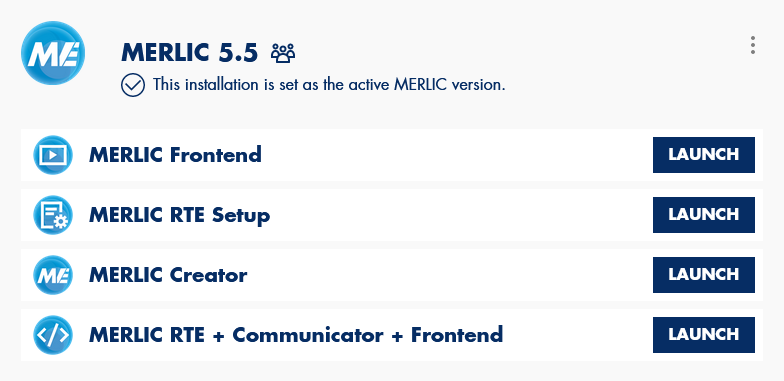
- The new MERLIC installation is automatically associated to all MERLIC files such as MERLIC Vision Apps (.mvapp). This means that all MVApp files will be automatically opened with the new MERLIC installation when double-clicking the MVApps in the file explorer. If multiple MERLIC version are installed, you can also associate a different version. For more information, see the section Association of MVApp Files.
Keep in mind to activate your MERLIC license to use the full functionality of MERLIC without the restrictions of a trial version. For more information about the license activation, see the topic How to Activate a MERLIC License.
For more information about the installed file structure of MERLIC, see the topic Installed File Structure.
Optionally Installing SOM
Although SOM can be used without any installation, it will offer you the installation via the "Welcome" dialog that appears on the first startup of SOM.

If you want to install SOM, click on the "INSTALL" button. If you want to install SOM at a later time, but this dialog no longer appears when you start SOM, you can reopen the dialog from the MVTec Software Manager website by clicking on "SOM 1.4" at the bottom left of the browser window.
SOM Installation for the Current User
If you choose to perform the installation of SOM for the current user, it will be installed into the directory "%LOCALAPPDATA%\Programs\MVTec\SoftwareManager" and add both a desktop icon and a start menu entry for SOM. You may then delete the original executable file of SOM once the current session is exited.
SOM Installation for All Users
If you choose to install SOM for all users, it will be installed into the directory "%PROGRAMFILES%\MVTec\SoftwareManager". If another version of SOM is already installed, that version will be upgraded. Once installed, SOM can manage itself from the page “INSTALLED” on the MVTec Software Manager start page, i.e., you can see your SOM installation in the list of installed products and you can update SOM directly from this page.
Default Installation Directory of MERLIC
All files, including example applications and images, will be installed in the same installation directory. The default installation directory depends on whether you are installing MERLIC just for the current user or for all users.
If you install MERLIC for the current user it is installed by default to the directory "%LOCALAPPDATA%\Programs\MVTec\MERLIC-5.5".
If you install MERLIC for all users it is installed by default to the directory "%PROGRAMFILES%\MVTec\MERLIC-5.5".
Opening the MERLIC Installation Directory via SOM
You can open the directory in which your MERLIC installation has been installed via SOM:
- Go to the "INSTALLED" page of SOM on the MVTec Software Manager start page.
- Click on the menu icon
 of the respective MERLIC installation and select "Open installation directory". The installation directory of your MERLIC installation will now open in your file explorer.
Changing the MERLIC Installation Directory
If you want to install MERLIC in a different directory, you can change the installation directory as follows:
- Open the SOM settings in the menu on the top right of the SOM start page. You will see several settings. However, only the installation path "Install path (programs)" can be changed for the MERLIC installation. All other settings have no effect on your installation.
- Specify the directory for the installation at the entry "Install path (programs)" either via the browse button
 or manually in the text field.
 MERLIC must not be installed in directories that contain characters from more than one character set. Also on Windows systems the characters \ / : * ? " < > |are not allowed. Keep in mind that you require read and write permissions for the specified directory and make sure that you have started SOM in the mode (either user or system mode) in which you have the required rights for the directory.
- Save your changes.
- Start the installation of MERLIC.
Consequences of Installing MERLIC Without Administrator Rights
If you start SOM in user mode, i.e., without administrator rights, some differences or restrictions may apply depending on various factors.
When starting the MERLIC installation process in the user mode of SOM, you will be asked to provide the administrator credentials. If you enter them, the MERLIC installation will proceed and all settings, e.g., firewall settings, will be set accordingly.
If you do not enter your administrator credentials and close the dialog, the MERLIC installation will also proceed. However, in this case, some of the MERLIC settings, e.g., firewall rules, will not be set. In addition, the CodeMeter software that is required for licensing will not be installed. This may have some serious consequences, which are described in the following sections.
If CodeMeter is not yet installed on your system:
- You cannot activate your MERLIC license because CodeMeter is required to activate the license on the respective system.
- MERLIC will not start because the licensing failed. Even the MERLIC trial version cannot be started because it also requires CodeMeter to install the trial license on the system.
- No firewall rules have been set. Thus, some configurations will not work, e.g., configuration on remote systems.
Possible solutions:
- In this case, you can install CodeMeter separately and then activate your license. However, it is still not possible to use the trial version of MERLIC.
- Regarding the firewall settings, you can manually enter your administrator credentials for the firewall rules when you are asked again while working with MERLIC. The respective firewall rule will be set for the respective MERLIC executable file, but only for the current port that is being used.
- Re-install MERLIC with administrator rights. Then CodeMeter will be part of the MERLIC installation, all firewall rules will be set, and you can immediately activate your license and use MERLIC.
If CodeMeter is still available on your system (e.g., from a previous installation):
- You can activate your license and start MERLIC.
- No firewall rules have been set. Thus, some configurations will not work, e.g., configuration on remote systems.
Possible solutions:
- You can manually enter your administrator credentials for the firewall rules when you are asked again while working with MERLIC. The respective firewall rule will be set for the respective MERLIC executable file but only for the current port that is being used.
- Re-install MERLIC with administrator rights. Then, all firewall rules will be set and you do not have to set any firewall rules manually.
Further Information on the Installation
Installation of the MVTec GigE Vision Streaming Filter
During the installation of MERLIC, the MVTec GigE Vision Streaming Filter will be automatically installed. The filter driver improves performance and robustness when using GigE Vision compliant cameras in MERLIC.
Association of MVApp Files
When opening MERLIC Vision Apps (MVApps) by double-clicking the respective .mvapp files, they will be opened automatically in the associated MERLIC installation. If there is only one MERLIC installation on your system, it is automatically associated to MERLIC files such as MVApps (.mvapp) and files for the user management (.mudb). If there are multiple MERLIC installations on your system, for example, of different MERLIC versions, you can define which MERLIC installation is associated to the MERLIC files by registering the desired installation. By default, the MERLIC installation that was installed last will be registered automatically.
To associate a different MERLIC installation, you have to register the respective MERLIC version in SOM.
- Start SOM and open the "INSTALLED" page.
- Select the desired MERLIC installation.
- On the right, register the selected installation via the toggle.
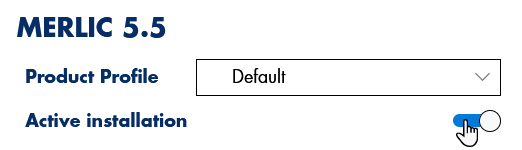
Environment Variables
When installing MERLIC via SOM, no environment variables will be set.
Multiple MERLIC Versions
You can install multiple versions of MERLIC on your system. When installing a new MERLIC version, it will be automatically registered. This means, the new version is associated to files with file ending .mvapp and MVApps will be opened in the newest installation when double-clicking on .mvapp files in the file explorer. You can register a previous MERLIC version in SOM if you want to open MVApps in a different MERLIC version by default. However, if you only want to open an MVApp once in a different version, you can use the context menu:
- Right-click on the respective .mvapp file to open the context menu.
- Click on "Open with" and select the desired MERLIC version. The MVApp will be opened in the selected version.
Alternatively, you can first open the desired MERLIC version via the Windows start menu and then open the MVApp from the MERLIC Creator. The Windows start menu provides entries for all MERLIC versions that are installed.