Configuring Communicator Plug-ins
The configuration of all types of Communicator plug-ins for the process integration MERLIC can be used in machine vision systems that are integrated in a manufacturing machine. The machine controller, e.g., a programmable logic controller (PLC), must be able to control an integrated vision system, to monitor the execution, and to query the results. Therefore, MERLIC provides a process integration mode to enable the communication with a machine controller. The process integration mode can be started with the application "MERLIC RTE" that is provided with the MERLIC installation. can be adjusted in the "Communication" tab of the MERLIC RTE Setup. The list of plug-in instances on the left of the MERLIC RTE Setup shows all plug-in instances that have already been added to the MERLIC RTE Setup for the configuration. If the plug-in you want to configure is missing in the list, you have to add an instance of this plug-in via the "Add plug-in instance" button on the bottom left as described in the topic Adding a Plug-in Instance.
Enabling the Configuration in the MERLIC RTE Setup
To enable the configuration of a plug-in instance, you first have to make sure that the plug-in instance you want to configure is currently not running. Otherwise, the parameters of the plug-in are not available for the configuration. You can see the current state of each plug-in instance in the MERLIC RTE Setup on the left at the respective status icon. In the example image below, the selected instance of the MQTT plug-in is currently not running as indicated by the icon  and therefore the configuration of this MQTT instance is possible.
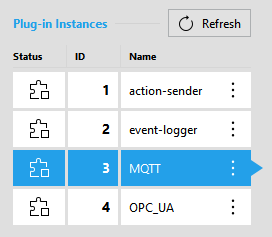
If these preconditions are met, you can select the desired plug-in instance from the list on the left side of the MERLIC RTE Setup to display the respective parameters of the plug-in instance.
Overview of the Parameters
In the main area of the "Communication" tab on the right, the overview of the parameters for the selected plug-in instance is shown. Therefore, you have to select the desired plug-in instance on the left to see and configure the parameters for this instance.
The parameters are differentiated in "Plug-in parameters" and "User parameters" as shown below.
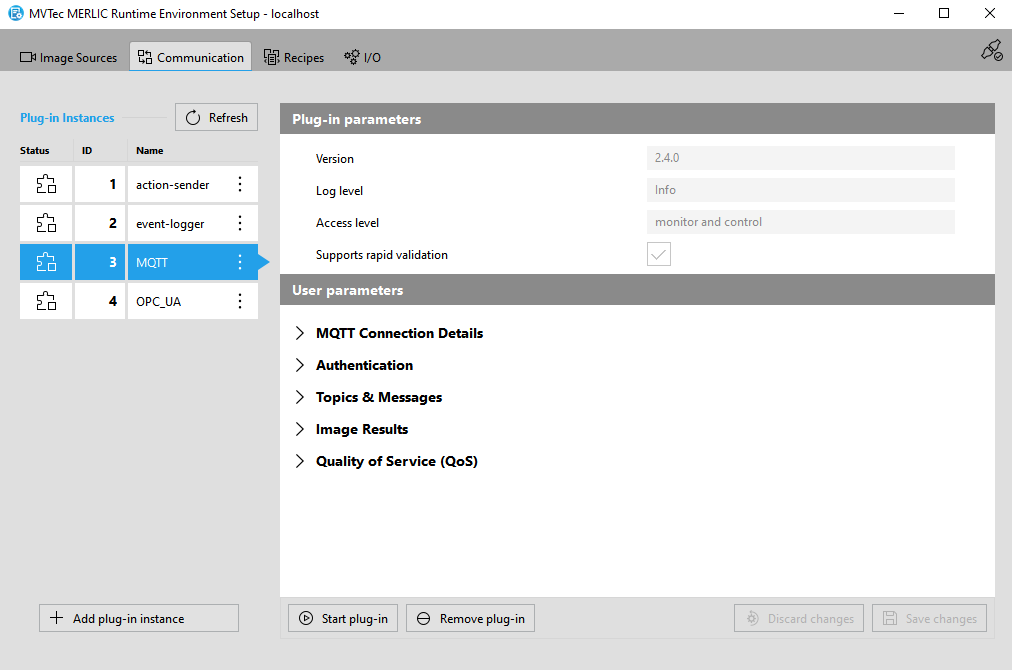
Plug-in parameters
Parameters of this type represent general parameters for the Communicator plug-in that cannot be adjusted in the configuration area of the "Communication" tab. They may show the version number of the plug-in, the current parameter value for the log level, the access level of the plug-in, and the setting for the validation of the plug-in configuration. These values need to be set in different locations or with different methods, respectively.
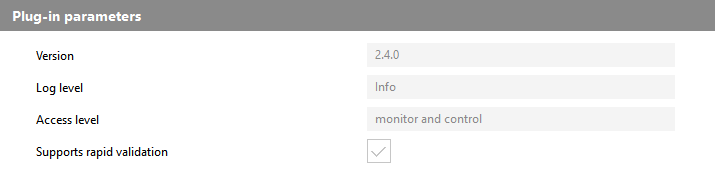
Version
This parameter shows the version number that has been defined during the plug-in implementation. It consists of a major, minor, and maintenance version. It is also shown when adding a new plug-in instance. The version is optional. Therefore, it is possible that no version number has been defined during the implementation.
Log level
This parameter shows the log level that is used for the plug-in instance. By default, the log level of the Communicator is used which itself defaults to "Info". This means that all types of messages of severity "critical", "error", "warning", and "info" are logged, i.e., messages for general non-critical information.
You can also set a different log level for the Communicator in general or only for a specific plug-in instance. See the section Starting a Plug-in with a Specific Log Level in the topic Starting and Stopping Communicator Plug-ins for more information.
Access level
This parameter shows the access level that is set for the plug-in. The access level correlates with the capability that is defined in the implementation of the plug-in. The implemented capability cannot be adjusted in the MERLIC RTE Setup. However, it is possible to choose a more restrictive access level by starting the plug-in instance via the command line and using the "--plugin" flag, supplemented by the appropriate access level specifier, i.e., "monitor" or "control".
See also the section Starting and Stopping a Plug-in in the MERLIC Communicator manual for more information.
Supports rapid validation
This parameter shows whether the plug-in supports the immediate validation of the current plug-in configuration. For this plug-in, the check box is ticked indicating that "rapid validation" is supported. This means that the configuration of the plug-in is validated with each modification of any editable parameter in the "Communication" tab of the MERLIC RTE Setup. If the plug-in does not support "rapid validation", the configuration of the plug-in is validated only when saving the configuration.
User parameters
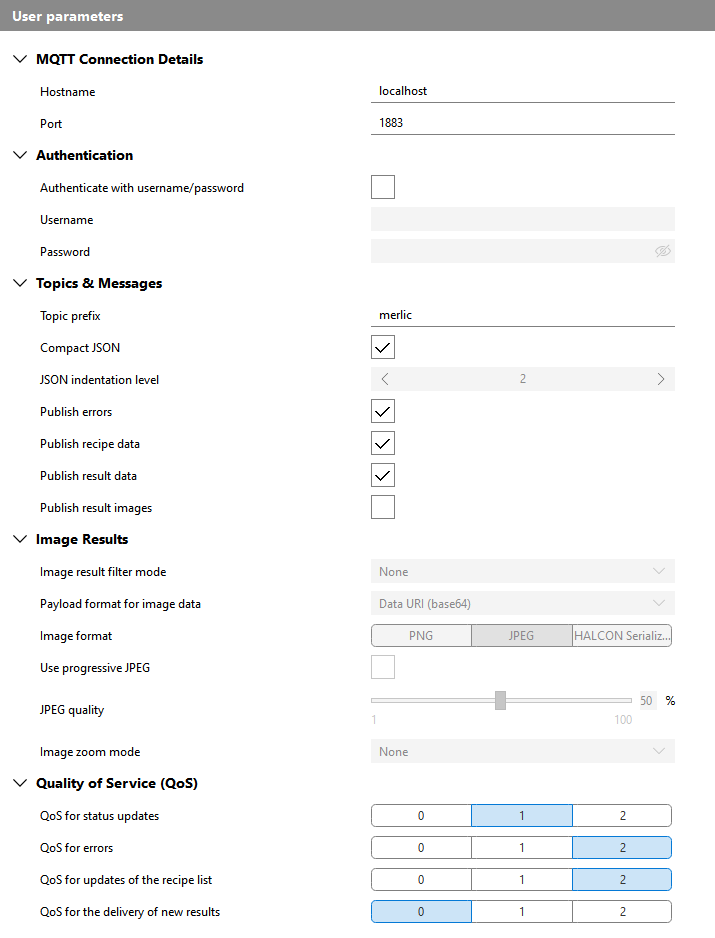
The set of parameters that can be configured depends on the implementation of the respective plug-in. They represent the parameters that have been defined and exposed in the implementation of the MVExpose API function of the plug-in. This also applies to the categories in which the user parameters are shown. Therefore, they may differ for each plug-in.
For example, the available "User parameters" of the MQTT plug-in are the following:
Configuring the User Parameters of a Plug-in
If you selected the plug-in instance you want to configure and the plug-in is currently not running, you can start to adjust the configuration of the plug-in instance by setting the available user parameters to your needs. Depending on the implementation of the respective plug-in, only predefined value ranges may be allowed.
Make sure to save the changes. Otherwise, the plug-in cannot be started. Saving the configuration will trigger a validation of the parameters. The validation itself is plug-in-specific and might result in error or warning messages alerting you to invalid or otherwise problematic configuration values. The validation can also result in certain parameters being enabled or disabled for configuration dependent upon the values of certain other parameters. In the example above, you can see that the parameter "JSON indentation level" is not applicable because the parameter "Compact JSON" is activated, i.e., is set to "true". When you uncheck the checkbox for "Compact JSON", the "JSON indentation level" will only become configurable after you save that change and thus validate the configuration.
You can also discard unsaved changes via the button " Discard changes" if you want to restore the last saved state of the configuration. However, it is not possible to start a plug-in if there are still any unsaved changes.
To get information about the different ways to start and stop a plug-in, see the topic Starting and Stopping Communicator Plug-ins.