Checking the Contents of a Recipe
The "Recipes" tab of the MERLIC RTE Setup displays detailed information about the imported recipes A MERLIC recipe file is a crucial part for the MERLIC process integration. It is a separate file (with file ending .mrcp) that defines which MERLIC Vision App is loaded for the process integration. It also defines how the MVApp is parametrized because it contains a set of pre-defined input values for selected tool parameters. You can create multiple recipe files with individual sets of input values for one and the same MVApp. This enables you to reuse an MVApp with different parameter settings for various scenarios of your application. You can also use a recipe file to load an MVApp for a completely different image processing task. that are available for the process integration MERLIC can be used in machine vision systems that are integrated in a manufacturing machine. The machine controller, e.g., a programmable logic controller (PLC), must be able to control an integrated vision system, to monitor the execution, and to query the results. Therefore, MERLIC provides a process integration mode to enable the communication with a machine controller. The process integration mode can be started with the application "MERLIC RTE" that is provided with the MERLIC installation.. You can check which MERLIC Vision App is parametrized by a specific recipe and how the input values are defined. In addition, you can get important information such as the ID of a recipe from the "Recipes" tab.
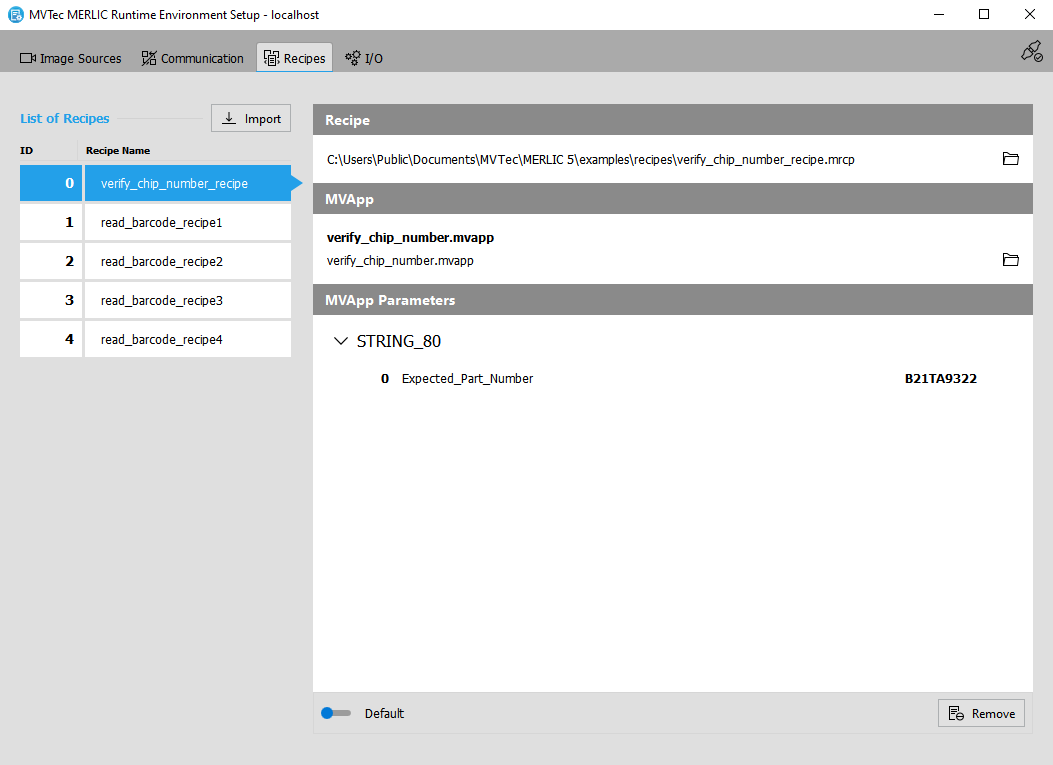
List of Recipes with ID
The left side of the "Recipes" tab shows the list of imported recipe files. The list contains the name of the recipe and the respective recipe ID. This ID is crucial when using MERLIC in process integration because if you want to change the recipe during the process integration, you have to specify the recipe to be loaded with its ID.
If MERLIC encounters a problem the recipe is marked with the icon  .
.
Changing the Order of the Recipes
You can change the order of the recipes in the list to get a better overview or organization. However, keep in mind that changing the order of the recipes also affects the associated recipe ID. Any modifications in the "Recipes" tab will be saved automatically.
- Drag-and-drop the recipe to the desired position.
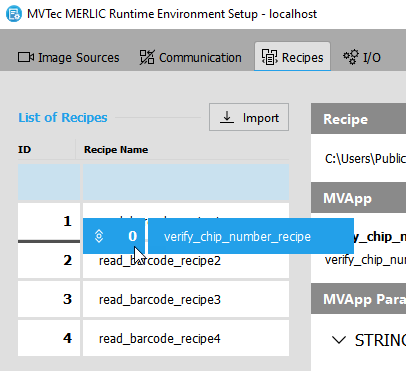
- Repeat this step with other recipes until the order of the recipes is set as desired.
Detailed Recipe Information
The right side of the "Recipes" tab shows the content of the currently selected recipe file. The content is displayed separately in the sections Recipe, MVApp, and MVApp parameters.
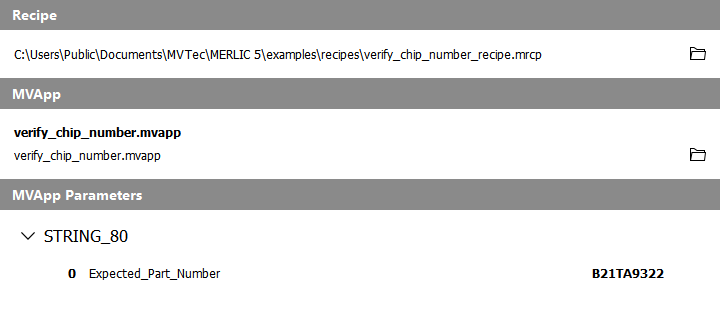
Recipe
This section shows the full file path to the selected recipe. The folder icon  enables you to open the respective location in the file browser. If a description has been defined for the recipe, it is also shown in this section below the file path.
MVApp
This section shows the name and relative file path to the referenced MVApp. The folder icon enables you to open the respective location in the file browser.
MVApp Parameters
This section shows the tool parameters of the MVApp that have been set as MVApp parameters for the process integration and the associated input values that are defined in the recipe. In detail, the MVApp parameters are listed by their data type and the order in which they have been defined in the MERLIC Creator.
For each MVApp parameter, the following information is given:
- Position ID of the parameter
- Name of the tool parameter, entered by the user, e.g., "Minimum_Identical_Scanlines"
- Input value that has been defined in the recipe, e.g., the value "2" for the parameter "Minimum_Identical_Scanlines".
Notifications
If information about errors is available, it is displayed at the bottom of the area, marked with the icon .