Creating a MERLIC Recipe
To create a new recipe file for an MVApp, open the respective MVApp in the MERLIC Creator. If you want to parametrize specific tool parameters in your MVApp via the recipe file, you first have to define the respective input values before creating the recipe file as described below. See the topic MVApp Parameters for more detailed information about the MVApp parameters and how to define them. If your application requires no parametrization via the recipe file, you can proceed directly with the creation of the recipe file.
How to Create a Recipe File
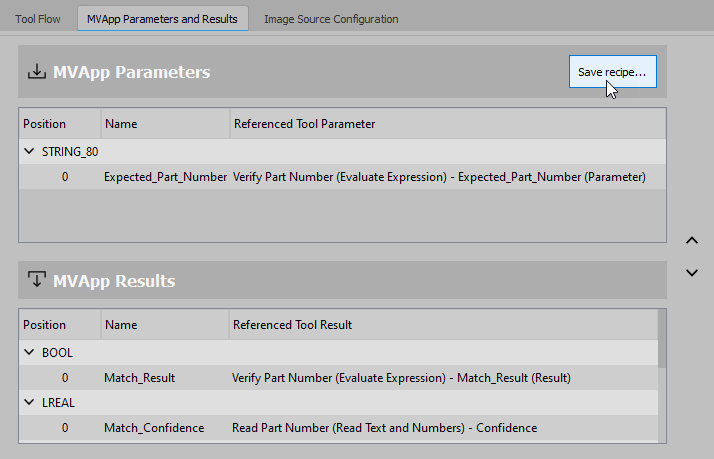
- Go to the panel "MVApp Parameters and Results" in the MERLIC Creator and check if your MVApp parameter data set is correctly defined for your application.
- Click on the button "Save recipe..." to open the recipe dialog.
- Select the MVApp file that shall be referenced in the recipe file. If your MVApp has already been saved in a prior step, it is selected by default. You can choose a different MVApp via the
 button.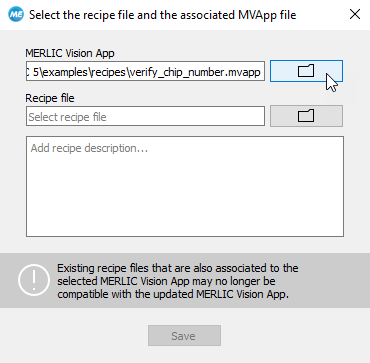
- Select the name and location of the recipe file via the button.
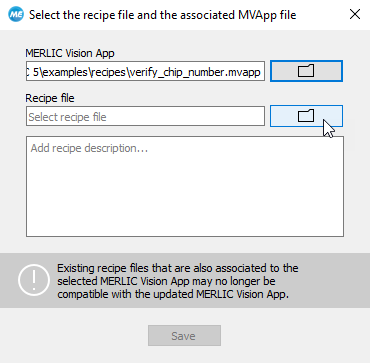
- Optionally, add a description for your recipe.
- Click the "Save" button to save the selected MVApp and to create the recipe file. The recipe file contains the defined MVApp parameter set and the reference to the selected MVApp. The "Save" button becomes active as soon as an MVApp and a recipe file have been selected. The recipe file is stored with the file ending ".mrcp".
- If you reconfigure your data set of MVApp parameters, you may simply click the "Save recipe..." button to save the changes in the current recipe file.
To use the created recipe files for the process integration, you have to import the recipes to the "I/O" tab of the MERLIC RTE Setup. For more information, see the topic Recipes.
For information about restrictions concerning certain camera devices see the topic Acquire Image from Camera