Editing a MERLIC Recipe
Editing a recipe file is quite similar to creating a new recipe file. You can perform the changes at the MERLIC Vision App that is associated to the recipe file in the MERLIC Creator and adjust the MVApp parameters as desired:
- Open the MERLIC Vision App that is referenced in the MERLIC recipe file to be edited.
- Adjust the MVApp and the tool parameters to your requirements.
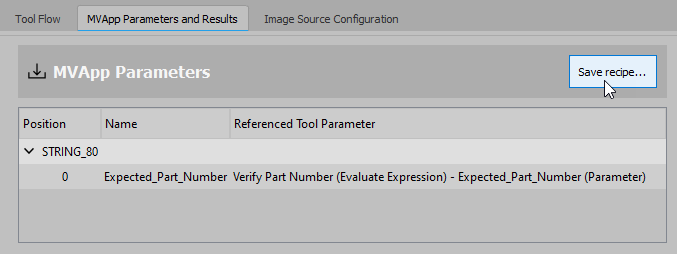
- Check if the list of MVApp parameters still fits your requirements:
- Remove the MVApp parameters that you do not want to parametrize via the recipe file anymore.
- If necessary, add further tool parameters to the list of MVApp parameters.
For detailed information on how to remove or add an MVApp parameter, see the topic MVApp Parameters.
- Click on the button "Save recipe..." to open the recipe dialog.
- Check the name and location of the MVApp and the recipe file. By default the current MVApp is selected. You can choose a different MVApp via the
 button.
 - Select the name and location of the recipe file via the button.
- Optionally, adjust the description for your dialog in the text field.
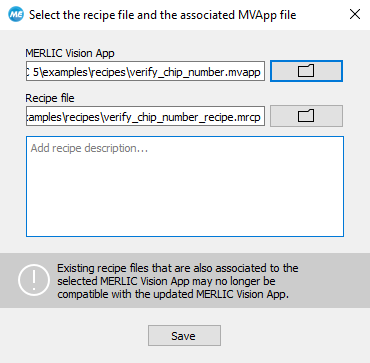
- Click the "Save" button and confirm that you want to overwrite your recipe file with the changes.
To use the created recipe files for the process integration, you have to import the recipes to the "Recipes" tab of the MERLIC RTE Setup. For more information, see the topic Recipes.