Find Objects
Use this tool to locate objects within an image and classify them into a previously defined class. It does not matter if the objects partially overlap.
This tool requires a trained object detection model. An object detection model is a deep learning model that has been trained to locate object classes and identifying them with a surrounding rectangle, called bounding box.
To train an object detection model, you can use MVTec's Deep Learning Tool. The workflow is as follows: Define classes, label your images accordingly, and finally, train the object detection model. The training will result in an object detection model file which can be used in this MERLIC tool to locate objects. The objects will then be categorized into the previously defined classes.
When creating your object detection model with the MVTec Deep Learning Tool, you can choose between two deep learning methods:
|
Deep learning method |
Description |
Usage |
|---|---|---|
|
axis-aligned object detection
|
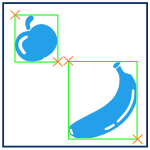
Locate trained object classes and mark them with a bounding box that is oriented parallel to the coordinate axes. |
Use this deep learning method if you want to find and classify objects, but are not interested in the orientation of said objects. With this method, you can save time on labeling because the axis-aligned bounding boxes are less complex to work with. Axis-aligned object detection is particularly suitable for objects whose shape can be easily enclosed by an axis-aligned rectangle, such as bottle caps. |
|
oriented object detection
|
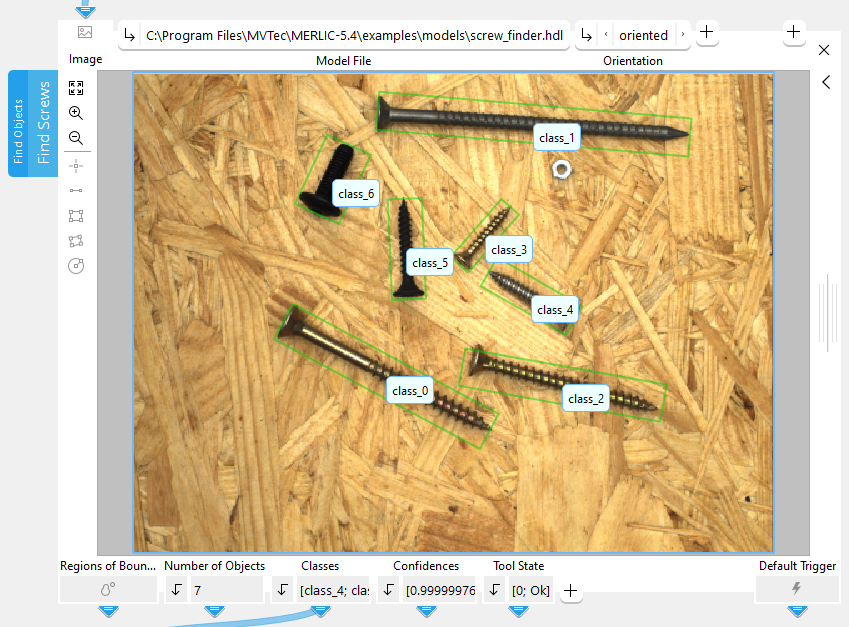
Locate trained object classes and mark them with a bounding box that is oriented in any direction. |
Use this deep learning method if you are not only interested in the location of the detected objects but also in their orientation. With this method, you need more time for labeling because the oriented bounding boxes are more complex to work with. If you use this method, your results will be more accurate. Oriented object detection is particularly suitable for tilted objects whose shape cannot be optimally enclosed by an axis-aligned rectangle, such as diagonally lying pencils. |

For more information on how to create the object detection model, please refer to the documentation of the MVTec Deep Learning Tool. While it is also possible to use MVTec HALCON to train the object detection model, it is recommended to use the MVTec Deep Learning Tool.
If an object detection model file is available, you can immediately use it in this MERLIC tool.
Support of Artificial Intelligence Acceleration Interfaces (AI²)
MERLIC comes with Artificial Intelligence Acceleration Interfaces (AI²) for the NVIDIA® TensorRT™ SDK and the Intel® Distribution of OpenVINO™ toolkit. Thus, you can use AI accelerator hardware as processing unit that is compatible with the NVIDIA® TensorRT™ or the OpenVINO™ toolkit to perform optimized inference on the respective hardware, e.g., NVIDIA® GPUs or hardware supporting the OpenVINO™ toolkit such as CPUs, Intel® GPUs, and Movidius™ VPUs. This way, you can achieve significantly faster deep learning inference times. The respective hardware can be selected at the tool parameter "Processing Unit".
Prerequisites
NVIDIA® GPUs and CPUs with support of the OpenVINO™ toolkit can be used immediately after the installation of MERLIC. There is no additional installation or setup required.
To use Intel® GPUs and VPUs with the OpenVINO™ toolkit as processing unit, the following prerequisites apply:
- You first have to install the Intel® Distribution of OpenVINO™ toolkit.
- You have to start MERLIC in an OpenVINO™ toolkit environment.
For more detailed information on the installation and the prerequisites, see the topic AI² Interfaces for Tools with Deep Learning.
Parameters
Basic Parameters
Image:
This parameter represents the image in which objects should be detected.
Model File:
This parameter defines the HALCON deep learning model (.hdl file format) that should be used for detecting objects. By default, no model is defined. However, it is necessary to define a deep learning model to use this tool.
While it is also possible to use MVTec HALCON to train the object detection model, it is recommended to use the MVTec Deep Learning Tool.
This tool only supports deep learning models that were trained with the default values for the following preprocessing parameters:
- NormalizationType = "none"
- DomainHandling = "full_domain"
Orientation:
This parameter allows you to specify the orientation that determines the resulting bounding boxes. Your choice impacts the results "X", "Y", and "Angles". These results return the data that are needed to determine the spatial orientation of your objects.
If you train your object detection model with the MVTec Deep Learning Tool, you can choose whether you train your model with axis-aligned bounding boxes or oriented bounding boxes. If you have trained your object detection model with oriented bounding boxes, this parameter provides the option to align the bounding boxes axis-aligned. However, if you have trained your object detection model with axis-aligned bounding boxes, it is not possible to align the bounding boxes oriented.
By default, the parameter is set to "axis-aligned".
|
Value |
Description |
|---|---|
|
axis-aligned |
The bounding boxes are provided as axis-aligned rectangles. |
|
oriented |
The bounding boxes are provided as oriented rectangles. If your object detection model has been trained using axis-aligned bounding boxes, this parameter value has no effect. |
Additional Parameters
Class Selector:
This parameter filters the results. You can choose between three different filter options. By default, the parameter is set to "all classes".
|
Value |
Description |
|---|---|
|
all classes |
The tool detects all available classes. |
|
only class <class name> |
The tool only detects the selected class. The selected class can be chosen out of all available classes. |
|
all w/o <class name> |
The tool detects all available classes except for the selected one. The selected class can be chosen out of all available classes. |
Maximum Number of Objects:
This parameter defines the maximum number of objects that can be detected by the deep learning model. You can use this parameter to override the respective value that was used during the training of the deep learning model.
The parameter is set to 0 by default. This means that the value used during the training will be used as maximum number of objects. To use a different value, enter the desired maximum number of objects into the input field of the parameter or use the slider to set the value. The slider can only be used to set values up to 20. If you want to find more than 20 objects, enter the value manually into the input field.
The objects will be sorted in order of their confidence values. If the number of objects in an image is higher than the value defined in this parameter, the objects with the lowest confidence will be excluded until the amount of detected objects matches the value defined in "Maximum Number of Objects".
In the result "Number of Objects", you can see how many objects were detected in an image.
Minimum Confidence:
This parameter determines the minimum confidence an object must reach in order to be detected. All objects with a confidence value that is lower than the defined "Minimum Confidence" are not detected. The parameter is set to 0.5 by default.
Overlap of Same Classes:
This parameter sets the maximum allowed overlap of detected objects of the same class. This means that if two objects of the same class overlap, and this overlap exceeds the value of the parameter "Overlap of Same Classes", the object with the lower confidence will not be detected. This is helpful if your object detection model finds several promising instances for the same object or if two of the same objects are very close to each other. The parameter is set to 0.5 by default.
Overlap of Different Classes:
This parameter sets the maximum allowed overlap of detected objects of different classes. This means that if two objects with different classes overlap and this overlap exceeds the value of the parameter "Overlap of Different Classes", the object with the lower confidence will not be detected. The parameter is set to 1 by default.
Processing Unit:
This parameter defines the device used for processing the images. The parameter is set to "auto" by default. In this mode, MERLIC tries to choose a suitable GPU as processing unit because it usually performs better than the CPU. The fallback for the auto mode is your CPU. However, you can also choose the processing unit manually. Click on the parameter to select the device from the list of all available processing units.
MERLIC also supports the use of AI accelerator hardware that is compatible with the NVIDIA® TensorRT™ SDK or the OpenVINO™ toolkit:
- NVIDIA® GPUs
- CPUs, Intel® GPUs, Intel® VPUs (MYRIAD and HDDL) with support of the OpenVINO™ toolkit
The respective devices are marked either with the prefix "TensorRT(TM)" or "OpenVINO(TM)". If you select a device that supports NVIDIA® TensorRT™ or the OpenVINO™ toolkit, the memory will be initialized on the device via the respective plug-in for the AI² interface.
As soon as an AI accelerator hardware has been selected as processing unit, the optimization of the deep learning model is started. After the optimization, all parameters that represent model parameters will be internally set to read-only. Thus, their values cannot be changed anymore as long as the selected AI accelerator is used as processing unit. To change the parameters, you first have to change the processing unit to a different one without any AI acceleration. After setting the parameters, you can set the processing unit back to the respective AI accelerator hardware.
CPUs with support of the OpenVINO™ toolkit can be used without any additional installation steps. They will be automatically available in the list of available processing units. If multiple processing units with the same name are available, an index number is assigned to their name. The same applies to GPUs with support of the NVIDIA® TensorRT™.
To use GPUs and VPUs with the support of the OpenVINO™ toolkit as processing unit, the Intel® Distribution of OpenVINO™ toolkit must be installed on your computer and MERLIC must be started in an OpenVINO™ toolkit environment. See the topic AI² Interfaces for Tools with Deep Learning for more detailed information on the prerequisites.
Precision:
This parameter defines the data type that is used internally for the optimization of the deep learning model for inference, i.e., it defines the precision to which the model is converted to. It is set to "high" by default.
The following table shows the model precisions which are supported in this tool.
|
Value |
Description |
|---|---|
|
high |
The deep learning model is converted to a precision of "float32". |
|
medium |
The deep learning model is converted to a precision of "float16". |
Most processing units support both types of precisions. However, there might be some processing units that support only one of these precisions. In this case, only the supported precision will be available at the parameter as soon as the respective device has been selected at the parameter "Processing Unit". If the processing unit is selected automatically, i.e., if "Processing Unit" is set to "auto", only the precision "high" is available.
Results
Basic Results
Regions of Bounding Boxes:
This result returns the bounding boxes of the detected objects as regions.
Number of Objects:
This result returns the number of detected objects regardless of their class.
Classes:
This result returns the class names of all detected objects. They are returned as a tuple in order of their confidence. It contains the same number of strings, i.e., classes, as the value of the result "Number of Objects".
Confidences:
This result returns a numeric value that indicates how likely the detected objects belong to the classes assigned to them. If the parameter has the value 1, the found object matches the trained class with an accuracy of 100%. If more than one object is found, the corresponding confidences are returned as a tuple in order of their confidence.
Tool State:
"Tool State" returns information about the state of the tool and thus can be used for error handling. Please see the topic Tool State Result for more information about the different tool state results.
Additional Results
Contours of Bounding Boxes:
This result returns the bounding boxes of the detected objects as contours.
X:
This result contains the X coordinates of the center points of the bounding boxes of all the detected objects. They are defined in pixels and returned as a tuple in order of their confidence. It contains the same number of X coordinates as the value of the result "Number of Objects".
Y:
This result contains the Y coordinates of the center points of the bounding boxes of all the detected objects. They are defined in pixels and returned as a tuple in order of their confidence. It contains the same number of Y coordinates as the value of the result "Number of Objects".
Angles:
This result returns the angles of the detected objects' bounding boxes. They determine how much and in which direction the bounding boxes are rotated. The angles are returned in degrees as real numbers and as a tuple in order of their confidence. The tuple contains the same number of angles as the value of the result "Number of Objects".
|
Value |
Description |
|---|---|
|
0 |
The rectangle is not rotated. |
|
1 to 180 |
The rectangle is rotated in counterclockwise direction. |
|
−1 to −180 |
The rectangle is rotated in clockwise direction. |
This result only returns angles if the deep learning model that is used for object detection has been trained with oriented bounding boxes and if the parameter "Orientation" is set to "oriented". If you are working with axis-aligned bounding boxes, the result returns the values "0.0".
Used Processing Unit:
This result returns the processing unit that was used in the last iteration. You can use this result to check which processing unit was actually used if the parameter "Processing Unit" is set to "auto" or to check that the correct one was used.
Precision Data Type:
This result returns the data type that was used internally for the optimization of the deep learning model for inference. You can use this result to check if the correct precision was used in case any problems occur.
If the parameter "Precision" is set to "high", the deep learning model should be converted to a precision of "float32". Therefore, this result is expected to return the data type "float32". If the parameter "Precision" is set to "medium", the deep learning model should be converted to a precision of "float16". In this case, the expected value for this result is the data type "float16". In case any problem occurred during an iteration of your MVApp, you could check if this result returns a different data type than expected and also have a look at the log file for more information. See the topic Logging for more information about the log files.
Processing Time:
This result returns the duration of the most recent execution of the tool in milliseconds. The result is provided as additional result. Therefore, it is hidden by default but it can be displayed via the  button beside the tool results. For more information see the section Processing Time in the tool reference overview.
Application Examples
This tool is used in the following MERLIC Vision App examples:
- find_and_count_screw_types.mvapp