Monitoring the Events and the Current State
The OPC UA server uses OPC UA events to provide information about the system. If your client supports them, it is highly recommended to listen to the events, e.g., the "ResultReady" event, or the current status as its the best approach get information whether new results are available or if the vision system is ready for the next operation. Please refer to the topic Getting Results from the OPC UA Server for more detailed information about the different ways to get the results of the execution.
You can also monitor and listen to other types of events on the server in the same way. This might be useful for "Error" events that send an alarm if the system encounters a problem and a user interaction is required, e.g., if the requested recipe was not found. It can also be useful to monitor transitions from one state to another.
Monitoring the Events
In OPC UA clients, events are displayed with the suffix "EventType", e.g., if you want start monitoring the "ResultReady" event, you have to look for "ResultReadyEventType" in the client. The following step-by-step instructions show the procedure to monitor an event in UaExpert®.
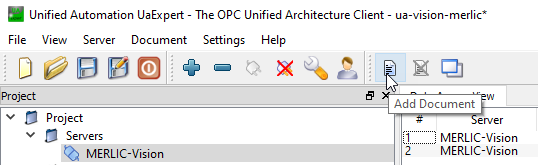
- Open the "Event View" tab by clicking on the "Add Document" icon in the tool bar.
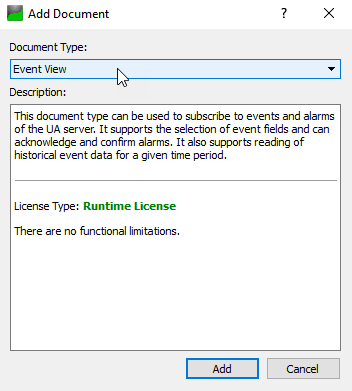
- Set the "Document Type" in the "Add Document" window to "Event View" and click "Add" to confirm your selection.
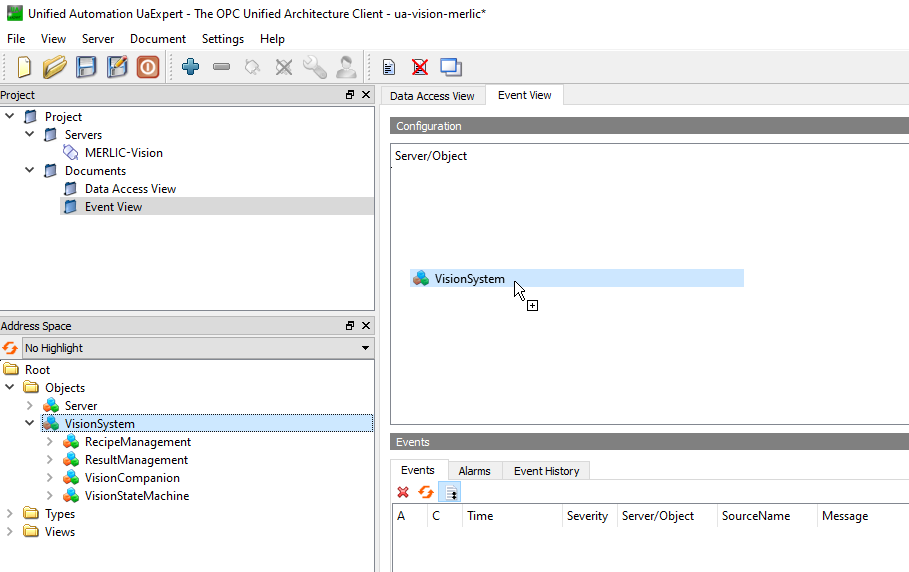
- To create the event hierarchy, i.e., to get the events, you first have to drag-and-drop the "VisionSystem" object into the "Event View" tab.
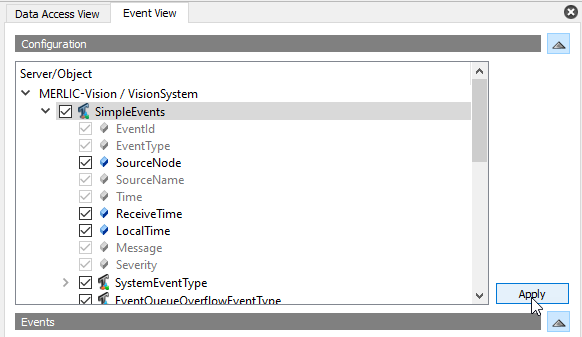
- Select the check box for "SimpleEvents" to receive all events of this category from the server and click the "Apply" button. This subscribes all events that are generated by the "VisionSystem", e.g., "ResultReady", "StateChanged", or "JobStarted". For the final production, you should select only the events that are truly required to avoid that each type of event is queried. The selected events can now be monitored in the "Events" section of the "Event View" tab.
- Click on a specific event to see detailed information about this event, i.e., the parameter of the selected event, in the "Details" section of the "Event View" tab.
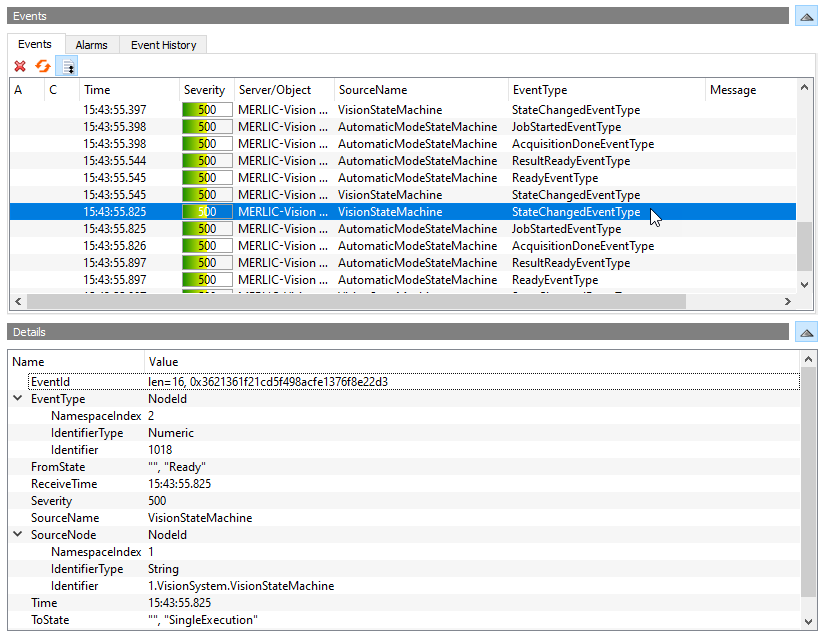
Available System Events
Supported events by the OPC UA server are:
- AcquisitionDone
- JobStarted
- Ready
- RecipePrepared
- RecipeUnprepared
- ResultReady
- StateChanged
To get more information of the events, please refer to the topic Available Events in the Communicator reference documentation.
In addition, the server also supports alarms and conditions. These are special events that provide information about possible errors in the vision system. They must be acknowledged by the client before they disappear.
|
Event |
Description |
|---|---|
|
VisionPersistentErrorCondition |
This event is triggered if a critical error occurs. The vision system will stop responding and a user interaction will be required. The vision system will typically transition to the "Error" state if it is still able to do so. |
|
VisionErrorCondition |
This event is triggered if non-critical errors occur. The vision system will typically not transition to the "Error" state. However, it is possible that an automatic transition to another state takes place or that the expected transition does not take place. |
|
VisionWarningCondition |
This event is triggered if a warning occurs. Warnings are emitted to inform the user about certain anomalies in the execution of a command or action but that were not severe enough to cause it to fail. The vision system will typically execute the same state transitions which would be expected for execution without any warnings or errors. |
Monitoring the Current State
There are different ways to check and monitor the current state of the vision system. You can use the "CurrentState" variables of the "VisionStateMachine" or the "CurrentState" variable of the "SystemInfo" object provided by the "VisionCompanion". The following sections describe the different methods to monitor the current state.
For more general information about the available MERLIC states, refer to the topic MERLIC States in the MERLIC manual.
Monitoring the Current State via the "VisionStateMachine"
It is recommended to monitor the "CurrentState" variables to get information when MERLIC changed its state. Depending on the monitoring settings in the client, you can get an immediate update on any state changes. If your client supports OPC UA events, you can also subscribe to the "StateChanged" event to get immediate updated events instead of depending on the variable settings.
- Drag-and-drop the variable "CurrentState" of "VisionStateMachine" to the "Data Access View" window.
- Repeat this with the variable "CurrentState" of "AutomaticModeStateMachine". The current state of the vision system can then be checked in the "Statuscode" attribute.

In the example image above, the "CurrentState" variable of the "VisionStateMachine" is "Halted" because no vision system, i.e., MERLIC, is running in the background yet.
When you first initialize the OPC UA server while MERLIC has not been started yet, the state of the "VisionStateMachine" will start "Preoperational" and then transition into “Halted”. While MERLIC is not running, any method call results in a server timeout. Once MERLIC is running in the background in process integration MERLIC can be used in machine vision systems that are integrated in a manufacturing machine. The machine controller, e.g., a programmable logic controller (PLC), must be able to control an integrated vision system, to monitor the execution, and to query the results. Therefore, MERLIC provides an interface to enable the communication with a machine controller. MERLIC PI makes use of the Image Source Management. mode, the "VisionStateMachine" will transition into the "Operational" state and the "VisionAutomaticStateMachine" will become activated. This is signaled by the change of the status code of the "CurrentState" variable from "BadStateNotActive" to "Good". At this point the OPC UA server is ready to start taking commands from the client.
The basic framework of the internal MERLIC states is based on the vision state machine that is specified in the OPC UA for Machine Vision - Part 1 companion specification. The states and transitions that are provided in MERLIC are adopted from the OPC UA standard. However, the base information model has been expanded to integrate additional MERLIC features like the "FrontendAccessMode". When requesting exclusive write access via the Frontend, the OPC UA Server will transition into the "Preoperational" state and then into the "FrontendAccess" state in the "FrontendAccessModeStateMachine" object. In the "FrontendAccess" state all output events are stopped and all methods in the server are set to be not executable until the user releases the write access in the Frontend.
Monitoring the Current State via the "VisionCompanion"
The "SystemInfo" object of the "VisionCompanion" provides a "CurrentState" variable which can be monitored to get information when MERLIC changed its state. It displays the currently effective state of the vision system considering all state machines and substate machines. Therefore, it is not needed to monitor the individual "CurrentState" variables of each state machine or to monitor the "StateChangedEventType" when using the "VisionCompanion". Depending on the monitoring settings in the client, you can get an immediate update on any state changes.
- Click on the arrow next to the "CurrentState" variable of the "SystemInfo" object to display its properties.
- Drag-and-drop the "Name" node of the "CurrentState" variable to the "Data Access View" window. The current state of the vision system will be displayed in the "Value" column of the "Data Access View" panel.

Alternatively, you can also check the current state in the "Attributes" panel.
- Select the "CurrentState" variable of the "SystemInfo" object in the "Address Space".
- Go to the "Attributes" window and check the value of the "Name" attribute.
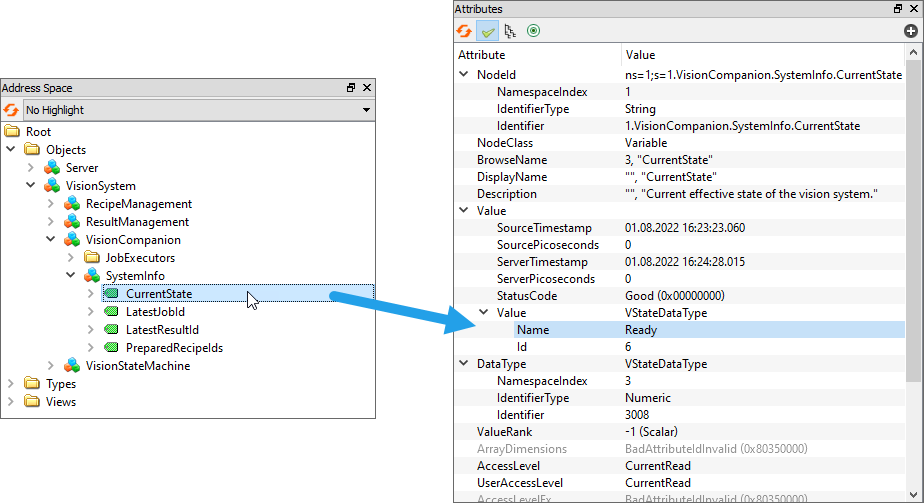
The "CurrentState" variable of the "SystemInfo" object is a struct with two components: a string with the name of the state and an integer with the state number ID. The state names and IDs that can be displayed in this variable are the following:
|
State |
ID |
|---|---|
|
Preoperational |
1 |
|
Halted |
2 |
|
Error |
3 |
|
Initialized |
5 |
|
Ready |
6 |
|
SingleExecution |
7 |
|
ContinuousExecution |
8 |
|
FrontendAccess |
100 |