Setting Up the Connection to the PLC
The connection between MERLIC and the SIMATIC S7 PLC needs to be configured in TIA Portal - SIMATIC STEP 7, the PLC engineering software of Siemens.
In the following, we describe which settings are required to enable the connection between MERLIC and the PLC.
For our documentation, we make use of SIMATIC STEP 7 v18. If you are using a different version of SIMATIC STEP 7, the user interface and parameter names might differ from the ones that are visible in our example images. For information on SIMATIC STEP 7 in general, its features, and how to work, program and monitor SIMATIC PLCs, please refer to the website of Siemens.
Setting the PLC Parameters for the Connection
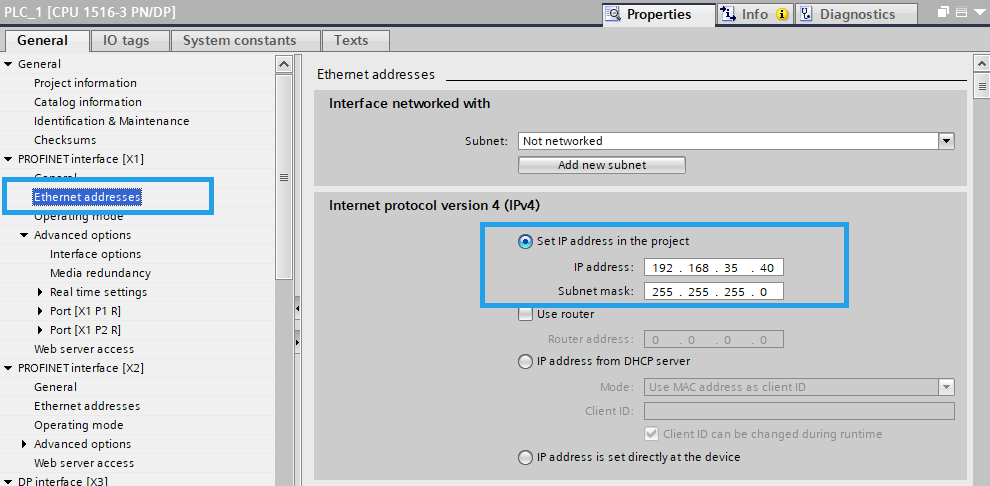
- Open the PLC "Device Configuration" in the SIMATIC STEP 7 project, go to the "Properties", and set the Ethernet settings which includes the IP address of the device in the "PROFINET interface" section of the desired port of the PLC.
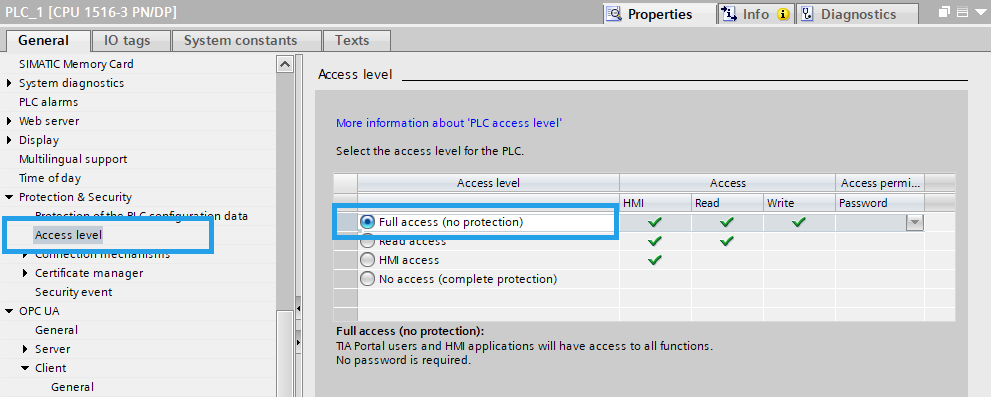
- Open the "Protection & Security" section and select "Access Level". Then, make sure the "Full access (no protection)" is selected.
-
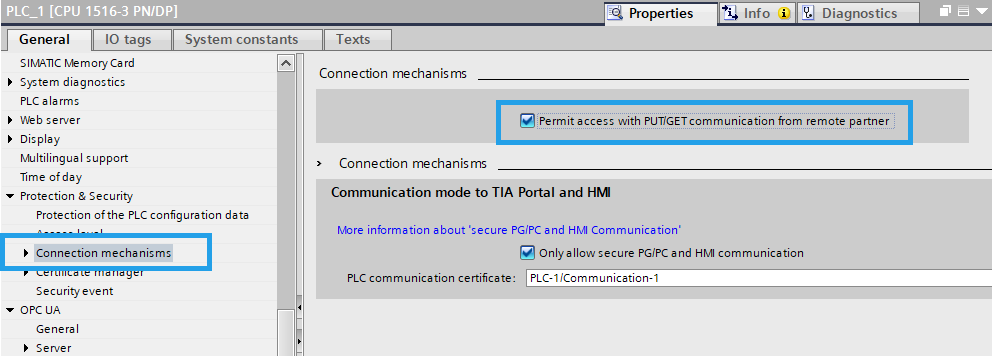
Open the "Connection mechanisms" settings in "Protection & Security" and enable "Permit access with PUT/GET communication from remote partner".
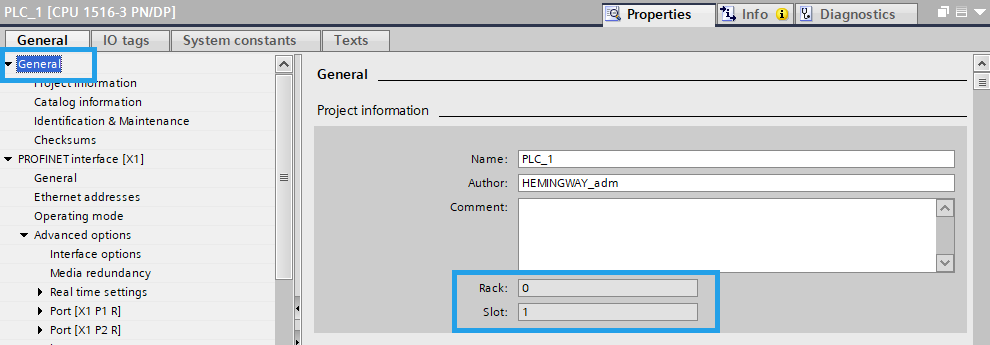
- Open the "General" section and take note of the rack and slot number that is assign to the PLC.
By default, Siemens always utilizes the port 102 for the SIMATIC S7 communication. This value is not editable in the PLC or the plug-in configuration and must be allowed in the firewall settings.
TIA Portal - SIMATIC STEP 7 and the plug-in use the same protocol and port to communicate with the PLC. Thus, if the plug-in is running and SIMATIC STEP 7 is in "Online" mode with the PLC, the communication will be slower and even stop working correctly.
To get information on the configuration of the SIMATIC S7 plug-in and the parameters for the IP address and the port that need to be set accordingly, see the description of the user parameters category Connection Details in the topic Configuring the Plug-in.
If all PLC parameters have been set, you can proceed with the setup of the PLC program, for example, importing the "gMV_Tags" file, setting up the Ethernet parameters for the connection to the PLC, and implementing the PLC program. At last, you can start using the SIMATIC S7 plug-in.