Start Dialog
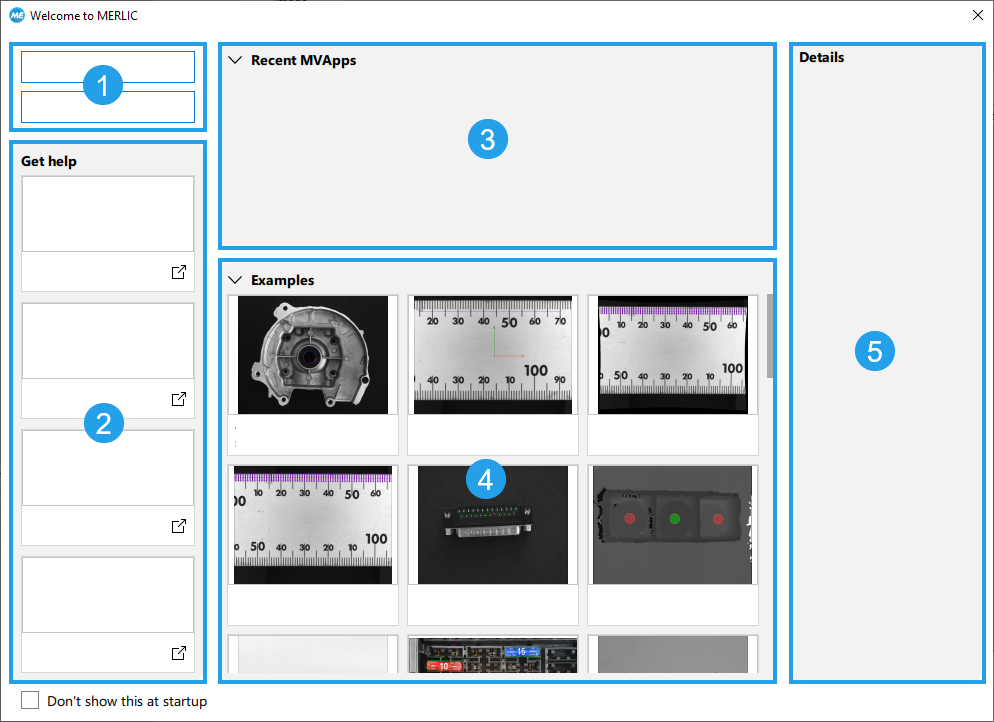
Upon startup of the MERLIC Creator the start dialog appears. It provides quick access to introductory material and documentation as well as the possibility to either opening a new MVApp, opening an already existing MVApp, or getting further information about existing MVApps.
Once you have closed the start dialog, it is possible to reopen it via the "Help" menu in the MERLIC Creator.
 Getting To Work
In this area of the start dialog, you can find two possibilities to directly get to work by either opening a new MVApp or by browsing for an already existing MVApp. Both of these actions can also be executed via the "File" menu of the MERLIC Creator.
 Getting Help
In this area of the start dialog, you can access the documentation of MERLIC as well as further auxiliary information and trainings such as the MVTec Academy, the digital learning platform of MVTec, and the MERLIC tutorial videos. Clicking any of the links will open a browser window. You can also access the documentation via the "Help" menu of the MERLIC Creator or by clicking "F1".
 Recent MVApps
In this area of the start dialog, you can find up to ten MVApps that were most recently used. This includes both your own MVApps as well as the MVApp examples provided by MERLIC. If an MVApp has been deleted, it will no longer be visible in the start dialog. You can also access recently opened MVApps via the "File" menu of the MERLIC Creator.
 Examples
In this area of the start dialog, you can find all MVApp examples that are provided by MERLIC. You can use them to get to know the basic concepts and common functions of MERLIC. You can also adapt them for your own purposes. Alternatively, you can access the MVApp example directory via the "File" menu of the MERLIC Creator or through the installation directory.
 Details
In this area of the start dialog, you can find more information about the MVApp that is selected either in the area "Recent MVApps" or "Examples":
- Preview image that represents the MVApp, if available
- Name of the MVApp
- Additional information about the MVApp, if available
- Latest edit of the MVApp
- Path of the MVApp
Both the preview image and the additional information have to be defined manually via the "Preview Settings". For more information on the "Preview Settings" and on how to define a preview image or additional information see the topic Defining a Preview for a MERLIC Vision App.
If a preview image has been defined, it is visible both in the area "Details" and in the area "Recent MVApps". If none was defined, a placeholder image is used instead.
If additional information has been defined, it can be viewed either in the area "Details" or by hovering over the  icon in the upper right corner of the preview image in the area "Recent MVApps". If no additional information has been defined, the "Info" section in the "Details" area remains empty and no icon is displayed.
Personalizing the Start Dialog
By default, the start dialog is enabled. However, if you would like to disable it, you can do so by checking the checkbox at the bottom left of the start dialog. If you would like to reopen the start dialog after closing or disabling it, you can always do so by accessing it via the "Help" menu of the MERLIC Creator.
You can further personalize your start dialog by collapsing and unfolding the areas "Recent MVApps" and "Examples" as well as moving the splitter between the two areas.
If you change any of these elements, the change is preserved and saved in your MERLIC .ini file. You can read more about the MERLIC .ini file in the topic The MERLIC .ini File.