Viewing and Activating Acquisition Sequences
Acquisition sequences define the way MERLIC will acquire images from the configured image sources. By default, starting from the primary parameter set, one image is acquired from each image source, in parallel, for each execution of the MVApp. This behavior is referred to as the "base sequence".
More complicated acquisition scenarios can be realized using so-called "custom sequences": acquiring multiple images from the same camera, synchronization between different image sources, or setting individual camera parameters during the execution of the acquisition sequence. There is currently no graphical way of configuring custom acquisition sequences. If the full flexibility afforded by custom sequences interests you, contact MVTec Support to request more information.
In addition, so-called managed acquisition sequences are automatically defined when you save alternative parameter sets for your image sources. For more information on parameter sets and their relation to managed sequences, see Saving Parameters of Cameras or Peripheral Devices.
Viewing the Available Acquisition Sequences
For simplicity, the overview of the acquisition sequences is only shown when at least one acquisition sequence is available in addition to the base sequence. This is the case when custom sequence files have been manually placed in the configuration directory or when alternative parameter sets have been saved for at least one of the image sources in the configuration. The sequence overview will then appear on the bottom of the page when selecting the configuration on the left of the "Image Sources" tab.
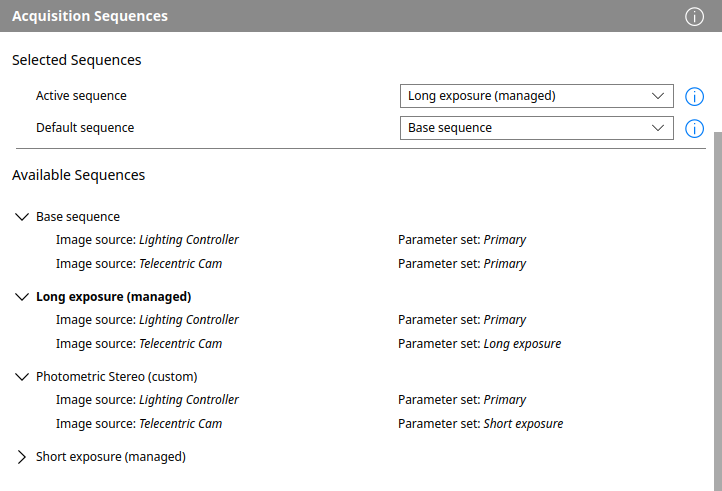
The available acquisition sequences are listed as rows at the top level of a tree view. Each sequence has an arrow button next to it which allows you to collapse or expand it; this is just a matter of visualization. All acquisition sequences are listed, including the "Base sequence" at the top. The other sequences are indicated as either "managed" or "custom" in parentheses. The active sequence is set in bold font. If a sequence has any issues that prevent it from being used or would otherwise affect its usage, an error or warning icon is shown towards the end of each affected sequence. You can hover those icons to learn more about the specific issue in a tooltip.
Below each sequence, the image sources used by that sequence are listed. For the base sequence or any managed sequences, this will always correspond to the full set of image sources in the configuration and is automatically kept up-to-date when adding or removing image sources. For custom sequences, it is up to the sequence author to define which image sources are to be used. This can be a subset of those available in the configuration, or it can even refer to image source which have not (yet) been added to the configuration. In the latter case, such a custom sequence would shown a corresponding issue.
For each of the image sources used by a sequence, the right-hand column will indicate the corresponding parameter set. The base sequence will always use the primary parameter set for each image source. To understand how the presence of alternative parameter sets affects the corresponding managed sequences, see the section Relation between Parameter Sets and Acquisition Sequences. For custom sequences, an alternative parameter set can be freely specified for each image source used; if it doesn't exist, this will result in an issue.
Activating an Acquisition Sequence
Above the overview of the available sequences, two combo boxes let you choose the currently active and the default sequence. The entries in each combo box correspond to the list of acquisition sequences.
When choosing a different active sequence, it will be activated. This means that for all the image sources used by the sequence, the given parameter set will be loaded into the corresponding device. This will discard any unsaved changes to the devices' current parameters. Depending on the number of devices, their types and the manufacturers, this can typically take anywhere from a few milliseconds to several seconds.
Once a sequence has been activated, it will be executed when MERLIC acquires images for the execution of an MVApp. There is only an active sequence when the configuration is itself active.
When using MERLIC RTE, the preparation of a recipe will cause the activation of the sequence specified by the recipe. Even if a recipe does not explicitly specify a sequence by name, the default sequence will be activated instead. This ensures that when using MERLIC RTE in production, the active acquisition sequence fits the recipe's demands and will always be executed starting from the established parameter sets.
Setting the Default Acquisition Sequence
Directly below the combo box for the active sequence sits one that allows you to choose a default sequence. Unlike the active sequence, a default sequence can be chosen regardless of whether the configuration is active.
The default sequence serves two purposes:
When the configuration is activated, the default sequence is activated along with it.
In MERLIC RTE, when preparing a recipe that does not specify an acquisition sequence explicitly, the default sequence is activated instead.