Importing MERLIC Recipes
This section describes how to import or remove recipe files A MERLIC recipe file is a crucial part for the MERLIC process integration. It is a separate file (with file ending .mrcp) that defines which MERLIC Vision App is loaded for the process integration. It also defines how the MVApp is parametrized because it contains a set of pre-defined input values for selected tool parameters. You can create multiple recipe files with individual sets of input values for one and the same MVApp. This enables you to reuse an MVApp with different parameter settings for various scenarios of your application. You can also use a recipe file to load an MVApp for a completely different image processing task. to or from the "Recipes" tab, change their ID, and set default recipes. Recipes that have not been imported to the "Recipes" tab are not available for the MERLIC process integration MERLIC can be used in machine vision systems that are integrated in a manufacturing machine. The machine controller, e.g., a programmable logic controller (PLC), must be able to control an integrated vision system, to monitor the execution, and to query the results. Therefore, MERLIC provides a process integration mode to enable the communication with a machine controller. The process integration mode can be started with the application "MERLIC RTE" that is provided with the MERLIC installation.. Therefore, it is mandatory to import the desired recipes before starting MERLIC in process integration mode. For more information about creating recipes refer to the topic Creating a MERLIC Recipe.
If you are using a camera device with GenICam compliant digital I/O channels and want to provide multiple recipe files for the process integration, you have to make sure that all referenced MERLIC Vision Apps acquire the images via the new Image Source Manager instead of the deprecated Acquire Image from Camera tool. Otherwise, MERLIC cannot be started in process integration mode.
Importing Recipes
- Open the MERLIC RTE Setup as described in the topic Opening the MERLIC RTE Setup.
- Click on the "
 Recipes" tab.
 - Click on "
 Import" to open the file selection dialog. If you want to import and check one of the provided example recipes, you can also click on "Import example recipes".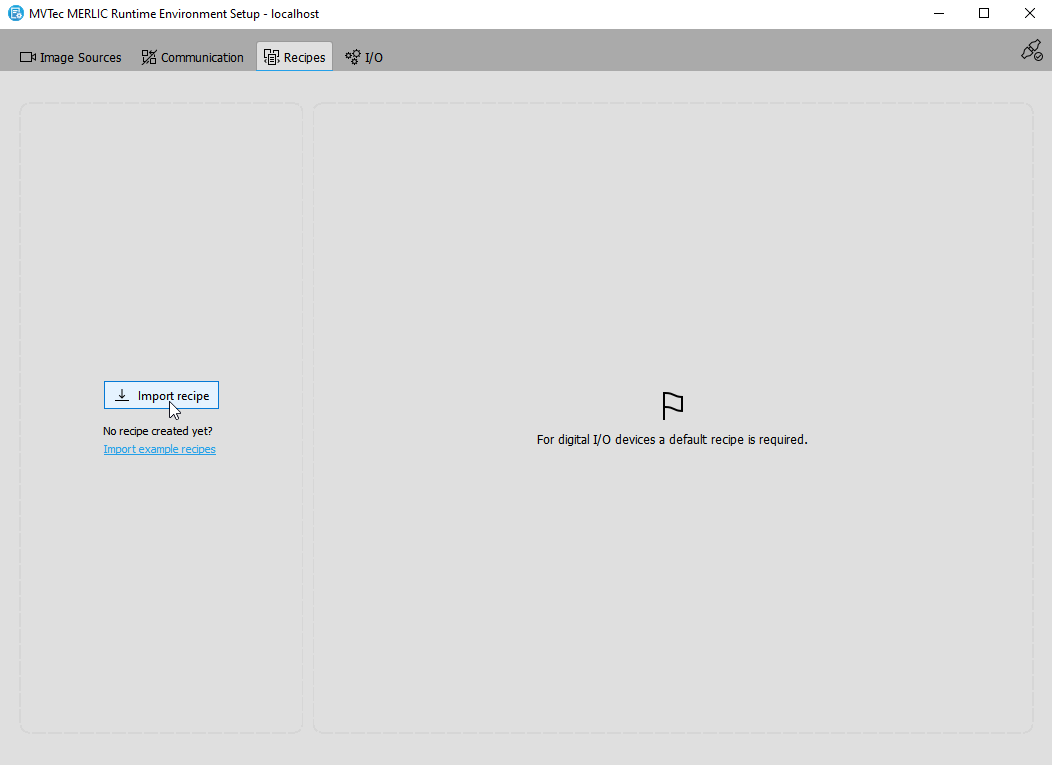
- Select one or multiple recipe files for the import and confirm with the button "Open".
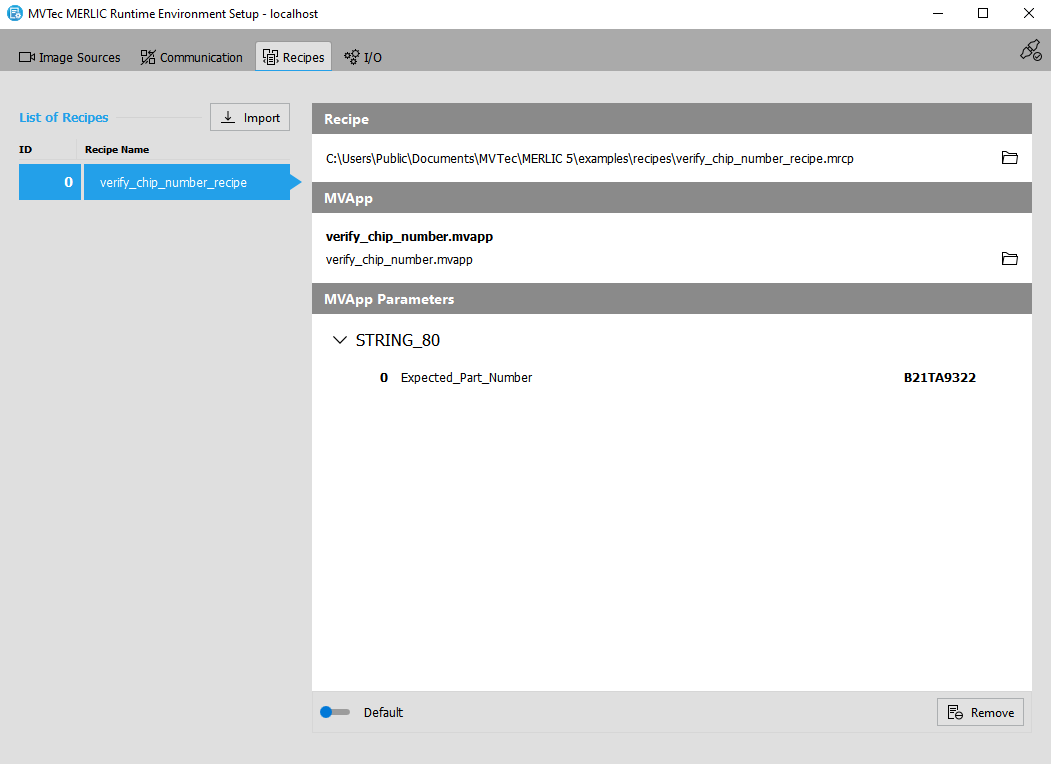
- The selected recipes are now imported and visible in the recipe management of the MERLIC RTE Setup.
All recipe files that have been imported in the "Recipes" tab must be valid. Otherwise, an error is returned while launching MERLIC process integration. A recipe file is valid if the referenced MERLIC Vision App exists and the number of MVApp parameters is equal to the number of input values that are defined in the recipe file. Therefore, if you edit the MVApp parameters An MVApp parameter represents a basic or an additional parameter in a MERLIC Vision App which can be modified via a recipe file when using MERLIC process integration. You can define a tool parameter as an MVApp parameter in the MERLIC Creator. The panel "MVApp Parameters and Results" shows a list of all MVApp parameters that are currently defined. of an MVApp or move the MVApp to a different location, you have to make sure to update all recipe files in which the MVApp is referenced.
The MERLIC RTE Setup displays detailed information for each imported recipe file. See the topic Checking the Contents of a Recipe to check which information is provided.
Removing Recipes
If you have no need for a specific recipe anymore, you can remove it from the list in the MERLIC RTE Setup. You can re-import the recipe at any time.
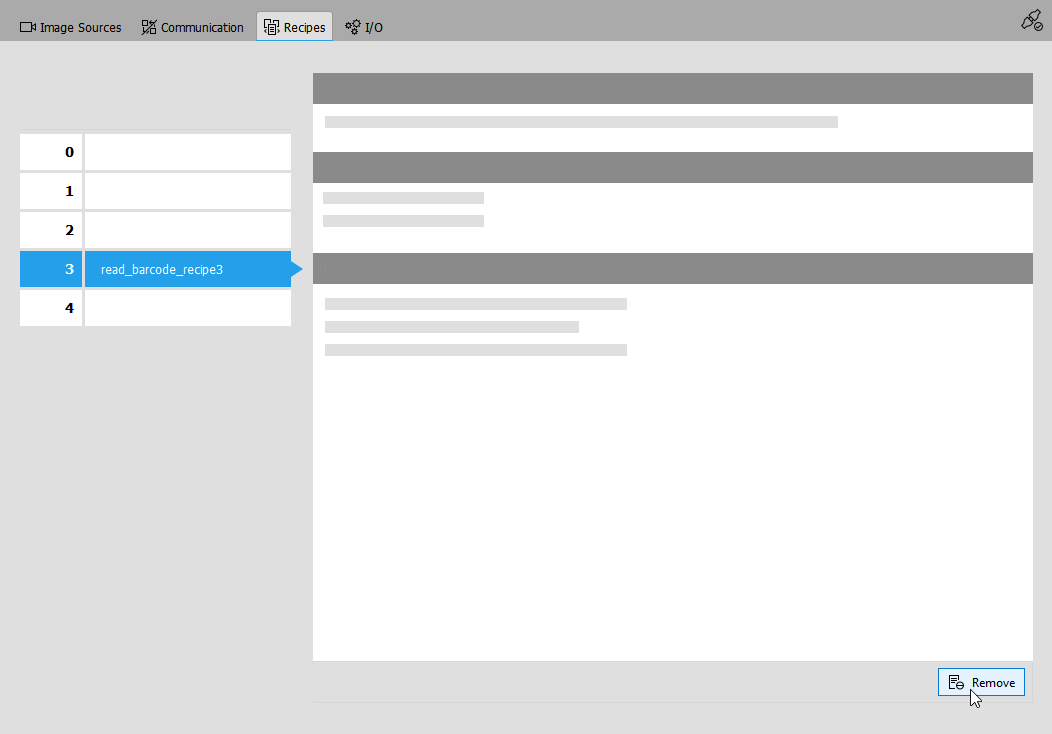
- Select the recipe you want to remove.
- Click on "
 Remove" at the bottom right of the "Recipes" tab.