Recognize Color
Use this tool to recognize one or multiple colors based on pre-defined classes of colors. The color recognition with this tool is robust against illumination changes.
This tool is used with a training mode. This means that first a training is performed based on training images defining classes of colors and the training parameters. After the training, the colors can be checked within one or multiple search areas in the image. These search areas can be defined by detection regions or regions of interest (ROIs).
This tool can be used only with color images. It is not possible to recognize gray values with this tool.
The input images of the tools are converted internally to the YUV color space. The training and color recognition are then applied on the U and the V channels of the images. Therefore, it is not possible to recognize gray values with this tool.
The training area is located on the left of the Tool Board. It enables you to switch between the processing mode for the color recognition and the training mode. The graphics window will display the image of the currently active mode which is highlighted in blue in the training area. In addition to the search parameters on the top left, the tool provides further parameters for the training on the top right of the tool. See the topic Working with the Training Mode to learn more about how to work with tools that require a training.
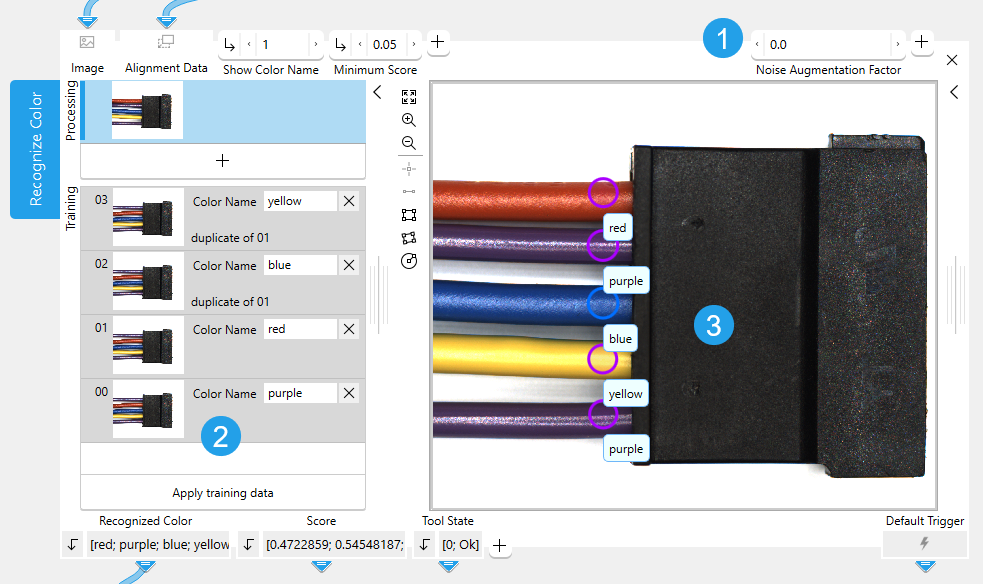
 Training parameters
 Training area
 Graphics window
Shown Images
The training section shows the processing image and the training images.
- The processing image: the current "Image" received from a previous tool.
- Training images: the images that are used for the training.
Training
For the training, you first have to define the colors to be checked and adjust the training parameters accordingly. It is also possible to define multiple classes of colors. In this case, you have to add a training image for each color. After performing the training, you can check the results and make further adjustments if required.
Defining the Colors and Performing the Training
- Add a training image that shows the color to be checked via the
 button or via the shortcut F3.
 - Enter a name for the color to the training image. You can use any name of your choice.
- In the training image, draw an ROI over the area in which the desired color is visible. To get a better variation range of the color, more than one ROIs can be trained. However, we recommend drawing the ROIs only over areas in which only one color is visible. The ROIs should not contain multiple colors.
- If you want to recognize further colors, add a new training image and proceed in the same way as for the first training image. You can repeat this for each color you want to verify in your images. In some cases, it may be beneficial to use multiple training images for a color.
- Click "Apply training data" to perform the training.
- To check if the current settings work fine for the color recognition, define the search areas and check the results as described in the next section.
Defining the Search Areas and Checking the Results
If you defined the colors to be recognized in the training images and applied the training data, you can check the trained model as follows:
- Change to the processing mode by clicking on the processing image on the left. The current processing image will then be displayed in the graphic window.
- Use ROIs to define the search areas for the color recognition in the image. You have to draw an ROI over each area where you want to check the color. You can also use ROIs or regions of a previous tool to define the search area. For this, you have to connect the desired region or ROI result of the previous tool to the "Detection Region" or "Detection ROI" parameter, respectively.
- Run the application with a series of images to check if the color recognition works as desired with the trained data.
- The names and scores of the recognized colors are returned in the results "Recognized Color" and "Score". If no color could be recognized in a search area, it is labeled as "unknown".
- By default, the names of the recognized colors are also displayed in the image next to the respective ROI.
- If necessary, make some adjustments at the search parameters or training parameters. Keep in mind that you have to perform the training anew if you adjusted a training ROI or a training parameter.
Parameters
Basic Parameters
Image:
This parameter represents the color image in which the colors are checked.
Show Color Name:
This parameter defines if the names of the recognized colors are displayed next to the respective ROIs in the image. It can be set to either 1 or 0. By default, it is set to 1 which means that the color names are displayed. To disable the visualization of the names, set the parameter to 0.
Additional Parameters
Detection Region:
This parameter can be used to connect a region of a previous tool. The image part within the connected region will then be used as search area for the color recognition during the processing. The connected region can be used in addition to any ROIs that are used for the processing.
Detection ROI:
This parameter can be used to connect regions of interest (ROIs) of a previous tool. The image parts within the connected ROIs will then be used as search areas for the color recognition during the processing.
If this parameter is connected to a previous tool, only the connected ROIs will be used for the processing. Any ROIs that have been drawn directly into the image using the ROI buttons will be removed.
Alignment Data:
This parameter represents the alignment data that are used to align the ROI. By default no alignment data are connected and thus no effect is visible. If you want to use specific alignment data, you have to connect the parameter to an appropriate result of a previous tool such as Determine Alignment with Matching, Determine Alignment with Straight Border, Align Image, or Rotate Image.
Minimum Score:
This parameter is a numeric value that defines a minimum threshold for the probability that the pixels in a search area belong to the assigned color. Thus, it defines how much the color in the search area must match the assigned color for it to be accepted. It also influences the calculation of the final score.
After checking the pixels within a search area, a specific color is assigned for this search area. Depending on the value defined for "Minimum Score", this color is either accepted or rejected for each pixel. The higher the minimum score the higher the probability that the assigned color is rejected and vice versa. Therefore, these individual evaluations of each pixel affect the final score for the entire search area together with the value defined for "Minimum Ratio of Classified Pixels". You can use this parameter to filter areas with low scores to be recognized as "unknown". However, if the value is set to 0, the respective search area is not returned as "unknown". Instead, one of the trained colors will be assigned.
The value is defined as a real number and set to 0.001 by default. You can change the minimum score at the corresponding connector to a value between 0 and 1.
Minimum Ratio of Classified Pixels:
This parameter defines the minimum proportion of pixels in the respective search area for which the assigned color must be accepted during the evaluation of each pixel. In contrast to the parameter "Minimum Score", which influences the color recognition for each individual pixel, this parameter influences the color recognition for the entire search area. Thus, it is used to determine whether the proportion of pixels for which the color was accepted is sufficient to accept the color for the entire search area.
The value is defined as a real number and set to 0.5 by default. This means that the color must be accepted for at least 50% of the pixels in the search area in order to be recognized. Otherwise, the color of the search area is labeled as "unknown".
If you want to know the actual proportions of the accepted pixels that were determined for the search areas, you can check the values returned in the result "Ratio of Classified Pixels".
Training Parameters
Basic Training Parameters
Noise Augmentation Factor:
This parameter defines how much noise is added to the pixels for the training. It can be used to extend the range of colors to be recognized and to receive a stronger color recognition.
The value is defined as a real number and set to 0 by default. This means that no noise is added during the training. You can change the value at the corresponding connector. We recommend using small values, up to a maximum of 100.
Results
Basic Results
Recognized Color:
This result returns the name of the color that was recognized for the specified search area. It is returned as a string. If no color could be recognized in a search area and "Minimum Score" is set higher than 0, it is labeled as "unknown".
If more than one search area has been specified, a tuple containing the respective color names is returned. In this case, the corresponding scores of the colors are returned in the result tuple of "Score" with the same index. For example, the first value returned in "Score" represents the score of the first color returned in "Recognized Color" and so on. The same applies to the result values with respect to the coordinates of the search area or the respective ratios of classified pixels.
Score:
This result returns the determined score for the recognized color in the search area, that is, a real number that indicates how much the color in the search area matches the recognized color. It is determined by the evaluation of each third pixel in the search area. The maximum possible value is 1.0. For search areas where no color could be recognized, a score of 0 is returned.
If more than one search area has been specified, the respective scores are returned in a tuple. In this case, the corresponding colors of the scores are returned in the result tuple of "Recognized Color" with the same index. For example, the first value returned in "Score" represents the score of the first color returned in "Recognized Color" and so on. The same applies to the result values with respect to the coordinates of the search area or the respective ratios of classified pixels.
Tool State:
"Tool State" returns information about the state of the tool and thus can be used for error handling. Please see the topic Tool State Result for more information about the different tool state results.
Additional Results
Ratio of Classified Pixels:
This result returns the ratio of classified pixels of the recognized color as a real number. If more than one search area has been specified, the respective ratios are returned in a tuple. In this case, the corresponding colors, scores, and coordinates of the search areas are returned in the respective results with the same index. For example, the first value returned in "Ratio of Classified Pixels" refers to the search area with the coordinates given by the first values of the "X" and "Y" results, and the first value returned in "Recognized Color" represents the name of the color that was recognized in that search area.
X:
This result returns the X coordinate of the search area used for the color recognition. The X and Y coordinates refer to the center of the search area. If more than one search area has been specified, the respective coordinates are returned in a tuple. In this case, the corresponding colors, scores, and ratios of classified pixels are returned in the respective results with the same index. For example, the first value in "Recognized Color" represents the name of the color that was recognized in the search area with the coordinates returned in the first values of the "X" and "Y" results.
Y:
This result returns the Y coordinate of the search area used for the color recognition. The X and Y coordinates refer to the center of the search area. If more than one search area has been specified, the respective coordinates are returned in a tuple. In this case, the corresponding colors, scores, and ratios of classified pixels are returned in the respective results with the same index. For example, the first value in "Recognized Color" represents the name of the color that was recognized in the search area with the coordinates returned in the first values of the "X" and "Y" results.
Processing Time:
This result returns the duration of the most recent execution of the tool in milliseconds. The result is provided as additional result. Therefore, it is hidden by default but it can be displayed via the button beside the tool results. For more information see the section Processing Time in the tool reference overview.
Application Examples
This tool is used in the following MERLIC Vision App examples:
- recognize_color_of_cables.mvapp