Configuring Communicator Plug-ins
The configuration of all types of Communicator plug-ins for the process integration can be adjusted in the "Communication" tab of the MERLIC RTE Setup. The list of plug-in instances on the left of the MERLIC RTE Setup shows all plug-in instances that have already been added to the MERLIC RTE Setup for the configuration. If the plug-in you want to configure is missing in the list, you have to add an instance of this plug-in via the "Add plug-in instance" button on the bottom left.
To get more information about the "Communication" tab in the MERLIC RTE Setup, see also the chapter Communication in the MERLIC manual.
Enabling the Configuration in the MERLIC RTE Setup
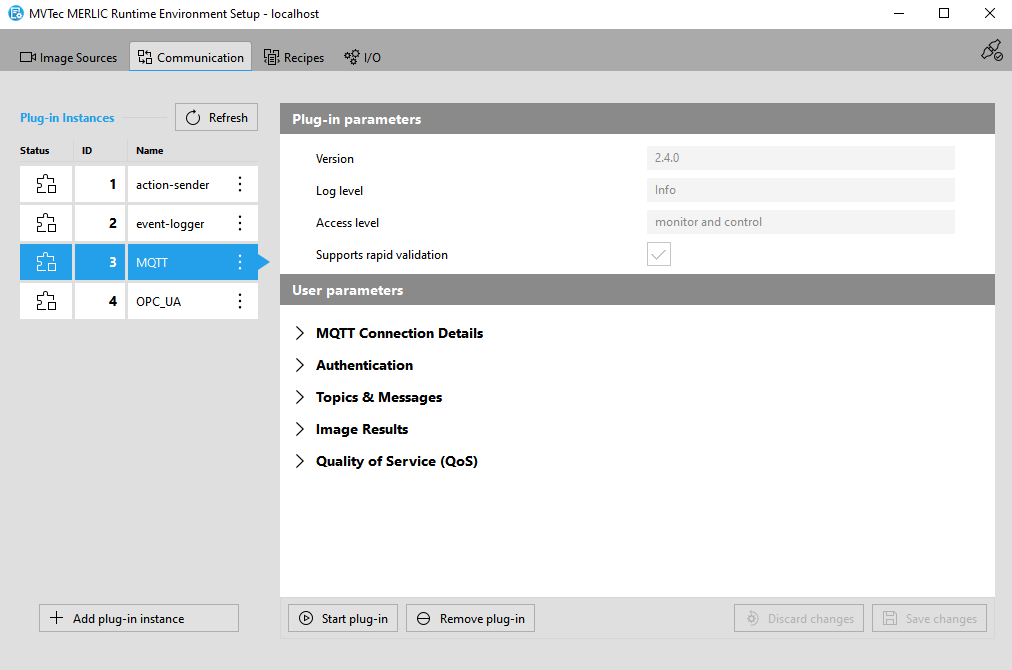
To enable the configuration of a plug-in instance, you first have to make sure that the plug-in instance you want to configure is currently not running. Otherwise, the parameters of the plug-in are not available for the configuration. You can see the current state of each plug-in instance in the MERLIC RTE Setup on the left at the respective status icon. In the example image below, the selected instance of the MQTT plug-in is currently not running as indicated by the icon  and therefore the configuration of this MQTT instance is possible.

If these preconditions are met, you can select the desired plug-in instance from the list on the left side of the MERLIC RTE Setup to display the respective parameters of the plug-in instance.
Overview of the Parameters
In the main area of the "Communication" tab on the right, the overview of the parameters for the selected plug-in instance is shown. Therefore, you have to select the desired plug-in instance on the left to see and configure the parameters for this instance.
The parameters are differentiated in "Plug-in parameters" and "User parameters" as shown below.
Plug-in parameters
Parameters of this type represent general parameters for the Communicator plug-in that cannot be adjusted in the configuration area of the "Communication" tab. They may show the version number of the plug-in, the current parameter value for the log level, the access level of the plug-in, and the setting for the validation of the plug-in configuration. These values need to be set in different locations or with different methods, respectively.

Version
This parameter shows the version number that has been defined during the plug-in implementation. It consists of a major, minor, and maintenance version. It is also shown when adding a new plug-in instance. The version is optional. Therefore, it is possible that no version number has been defined during the implementation.
Log level
This parameter shows the log level that is used for the plug-in instance. By default, the log level of the Communicator is used which itself defaults to "info".
You can also set a different log level for the Communicator in general or only for a specific plug-in instance. See the topic Changing Communicator and Plug-in Settings for more information.
Access level
This parameter shows the access level that is set for the plug-in. When a plug-in instance is added in the MERLIC RTE Setup, the access level is automatically chosen to match the capabilities that have been defined in the function MVInfo of the respective plug-in. To choose a more restrictive access level, the plug-in instance needs to be added via the command line using the "--plugin" flag, supplemented by the appropriate access level specifier, i.e., "monitor" or "control". See the topic Changing Communicator and Plug-in Settings for more information.
Supports rapid validation
This parameter shows whether the plug-in supports the immediate validation of the current plug-in configuration. For this plug-in, the check box is ticked indicating that "rapid validation" is supported. This means that the configuration of the plug-in is validated with each modification of any editable parameter in the "Communication" tab of the MERLIC RTE Setup. If the plug-in does not support "rapid validation", the configuration of the plug-in is validated only when saving the configuration.
User parameters
The set of parameters that can be configured depends on the implementation of the respective plug-in. They represent the parameters that have been defined and exposed in the implementation of the MVExpose API function of the plug-in. This also applies to the categories in which the user parameters are shown. Therefore, they may differ for each plug-in.
For example, the available "User parameters" of the MQTT plug-in are the following:
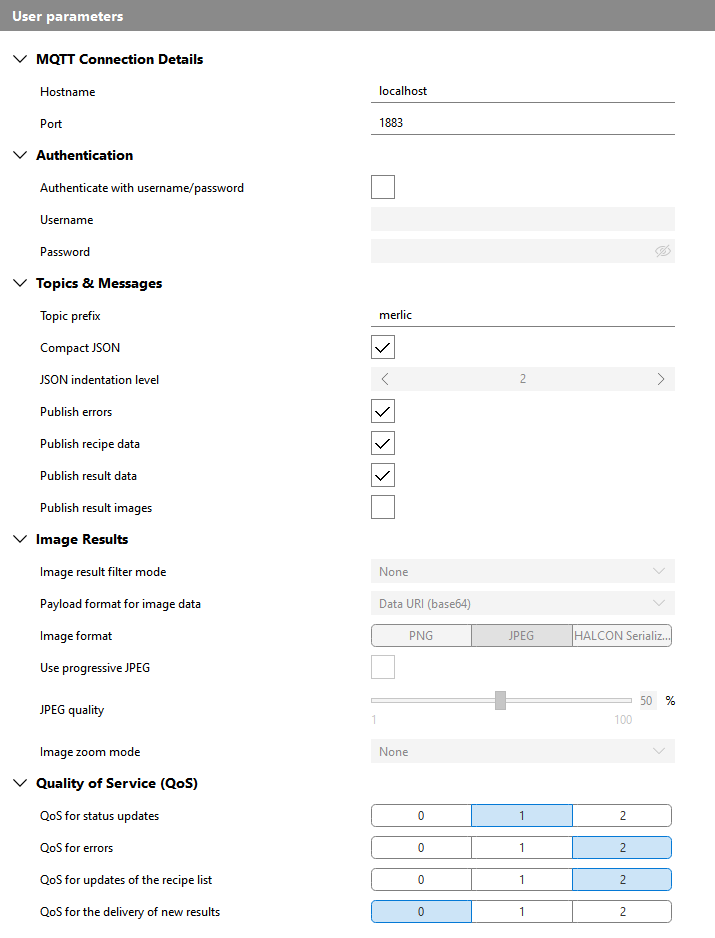
Image Result
When developing a custom Communicator plug-in, it is possible to integrate a feature to retrieve image results. In case you want to make use of this feature, you have to define in which format the images are fetched. You could specify a fixed image format in the code of your plug-in or you can provide a user parameter to enable the user to choose the desired image format in the configuration of the plug-in. If you want to have a look at possible user parameters for image results, you can use the example plug-in "save-images" or the standard plug-ins MQTT and OPC UA, which also support the "Image Result" feature.
In general, all images of the types "byte", "int1", "uint2", "int2", int4", "int8", and "real" can be exported as an MVApp result. Using the MERLIC Communicator it is possible to fetch them in one of three data formats: HALCON Serialized Item, JPEG, and PNG. The image type "real" forms an exception, because you can export it only as HALCON Serialized Item. To export images of the type "real" as JPEG or PNG, you can first convert them to a "byte" image using the MERLIC tool Scale Gray Range to 8 Bit.
HALCON Serialized Item
This format allows for a lossless pixel value transformation. However, HALCON Serialized Item is a proprietary format that can only be used by users who also work with MVTec HALCON. For more information, please refer to the HALCON documentation.
JPEG
JPEG images support up to three channels. Based on the image type and the data format to be fetched, the following pixel value transformations take place:
Pixel type | Pixel transformation |
|---|---|
byte | No further transformation is required. |
int1 | +128 will be added to each value in order to lift the value range from −128 ... 127 to 0 ... 255. |
uint2, int2, int4, int8 | The entire data type range will be shifted and scaled down to 0 ... 255. |
PNG
PNG images support up to four channels. Based on the image type and the data format to be fetched, the following pixel value transformations take place:
Pixel type | PNG size | Pixel transformation |
|---|---|---|
byte | 8 bit | lossless |
int1 | 8 bit | +128 will be added to each value in order to lift the value range from −128 ... 127 to 0 ... 255. |
uint2 | 16 bit | lossless |
int2 | 16 bit | +32 768 will be added to each value in order to lift the value range from −32 768 ... 32 767 to 0 ... 216-1. |
int4, int8 | 16 bit | The entire data type range will be shifted and scaled down to 0 ... 216-1. |
Configuring the User Parameters of a Plug-in
If you selected the plug-in instance you want to configure and the plug-in is currently not running, you can start to adjust the configuration of the plug-in instance by setting the available user parameters to your needs. Depending on the implementation of the respective plug-in, only predefined value ranges may be allowed.
Make sure to save the changes. Otherwise, the plug-in cannot be started. Saving the configuration will trigger a validation of the parameters. The validation itself is plug-in-specific and might result in error or warning messages alerting you to invalid or otherwise problematic configuration values. The validation can also result in certain parameters being enabled or disabled for configuration dependent upon the values of certain other parameters. In the example above, you can see that the parameter "JSON indentation level" is not applicable because the parameter "Compact JSON" is activated, i.e., is set to "true". When you uncheck the checkbox for "Compact JSON", the "JSON indentation level" will only become configurable after you save that change and thus validate the configuration.
You can also discard unsaved changes via the button " Discard changes" if you want to restore the last saved state of the configuration. However, it is not possible to start a plug-in if there are still any unsaved changes.