Tool Flow
The Tool Flow panel provides an overview of the current MERLIC Vision App A MERLIC Vision App represents an image processing application created in MERLIC. It consists of the tools in the MERLIC Creator, the Designer widgets, and all settings that are used in the application. (MVApp). It shows the tools that are used in the MVApp and the respective connections between the tools. The configured sequence of tools is called the "tool flow" of the MVApp.
The Tool Flow panel not only shows the tool flow of the current MVApp ( ) but also provides a search (
 ) and a toolbar (
 ) for the panel to facilitate working with the tool flow.
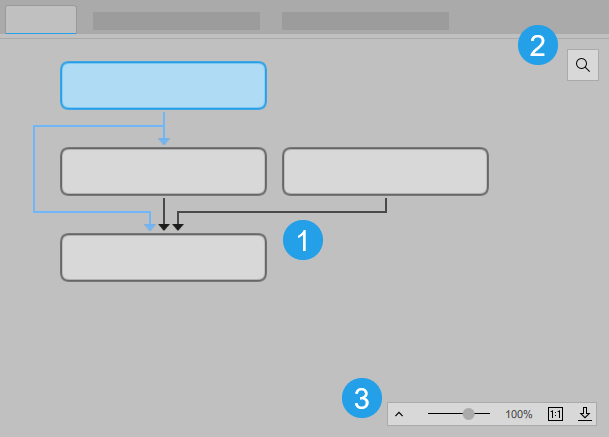
Tool Flow of the MVApp
The tool flow of your MVApp provides various information about the MVApp. You can check which tools and tool connections are used in the MVApp, and you can see the current state of the tools and connections. The tool flow also shows if any MVApp parameters An MVApp parameter represents a basic or an additional parameter in a MERLIC Vision App which can be modified via a recipe file when using MERLIC process integration. You can define a tool parameter as an MVApp parameter in the MERLIC Creator. The panel "MVApp Parameters and Results" shows a list of all MVApp parameters that are currently defined. or MVApp results An MVApp result represents an output parameter for the communication with a programmable logic controller (PLC) when using MERLIC process integration. MERLIC tool results that are defined as MVApp results can be transferred to the PLC. You can add a tool result to the MVApp results in the MERLIC Creator. The panel "MVApp Parameters and Results" shows a list of all MVApp results that are currently selected. are defined for the tools.
In addition, the Tool Flow panel provides various modification options for your tool flow and the MVApp:
- Adding and deleting tools
- Copying and moving tools
- Grouping tools
For more information about checking the state of the tools and connections, see the topics Tools and Connections. For more information about the modification options, see the topics Adding and Deleting Tools, Moving Tools, and Creating and Configuring Groups.
To better distinguish tools that were executed from those that were not executed in the last iteration, you can adjust the display options of the Tool Flow panel. This might be useful if you are using Branch on Condition tools or trigger connections in your MVApp. For more information, see the section Changing the Display Option.
Search
You can use the search bar on the top right of the Tool Flow panel to find specific tools in your MVApp.
- Click on the search button
 on the top right and type the search text into the input field.
 - Press Enter or click on the search icon to start the search.
- To step through the results, use the arrow icons
 and
and  .
. - To close the search bar, click on the
 button.
Toolbar
With the toolbar at the bottom right of the Tool Flow panel, you have different options to get a better overview of the current MVApp.

Zooming the Tool Flow
Drag the slider to change the current zoom level. Alternatively, press Ctrl and use the mouse wheel. You can see the current zoom level next to the slider. This setting is retained after restarting MERLIC Creator.
To reset the zoom level to 100%, click on the button  .
.
Exporting the Tool Flow
Click on the button  to export the current Tool Flow as an image file.
Showing the Tool Flow Map
Click on the  on the left of the toolbar to display a map of the complete Tool Flow in which the currently visible section is marked. To minimize the Tool Flow map, click on the
  icon
icon
Changing the Display Option
Depending on the configuration of the tools and tool connections of the MVApp, there might be some tools that are not executed in an iteration. To better recognize these tools in the Tool Flow panel, you can change the display option to highlight the tools that were not executed in the last iteration. This might be useful if you are using Branch on Condition tools or trigger connections in your MVApps.
The display option for the tools can be set in the MERLIC preferences as follows:
- Open the MERLIC preferences in the MERLIC Creator via the menu entry "Edit → Preferences".
- In the section "Display Options", check the box for the setting "Highlight tools that were not executed".
- Save the changes. The visualization of the tools is instantly adjusted.
If the display option is active, the tools that were not executed in the last iteration will be displayed hatched in the Tool Flow panel as shown in the following example image.
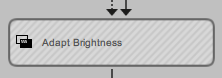
In the Tool Workspace, they will be displayed in a similar way as shown in the following image for the "Adapt Brightness" tool on the left.
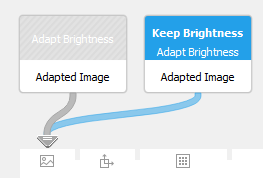
Tools that were executed in the last iteration are still displayed as usual in the Tool Flow panel and in the Tool Workspace.
If this display option is set, tools may also be marked as not executed in the time between loading and executing an MVApp. The same applies when editing an MVApp.