Creating a User Interface with a Dialog Window
To create a user interface with a separate dialog window you have to use the following elements:
- Additional view
- "Dialog Button" widget
The additional view represents the user interface of the dialog window in the Frontend. You have to add an additional view for each dialog window you want to provide. To get more information about how to add additional views, please refer to the chapter Adding and Deleting Views.
How to Create a User Interface with a Dialog Window
If you have added the additional view, you can start to create the user interface with the dialog window by configuring the respective workspace of each view. The following steps accomplish this task:
 1. Customizing the user interface
- Go to the view in which you want to provide the dialog button. In our example, we want to open the dialog window from the main view.
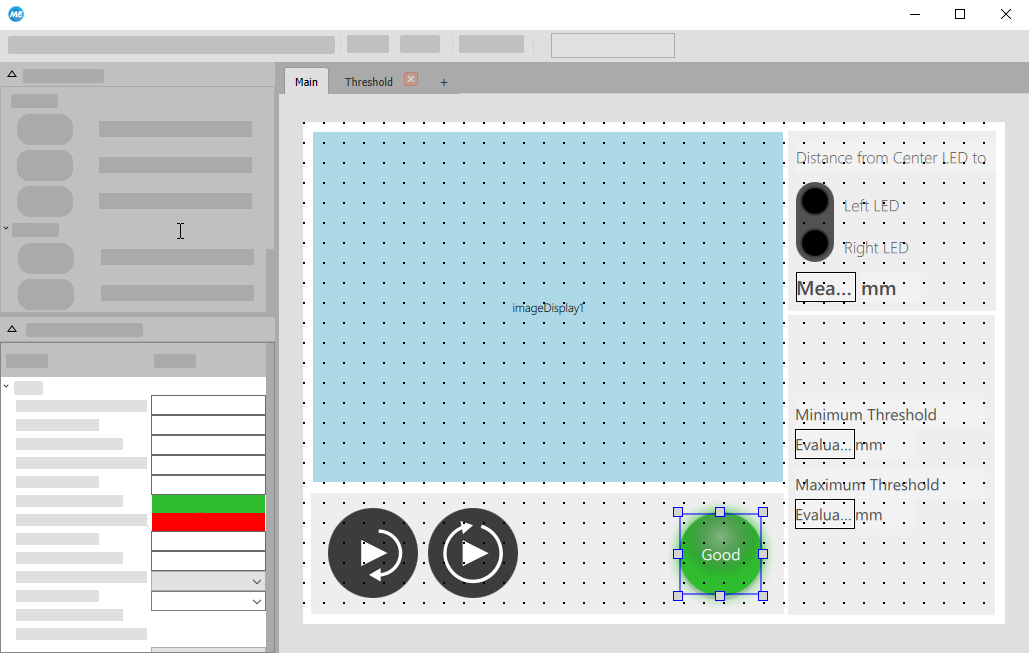
- Customize the user interface by adding and adjusting the available widgets according to your preferences. The image below shows an example of a possible user interface design. It has been designed to control the execution of the application and to check the results.
2. Adding the "Dialog Button" widget
- Select the widget "Dialog Button" from the "Widget Library" and insert it to the view from which you want to open the dialog window. In the Frontend, the widget represents the button that can be used to open the dialog window.
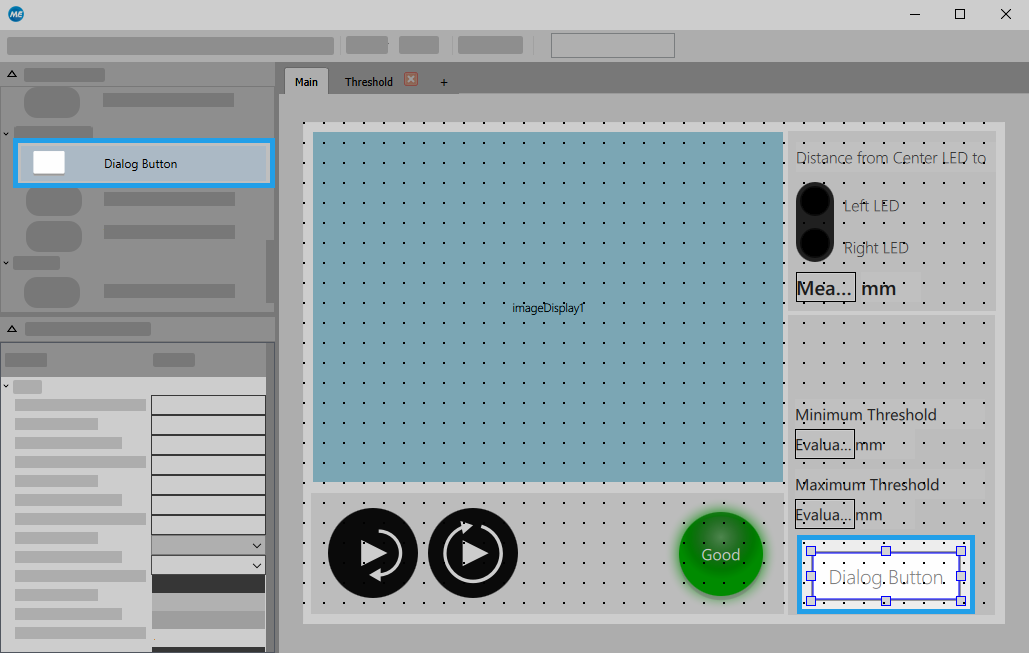
- Optionally, adjust the size and color settings of the widget at the respective properties. The changes are instantly visible in the workspace.
3. Selecting the view to be displayed in the dialog window
- Ensure that the properties panel still shows the properties of the "Dialog Button" widget. Otherwise, click on the widget in the workspace to display its properties.
- Click on the drop-down menu of the property 'Action' to open the list of possible actions that can be set for the dialog button. In general you can choose between two options: Showing a view or closing the current view.
- Select the option that shows the view you want to visualize in the dialog window. In our example, this is 'Show Threshold'.
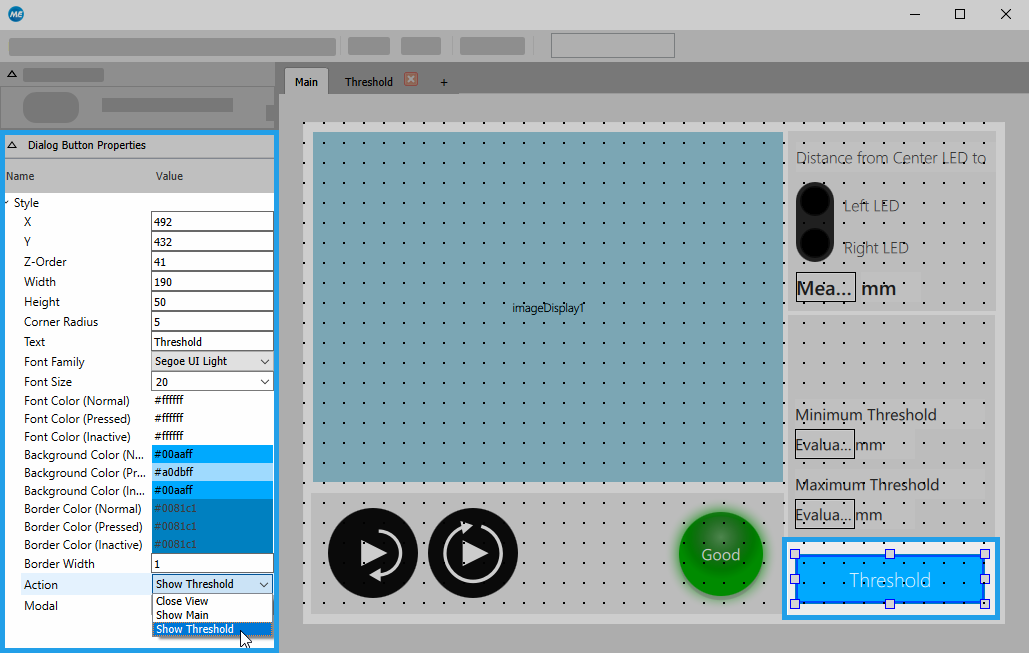
- Optionally, adjust further properties of the widget according to your preferences. The changes are instantly visible in the workspace.
4. Customizing the user interface of the additional view
- Change to the view you want to adjust.
- Optionally, adjust the size of the workspace. The size also defines the size of the dialog window.
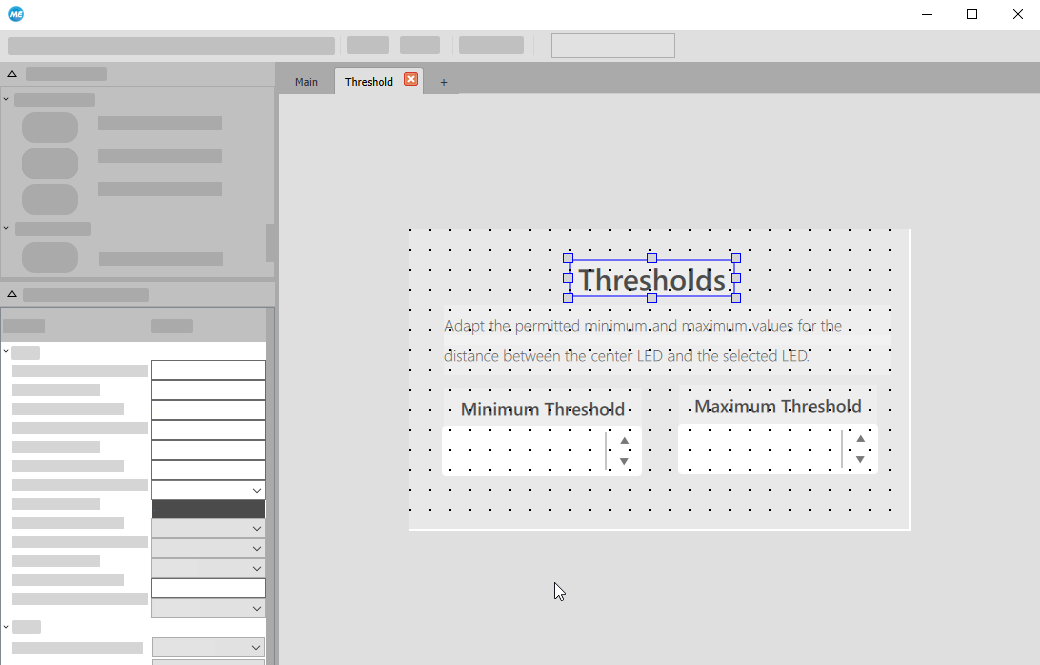
- Customize the user interface of the view by adding and adjusting the available widgets according to your preferences. The image below shows an example of a possible user interface design for the additional view 'Threshold'. It has been designed to adjust the values of tool parameters.
5. Checking the user interface in the Frontend
- Open the Frontend to check the design of your user interface.
- If necessary, make some further adjustments in the Designer.
The user interface of our example consists of the main view that provides a dialog button for the new window:
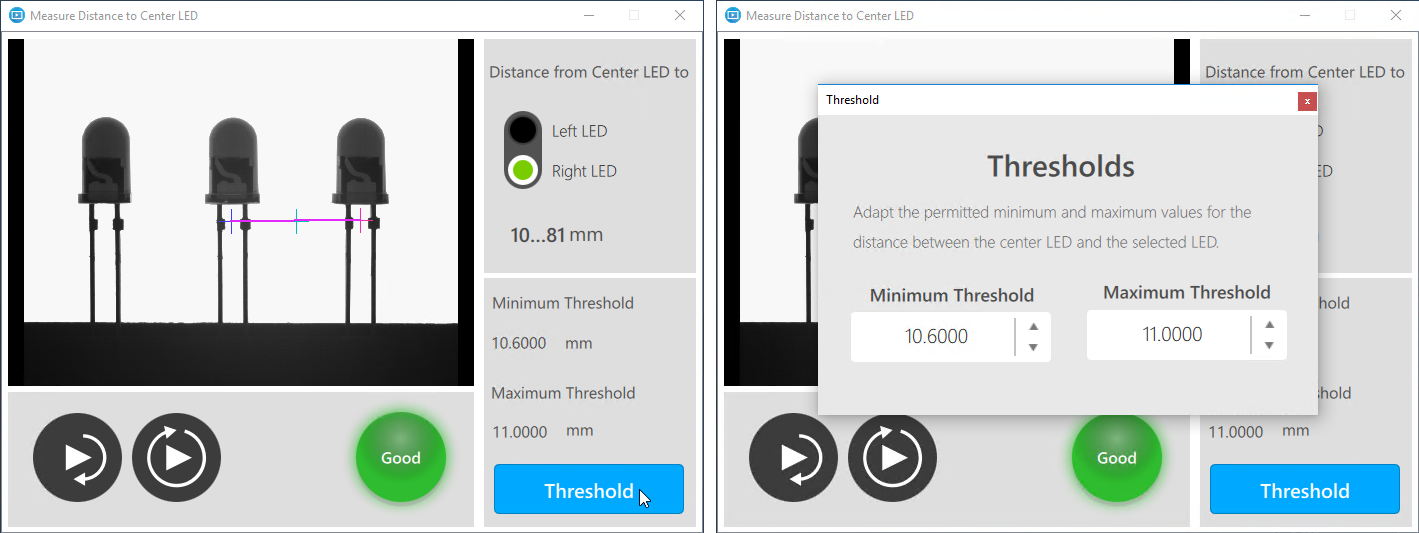
The image on the left shows the Frontend with the "Dialog Button" widget. It contains all major widgets that are necessary to execute and check the application. On the bottom right a dialog button is placed with the title "Threshold". Clicking on the button opens a new dialog window that visualizes the designed user interface of the additional view. In the new window the user can change the allowed value range for the measured distance by adjusting the values for the minimum and maximum threshold. If no further adjustments are necessary, the dialog window can be closed again.