Frontend Configuration
MERLIC provides various settings to configure the Frontend. Most of these settings are defined in the respective INI file, e.g., settings for the connection between Frontend and MERLIC Creator. You can find the default MERLIC5.ini file in the directory %AppData%\MVTec.
For a list of command line options for "merlic_frontend.exe", see Starting the Frontend with a Remote Connection.
Specifying Properties in the INI File
Properties for the Frontend must be added to the section with the label [Frontend]. If the INI file does not contain the [Frontend] label yet, you may add it to the file and define the settings for the Frontend below the new label.
For example, the configuration of the "Port" property may look like this:
[Frontend]
Port=9090
First, the [Frontend] label indicates that the following properties configure the Frontend. In the second line a property is defined, in our case the property "Port" is set to 9090. If you want to configure further properties of the Frontend you may add each property setting in a new line.
The properties for the server must be added to the [Server] section, e.g.,
[Server]
MaxConnections=5
See the chapter The MERLIC INI File for more details.
Frontend-MERLIC Creator Communication
The MERLIC Frontend connects to the MERLIC Creator via the MERLIC server component. MERLIC server and MERLIC Frontend communicate via inter process communication. You can configure the following Frontend properties in the MERLIC INI file.
Properties of the Section [Frontend]
|
Property |
Default |
Description |
|---|---|---|
|
CycleTime |
50 [ms] |
The MERLIC Frontend continuously polls the MERLIC server for new data. The "CycleTime" property defines the time that will at least pass between two polling requests. It is defined in milliseconds. This can be used to throttle the MERLIC Frontend and reduce the work load of the MERLIC server. |
|
GuiLanguage |
This property can be used to set the language in which the Frontend shall be started, e.g., "en_US". |
|
|
Host |
127.0.0.1 |
This property is used to set a hostname or an IP address. Thus you may configure to which computer the Frontend shall be connected. |
|
Port |
9090 |
This property defines the TCP/IP port to which the server listens. |
|
ReconnectInterval |
25 [s] |
This property is used if the connection to the server has been lost. Then a reconnection is attempted in a specific time interval. The "ReconnectInterval" defines the time that will pass until a reconnection is attempted. It is defined in seconds. |
Customizing the Window Title
By default, the window title of the MERLIC Frontend shows "MVTec MERLIC - Frontend". You can define a different title for an MVApp via the MERLIC Designer.
- Open the MVApp in the MERLIC Creator.
- Start the MERLIC Designer and open the following menu entry: "Edit → Frontend Properties".
- Enter the desired text in the input field of "Frontend Window Title".
- Click on "OK" to confirm your changes.
The new window title is only applied to the respective MVApp. Therefore, you can use this option to define MVApp-specific window titles for the Frontend. However, during the time the Frontend is being loaded the default window title and a default status message is shown in the Frontend. If you want to hide the company and product name also for the time in which the Frontend is being loaded, you can use the configuration property "HideMVTecMerlicInFrontendWindow" in the INI file. The property must be defined in the [Frontend] section of the INI file.
[Frontend]
HideMVTecMerlicInFrontendWindow=true
If this property is set to "true", the names "MVTec" and "MERLIC" will not be shown in the window title and status message of the Frontend while the Frontend is being loaded. As soon as the Frontend has been loaded, the window title that is defined in the "Frontend Properties" of the MERLIC Designer will be shown.
Customizing the Frontend Icon
You can define a custom icon for the Frontend, e.g., your company logo, to customize the Frontend for your application. The custom icon will be shown in the title bar of the Frontend and at the task bar instead of the default MERLIC icon. Make sure to use an image that fits as icon in terms of size and file format, e.g., .ico or .png file.
The custom icon can be defined in the INI file or as command line argument.
How to Define a Custom Frontend Icon via INI File
The setting must be specified in the [Frontend] section with the property "IconFile".
[Frontend]
IconFile=<icon_file>
The property "IconFile" specifies the name and path of the icon. Make sure to define the absolute path of the file. When starting the Frontend with the respective INI file, it will show your custom icon instead of the MERLIC icon.
How to Define a Custom Frontend Icon via Command Line
If you want to use the custom icon only for a specific remote Frontend, you can define the icon with the command line argument "--icon_file".
merlic_frontend.exe --icon_file <FILENAME>Make sure to define the absolute path and file name of the file. See also the topic Starting the MERLIC Frontend for more information about how to start a remote Frontend.
How to Ensure that the Custom Icon is Used in the Task Bar
Due to restrictions of the Windows operating system, your custom Frontend icon might not be shown in the task bar. Instead, the default icon of MERLIC is shown. To ensure that your custom icon is also used in the task bar, you have to perform the following steps.
You need administrator rights to perform the following steps.
- Make sure there is only one shortcut of the Frontend application on your device and that it is located in the folder "C:\ProgramData\Microsoft\Windows\Start Menu\Programs\MVTec MERLIC 5".
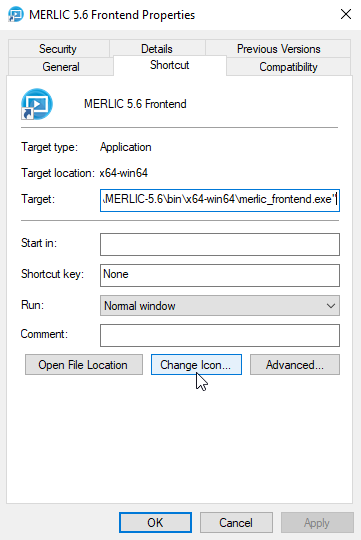
- Right-click on the Frontend shortcut and choose "Properties".
- Click on the button "Change Icon...".
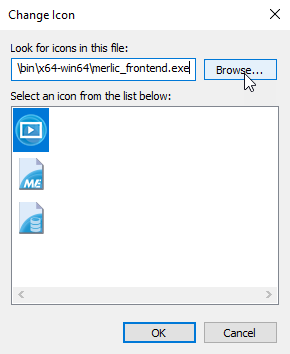
- Choose the icon of your choice via the button "Browse...", then confirm your choice with "OK".
- Click "Apply" in the "Properties" dialog of the shortcut.
- Open the MERLIC Frontend. The task bar now shows your customized Frontend icon.
Alternatively, if you wish to have several shortcuts of your Frontend application, you can also change the icon of each shortcut manually. To do so, find all your shortcuts of the Frontend application and follow the instructions starting from the second step of the instructions above.
Miscellaneous Configuration Options
In addition, you can configure the following properties for the Frontend:
|
Property |
Default |
Description |
|---|---|---|
|
AlwaysShowROIHandles |
true |
This property is specifically included for devices with a touch screen to facilitate the usage of ROIs. The property is useful if the Image Display widget in your MERLIC Frontend also shows a region of interest (ROI). It defines if the interaction handles of the ROI are always shown (true) or not (false). |
|
HideWindowTitleBar |
false |
If set to "true" the MERLIC Frontend will start without showing the title bar of the application window. This will also affect the keyboard shortcuts that can be used, e.g., to close the window. |
|
ROIHandleSize_mm |
4 [mm] |
This property is specifically included for devices with a touch screen to facilitate the usage of ROIs. The property is useful if the Image Display widget in your MERLIC Frontend also shows a region of interest (ROI). It defines the size of the interaction handles of the ROI. It is defined in millimeters. |
|
StartInFullscreen |
false |
This property defines whether the MERLIC Frontend is started in full screen mode. If you want to display the Frontend automatically in full screen mode each time you start it, you can set this option to "true". If you want to use this option only for a single session, you can start the Frontend via command line with the option "--fullscreen". |
|
TmpPath |
%AppData%\Local\Temp\<user_group>_<user_name> |
The MERLIC Frontend requires access to a writable directory on the hard disk of your computer to temporarily store files. You can set the path to the directory using the "TmpPath" property. If the directory does not exist, MERLIC will try to create the directory. You can use slashes (/), backslashes (\) or double backslashes (\\) for file paths in MERLIC INI files. However, MERLIC will internally store the paths with slashes (/). |
|
WindowGeometry |
|
This property can be used to specify the position and size of the MERLIC Frontend as follows: @Rect(x y w h) The values x and y define the position of the upper left corner of the Frontend. The values w and h define the width and height of the Frontend. All values must be given in pixels. If the Frontend property "StartInFullscreen" is set to "true", the Frontend will be opened in full screen mode and the setting for "WindowGeometry" will be ignored.  Example Example
[Frontend] WindowGeometry=@Rect(10 20 750 500) |
Visualization Settings in the Frontend
The Frontend offers you some settings to adjust the visualization. These settings can adjusted directly in the Frontend.
Switch to the Full Screen Mode
If you have started your Frontend, you have the possibility to visualize the Frontend in a full screen mode by pressing the shortcut F11. To exit the full screen mode press F11 again.
Reset the Size and Position of the Image
If the image within the "Image Display" widget is moved or zoomed, you can reset it to its original size and position via the shortcut Ctrl + 0.
Hiding the Title Bar of the Frontend
The following options hide the title bar of the Frontend with the logo icon:
- Run "merlic_frontend.exe" with the command line argument "--hide_window_title_bar=true". This option will override any INI settings.
- In the INI file MERLIC will be started with, under the section [Frontend], add the line "HideWindowTitleBar=true".
This will also affect the keyboard shortcuts that are specific to the Frontend as shown in the menu.