Configuring the OPC UA Server
You can also adjust the configuration in the configuration file of the OPC UA server plug-in: "OPC_UA.json". The configuration file is created automatically when initializing the OPC UA server plug-in for the first time. You can find the configuration file in the configuration directory of the communication plug-ins, that is, "%AppData%\MVTec\Communicator\conf\" on Windows systems and "~/.config/MVTec/Communicator/conf/" on Linux systems, by default.
If you want to run multiple instances of the OPC UA server plug-in, you have to make sure to serve the OPC UA server on a different port. For more information, see Using Multiple MERLIC RTE Instances.
The following sections provide an overview and description of the available parameters for the server configuration:
Enabling the Configuration in the MERLIC RTE Setup
To enable the configuration of the OPC UA server in the "Communication" tab of the MERLIC RTE Setup, you first have to start MERLIC RTE and perform the following steps:
- Open the MERLIC RTE Setup and go to the "Communication" tab. If MERLIC RTE is not running, you can start it directly from the "Communication" tab.
-
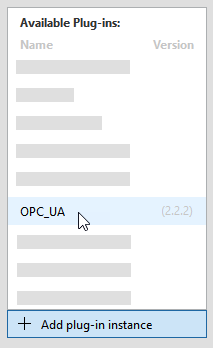
- Make sure that the plug-in is currently not running. Otherwise, the parameters are not available for the configuration. You can see the current state of the plug-in at the respective status icon in the list of plug-in instances. If the status shows the icon
 , the plug-in is running. In this case, you have to stop it by clicking the "
 Stop plug-in" button on the bottom of the MERLIC RTE Setup. If the status shows the icon
  instead, the plug-in is currently not running.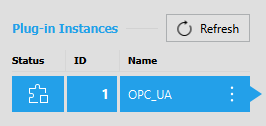
-
The parameters of the selected OPC UA server plug-in are shown on the right of the "Communication" tab.
Plug-in Parameters
Parameters of this type represent general parameters for the communication plug-in that cannot be adjusted in the configuration area of the "Communication" tab. They may show the version number of the plug-in, the current parameter value for the log level, the access level of the plug-in, and the setting for the validation of the plug-in configuration. These values need to be set in different locations or with different methods, respectively.
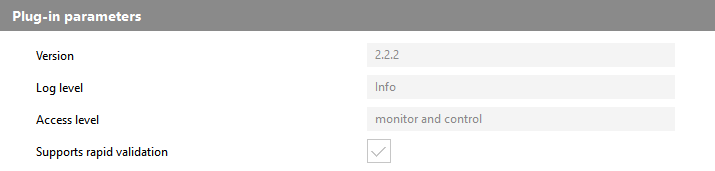
Version
This parameter shows the version number that has been defined during the plug-in implementation. It consists of a major, minor, and maintenance version. It is also shown when adding a new plug-in instance. The version is optional. Therefore, it is possible that no version number has been defined during the implementation.
Log level
This parameter shows the log level of the plug-in instance. By default, the log level is set to the log level of the respective MERLIC RTE process when adding the plug-in instance in the MERLIC RTE Setup.
Access level
This parameter shows the access level that is set for the plug-in. For the OPC UA server plug-in, the access level is set to "monitor and control" by default. This means that the plug-in can receive "events" and send "actions". The access level correlates with the capability that is defined in the implementation of the plug-in. The access level cannot be adjusted in the MERLIC RTE Setup.
Supports rapid validation
This parameter shows whether the plug-in supports the immediate validation of the current plug-in configuration. For this plug-in, the check box is ticked indicating that "rapid validation" is supported. This means that the configuration of the plug-in is validated with each modification of any editable parameter in the "Communication" tab of the MERLIC RTE Setup. If the plug-in does not support "rapid validation", the configuration of the plug-in is validated only when saving the configuration.
User Parameters
The "User parameters" represent the set of parameters that can be configured for the plug-in. They are displayed in different categories which can be expanded or closed.
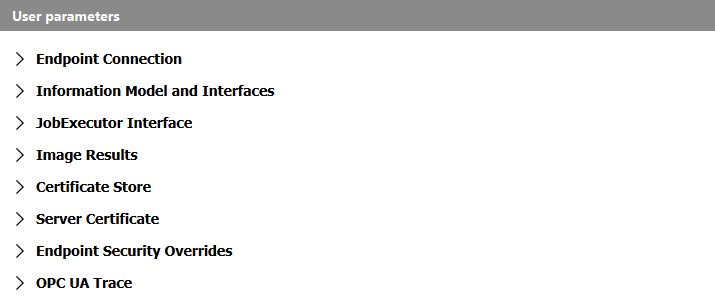
The following sections describe the parameters for each category.
- Endpoint Connection
- Information Model and Interfaces
- JobExecutor Interface
- Image Results
- Certificate Store
- Server Certificate
- Endpoint Security Overrides
- OPC UA Trace Settings
Endpoint Connection
OPC UA requires an authentication between client and server applications. These settings control the endpoint configuration that is used to determine how the OPC UA clients are allowed to connect to the OPC UA server and the amount of security in the connection. For more information how to specify the security settings when adding a server, see the page Connecting a Client to the OPC UA Server.
The current version of the MVTec Machine Vision Server only supports a binary encoding over OPC UA TCP, the creation of a single endpoint, and the anonymous authentication with different security policies.
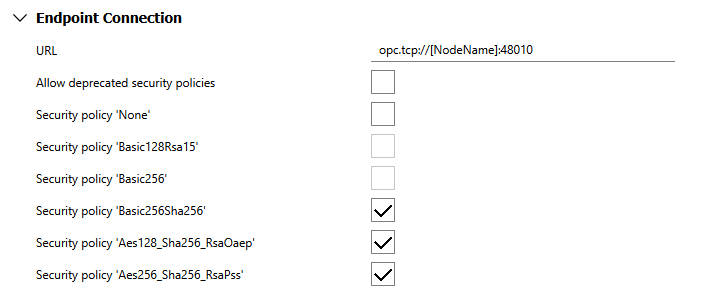
The following image shows the available parameters for the endpoint settings with the respective default setting. A detailed description of the parameters follows after the image.
URL
The server URL is used for discovery and to open the endpoint. The placeholder [NodeName] can be used for the host name of the machine where the server is running. The URL must use the URL scheme for endpoints with OPC UA TCP. The parameter expects a String value. By default, it is set to "opc.tcp://[NodeName]:48010".
Allow deprecated security policies
The security policies "Basic128Rsa15" and "Basic256" are deprecated by the OPC UA Foundation as they are no longer considered secure. However, for backwards compatibility, we still provide the option to enable them. If this parameter is set, these security policies are enabled. By default, the parameter is not set.
Security policy 'None'
If this parameter is set, no security is provided and no encryption or signing is performed during the communication. We strongly recommend not to use this policy on a production environment. It is only provided for development and testing purposes. By default, the parameter is not set.
Security policy 'Basic128Rsa15'
If this parameter is set, the security policy "Basic128Rsa15" with message security modes "Sign" and "Sign & Encrypt" is enabled. By default, the parameter is not set.
In addition, the parameter "Allow deprecated security policies" must be set to enable this security policy.
Security policy 'Basic256'
If this parameter is set, the security policy "Basic256" with message security modes "Sign" and "Sign & Encrypt" is enabled. By default, the parameter is not set.
In addition, the parameter "Allow deprecated security policies" must be set to enable this security policy.
Security policy 'Basic256Sha256'
If this parameter is set, the security policy "Basic256Sha256" with message security modes "Sign" and "Sign & Encrypt" is enabled. By default, the parameter is already set.
Security policy 'Aes128_Sha256_RsaOaep'
If this parameter is set, the security policy "Aes128-Sha256-RsaOaep" with message security modes "Sign" and "Sign & Encrypt" is enabled. By default, the parameter is already set.
Security policy 'Aes256_Sha256_RsaPss'
If this parameter is set, the security policy "Aes256-Sha256-RsaPss" with message security modes "Sign" and "Sign & Encrypt" is enabled. By default, the parameter is already set.
Information Model and Interfaces
The settings of this category are specific to the MVTec Machine Vision Server, that is, the provided version of the OPC UA server. They are used to control specific features in the information model.
The following image shows the available parameters with their default setting. A detailed description of the parameters follows after the image.
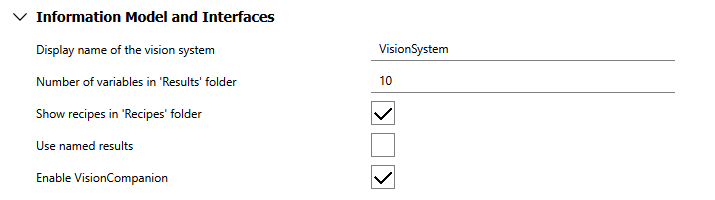
Display name of the vision system
This parameter enables you to define a name for the "VisionSystem" object. This name will be set for the "DisplayName" property and will only be used for the display. It has no effect on the respective object.
Number of variables in 'Results' folder
This parameter controls the maximum number of variables that are displayed in the "Results" folder in the "ResultManagement" object. The parameter expects an UInt32 value between 0 and 10000. By default, it is set to 10.
If the parameter is set to 0, the "Results" folder will no longer be present in the OPC UA server. The parameter is independent of the size of the result store in the vision system, that is, MERLIC. For more information about the different strategies to get result data from the OPC UA server, see the page Getting Results from the OPC UA Server.
Show recipes in 'Recipe' folder
This parameter controls if the recipes in the vision system are represented as objects in the address space. If this parameter is set, the "Recipes" folder in the "RecipeManagement" object is instantiated and populated. By default, the parameter is already set. For more information, see the section Recipe Objects on page Getting the List of Recipes.
Use named results
If this parameter is set, the results are returned using a structure "NamedResults". This structure contains a field with the "Name" of the result as defined in the MVApp and the actual result value of the execution in another field instead of just returning the result value with no further information.
This setting only takes effect if the results are transmitted using a variant array, that is, the "GetResultById", "GetResultComponentsById", "GetResultListFiltered" methods, and the "ResultReadyEvent". This parameter has no effect on the "JobExecutor" interface in the "VisionCompanion". By default, this parameter is not set.
Enable VisionCompanion
This parameter allows you to select whether the "VisionCompanion" object in the OPC UA server is enabled or disabled. By default, the parameter is set and thus, the "VisionCompanion" object is enabled.
The "VisionCompanion" object is an optional add-in created by MVTec which, among other things, facilitates the integration with OPC UA clients that are not able to handle the complexities of the information model specified by the OPC UA for Machine Vision - Part 1 companion specification, for example, simple OPC UA clients such as PLCs. For more information, see the page Optional Add-In "VisionCompanion".
JobExecutor Interface
The plug-in parameters of this category only apply if the "VisionCompanion" object has been enabled in the "Information Model and Interfaces" category. The parameters allow you to configure the behavior of the "JobExecutor" object.
The following image shows the available parameters with the respective default setting. A detailed description of the parameters follows after the image.
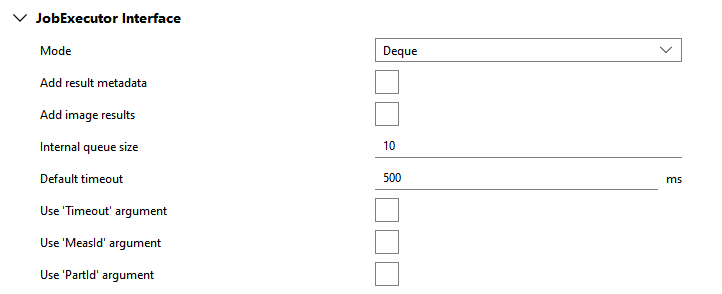
JobExecutor mode
This parameter allows you to select mode of operation. You can choose between "Sync", "Deque", and "FreeRunning". By default, the "Deque" mode is set. In the following table, we give a short description for each mode. For more information on the available modes, see Optional Add-In "VisionCompanion".
|
Mode |
Description |
|---|---|
|
Deque |
This mode uses an internal FIFO queue in the "JobExecutor" to save the incoming results after executing a single or continuous execution. The client can then retrieve the results from the queue on its own using the "DequeueResult" method. This method updates the result variables below the "LatestResult" object. Each result of the recipe will be displayed as its own individual variable. If the internal queue is empty and the "DequeueResult" method has been called, the method will lock until a new result becomes available or until the specified timeout has been reached. |
|
FreeRunning |
This mode uses variables that get immediately updated with every "ResultReadyEvent" that is fired by the system without any handshake mechanism. The results are displayed as individual variables below the "LatestResult" object. This mode is the fastest but it can also be the most error prone. Depending on the timing of both MERLIC and the OPC UA client, it might be possible that some results get lost or overwritten before the OPC UA client can collect them. We recommend to use this mode of operation in conjunction with monitoring the results via a subscription instead of simple read operations (pulling). |
|
Sync |
This mode is the simplest one. It is intended for applications that only start a single execution and get a result immediately. Thus, continuous executions are not available. In this mode of operation, the "StartSingleJobSync" method is instantiated in the "JobExecutor" object. The output parameters of this method are created dynamically based on the output results of the associated recipe and an additional "Error" output. |
This parameter controls whether a structure that contains the metadata of the result will be added as a variable in the "FreeRunning" and "Deque" mode or as an output argument in the "Sync" mode. The metadata of the result include the result ID, job ID, recipe ID, and some further data. By default, this parameter is not set.
Add image results
This parameter defines whether result images of the MVApp, which was executed as the recipe, will be retrieved and provided as a variable in the address space. By default, the parameter is not set. If you choose to add the result images, you have the possibility to specify some further settings for the result images such as a filter mode or the image size. You can find the respective parameters in the category Image Results together with other configuration options for result images.
Internal queue size
This parameter defines the number of results that the internal queue can hold in the "Deque" mode. Thus, it is only applied if the "Deque" mode has been selected at the parameter "JobExecutor mode". The parameter expects an UInt32 value between 0 and 10000. By default, it is set to 10.
Default timeout
This parameter specifies the amount of time in milliseconds that the "JobExecutor" object will wait for a result in the "Deque" or "Sync" mode. This value only affects the methods "StartSingleJobSync" and "DequeueResult". By default, the parameter is set to 500 ms.
Use 'Timeout' argument
This parameter allows you to specify your own timeout when waiting for a result. If this parameter is set, the default timeout option is ignored. Instead, the signature of the methods "StartSingleJobSync" and "DequeueResult" changes to provide a "Timeout" input parameter that allows the user to specify their own timeout.
Use 'MeasId' argument
This parameter defines whether the "MeasId" argument can be used to specify a measurement ID when starting an execution via the "VisionCompanion". If this parameter is set, the signatures of the respective methods for starting an execution via the "JobExecutor" object will change to provide an input argument "MeasId". This input argument allows the user to specify a measurement ID for the execution in string format.
When using the "Deque" or "FreeRunning" mode, the "StartSingleJob" and "StartContinuous" methods of the respective "JobExecutor" objects will provide the "MeasId" argument. If the user specified the ID when calling a job, the respective ID will be included in the result, that is, in the variable "MeasId" of the respective "LatestResult" object.
When using the "Sync" mode, the "StartSingleJobSync" will provide the "MeasId" argument instead. The results will contain no information about the measurement ID. However, it is still possible to query information on the measurement ID via the "ResultManagement" object or via the "ResultReadyEvent".
By default, this parameter is not set and no measurement ID can be specified via the "VisionCompanion".
This parameter refers only to the "VisionCompanion". It has no effect on the functionality of the standard methods provided for "VisionStateMachine" object.
Use 'PartId' argument
This parameter defines whether the "PartId" argument can be used to specify an ID for the part to be inspected when starting an execution via the "VisionCompanion". If this parameter is set, the signatures of the respective methods for starting an execution via the "JobExecutor" object will change to provide an input argument "PartId". This input argument allows the user to specify a part ID for the execution in string format.
When using the "Deque" or "FreeRunning" mode, the "StartSingleJob" and "StartContinuous" methods of the respective "JobExecutor" objects will provide the "PartId" argument. If the user specified the ID when calling a job, the respective ID will be included in the result, that is, in the variable "PartId" of the respective "LatestResult" object.
When using the "Sync" mode, the "StartSingleJobSync" will provide the "PartId" argument instead. The results will contain no information about the part ID. However, it is still possible to query information on the part ID via the "ResultManagement" object or via the "ResultReadyEvent".
By default, this parameter is not set and no measurement ID can be specified via the "VisionCompanion".
This parameter refers only to the "VisionCompanion". It has no effect on the functionality of the standard methods provided for "VisionStateMachine" object.
Image Results
The parameters in this category define how result images are provided. They are enabled for configuration only if the parameter "Add image results" in the category "JobExecutor Interface" is set.
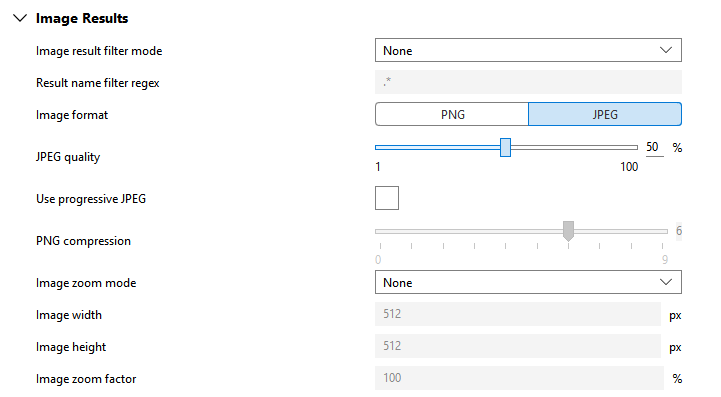
Image result filter mode
This parameter allows you to enable a filter that determines which image results will be retrieved. You can choose between the options below. By default, it is set to "None".
|
Mode |
Description |
|---|---|
|
None |
No filter is applied and all result images will be retrieved. |
|
Regular expression |
Only result images whose name matches the regular expression that is specified in the parameter Result name filter regex, will be retrieved. |
Result name filter regex
Image format
|
Format |
Description |
|---|---|
|
PNG |
|
|
JPEG |
The images will be provided as JPEG images. If this format is selected, the following parameters will be enabled for configuration: |
In general, all images of the types "byte", "int1", "uint2", "int2", "int4", "int8", and "real" can be exported as an MVApp result and converted to the available image formats. However, images of type "real" are an exception because they can only be converted to the format "HALCON Serialized Item". For more information about the image formats and the respective pixel transformation, see the section Image Results in Configuring Communication Plug-ins
JPEG quality
This parameter is only available if the parameter "Image format" is set to "JPEG". It defines the quality for the compression to JPEG in percent. By default, it is set to 50 %.
Use progressive JPEG
This parameter is only available if the parameter "Image format" is set to "JPEG".
PNG compression
This parameter is only available if the parameter "Image format" is set to "PNG". It defines the level for the compression to PNG. It can be set to a value from 0 to 9. By default, it is set to 6.
Image zoom mode
This parameter allows you to resize the result images. The available options are listed in the table below. Depending on the selected mode, additional parameters will be enabled for configuration. By default, the parameter is set to "None".
|
Mode |
Description |
|---|---|
|
None |
|
|
Fixed width and height |
The images will be scaled to the size that is specified in the parameters Image width and Image height. The specified size is applied to all result images regardless of their original size and that the aspect ratio is not retained. |
|
Zoom factor |
The images will be resized along both dimensions by the factor that is specified in the parameter Image zoom factor. This option retains the aspect ratio and is relative to the original size of the images. |
Image width
This parameter is only available if the parameter "Image zoom mode" is set to "Fixed width and height". It defines the width for the result images.
Image height
This parameter is only available if the parameter "Image zoom mode" is set to "Fixed width and height". It defines the height for the result images.
Image zoom factor
This parameter is only available if the parameter "Image zoom mode" is set to "Zoom factor". It defines the percentage value which is used to resize the images along both dimensions. You can also specify a value larger than 100%. By default, the parameter is set to 100 % which means that the original image size is kept.
Certificate Store
When a connection between an OPC UA client and server is first made, a certificate exchange occurs in the background to establish a trust relation. If the trust relation was rejected, the connection to the server is also rejected and a bad status code is returned.
The client certificate is installed in the trust list of the server and the server certificate is installed into the trust list of the client. The directory where this certificate is stored, is called the "Certificate Store". It contains different folders for trusted certificates, own certificates, as well as a folder for certificates from certificate authorities (CA or issuers) that are used to verify the certificate trust chains. In addition, a folder for rejected certificates is provided. It may contain certificates of applications that tried to connect but were not trusted.
The default certificate store in the OPC UA server is a directory based OpenSSL PKI store and is created on the first initialization of the OPC UA server. The default location of the certificate store changes depending on the operation system where the OPC UA server is running:
|
Operating system |
Default location |
|---|---|
|
Windows |
%AppData%\MVTec\Communicator\OPC_UA\Certificate_Store |
|
Linux |
~/.local/share/MVTec/Communicator/OPC_UA/Certificate_Store |
Each certificate store is user dependent, that is, each user will have to manage their own certificates. The location of the certificate store can be changed with the configuration parameters described below.
The certificate store contains different directories that serve specific functions:
|
Directory |
Description |
|---|---|
|
issuers |
This directory stores CA certificates that are not directly trusted but are required to verify a trust chain of CA certificates. Each CA certificate must come with a certificate revocation list (CRL) that requires frequent updates. |
|
own |
This directory stores the server certificate (or "Application Instance Certificate") and the private key of the application. |
|
rejected (optional) |
This directory stores certificates of OPC UA clients that tried to connect but where not trusted. You can move certificates from the "rejected" directory to the "trusted/certs" directory to allow new clients to connect. |
trusted\certs |
This directory stores the self-signed certificates of trusted OPC UA applications or CA. Each CA certificate must come with a certificate revocation list (CRL) that requires frequent updates. |
The following image shows an overview of the parameters for the certificate store with the respective default setting. A detailed description of the parameters follows after the image.
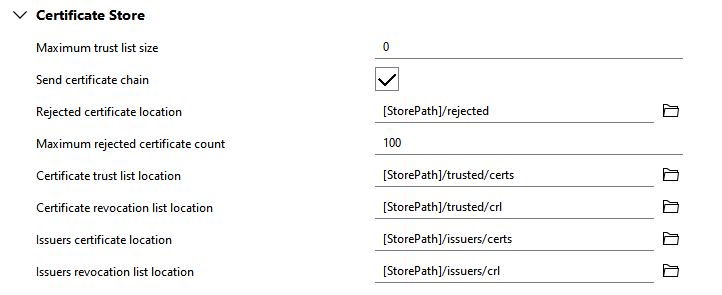
Maximum trust list size
This parameter defines the maximum size of the trust list in bytes. If it is set to 0, the maximum size has no limit. The parameter expects an UInt32 value. By default, it is set to 0.
Send certificate chain
This parameter applies to CA signed certificates. If this parameter is set, the server will send the complete certificate chain instead of just sending the certificate. By default, the parameter is already set.
Rejected certificate location
This parameter defines the path to the location where rejected certificates are stored. You can select the location from the file system via the  button (on local systems) or you can type the path directly into the text field. The placeholder [StorePath] can be used to specify the default path of the certificate store. The parameter expects a String value. By default, it is set to "[StorePath]/rejected".
Maximum rejected certificate count
This parameter defines the maximum number of certificates that are stored in the "rejected" directory. The parameter expects an UInt32 value. By default, it is set to 100.
Certificate trust list location
This parameter defines the path to the location where trusted certificates are stored. You can select the location from the file system via the button (on local systems) or you can type the path directly into the text field. The placeholder [StorePath] can be used to specify the default path of the certificate store. The parameter expects a String value. By default, it is set to "[StorePath]/trusted/certs".
Certificate revocation list location
This parameter defines the path to the location where the revocation list is stored. You can select the location from the file system via the button or you can type the path directly into the text field. The placeholder [StorePath] can be used to specify the default path of the certificate store. The parameter expects a String value. By default, it is set to "[StorePath]/trusted/crl".
Issuers certificate location
This parameter defines the path to the location where the issuer’s certificates are stored. You can select the location from the file system via the button (on local systems) or you can type the path directly into the text field. The placeholder [StorePath] can be used to specify the default path of the certificate store. The parameter expects a String value. By default, it is set to "[StorePath]/issuers/certs".
Issuers revocation list location
This parameter defines the path to the location where the issuer’s certificate revocation list is stored. You can select the location from the file system via the button (on local systems) or you can type the path directly into the text field. The placeholder [StorePath] can be used to specify the default path of the certificate store. The parameter expects a String value. By default, it is set to "[StorePath]/issuers/crl".
Server Certificate
Each OPC UA application must provide an "Application Instance Certificate" and an associated public and private key pair to identify itself. For most common applications a self-signed x506 certificate will be enough. For more information, see the section Certificate Store.
The MVTec Machine Vision Server is able to generate self-signed certificates. When the server is started, it will check if the private key for the server exists based on the value of the parameter "Server private key path" and if a certificate file exists in the parameter "Server certificate path" of the configuration file. If the files do not exist and the parameter "Generate self-signed certficate" is set, the server can generate the required public and private key pair with the information provided in the configuration file. If no certificate is provided, the OPC UA server will fail to initialize.
The following image shows an overview of the parameters for the server certificate with the respective default setting. A detailed description of the parameters follows after the image.
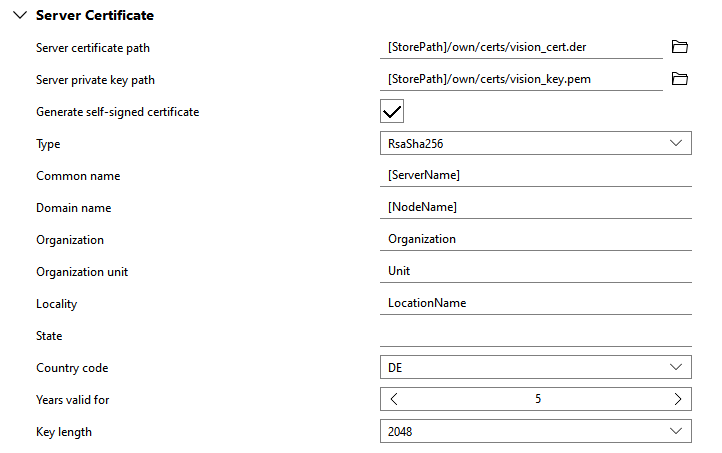
Server certificate path
This parameter defines the absolute path to the OPC UA server x506 certificate file. The file must be in DER format. You can select the location from the file system via the button(on local systems) or you can type the path directly into the text field. The placeholder [StorePath] can be used to specify the default certificate store path. The parameter expects a String value. By default, it is set to "[StorePath]/own/certs/vision_cert.der".
Server private key path
This parameter defines the absolute path to the private key file. You can select the location from the file system via the button (on local systems) or you can type the path directly into the text field. The placeholder [StorePath] can be used to specify the default certificate store path. The parameter expects a String value. By default, it is set to "[StorePath]/own/certs/vision_key.pem".
Generate self-signed certficate
If this parameter is set, the OPC UA server will generate a private and public key pair that is necessary to function. The files will be stored in the locations that are defined in the parameters "Server certificate path" and "Server private key path", respectively. The key pair is created only if the files do not exists yet. By default, the parameter is already set.
If the parameter is not set, the parameter "Server certificate path" and "Server private key path" have to point to valid files.
Type
This parameter defines the algorithm that is used to sign the certificate. Valid values are "RsaMin" and "RsaSha256". Applications that support the security profiles "Basic128Rsa15" and "Basic256" need a certificate of type "RsaMin". Applications that support the other profiles need a certificate of type "RsaSha256".
This parameter is only relevant if the parameter "Generate self-signed certficate" is set.
Common name
This parameter defines the name of the application. The placeholder [ServerName] can be used to generate a name with the format "MachineVisionServer@[NodeName]" in which [NodeName] is the hostname of the machine where the certificate was generated. The parameter expects a String value.
This parameter is only relevant if the parameter "Generate self-signed certficate" is set.
Domain name
This parameter defines the domain component. The placeholder [NodeName] can be used for the hostname of the machine where the certificate was generated. The parameter expects a String value.
This parameter is only relevant if the parameter "Generate self-signed certficate" is set.
Organization
This parameter defines the name of the organization that is using the OPC UA server, for example, "MVTec Software GmbH". The parameter expects a String value.
This parameter is only relevant if the parameter "Generate self-signed certficate" is set.
Organization unit
This parameter defines the name of the organization unit that is using the OPC UA server, for example, "Acquisition". The parameter expects a String value.
This parameter is only relevant if the parameter "Generate self-signed certficate" is set.
Locality
This parameter defines the name of the location where the OPC UA server is running, for example, "Munich Office". The parameter expects a String value.
This parameter is only relevant if the parameter "Generate self-signed certficate" is set.
State
This parameter can be used to define the state where the OPC UA server is running. The parameter expects a String value.
This parameter is only relevant if the parameter "Generate self-signed certficate" is set.
Country code
This parameter defines the two letter code for the country where the OPC UA server is running, for example, "DE" or "US". For a complete list of country codes, refer to the following website: www.ssl.com/country-codes.
This parameter is only relevant if the parameter "Generate self-signed certficate" is set.
Years valid for
This parameter defines the number of years the certificate is valid for. The parameter expects a UInt32 value between 1 and 20 but a smaller number is recommended.
This parameter is relevant only if the parameter "Generate self-signed certficate" is set.
Key length
This parameter defines the key length of the certificate to create. The following table shows the available key length:
|
Key length |
Description |
|---|---|
|
1024 |
Valid for "RsaMin". |
|
2048 |
Valid for "RsaMin" and "RsaSha256". |
|
3072 |
Valid for "RsaSha256". |
|
4096 |
Valid for "RsaSha256". |
By default, the parameter is set to 2048. If an invalid value is used for any of the two certificate types, the default value is used instead and a warning will be logged at the start up.
This parameter is only relevant if the parameter "Generate self-signed certficate" is set.
Endpoint Security Overrides
In OPC UA some of the security checks are optional or may cause interoperability issues with some OPC UA clients. Due to this, a range of security overwrites are provided.
Enable these settings only when absolutely necessary. Changing these settings may make your application less secure so you have to do it at your own risk.
The following image shows the available parameters for the endpoint security settings with the respective default setting. A detailed description of the parameters follows after the image.
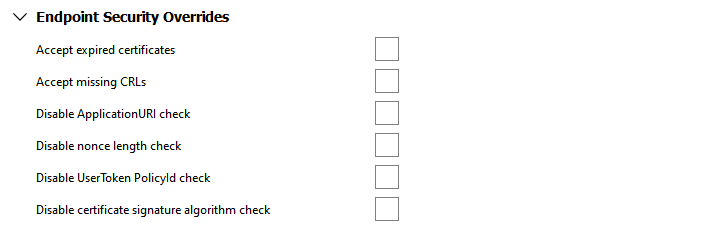
Accept expired certificates
If this parameter is set, the client certificate validation errors "BadCertificateTimeInvalid" and "BadCertificateIssuerTimeInvalid" are disabled. By default, the parameter is not set.
Accept missing CRLs
If this parameter is set, the client certificate validation errors "BadCertificateIssuerRevocationUnknown" and "BadCertificateRevocationUnknown" are disabled. By default, the parameter is not set.
Disable ApplicationUri check
If this parameter is set, the match check of the application URI between the client certificate and the parameter in create session is disabled. By default, the parameter is not set.
Disable nonce length check
If this parameter is set, the length check of the client nonce when creating a session is disabled. The check is required for compliant OPC UA servers but older clients may provide a client nonce that is shorter than the required 32 bytes. By default, the parameter is not set.
Disable UserToken PolicyId check
If this parameter is set, the check of the user token policy ID in the active session is disabled. The check is required for compliant OPC UA servers but older clients may not provide the user token policy ID. By default, the parameter is not set.
Disable certificate signature algorithm check
If this parameter is set, the client certificate validation error "BadSignatureAlgorithmNotAllowed" is disabled. This check is security relevant and should never be disabled except for a temporary workaround if absolutely necessary. By default, the parameter is not set.
OPC UA Trace Settings
The parameters in this category can be used for debugging purposes.
The following image shows the available parameters for the trace settings with the respective default setting. A detailed description of the parameters follows after the image.
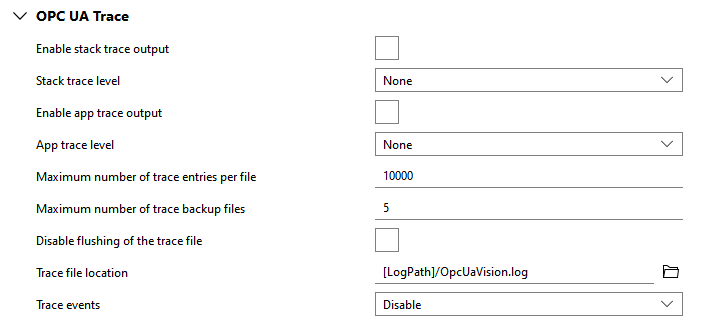
Enable stack trace output
If this parameter is set, the UA stack trace is enabled. By default, the parameter is not set.
Stack trace level
This parameters defines the UA stack trace level. The following table shows the available options. By default, the parameter is set to "None".
|
Level |
Description |
|---|---|
|
None |
No trace. |
|
Error |
Critical errors which require attention, that is, unexpected errors and or errors that require external interaction. |
|
Warning |
Non-critical fails which should not go unnoticed. |
|
System |
Rare major events like initializations, shutdown, etc. |
|
Info |
Regular good case events, like connects or renews. |
|
Debug |
Used for debugging purposes. |
|
Content |
Used to add additional content, that is, whole message bodies to debug traces. |
|
All |
All outputs. |
Enable app trace output
If this parameter is set, the UA server application trace is enabled. By default, the parameter is not set.
App trace level
This parameters defines the UA server application trace level. The following table shows the available options. By default, the parameter is set to "None".
|
Level |
Description |
|---|---|
|
None |
No trace. |
|
Error |
Critical errors which require attention, that is, unexpected errors and or errors that require external interaction. |
|
Warning |
Non-critical fails which should not go unnoticed. |
|
Info |
Information about the important activities like establishing a connection. |
|
InterfaceCall |
Call to module interfaces. |
|
CtorDtor |
Creation and destruction of objects |
|
ProgramFlow |
Internal program flow. |
|
Data |
Data |
Maximum number of trace entries per file
This parameter defines the maximum number of trace entries in one file. The parameter expects an UInt32 value. By default, it is set to 10000.
Maximum number of trace backup files
This parameter defines the maximum number of backup files. The parameter expects an UInt32 value By default, the parameter is set to 5.
Disable flushing of the trace file
If this parameter is set, the trace file is not flushed after each trace entry but automatically from time to time. For maximum trace performance you should set this option. If you have issues with missing trace entries in case of an application crash, you should disable this option. By default, the parameter is not set.
Trace file location
This parameter defines the name and location of the trace file. You can select the location from the file system via the button (on local systems) or you can type the path directly into the text field. The placeholder [LogPath] can be used for the path to the directory of the MERLIC log files. The parameter expects a String value. By default , it set to "[LogPath]/OpcUaVision.log".
Trace events
This parameter defines if the SDK trace outputs for the trace levels Error, Warning, and Info, that can be sent via events. The following table shows the available options. By default, the parameter is set to "Disable".
|
Value |
Description |
|---|---|
|
Disable |
The trace events are not sent via events. |
|
History |
The client is allowed to get the trace outputs via HistoryRead events. |
|
HistoryAndEvents |
The client is allowed to get the trace output via events. |