Image Source
This tool is required to receive the images that have been acquired from an image source of the Image Source Manager. The set up of the image sources is done in the "Image Sources" tab of the MERLIC RTE Setup and is therefore independent from the MVApp. The image sources must be assigned to an image source configuration. To ensure that the desired image source can be used in your MVApp, you have to make sure that the configuration in which the image source is stored is active. For more information about the Image Source Manager and how to set up image sources, see the topic MERLIC Image Source Manager (ISM).
License Restrictions
When using this tool, some restrictions apply:
- The active configuration may contain only as many camera devices as allowed by the used MERLIC license.
- If an MVApp already contains an "Image Source" tool, it is not allowed to add the deprecated "Acquire Image from Camera" tool to the same MVApp and vice versa.
The MERLIC license restricts the number of camera devices that can be configured in an active image source configuration. The restriction only applies to active image source configurations. This means, it is still possible to add as many camera devices to an inactive image source configuration as you like. However, an image source configuration can only be activated if the license restrictions are met, that is, if it contains only as much camera devices as allowed by the license.
For more information on the license restrictions for the image acquisition, see the topic License Restrictions for the Image Acquisition.
General Information
Overview of the Available Images Sources
To use the images of a specific image source in your MVApp, you have to ensure that the respective image source configuration is currently active.
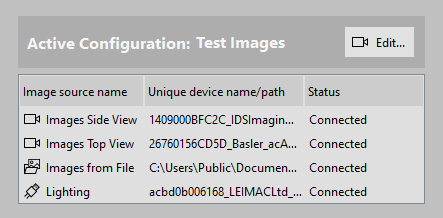
If you want to check which image sources are currently available for use in your MVApp, you can look up the current state in the "Image Source Configuration" panel of the MERLIC Creator. The panel shows which configuration is active and provides an overview of all image sources in that configuration.
For each available image source, the respective image source name is shown as well as the icon representing the type of the image source. Image directories are indicated the icon  . In addition, the location of the respective image directory is displayed. For camera devices indicated by the icon
  , the respective unique camera name is displayed. Image sources representing peripheral devices such as lighting or lens controllers are indicated by the icon
  and shown with the respective unique device name. The corresponding status indicates whether the image source is connected and ready for use. If the status is "Connected", the image source is available and ready for use. If it is "Disconnected", you might have to check the configuration again.
If you need to adjust the settings of an image source or if you are missing an image source in your active configuration, you can open the "Image Sources" tab of the MERLIC RTE Setup via the " Edit..." button.
During the start up MERLIC will automatically open all image sources of your active configuration. If you are not sure which configuration is active or if the image source you want to use is available, check the "Image Source Configuration" panel and make sure that the desired image source is part of the currently active configuration. Otherwise, the image source will not be available for the MVApp.
Setting Up an Image Source in the MVApp
The set up of an image source in the MVApp can be done in just a few steps as described below.
- Select the "Image Source" tool in your Tool Flow. If your MVApp contains no "Image Source" tool, add it to your Tool Flow. The tool automatically selects the first image source of the active configuration. If you want to use the images of a different image source, change the image source as described in the next step.
- Select the desired image source at the tool parameter "Image Source Name". If the desired image source is not shown, check if the configuration, in which the image source is stored, is active.

Only image sources of the currently active configuration are available for selection. In addition, keep in mind that the "Image Source" tool is meant to obtain images acquired by the Image Source Manager. Thus, image sources that have been added with the option not to acquire images, for example, lighting controllers, cannot be selected in the tool.
- Run the MVApp in single steps or continuously to check the images that are acquired from the selected image source. In case of an image file directory, the execution of the MVApp steps through the images in the directory. The acquired image will be returned in the tool result "Image" on the bottom of the tool board. The result can be connected to other tools to use the image for the actual image processing task in MERLIC.
During each execution, MERLIC acquires images from all image sources of the active configuration even if they are not selected in this tool. Only the image of the selected image source is shown as a result.
You can use multiple image sources in your MVApp by adding an "Image Source" tool for each image source you want to use. The image acquisition from multiple cameras occurs simultaneously. However, keep in mind that the number of allowed camera devices depends on your MERLIC license. For more information, see the topic License Restrictions for the Image Acquisition.
Changing the Configuration of Image Sources
If you want to check the configuration of the available image sources or add further image sources, you can use the button at the Tool Board to open the "Image Sources" tab of the MERLIC RTE Setup. You can check if the image sources are configured correctly and make further changes if required. For more information about the configuration options, see the topic Configuring Image Sources.
Behavior for Hardware Trigger
If hardware triggered cameras are used, the trigger must be sent after MERLIC is executed and before the timeout is reached.
It is not necessary to send a trigger signal after an MVApp is loaded but no or only a buffered image will be displayed:
- If no image was previously acquired with the current configuration in the MERLIC Creator, no image is displayed and the graphics window is black.
- If an image was previously acquired with the same settings in the same instance of the MERLIC Creator the most recent image is displayed.
Error Handling
In case an image could not be acquired, an error occurs for the tool indicated by a warning or error icon at the Tool Board and the respective value in the "Tool State" result. For more information on the error handling for this tool, see the topic Using Image Sources in MVApps.
Parameters
Basic Parameters
Image Source Name:
This parameter defines the name of the image source from which the images will be acquired. By default, the first available image source is loaded after inserting the tool.
To use a different image source of the active configuration, select the desired image source from the drop-down menu of the parameter. Only image sources of the currently active configuration are available for selection. If the desired image source is not shown, check in the "Image Sources" tab of the MERLIC RTE Setup in which configuration the image source is stored and active the respective configuration. Keep in mind that image sources that have been added with the option not to acquire images, for example, lighting controllers, cannot be selected in the tool.
If you acquire images from a directory, only one image will be displayed at a time. When executing the application once, the tool displays the next image of your selection in the graphics window. Thus you may execute your application stepwise to check your selection of images. If a new image file is added to the image file directory while the image source is already selected in this tool, it will be ignored and not appear as result. If an existing image is deleted while the MVApp is still open, the image will appear in the result but as an invalid image.
For a file that contains multiple images as sub files, e.g., a multi-page image in a TIFF file, only the first image is loaded in the tool. Some file type variations that contain multiple images can not be acquired. We recommend using single-page images.
Basic Results
Image:
This result represents the image acquired from the image source. If a series of images is acquired, e.g., from a directory, the result represents the image that is currently displayed in the Tool Board.
If the image source is invalid or missing, MERLIC will show an error image to indicate that no image was acquired. For more information on the error handling for this tool, see the topic Using Image Sources in MVApps.

Used Source:
This result provides information on the image source that was used for the currently displayed image. In case of image files, the name and path of the acquired image file is returned. In case of a camera device, the unique camera name is returned.
Tool State:
"Tool State" returns information about the state of the tool and thus can be used for error handling. Please see the topic Tool State Result for more information about the different tool state results.
Additional Results
Acquisition Time:
This result returns the duration of the image acquisition for the current execution. It is returned in milliseconds. In contrast to "Total Acquisition Time", the value of this result refers only to the image acquisition from the selected image source that is selected in the parameter "Image Source Name". The duration of the "Acquisition Time" is also provided in the status bar of the MERLIC Creator.
If the live image mode in the MERLIC RTE Setup is used while executing the MVApp, the resulting duration for the acquisition time might not be correct. Therefore, we recommend to stop the live image mode when executing the MVApp if you want to check the acquisition time in a reliable way.
Total Acquisition Time:
This result returns the total duration of the image acquisition for the current execution. It is returned in milliseconds. In contrast to "Acquisition Time", the value of this result refers to the image acquisition from all image sources of the active configuration.
When executing the MVApp, MERLIC first acquires an image from all image sources that are defined in the currently active configuration and then starts the actual execution of the Tool Flow. The value that is returned in this result represents the time it took to acquire an image from all these image sources. This might be helpful to detect whether the active configuration contains other image sources that require a much longer acquisition time which also affects the total execution time of the MVApp.
This result is only provided if the MVApp is executed explicitly. When starting the MERLIC Creator or activating a configuration, no value will be returned for this result. In addition, if the live image mode in the MERLIC RTE Setup is used while executing the MVApp, the resulting duration for the total acquisition time might not be correct. Therefore, we recommend to stop the live image mode when executing the MVApp if you want to check the acquisition time in a reliable way.
Processing Time:
This result returns the duration of the most recent execution of the tool in milliseconds. The result is provided as additional result. Therefore, it is hidden by default but it can be displayed via the  button beside the tool results. For more information see the section Processing Time in the tool reference overview.