Creating an HDevelop Procedure for the Tool
A custom MERLIC tool is represented by an HDevelop procedure file containing the respective image processing task. Therefore, it is required to create an HDevelop procedure file which can then be integrated in the MERLIC Creator as a custom tool.
To create such a procedure for a custom tool, however, you need an HDevelop program that already contains the core functionality of the designated custom tool. Therefore, you first have to implement the respective image processing task in an HDevelop program as described in the topic Implementing the Image Processing Task. Then, you can convert the part of the HDevelop program that is meant to be the actual functionality of the new custom tool into an HDevelop procedure as described in this topic. The new procedure file can then be integrated in MERLIC as a custom tool.
The following sections describe how to convert the respective code into a new procedure and which settings are required when creating the procedure.
Creating a New Procedure for a Custom Tool
- Open the HDevelop program which contains the image processing task for the new custom tool.
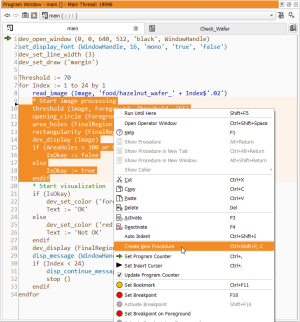
- In the "Program Window", select the lines of code you want to convert into a procedure. The code of the new procedure represents the functionality of the new custom tool. Therefore, you have to make sure to select all lines of code that should be processed when using the new custom tool in MERLIC.
- Right-click to open the context menu and select "Create New Procedure". Alternatively, you may convert the code using the menu entry "Procedures → Create New Procedure".
-
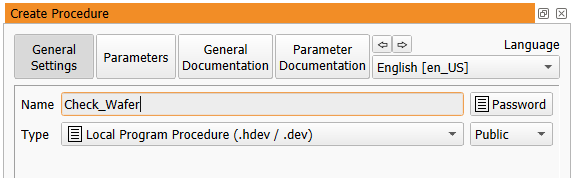
In the "Create Procedure" dialog, enter the name of the procedure.
This name represents the name of the new custom tool. It must start with a letter and may consist of alphanumeric characters and underscores. The name must be unique, i.e., you may not enter a name which is already used for a different tool. If there are two or more tools with exactly the same name, only the first tool in the added tool paths will be loaded in MERLIC.
-
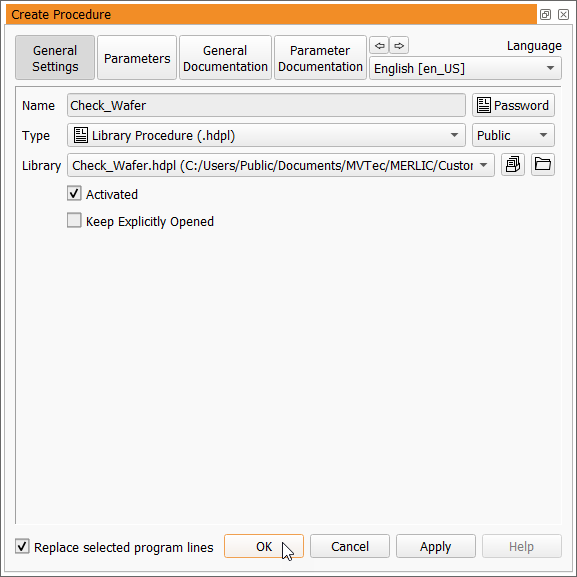
Open the drop down menu for the "Type" of the procedure and select "Library Procedure (.hdpl)". Now, the additional settings for procedure libraries will also be displayed.

-
Click on the button
 next to the "Library" entry to create a new procedure library.
- Select the location for the procedure library. It should be a directory in which you have write permissions. Therefore, it is not recommended to save the procedure library in the MERLIC installation directory because it is usually write-protected in most cases.
- Enter the file name of the procedure library. It must be identical to the name of the procedure that has been defined previously.
- Save the changes. If a new procedure path was selected which is not yet included in the list of external procedure paths, HDevelop automatically opens a dialog that enables you to choose if this path should be added. We recommend to select "Add Path" to immediately add the new procedure path to the HDevelop settings. This is also required to test the new procedure within HDevelop.

-
Click on "OK" or "Apply" to save the new procedure with the defined settings.
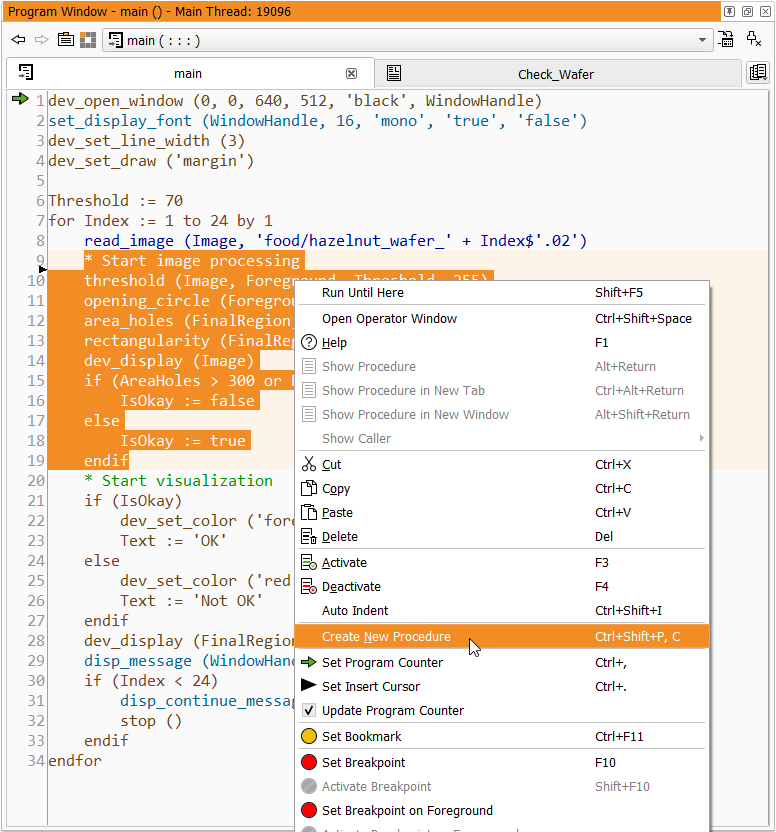
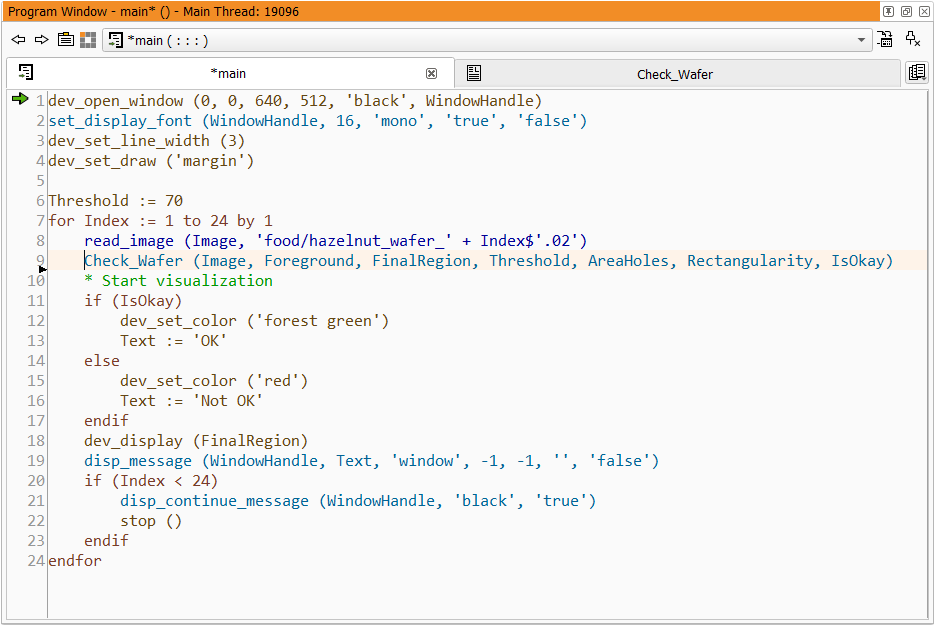
The selected lines of code will be automatically replaced in the HDevelop program with the new procedure.
Before integrating the new procedure file in MERLIC, you have to define and check some further procedure settings , e.g., the required input and output parameters of the procedure or the respective default values, to ensure that the custom tool works correctly in MERLIC. For more information about the procedure settings, see the topic Defining the Procedure Settings.