Using Region of Interest (ROI)
If you want to use ROIs as input or output for your custom tool, you have to add the respective parameter in the procedure interface dialog of the procedure that represents the custom tool. You can also use multiple ROI parameters if you want to use different ROIs as input for the processing or if you want to provide multiple ROI results in the custom tool. However, if multiple ROI input parameters are provided at a MERLIC tool, the ROI toolbar buttons at the tool board are deactivated. Thus, you cannot add the ROIs by drawing them into the image via the ROI buttons. Instead, you have to ensure to provide the respective ROIs from a previous tool.
When adding an ROI parameter, you have to make sure to define the parameters settings as required for ROIs. You can find more information in the following sections.
Adding an ROI Parameter
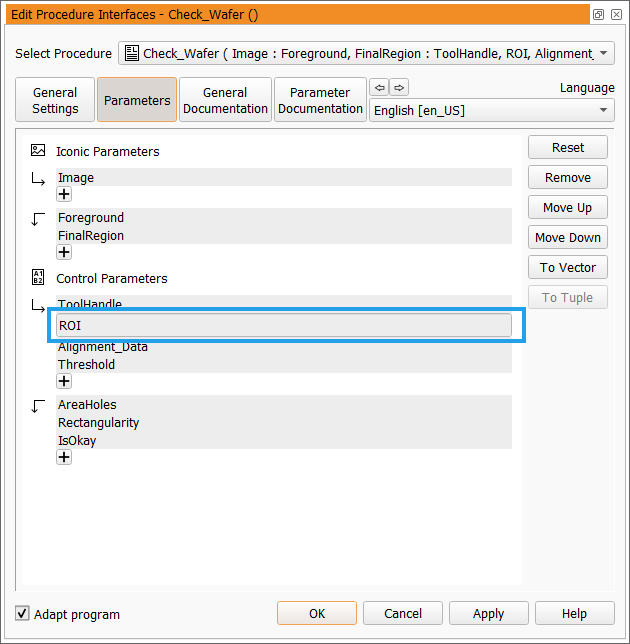
If you add a new ROI parameter in the procedure interface dialog of your custom tool procedure, you have to add the parameter as a control parameter. In the example below, an ROI parameter has been added as input control parameter. Thus, this parameter will be available as a tool parameter when using the custom tool in MERLIC. If you want to provide an ROI as a tool result in your custom tool, you have to add it to the output control parameter.
Required Parameter Settings for ROIs
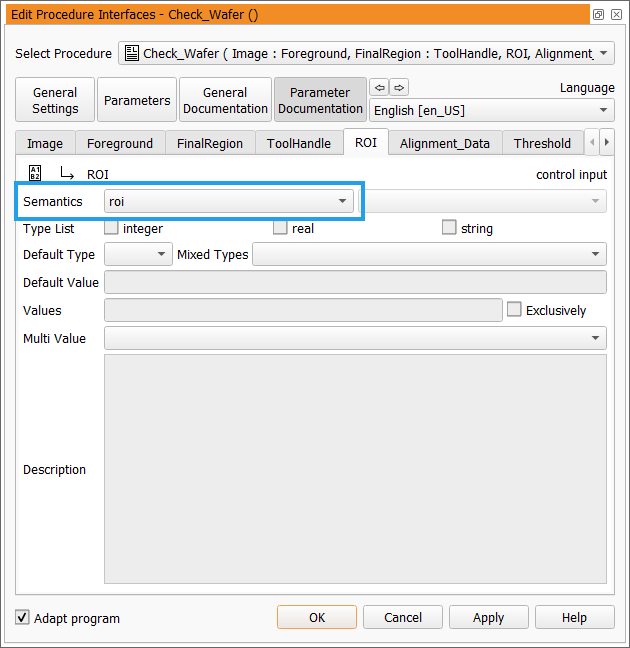
In addition to the parameter type, you also have to ensure that the parameter settings are defined as required. For this, go to the "Parameter Documentation" tab of the procedure interface dialog and select the tab of the respective ROI parameter.
Only one setting must be defined for ROI parameters: the semantic type, i.e., the value for "Semantics". It must be set to "roi" as shown in the image below.
An ROI parameter is organized as a tuple with type identifiers and values, containing multiple ROIs per tuple. These values can be considered as magic numbers that must not be accessed directly.
If you added an ROI parameter, make sure to also define which ROIs should be supported by the custom tool as described in section Adding ROI Support.
ROI Handling in Custom Tools
MERLIC provides various interface parameters for the implementation of the ROI handling in a custom tool. You can find a detailed description of the available interface procedures for ROIs in the topic Procedures for Regions of Interest (ROIs). There are procedures to define the support of specific ROIs, to insert, access, and modify ROIs, and to define the visualization of ROIs.
Adding ROI Support
Each MERLIC tool provides a toolbar with ROI buttons on the left of the tool board. These ROI buttons can be used to draw an ROI directly into the image. However, these buttons are deactivated by default. If you want to enable the MERLIC user to draw an ROI into the graphics window of your custom tool, you have to activate these buttons for your custom tool.
The support of the desired ROI types must be defined in the _Info procedure of your custom tool. You can use the interface procedures Me_add_roi_support_* to create the tuple of ROI types you want to support. The final list of ROIs must then be provided in a predefined structure to the "Configuration" parameter of the "_Info" procedure as shown below. The parameter expects a tuple with four elements in the following order: the string "SupportedRois", the parameter containing the list of supported ROIs, the string "AdditionalParams", and the parameter containing the list of additional parameters and results. The last two elements are required if you want to define any additional parameter or results that should not be visible by default on the tool board in MERLIC. For more detailed information on the "Configuration" parameter, see the topic of the _Info procedure.
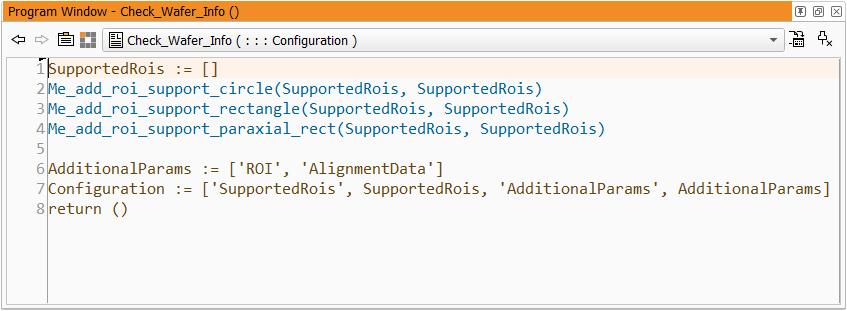
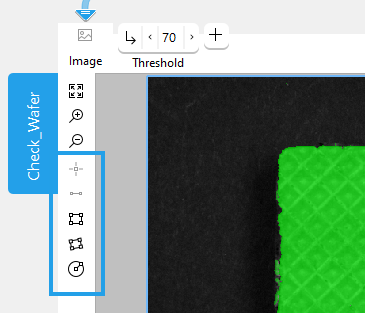
The image above shows the "_Info" procedure of the example custom tool "Check_Wafer". It supports only specific types of ROIs: circle ROIs, rectangle ROIs, and paraxial rectangle ROIs. Therefore, the ROI support is defined for each ROI type separately via the interface procedures Me_add_roi_support_circle, Me_add_roi_support_rectangle, and Me_add_roi_support_paraxial_rect. The list of ROIs is collected in the parameter "SupportedRois". In our example, the input parameter and output parameter of the ROI list has the same name but you can also name them differently. You just have to make sure to use the output parameter with the updated list of ROIs in the next steps. When using the "Check_Wafer" tool in MERLIC, the only the ROI buttons of the supported ROI types will be activated for use. The ROI buttons for point ROIs and segment ROIs will be deactivated as shown in the following image.
If you also want to support only specific types of ROIs in your custom tool, you also have to use the respective procedures for the individual ROI types. In case you want to support all types of ROIs, you can use the procedure Me_add_roi_support_all. If you collected all ROIs to be supported in a parameter, you have to provide this parameter in the "Configuration" parameter of the "_Info" procedure as described above.
For more detailed information on the "Configuration" parameter, see the topic of the _Info procedure.
Example: Creating ROIs
The following example image shows how an ROI can be created using the interface procedure Me_insert_paraxial_rect.
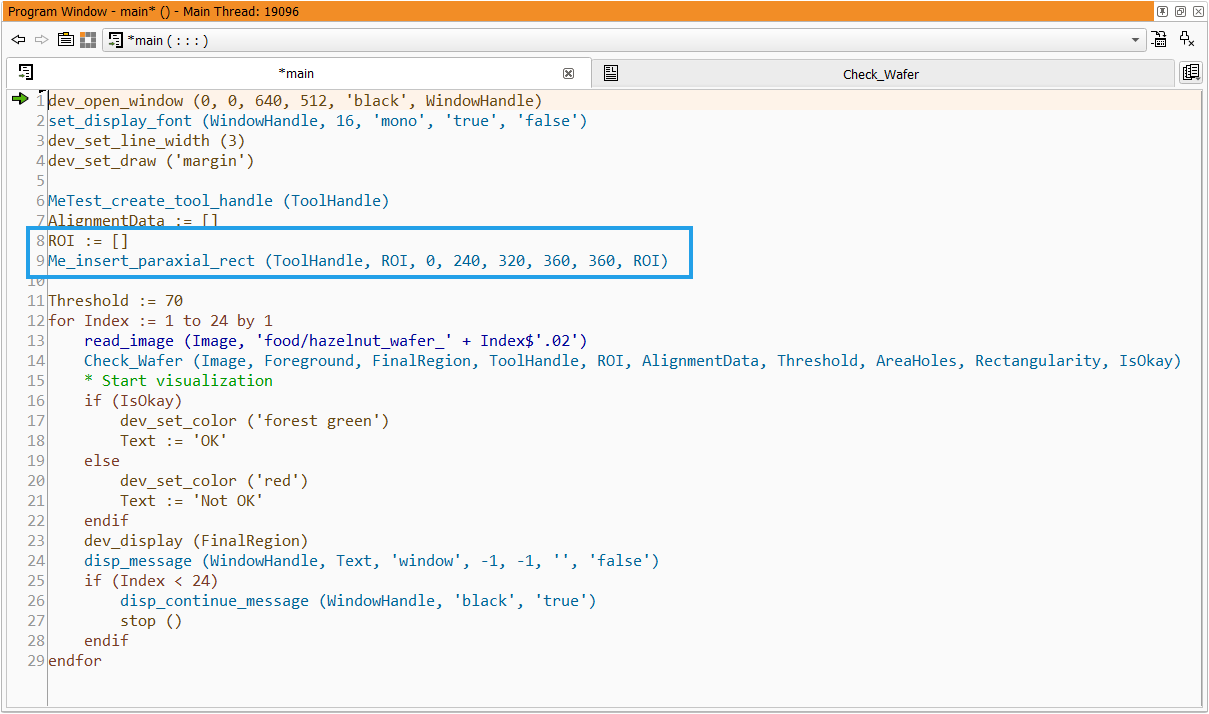
The ROI parameter is initialized first and then a paraxial rectangle ROI is created and inserted at the specified position with the specified size. MERLIC provide an interface procedure for the ROI creation for each type of ROIs.
Example: Getting Number of ROIs and Converting ROIs into Regions
In the implementation of our example custom tool, you can find the following code lines for a simple ROI handling.
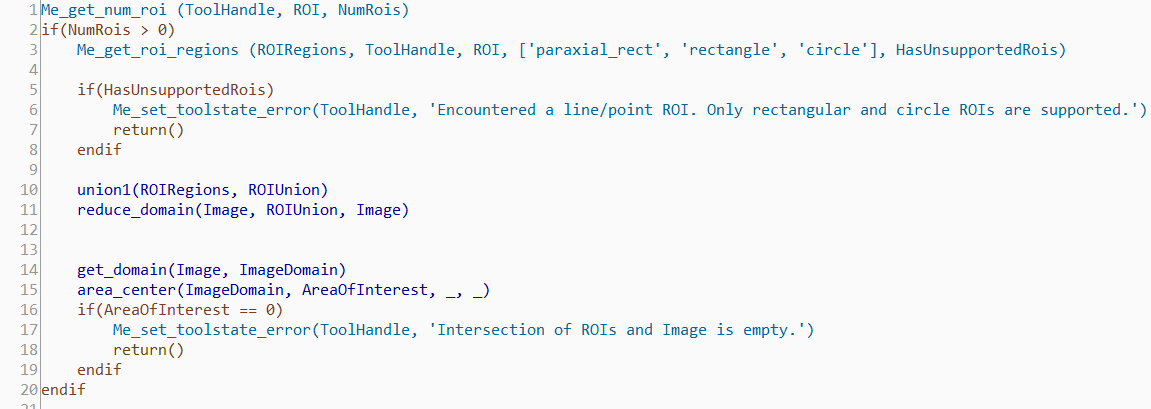
In the code example, it is checked whether the region of the ROIs lies within the image. For this, two ROI interface procedures are used: Me_get_num_roi and Me_get_roi_regions. The first procedure queries the numbers of ROIs and the second converts ROIs of a predefined type into regions.
The available ROIs are stored in the parameter "ROI", which is organized as a tuple with type identifiers and values. At the beginning, the procedure Me_get_num_roi is used to query the number of ROIs in the "ROI" parameter. If at least one ROI is available, the code within the if block is processed.
The available ROIs in the "ROI" parameter are converted into regions using the procedure Me_get_roi_regions. The regions are returned in the output parameter "ROIRegions". However, only the ROIs of the predefined type are converted, i.e., paraxial rectangle ROIs, rectangle ROIs, and circle ROIs. If there are any ROIs available that are not of these types, i.e., point ROIs and segment ROIs, they are not converted. The binary output parameter "HasUnsupportedRois" indicates if this is the case.
After converting the ROIs into regions, the union of all ROI regions is determined and the image domain is reduced to the determined region of the ROIs. In the next step, it is checked whether the area of the image domain is empty. It this is the case, the ROIs lie outside of the image. If the area is not empty, the available ROIs of the predefined type are located over the image.