Working with Regions of Interest (ROIs)
All MERLIC tools that work on images can restrict their operation on one or more regions of interest (ROIs). Consequently, the output of the tools contains only results with respect to these ROIs. The ROIs can be used in subsequent MERLIC tools which then will only return results for the selected ROI(s).
 View an example how the ROI defines the area to be processed
In the example below, the ROI defines the area in which the text is read. In this case only the first line is processed.
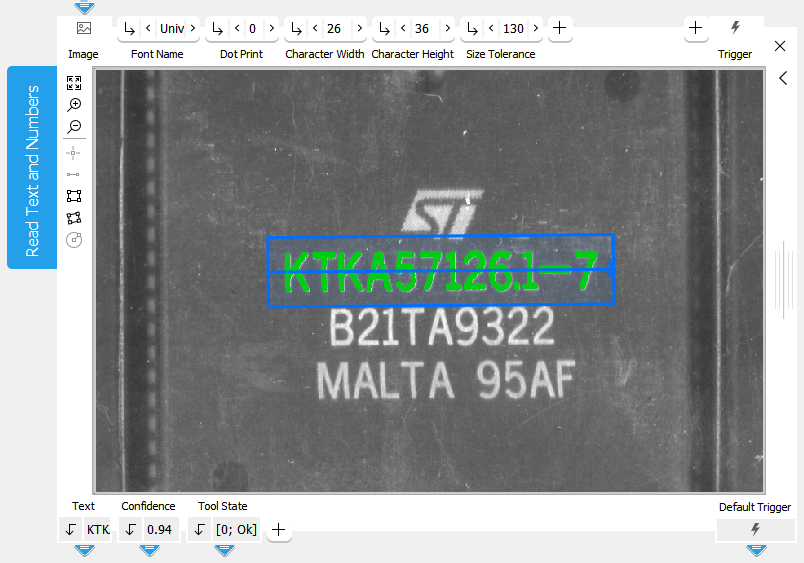
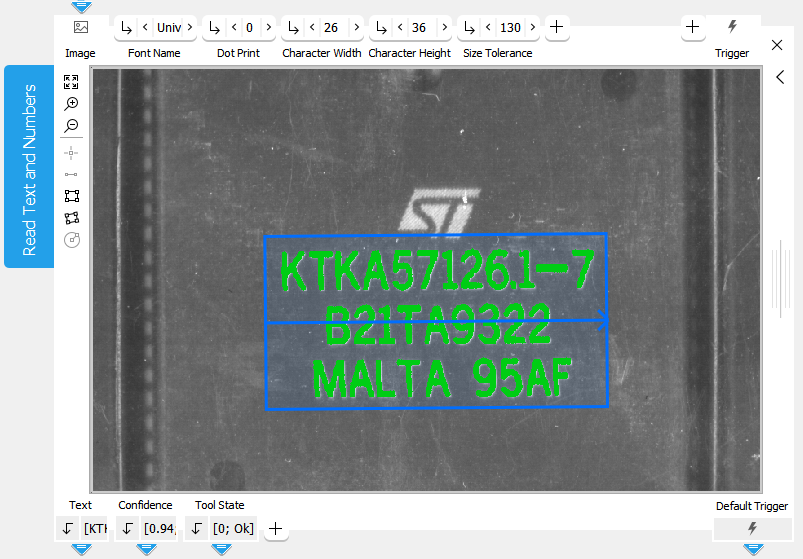
The ROI can be extended by dragging on the edges so that also the second and third line are processed and read as shown in the image below.
Creating ROIs
- Click the corresponding button on the left of the image to select a shape.
There are several shapes for ROIs:
 point
point line segment
 paraxial rectangle
 rectangle
 circle
 - Draw the ROI in the image.
- If necessary, adapt the size by dragging its edges. When you move the mouse over drag-able edges, they are highlighted.
- If necessary, drag the arrows to change the orientation of the ROI.
Moving ROIs
- Drag an ROI within an image to the new position by clicking on the + in the middle.
- Use the arrow keys on your keyboard to move an ROI to a new position. By simultaneously pressing the Ctrl or Shift key you can influence if the ROI is moved in small or big steps while using the arrow keys.
Deleting ROIs
To remove an ROI from the image, simply select the ROI with a mouse click and press the Del button of your keyboard.