The User Interface of the Image Source Manager
The Image Source Manager provides a graphical user interface for the configuration of image sources. It is part of the MERLIC RTE Setup represented by the tab "Image Sources". The graphical user interface of the Image Source Manager changes depending on whether you are editing configurations or image sources.
General User Interface
 List of Configurations and Image Sources
User Interface for selected Configurations

User Interface for selected Image Sources
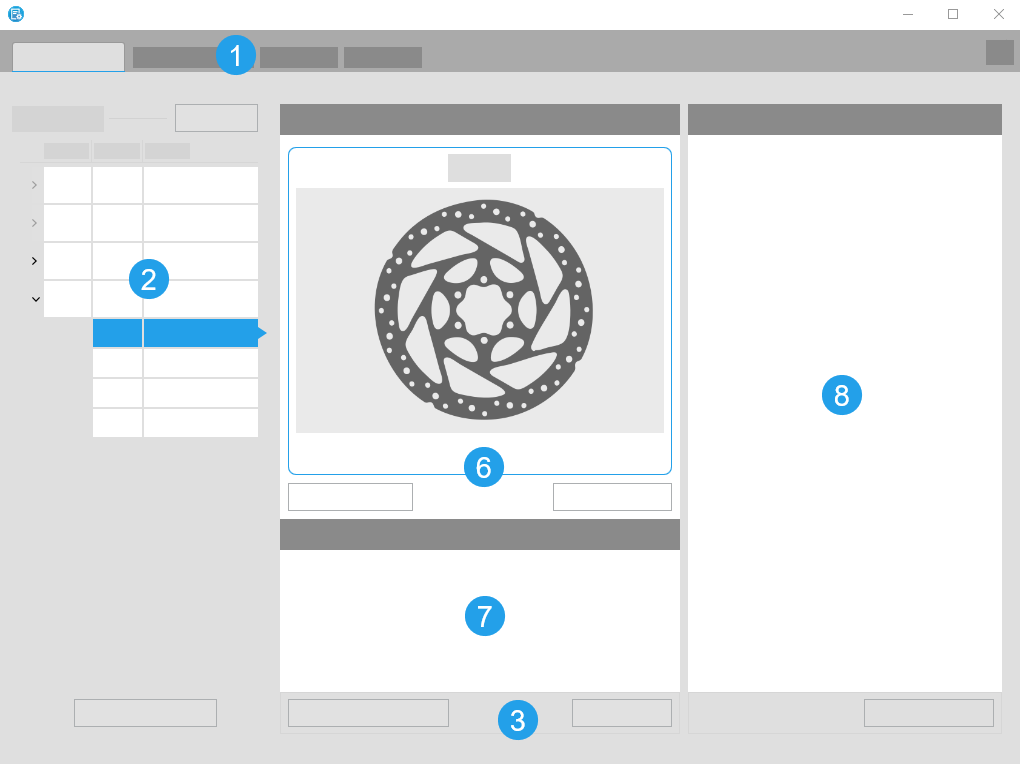
 Tab Overview
Using the tabs, you can switch between the different components of the MERLIC RTE Setup: Image Source, Communication, Recipes, and I/O. Each component has its own graphical user interface.
List of Configurations and Image Sources
The list of configurations shows all the available image source configurations with their respective type, status, and name. A configuration represents a set of image sources. The selected configuration is marked blue. If the configuration is expanded, the image sources of the configuration will be shown with their status and name. The status of the configuration indicates if the configuration is active or not, that is, if the image sources of the configuration are currently available for the configuration and for the use in an MVApp. Only one configuration can be activated at the same time but it is possible that no configuration is active at all. For more information, see the topic Adding New Configurations and Image Sources.
 Action Buttons
With the action buttons at the bottom of the window you can perform different configuration tasks, such as adding and removing new configurations and image sources. You can also activate and deactivate the selected configurations. When you open the image source configuration for the first time, you have to create a configuration before you can add an image source, because each image source must be assigned to a configuration.
 Configuration Details
The "Configuration" section provides you with details about the selected configuration. It displays the configuration name, its status and type, and whether the configuration is used as RTE startup configuration.
 Image Source Details
The "Image Sources" section provides you with details about the selected image source. It displays the image source name and its interface type, that is, the camera type or file. Depending on the interface type, the "Image Source" section provides the camera name or the file path. It also displays the status of the image source.
 Image Preview
The image display allows you to check the configuration of the selected image source in real time. When using a camera device, you can use the buttons at the bottom of the image display to activate the live mode of the camera or to take single snapshots. The acquired images will be displayed in the image preview and you can instantly see how configuration changes at the camera parameters affects the acquired images. When using peripheral devices that acquire no images, such as lighting or lens controllers, you can use the image preview to display the images of a specific camera device. This allows you to check how configuration changes at the device parameters affect the images acquired by the respective camera. If your image source is an image directory, the live mode will display all images from the directory consecutively and continuously, while the snapshot mode allows you to step through the images one-by-one. You can also save snapshots to use images from a file directory during the creation and configuration of your MVApp. For more information, see the topic Configuring Camera Devices.
 Info
Info
In the "Info" section, you can see general information about the image source, for example, the name of the image source and the current status.
 Camera Parameters
The camera parameters section enables you to configure the selected camera device. The camera parameters of a specific camera device are only visible if the configuration that it is stored in is active. After activating the configuration and selecting a camera device to configure, you can adjust the parameter of your selected camera device according to your needs. For more information, see the topic Adjusting Camera Parameters.