Working with Group Parameters and Results
Group parameters and results are almost identical to regular tool parameters and results and can be created when tools are grouped. After creating a group parameter or result, you can further use it in the group interface, for example, to connect it to other tools or link them to widgets in the Frontend Designer.
In the group tab, group parameters and results are displayed as follows:
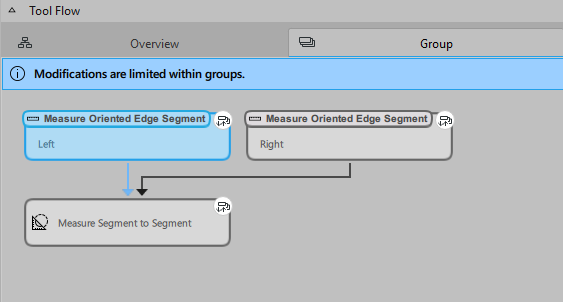
Creating Group Parameters or Results
- Change to the group tab.
- Select the tool whose parameter or result you want to visualize in the group interface.
- At the respective parameter or result, click the icon
 or
or  , respectively.
As soon as a tool parameter or result has been added as group parameter or result, the respective icon in the group interface is highlighted in blue:
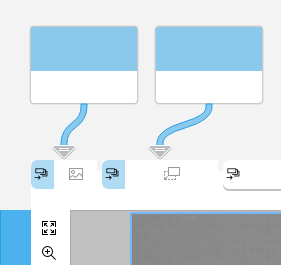
After creating a group parameter or result, you can switch back to the overview tab and select the group to which you added the group parameter or result. The parameter or result is now shown in the group interface and is available for further processing.
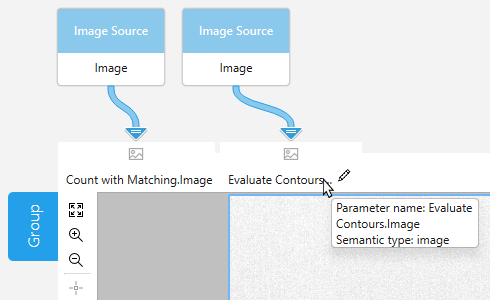
If the group contains a training tool or easyTouch tool that is connected in the Frontend Designer, the respective training or easyTouch functionality is also available in the group interface. This means, you can perform the training or use easyTouch directly on the group interface. If a grouped training tool or easyTouch tool is not connected in the Frontend Designer, you have to change to the group tab. You can then select the respective tool to use the training mode or easyTouch, respectively.
Removing Group Parameters and Results
- Open the group tab.
- Select the tool whose parameter or result you want to remove from the group interface.
- At the respective parameter or result, click on "Remove from group parameters" or "Remove from group results", respectively.
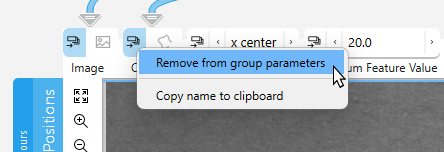
Available Configuration Options in the Group Interfaces
Basically, you can perform the following configurations for a group in the Tool Workspace:
- Adjusting the values of the available parameters and results after you have created a group parameter or result.
- Creating and modifying MVApp parameters and MVApp results.
- Removing existing connections and creating new connections between the group parameters and results and tools outside the group.
- Renaming the group.
- Determining parameter settings by using easyTouch.
- Performing a training.
All of these configurations can be applied in the same way as with regular MERLIC tools.
Available Parameters in a Group Interface
When creating a group, it will automatically display tool parameters and tool results that fulfill either of the following condition:
- They are connected to previous tools or subsequent tools outside of the group.
- They are defined as MVApp parameters and MVApp results.
- They are connected to any Designer widget in the Frontend design of the MVApp.
The connections to these parameters and results are also shown in the Tool Workspace. Open the corresponding group tab to view each tool's parameters and results.