MVApp Parameters
An MVApp parameter data set represents a set of pre-defined input values for a specified MERLIC Vision App (MVApp). The selected MVApp parameters will be available for modification when using the MVApp in MERLIC RTE mode. This means, that the values of the available MVApp parameters can be overwritten for the execution when running the MVApp in MERLIC RTE mode.
In combination with MERLIC recipes, MVApp parameters can be used to set up different parameterizations for the same MVApp, that is, different input values for the tool parameters of an MVApp. For each parameterization of the MVApp, a recipe file can be created with the desired parameter values and the respective data type. In MERLIC RTE mode, the MVApp can then be loaded with the desired parameter data set by loading the respective MERLIC recipe.
Defining the MVApp Parameters
The MVApp parameters of an MVApp can be defined in MERLIC Creator. Before adding the MVApp parameters, make sure the configuration of the tool parameters fits for your application, especially if you want to create a recipe file. This ensures that the values are correctly set in the recipe file.
If everything is configured as desired, you can add the desired tool parameters to the MVApp parameters as follows:
- Select the tool whose parameter you want to define as MVApp parameter.
- Select the tool parameter, that should be available in MERLIC RTE mode, using any of the following methods:
- Click the icon
 at the tool parameter, that should be available in MERLIC RTE mode.
 - Right-click on the tool parameter and select "Add to MVApp parameters...".
- Click the icon
- Enter a unique name for the MVApp parameter into the new dialog.
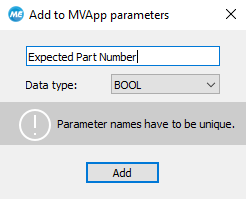
- Select the desired data type from the drop down list. You can choose from various data types of the standard IEC 61131. For more information about the data types, see Supported Data Types.
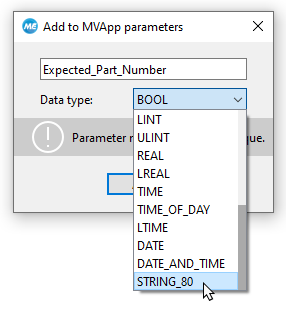
- Confirm your settings by clicking "Add".
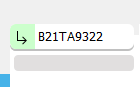
As soon as a tool parameter is set as MVApp parameter, the respective icon is highlighted in green .
In addition, the respective tool is also marked in the Tool Flow panel with the icon  to indicate that at least one parameter of this tool is set as an MVApp parameter.
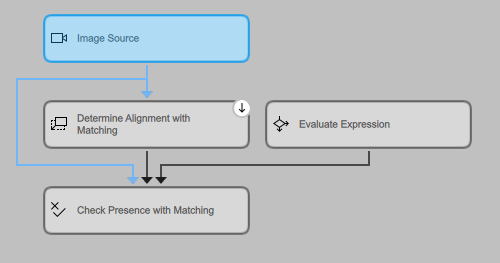
For more information on the visualization of different tool states, see Tool States.
Overview of MVApp Parameters
The panel "MVApp Parameters and Results" in the MERLIC Creator shows a table with all specified MVApp parameters of the MVApp. They are listed according to their data type. The table shows information for each MVApp parameter:
- Name of the MVApp parameter
- Names of the corresponding MERLIC tool and tool parameter
- Data type of the MVApp parameter
- Position of the MVApp parameter within the corresponding data type
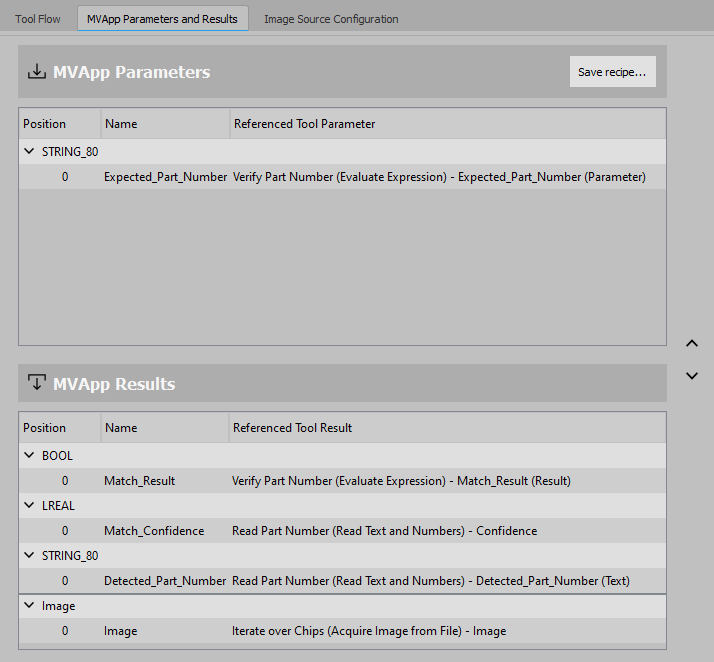
The position of a parameter can be adapted by dragging it with the mouse or the angle buttons on the right.
This panel also provides the button "Save recipe..." that enables you to create a recipe with your data set of MVApp parameters. When creating a recipe file, the currently defined MVApp parameters are exported to the new recipe file in the same order as shown in the overview.
The first input value that is defined for a specific data type in the MERLIC recipe will be set for the first MVApp parameter that is listed in the MVApp parameters list for the respective data type. For more information, see Creating a MERLIC Recipe.
Removing MVApp Parameters
To remove a parameter from the MVApp parameters, use the context menu of the tool parameter.
- Right-click the respective tool parameter to open the context menu.
- Click on "Remove from MVApp parameters".
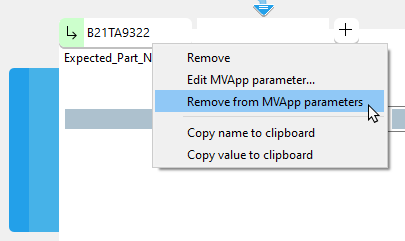
After removing an MVApp parameter, make sure to update all existing recipe files for the MVApp, which contain the MVApp parameter. If the MVApp is already imported to the recipe management, you have to re-import the MVApp to update the parameter values for MERLIC RTE.