Troubleshooting for License Activation
Many problems that might occur during the activation of a MERLIC license can be solved without external help. Please check the information provided in the section General Advice if this solves your problem. You can also check the section Known Issues if you can find help for your specific problem.
If the problem still persists, please do not hesitate to contact your local MERLIC distributor and provide the data described in the section How to Collect Information for Troubleshooting to help analyzing the problem.
General Advice
- Try using a different browser. The installation and license activation was tested using Firefox.
- Make sure that your dongle is securely plugged in to your computer and is recognized by your operating system.
- Make sure that hibernation is disabled on your computer.
- Make sure that the system date of your computer is not changed after the installation.
- Check your anti virus and anti malware software. Include the folder "CmAct" and the executable CodeMeter.exe in the list of authorized elements.
- Check your local firewall. If necessary, deactivate it or change the configuration.
- Check if your company firewall prevents the proper execution of MERLIC or any of its components.
- Make sure that the automatic container selection during the license activation is not changed.
- For MERLIC trial versions: Check if the trial license is out of date.
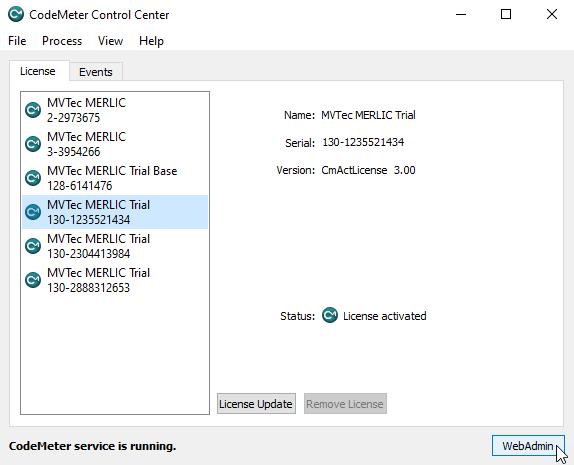
- Open the "CodeMeter Control Center" via the Windows start menu, select the trial license, and click on "WebAdmin" to open the web admin page of CodeMeter in the browser.
- In the browser, the CodeMeter WebAdmin shows information for the selected trial license, e.g., the expiration date. In the following example image, you can see that the trial license has already expired. In this case, you can contact your local distributor.
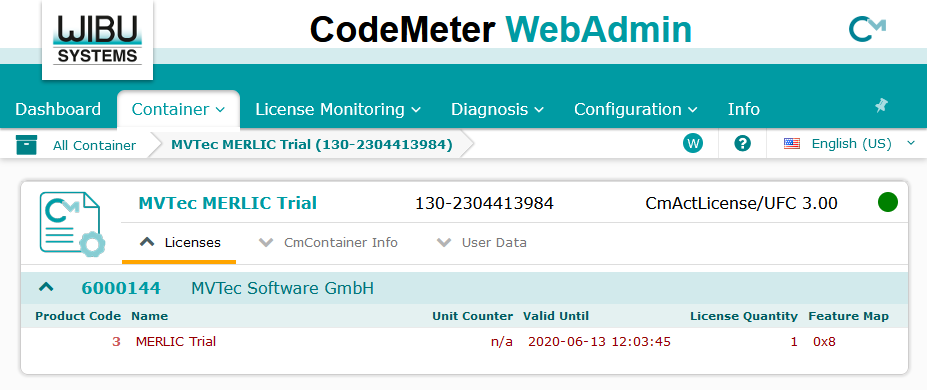
- To get more detailed information on the selected license, you can click on "CmContainer Info". To get information about other licenses, click on "All Container".
- Open the "CodeMeter Control Center" via the Windows start menu, select the trial license, and click on "WebAdmin" to open the web admin page of CodeMeter in the browser.
Known Issues
This section provides information about known issues and tips on how to collect information for troubleshooting. MVTec has a dense, worldwide distribution network. This enables us to offer you qualified partners in your region, regardless of location. You can find the closest partner on the MVTec website.
Trial License Does Not Work After the System Time Was Changed
If you had to change the system time on your computer, the MERLIC trial license will not work.
Possible solution
You have to re-install your operating system in order to remove the MERLIC license container. After that you can re-install the MERLIC license container. It is not sufficient to reset your system to a system recovery point. If reinstalling your operating system is not a viable option, please contact your local distributor.
Error Code 0x18080001 - Upgrade License
During a MERLIC upgrade, the error 0x18080001 may occur if the necessary conditions for the upgrade are not met.
Possible solution
Make sure the necessary condition is met. For example, to activate an upgrade license from MERLIC 4 to MERLIC 5, you must already have a license for MERLIC 4 on your dongle.
Error Code 0x18088006 - CodeMeter Does Not Start
Some drivers and other software can be interpreted by CodeMeter as a reverse engineering attempt.
Possible solutions
- Uninstall and reinstall CodeMeter. Contact WIBU-SYSTEMS AG if you need help.
- Check the "LicenseLock-*.log" file. This log file is written on Windows into the directory "C:\ProgramData\CodeMeter\Logs". The name follows the pattern: LicenseLock-YYYY-MM-DD-hhmmss-TimeStampYYYY-MM-DD year-month-day specification. The file is partly plaintext partly encrypted. Wibu-Systems analyzes the encrypted information and let you know how to proceed.
- Remove the suspicious drivers or software products.
Error Code 0x18080001 in Internet Explorer and "Error importing license template" in Firefox
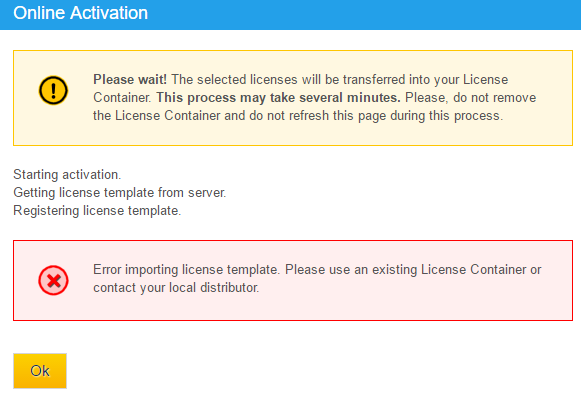
During the activation of a license in Internet Explorer, the error code 0x18080001 is shown. In Firefox the following error message appears:
Possible solution
See the section How To Collect Information for Troubleshooting and contact your local MERLIC distributor.
Missing License
You get the error message "No MERLIC license was found".
Possible solution
See the section How To Collect Information for Troubleshooting and contact your local MERLIC distributor.
CodeMeterAct Error 263_ License Has to Be Activated Again
MERLIC shows a license error when starting:
"The machine is changed.
CodeMeterAct: It is needed to activate the license again.
the error no. is 263."
The log file shows an invalid license. This means that not all data of the license can be read. This error may happen if a cleanup tool, an anti virus software, or a firewall suppresses or deletes license data.
Possible solutions
- Include the folder "CmAct" and the executable "CodeMeter.exe" in the list of authorized elements in your anti virus software or firewall.
- Make sure that no other application is accessing your license file and folder.
Dongle Errors
MERLIC is running but the connection to the dongle fails and a license error is displayed.
Possible solutions
- To check the MERLIC dongle, you can compare the number printed on the dongle with the number in the property "Parent" (string starts with "USB\..." and ends with the number of the HID-compliant device).
You can find it in "Hardware and Sound" → "Devices and Printers" → "CodeMeter-Stick" . Right-click on the device and choose "Properties" → "Hardware" → "Properties" → "Details" → "Parent". The same number should be shown in the CodeMeter Control Center. - Use the CodeMeter Control Center to update the firmware of the dongle. Contact WIBU-SYSTEMS AG if you need help.
Hibernation Errors
After waking up the computer from hibernation, MERLIC displays a license error message or is no longer running.
Possible solution
Make sure that MERLIC runs on a machine that does not go into hibernation mode. Especially during a date change. If an error message is shown, it may take several minutes until the next license check is successful.
How to Collect Information for Troubleshooting
If the problem persists, please do not hesitate to contact your local MERLIC distributor. The following data will be helpful for analyzing the problem and to provide a solution. Collect the log data from the time right after the activation failed.
"CmDust" Log File
- Create the log file by starting the program "CmDust" via the Windows start menu "Start → CodeMeter → CmDust".
- The file "CmDust-Result.log" is created automatically and the folder in which the file is created is also opened automatically.
CmAct Log File
- Open the folder in which the "CmAct" log files can be found via the Window start menu "Start → CodeMeter → Logs"
Additional Information
Please prepare a detailed description where you encountered the error and how it can be reproduced. If possible, include screenshots.