Creating a MERLIC Recipe
You can create a new MERLIC recipe in MERLIC Creator. If you want to create a recipe for an existing MVApp, you first have to load the MVApp in MERLIC Creator.
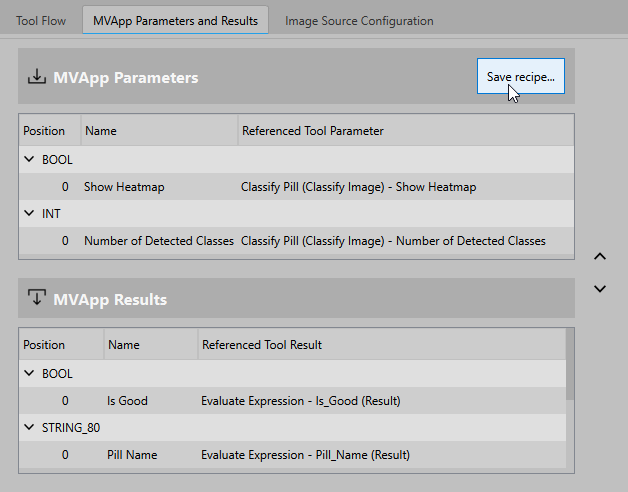
- In MERLIC Creator, go to the panel "MVApp Parameters and Results". It shows the overview of the defined MVApp parameters.
- If you want to parametrize specific tool parameters via the new recipe file, make sure that the MVApp parameter data set is correctly defined for your application as described in MVApp Parameters.
- Click the button "Save recipe..." to open the recipe dialog.
- Select the MVApp file that shall be referenced in the recipe file. If your MVApp has already been saved in a prior step, it is selected by default. You can define a different name for the MVApp via the
 button.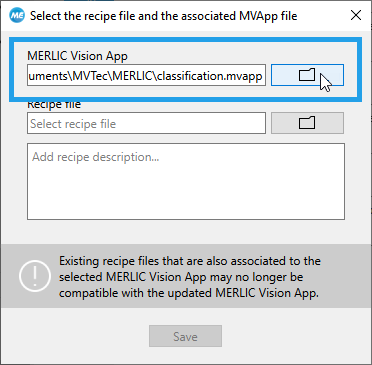
- Select the name and location of the recipe file via the button.
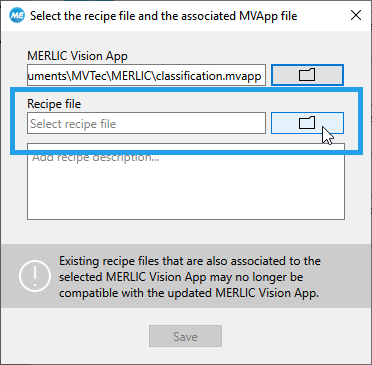
- Optionally, add a description for your recipe.
- If acquisition sequences are available in the currently active image source configuration, an additional drop-down menu is available for selecting an acquisition sequence. The selected acquisition sequence will be automatically activated when loading the recipe in MERLIC RTE mode. To use the acquisition sequence that is set as default in the "Image Sources" tab of the MERLIC RTE Setup, select the option "<default sequence>" from the drop-down menu.
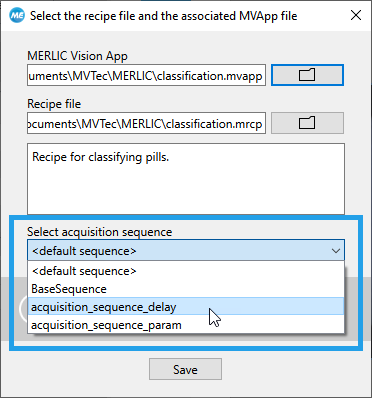
- Click the "Save" button to save the selected MVApp and to create the recipe file with file ending ".mrcp". The button becomes active as soon as an MVApp and a recipe file have been selected.
To use the created recipe files for the process integration, you have to import the recipes in the "Recipes" tab of the MERLIC RTE Setup. For more information, see Importing MERLIC Recipes.