Opening the MERLIC RTE Setup
The MERLIC RTE Setup is a stand-alone application that can be opened in various ways: via the MERLIC Creator, the Windows start menu, and the command line.
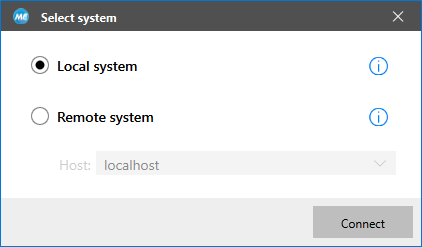
It can be connected to your local system or to a remote system. If you open the MERLIC RTE Setup via the MERLIC Creator, it is automatically connected to your local system. If you open it via the Windows start menu or the command line, you can usually select between local and remote system in the first step. However, no matter to which system the MERLIC RTE Setup is currently connected, you can always change to a different system at any time. All configuration changes in the MERLIC RTE Setup will be applied on the respective components of the currently connected system.
Only one instance of the MERLIC RTE Setup can be connected to a system at the same time, regardless of where that instance is running. For example, if the MERLIC RTE Setup is already running in the background of your local system and you try to open another MERLIC RTE Setup on your system, an error occurs that the local system is already being configured. In this case, you have to switch to the first instance of the MERLIC RTE Setup that is already connected to the local system in order to access the configuration. However, it is possible to connect one instance of the MERLIC RTE Setup to your local system and another instance of the MERLIC RTE Setup to a remote system at the same time.
The following sections give more information about the different ways to open the MERLIC RTE Setup, how to select the desired system, and which configuration options are available for the local system and for remote systems.
Opening the MERLIC RTE Setup via the MERLIC Creator
There are various options to open the MERLIC RTE Setup from the MERLIC Creator:
- Click on the "
 Runtime Environment Setup" button in the menu bar.
 - In the "Window" menu, select " Open Runtime Environment Setup...".

- Press the F8 key.

If you open the MERLIC RTE Setup directly from the MERLIC Creator, a connection to your local system will be established. However, you can change to a remote system. For more information, see the section Connecting a Remote System in Selecting the System for MERLIC RTE Setup.
Opening the MERLIC RTE Setup via the Windows Start Menu
- Open the Windows start menu.
- Click on the start menu entry "MVTec MERLIC 5.7 > MERLIC 5.7 RTE Setup".
- Select the system you want to connect to. If you want to change your local configuration, select the local system. If you want to change the configuration on a remote system, select or define the desired system in the respective menu. For more information, see Selecting the System for MERLIC RTE Setup.
Opening the MERLIC RTE Setup via the Command Line
- Open a command prompt and change to the "bin\x64-win64" directory within the MERLIC installation path, for example, "%PROGRAMFILES%\MVTec\MERLIC-5.7\bin\x64-win64".
- Open the MERLIC RTE Setup with the following command:Copy
merlic_rte_setup.exe - Select the system you want to connect to. If you want to change your local configuration, select the local system. If you want to change the configuration on a remote system, select or define the desired system in the respective menu. For more information, see Selecting the System for MERLIC RTE Setup.
 List of available command line options for "merlic_rte_setup.exe"
|
Command line option |
Description |
|---|---|
|
-h, --help |
Get help for the available command line options. |
|
--ini |
Set the path and file name of the INI file that is used for the configuration of the MERLIC settings. |
|
-V, -- version |
Display the MERLIC version. |
|
--host |
Specify the hostname or IP address of the system to which the MERLIC RTE Setup shall be connected. For the local system you can use "localhost". |
|
--tab |
Specify which tab is pre-selected when starting the MERLIC RTE Setup: (image_sources|communication|recipes|io) |
Opening the MERLIC RTE Setup with a Specific INI File
By default, the MERLIC RTE Setup is opened with the settings defined in the default "MERLIC5.ini" file. If you want to use the MERLIC RTE Setup with the settings defined in a different INI file, you have to open the MERLIC RTE Setup via the command line and use the command line option "--ini". You have to specify the path and the file name of the INI file to be used.
Example
merlic_rte_setup.exe --ini C:\Users\Public\Documents\MVTec\MERLIC\merlic_settings.iniWhen the MERLIC RTE Setup has opened, the "Select system" dialog is shown and you can connect to the desired system.