Selecting the System for MERLIC RTE Setup
The MERLIC RTE Setup can be used for the configuration on the local system and on remote systems.
If you open the MERLIC RTE Setup via the MERLIC Creator, it is automatically connected to your local system. This means that the configuration settings for devices and components that are available on your local system will be activated and shown. If the MERLIC RTE Setup is opened independently from the MERLIC Creator, you can choose between your local system and a remote system after the startup.
However, no matter to which system the MERLIC RTE Setup is currently connected, you can always change to a different system at any time.
Local System vs. Remote System
On the local system, all configuration options of the MERLIC RTE Setup can be used. You can configure image sources for the image acquisition, manage recipe files, and configure all I/O plug-ins as well as communication plug-ins that are available on your local system.
On remote systems, the configuration of image sources and communication plug-ins is available but the configuration of the MERLIC recipes and devices for which MERLIC provides built-in I/O plug-ins, for example, digital I/O devices, is not possible.
The following table gives an overview which components can be available for the configuration on a local and on a remote system:
|
Configuration Tab |
Local System |
Remote System |
|---|---|---|
|
Image Sources |
✔ |
✔ |
|
Communication |
✔ |
✔ |
|
Recipes |
✔ |
✘ |
|
I/O |
✔ |
✘ |
The prerequisite for an activated "Communication" tab on both types of systems is that the respective configuration service could be found on the selected system, that is, MERLIC RTE must be running on the system.
The configuration options in the "Image Sources" tab are only available if one of the following conditions are met. Otherwise, no image source can be configured because no service for the image source configuration is available.
- MERLIC Creator is currently running on the system that is connected.
- MERLIC RTE is currently running on the system that is connected and MERLIC is in one of the following states: "Preoperational", "Initialized", or "Error" (in certain circumstances).
For more information, see the Configuring Image Sources During Process Integration.
Opening the "Select system" Dialog
The "Select system" dialog allows you to connect the MERLIC RTE Setup to the system on which you want to change the configuration. If you open the MERLIC RTE Setup via the Windows start menu or the command line, the dialog is automatically displayed after the startup.
If you opened the MERLIC RTE Setup via the MERLIC Creator or if you want to change to a different system, you can open the dialog manually by clicking the button on the top right of the MERLIC RTE Setup.

If you changed your mind about switching the system and want to continue on the currently connected system, you can simply close the "Select system" dialog without establishing a new connection.
Connection Status
The icon displayed on the button to open the "Select system" dialog indicates the connection status of the MERLIC RTE Setup.
|
Icon |
Status |
|---|---|
|
|
Connected |
|
|
Connecting |
|
|
Disconnected |


Connecting the Local System
If you want to connect the MERLIC RTE Setup to your local system, open the "Select system" dialog and select "Local system". Confirm with a click on "Connect".
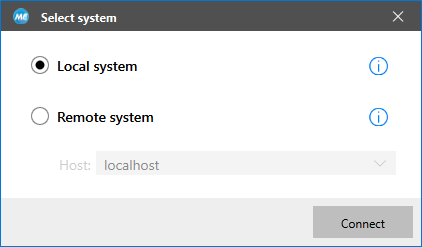
If you opened the MERLIC RTE Setup via the MERLIC Creator, it is automatically connected to the local system.
Connecting a Remote System
If you want to connect the MERLIC RTE Setup to a remote system, you can use the "Select system" dialog or the command line.
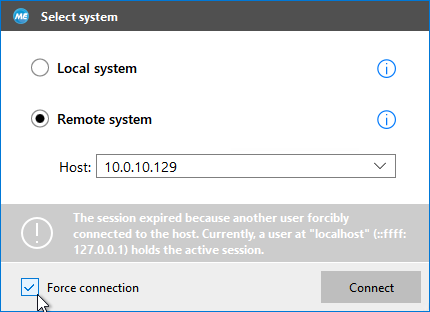
If another user is already connected to the specified host or using the MERLIC RTE Setup locally on the specified host, you can still force the connection to the host. Any unsaved configuration changes of the other user will be lost.
Using the "Select system" Dialog
- Open the "Select system" dialog and select "Remote system".
- Select the hostname or IP address of the system to be connected. Open the drop-down menu and check if the desired system is provided in the list. The drop-down menu lists all systems that have been connected in any previous sessions. It also lists systems on the network on which MERLIC RTE is currently running. If the system you want to connect to is not listed, you have to manually enter the hostname or the IP address of the remote system.
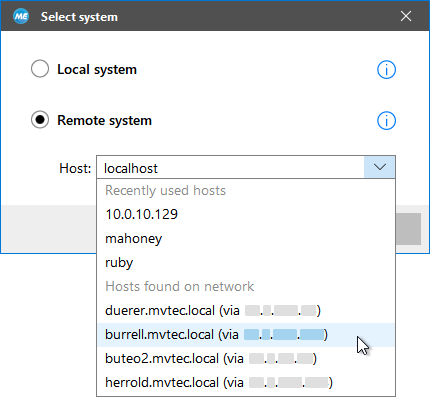
- Confirm your selection with a click on "Connect".
Using the Command Line Option
- Open a command prompt and change to the "bin\x64-win64" directory within the MERLIC installation path, for example, "%PROGRAMFILES%\MVTec\MERLIC-5.7\bin\x64-win64".
- Open the MERLIC RTE Setup with the following command and use the command line option "--host" to specify the desired remote system.Copy
merlic_rte_setup.exe --host <HOSTNAME OR IP_ADDRESS>
The MERLIC RTE Setup will automatically try to connect to the specified system after the startup.
If you need to start the MERLIC RTE Setup repeatedly on a specific system and don't want to specify the remote system each time, you can use the command line option and create a shortcut for the command. This way, you can start the MERLIC RTE Setup with a double-click on your shortcut and the setup will automatically try to connect to the desired system.
Reconnecting the System
In some cases, the connection to the selected system or the current service in the MERLIC RTE Setup, for example, the "Communication" tab, might be lost and you have to reconnect to the system or start the required MERLIC application to continue the configuration. Depending on the cause of the disconnection, different actions might be necessary to restore the connection. In the following, we list the most common use cases for the respective tabs in the MERLIC RTE Setup.
Missing Configuration Service for the "Image Sources" Tab
The configuration options in the "Image Sources" tab are only available if either the MERLIC Creator or the process integration mode of MERLIC, that is, MERLIC RTE, is currently running. Otherwise, no image source can be configured because no service for the image source configuration is available. The MERLIC Creator or MERLIC RTE must be running on the system that is connected, for example, for the configuration on your local system, MERLIC Creator or MERLIC RTE must be running on the local system.
If you are connected to your local system and the configuration service for the "Image Sources" tab is lost, you can easily restart the MERLIC Creator or MERLIC RTE in the MERLIC RTE Setup via the respective buttons. If you start the applications outside of the MERLIC RTE Setup, for example, via the Windows start menu, you can also use the button "Retry connection" to reconnect to the respective configuration service. This is also necessary if you are connected to a remote system because you first have to start either MERLIC Creator or MERLIC RTE on the remote system before reconnecting the configuration service using the "Retry connection" button. However, all unsaved changes at the image source configurations will be lost when the configuration service is lost.

Missing Configuration Service for the "Communication" Tab
The configuration options in the "Communication" tab are only available if MERLIC RTE is currently running on the respective system.
If you want to configure communication plug-ins that are available on your local system, you have to ensure that MERLIC RTE is running on your local system. For the configuration of communication plug-ins on remote systems, MERLIC RTE must be running on the selected remote system. Otherwise, no configuration service for the plug-ins is available and the configuration options in the "Communication" tab cannot be accessed.
If you are connected to your local system and the configuration service for the "Communication" tab is lost, you can easily restart MERLIC RTE in the MERLIC RTE Setup via the "Start MERLIC RTE" button. If you start MERLIC RTE outside of the MERLIC RTE Setup, for example, via the command line, you can also use the button "Retry connection" to reconnect to the respective configuration service. This is also necessary if you are connected to a remote system because you first have to start MERLIC RTE on the remote system before reconnecting the configuration service using the "Retry connection" button. However, all unsaved changes at the configuration of the plug-ins will be lost when the configuration service is lost.

The "Recipes" and "I/O" Tabs Are Not Available
The configuration options in the "Recipes" and the "I/O" tab of the MERLIC RTE Setup might not be available in some cases as described in the following.
MERLIC RTE is Running
If you want to manage your recipe files in the "Recipes" tab or if you want to configure communication devices for which MERLIC provides built-in I/O plug-ins, for example, Hilscher card, you have to ensure that the process integration mode of MERLIC, that is, MERLIC RTE, is currently not running. Otherwise, the recipes and the configuration options cannot be accessed. This ensures that the configuration for MERLIC RTE is not changed during the processing.


Connection to a Remote System
If you are connected to a remote system with the MERLIC RTE Setup, the "Recipes" and "I/O" tab will not be available. The configuration options of these tabs are only available for recipes and communication devices on the local system. In contrast to communication plug-ins which can be configured remotely, the communication devices that need to be configured in the "I/O" tab can only be configured on the local system.
If you change to one of these tabs while you are connected to a remote system, the configuration options will not be displayed. However, the MERLIC RTE Setup gives you the possibility to quickly change to the local system via the button " Select local system".


Expired Session
If another user forces a connection to the system to which you are currently connected, your session will be expired and the configuration cannot be continued. All unsaved changes will be lost. In this case, the "Select system" dialog is displayed with the respective message. You have the possibility to force the connection to the respective system by checking the "Force connection" check box and clicking on "Connect". Then the user who previously held the connection will receive the same message that the user's session expired.