Groups
It is possible to group multiple tools in the Tool Flow panel in order to provide a clear overview in your MERLIC Vision App (MVApp). In the following, you can find general information on the visualization of groups in the Tool Flow panel and the Tool Workspace of the MERLIC Creator. For more information on how to create with groups in MERLIC, see Creating Groups.
General Information about Groups
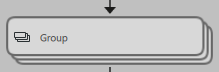
Groups are visualized in the Tool Flow panel with a graphical representation of stacked tools including the icon  . In the Tool Flow overview, a group is always displayed the same no matter how many tools are included. In addition, a separate Tool Flow tab is automatically added for each group.
A group is visualized in the Tool Workspace like a tool. However, in contrast to a regular MERLIC tool, the displayed parameters and results belong to different tools within the group, and the graphic window might not show the image you expect. By default, it shows the image of the tool that has been added last, but if there are other image parameters or image results available at the group, you can display these images in the graphic window by hovering or clicking on the image icon at the respective connector. Otherwise, use the group tab to view the different tools.
Also in the Tool Flow panel, you can move, copy, and delete a group just like a regular tool. When copying a group, all parameters and results that are visualized in the original group will also be copied, but without the respective connections. When deleting a group, all tools within the group will also be deleted, and all existing connections of the deleted tools to Designer widgets in the Frontend design will also be lost. This also includes all MVApp parameters and MVApp results that referred to any tool parameters or tool results within the group.
If your group contains a tool that works with training or easyTouch and that is connected in the Frontend design, you will be able to use the training or easyTouch feature in the graphic window.
Group Tab
When a group is created, a dedicated group tab is generated in the Tool Flow panel. You can open the tab by clicking it. The group tab can also be opened by double-clicking the group in the Tool Flow or by right-clicking the group and selecting "Open group". In the tab, you can view all grouped tools, the tool flow of the group, and select the tools for modification in the Tool Board. In the group tab, adjustments on parameters and results are possible. For more information, see Working with Group Parameters and Results.
Group Interface
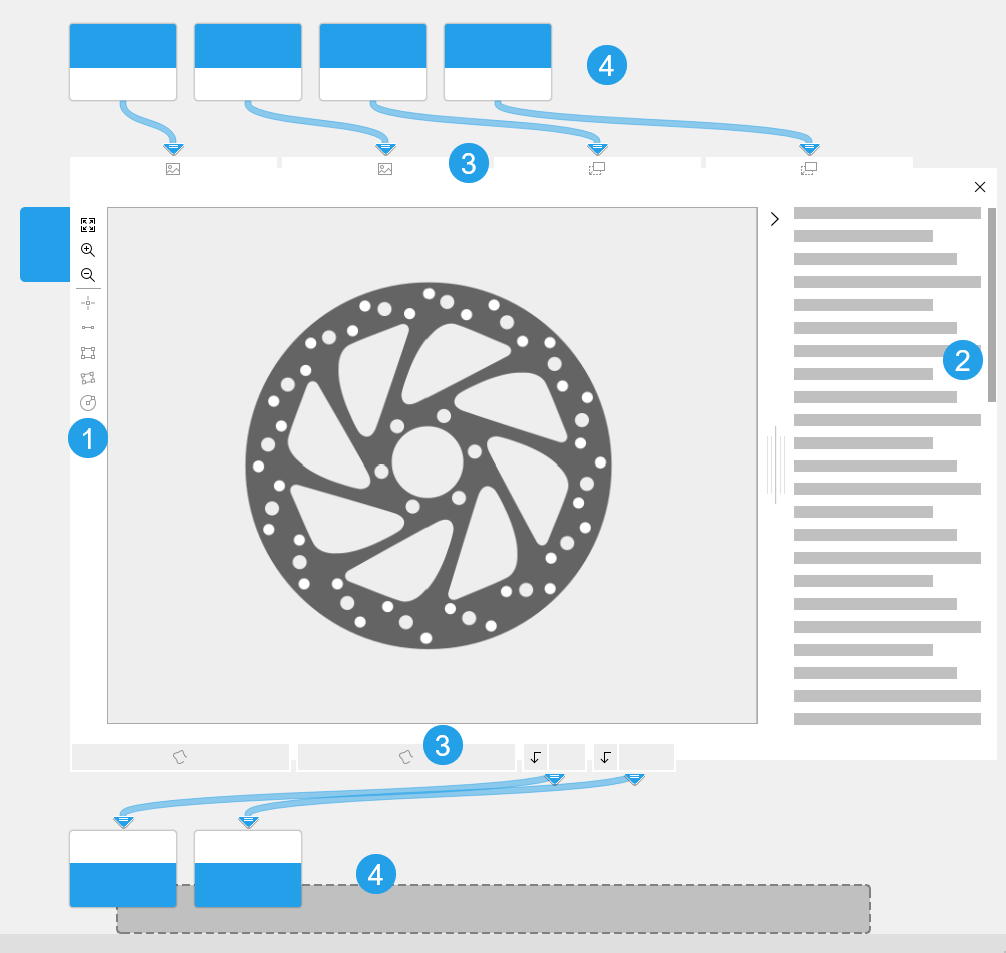
In the Tool Workspace of the MERLIC Creator, a group is visualized similar to a regular tool with a Tool Board. It shows connections to previous and subsequent tools, a graphic window if available, as well as a Quick Info. However, there are still some differences to regular tools, for example, regarding which parameters and results are available at the group in the Tool Workspace.
 Toolbar
The ROI toolbar with the buttons to draw regions of interest (ROIs) into the image is also provided for a group. Active buttons  are displayed darker than disabled buttons . Whether an ROI button is active and thus available for use depends on the tools in the group and the Frontend design of the MVApp. If a tool in the group provides an ROI parameter which is connected in the Frontend design, the respective ROI button is also active and available for use in the group.
 Quick Info
Similar to the Tool Board of a regular MERLIC tool, you can find a short documentation about groups on the right. It provides a general description which type of connections, parameters, and results can be shown, and how to work with a group. You can expand and collapse the Quick Info by clicking on the respective arrow icon on the top right of the graphics window.
 Connectors
Connectors that are displayed at a group represent connectors of the tools in the group, that is, tool parameters and also results.
When creating a group, it will automatically display tool parameters and tool results that fulfill either of the following condition:
- They are connected to previous tools or subsequent tools outside of the group.
- They are defined as MVApp parameters and MVApp results.
- They are connected to any Designer widget in the Frontend design of the MVApp.
The connectors that represent iconic parameters are displayed in a specific order from left to right: images, regions, contours, ROIs, calibration data, alignment data. The iconic parameter at the top left is the one displayed in the graphic window of the group.
For more general information on the different types of connectors, see Connectors and for more information about creating group parameters and results, see Creating Groups.
 Connections
A group shows only the connections of the displayed connectors, that is, the connections to parameters and results that meet the conditions listed above in the section Connectors. Connections to previous tools are located at the top and the connections to subsequent tools are located at the bottom. However, a connection arrow only indicates that there is at least one connection to a tool within the group. Internally, there might be incoming connections from a previous tool to multiple tools within the group or outgoing connections from multiple tools within the group to one and the same subsequent tool. To view all connections in detail, open the group in the group tab.
For more information about connections, see Connections.