Activating the Configuration
The activation of an image source configuration is required in the following cases:
- To use the image preview of the Image Source Manager (ISM) to check the images acquired by the respective image source.
- To configure parameters of image sources representing camera devices or peripheral devices.
- To use the image sources in a MERLIC Vision App.
By default, an image source configuration is not active. This means that the image sources are not connected and therefore cannot be configured or used in an MVApp. You have to make sure to first activate the image source configuration that contains the image source you want to use. As soon as the image source configuration is activated, the connection to the image sources is established and you can start to configure and use the image sources in an MVApp.
For more information about the configuration of image sources, see the topic Configuring Image Sources.
Activating an Image Source Configuration
You can activate a configuration in two different ways:
- Select the desired configuration on the left of the "Image Sources" tab.
- Activate the selected configuration via the button "Activate configuration" on the bottom of the tab.

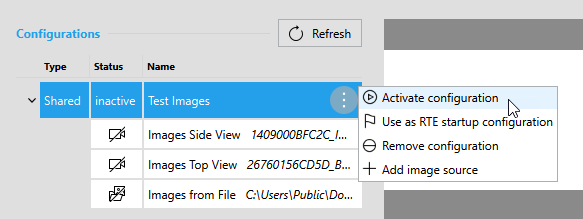
Alternatively, you can also activate a configuration via the respective menu that can be opened with a click on the  icon. With this method, you don't have to select the configuration in advance.
Checking the Status of the Image Source
Expand a configuration on the left to see the status of the image sources in this configuration. The status is indicated by an icon that is displayed for each image source.
The following table gives an overview of the different status icons and their meaning.
|
Icon |
Type |
Description |
|---|---|---|
|
|
File directory |
This icon represents an image directory that is ready for use. |
|
|
File directory |
The image directory is not available, for example, because the directory has been deleted or the respective image source configuration is not active. |
|
|
Camera device |
This icon represents devices that are used as a camera device. It also indicates that the camera is ready for use or configuration. |
|
|
Camera device |
The camera device is currently in use, for example, by a different image source in the active configuration or another user in the same network. |
|
|
Camera device |
The camera device is misconfigured. This might be the case if the IP address of a GigE Vision camera is not set correctly or if a driver is missing for an USB3Vision camera. Usually, both cases can be solved easily via the provided link that will be shown in the error message. |
|
|
Camera device |
The camera device is not connected, for example, because the respective image source configuration is not active. Make sure that the camera device is plugged in and try to establish a connection by clicking on the button "Reconnect". |
|
|
Camera device |
The current status of the camera device is not clear. Click on "Refresh" to update the list of image sources. |
|
|
Peripheral device |
This icon represents devices that were added with the option not to acquire any images from the respective device, for example, a peripheral device such as a lighting or lens controller. It also indicates that the respective device is ready for use. |
|
|
Peripheral device |
The peripheral device is currently in use, for example, by a different image source in the active configuration or another user in the same network. |
|
|
Peripheral device |
The peripheral device is misconfigured. This might be the case if the IP address of a GigE Vision device is not set correctly or if a driver is missing for an USB3Vision device. Usually, both cases can be solved easily via the provided link that will be shown in the error message. |
|
|
Peripheral device |
The device is not connected, for example, because the respective image source configuration is not active. Make sure that the device is plugged in and try to establish a connection by clicking on the button "Reconnect". |
|
|
Peripheral device |
The current status of the peripheral device is not clear. Click on "Refresh" to update the list of image sources. |



