MERLIC Tool Reference
The MERLIC tools are sorted in categories according to the following thematic:
- Tasks of the tools, e.g., Alignment
- Chronological order of the tools, e.g., Postprocessing
While configuring a MERLIC tool, you might find the following functionalities useful: Using Auxiliary Functionality.
Click on a Category to Open the List of Tools











Common Results in All Tools
Each tool provides the results "Tool State" and "Processing Time".
Tool State:
"Tool State" returns information about the state of the tool and thus can be used for error handling. For more information, see Tool State Result
Processing Time
"Processing Time" returns the duration of the most recent execution of the tool in milliseconds. The result is provided as additional result. Therefore it is hidden by default but it can be displayed via the  button beside the tool results.
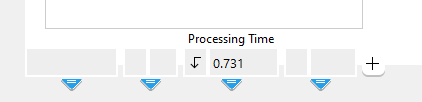
The "Processing Time" is also shown in the status bar in the lower right corner.

The time is only measured when the tool is executed. Usually a MERLIC tool is executed in the following cases:
- The MERLIC Vision App is explicitly executed continuously in "Run" mode.
- The MERLIC Vision App is explicitly executed in "Run Once" mode.
- A MERLIC Vision App with the tool is opened in the MERLIC Creator.
- A parameter value of the tool has been changed in the MERLIC Creator.
In case of tools with a training mode, the duration of the last tool execution is only returned in the processing mode.
Trigger Connectors
MERLIC enables you to add an input "Trigger" connector to your tool. Additionally, most MERLIC tools have an output trigger, the "Default Trigger". With these connectors you can trigger a tool by an other tool even if they belong to different tool flows The tool flow of a MERLIC Vision App (MVApp) represents the sequence of tools and tool connections that have been configured for the MVApp. It defines the individual image processing steps that are performed when the MVApp is executed and visualizes dependencies between tools. The tool flow of the current MVApp is displayed in the Tool Flow panel of the MERLIC Creator.. Please see the chapter Trigger Connectors for more information about trigger connectors.
MERLIC Tool Development
MERLIC enables you to create your own custom tools to extend the standard tool set provided by MERLIC. This means that you can customize MERLIC by adding functionalities that are cut to your needs when performing an image processing task. You can develop custom tools for MERLIC with MVTec HALCON, i.e., in HDevelop. For more detailed information on the tool development, see the MERLIC Tool Development Manual.


