Importing MVApps and Recipes for MERLIC RTE
Importing an MVApp or MERLIC recipe for MERLIC RTE means to add the files to the recipe management of MERLIC and to provide them for MERLIC RTE. The import is a mandatory step to ensure that they are available in MERLIC RTE mode. MVApps and MERLIC recipes cannot be loaded and executed if they were not imported for MERLIC RTE.
You may import an MVApp file itself or a MERLIC recipe. When importing an MVApp, a virtual recipe is created based on the MVApp configuration. The MVApp will then be treated in the recipe management like a recipe file. This means, that a recipe ID will be assigned to the imported MVApp, and in MERLIC RTE mode, the MVApp can be used by loading the respective recipe ID. For more information, see section Virtual Recipes vs. MERLIC Recipes.
Importing MVApps and Recipes
- Open the MERLIC RTE Setup as described in Starting the MERLIC RTE Setup.
- Go to the "
 Recipes" tab.
 - Click "
 Import" to open the file selection dialog. If you want to import and an example recipe, you can use the "example recipes" link or use the drop-down menu of the " Import" button.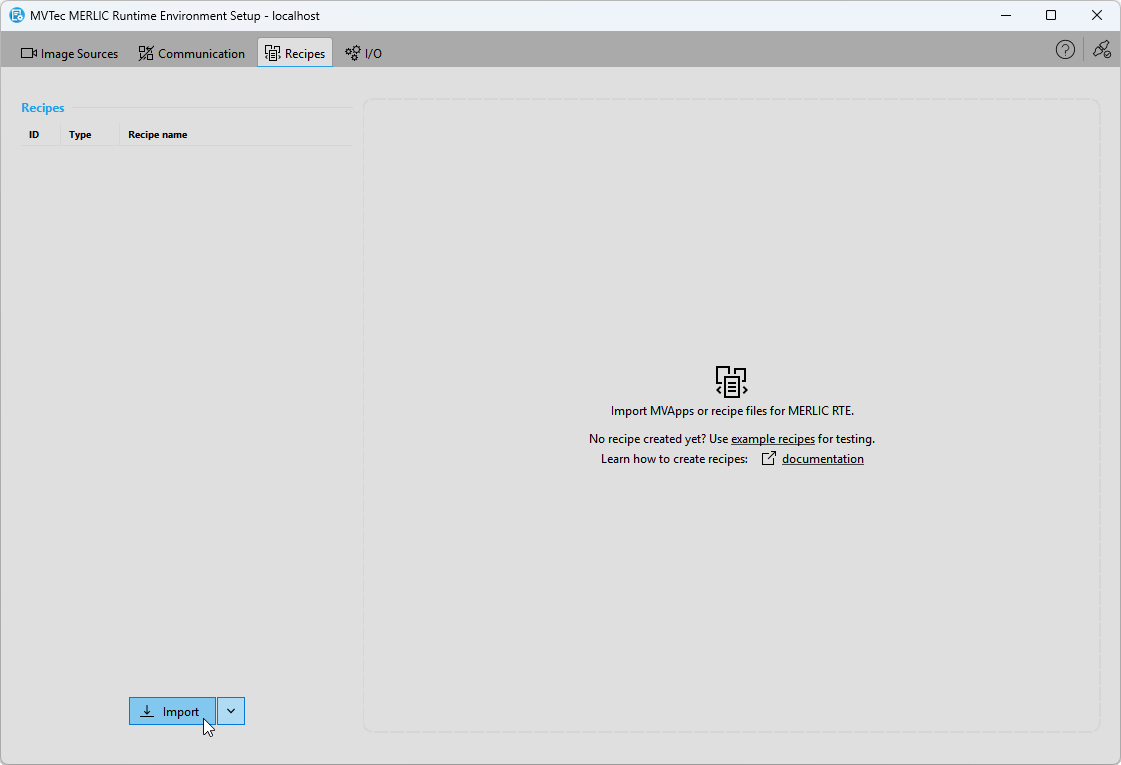
- Select the MVApp files or recipe files for the import and confirm your selection.
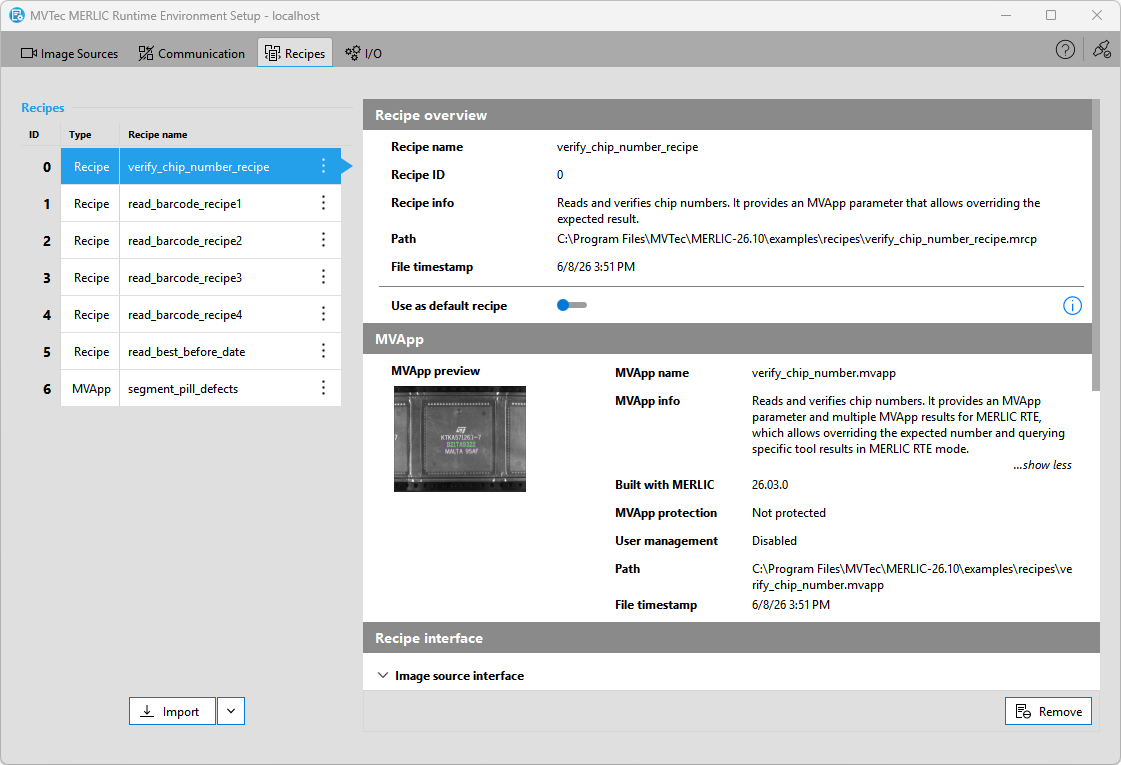
- The selected files are now imported and visible in the recipe management of the MERLIC RTE Setup. On the left, you can see the list of imported files and their file types. On the right, you can now see detailed information on the respective MVApp and configuration. For more information, see Checking the Contents of a Recipe.
All MVApp and recipe files that have been imported in the "Recipes" tab must be valid. Otherwise, an error is returned while launching MERLIC RTE. A recipe file is valid if the referenced MVApp exists and the number of MVApp parameters is equal to the number of input values that are defined in the recipe file.
After changing an imported MERLIC recipe, re-import the recipe or restart the MERLIC RTE Setup to make sure that the recipe information is reloaded and up-to-date for MERLIC RTE.
The same applies for imported MVApps. After changing the modification of an imported MVApp, re-import the MVApp or restart the MERLIC RTE Setup to update the values in the recipe management.
Virtual Recipes vs. MERLIC Recipes
When importing an MVApp file, a virtual recipe is automatically created based on the MVApp configuration at the time of import or upon startup of the MERLIC RTE Setup. Virtual recipes exist only temporary until the MVApp is re-imported and the MERLIC RTE Setup is restarted.
When starting the MERLIC RTE Setup, a new virtual recipe is created for each MVApp that is already imported. Therefore, the configuration shown for an imported MVApp in the "Recipes" tab may differ when restarting the MERLIC RTE Setup at a later time. If the configuration of an MVApp has changed since the last session of the MERLIC RTE Setup, for example, the values of MVApp parameters have been modified, the "Recipes" tab will now show the new MVApp configuration because a new virtual recipe was created when the MERLIC RTE Setup was started.
In contrast, a regular MERLIC recipe needs to be created manually. It is not created or updated automatically. When importing a MERLIC recipe or starting the MERLIC RTE Setup, the imported MERLIC recipe is automatically validated. If the configuration of the referenced MVApp does not fit to the configuration in the MERLIC recipe, an error or warning is shown in the "Recipes" tab. This might occur, for example, after changing the set or configuration of the MVApp parameters in the MVApp. In this case, it might be required to update the MERLIC recipe accordingly, and to re-import the updated recipe. In general, after changing an imported MERLIC recipe, re-import the recipe or restart the MERLIC RTE Setup to make sure that the recipe information is reloaded and up-to-date for MERLIC RTE.
Removing MVApps and Recipes
If an imported MVApp or recipe is not needed anymore in MERLIC RTE, you can remove it from the recipe management in the MERLIC RTE Setup. You can re-import the file at any time.
- Select the file you want to remove.
- Click "
 Remove" at the bottom right of the "Recipes" tab.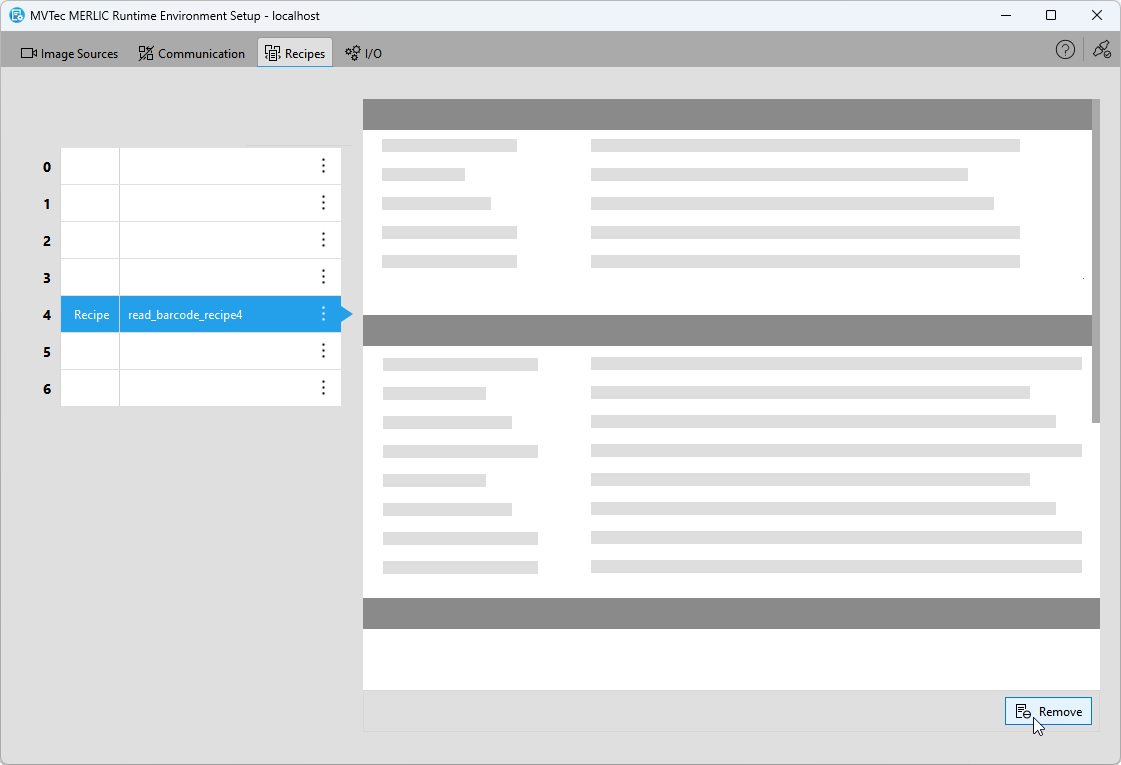
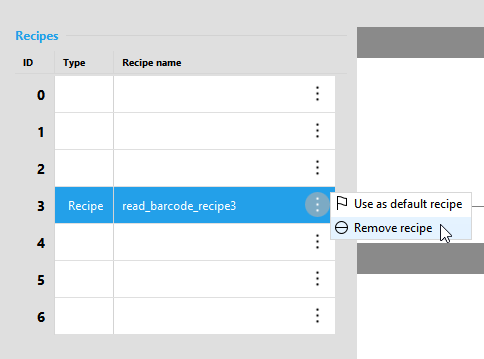
Alternatively, you can use the menu of the recipe.