Starting the MERLIC RTE Setup
The MERLIC RTE Setup is a stand-alone application that can be opened in various ways: via the MERLIC Creator, the Windows start menu, and the command line.
It can be connected to a MERLIC instance running on the local system or on a remote system. All configuration changes in the MERLIC RTE Setup will be applied to the respective components of the connected system.
If you open the MERLIC RTE Setup via the MERLIC Creator, it is automatically connected to your local system. If you open it via the Windows start menu or from the command line, you can choose the desired system and MERLIC instance directly after the startup. You can change to a different system and MERLIC instance at any time.
Only one instance of the MERLIC RTE Setup can be connected to a system at the same time, regardless of where that instance is running. For example, if the MERLIC RTE Setup is already running in the background of your local system and you try to open another MERLIC RTE Setup on your system, an error occurs that the local system is already being configured. In this case, you have to switch to the first instance of the MERLIC RTE Setup that is already connected to the local system in order to access the configuration. However, it is possible to connect one instance of the MERLIC RTE Setup to your local system and another instance of the MERLIC RTE Setup to a remote system at the same time.
Starting the MERLIC RTE Setup via the MERLIC Creator
There are various options to open the MERLIC RTE Setup from the MERLIC Creator:
- Click the "
 Runtime Environment Setup" button in the menu bar.
 - In the "Window" menu, select " Open Runtime Environment Setup...".
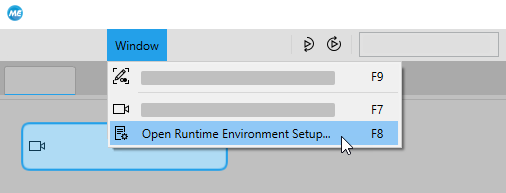
- Press the F8 key.

If you open the MERLIC RTE Setup directly from the MERLIC Creator it is automatically connected to that MERLIC Creator instance on your local system. To connect to a different system and MERLIC instance, open the connection dialog and select the desired system and instance. For more information, see the section Connecting to an Instance via the Connection Dialog on page Connecting the MERLIC RTE Setup.
Starting the MERLIC RTE Setup via the Windows Start Menu
- Open the Windows start menu.
- Click on the start menu entry "MVTec MERLIC 26.10 > MERLIC 26.10 RTE Setup".
- Select the system and MERLIC instance you want to connect to in the connection dialog. For more information, see the section Connecting to an Instance via the Connection Dialog on page Connecting the MERLIC RTE Setup.
Starting the MERLIC RTE Setup via the Command Line
- Open a command prompt and change to the "bin\<ARCH>" directory within the MERLIC installation path, for example, "%PROGRAMFILES%\MVTec\MERLIC-26.10\bin\x64-win64".
- Use the following command to open the MERLIC RTE Setup:Copy
merlic_rte_setup.exe - Select the system and MERLIC instance you want to connect to in the connection dialog. For more information, see the section Connecting to an Instance via the Connection Dialog on page Connecting the MERLIC RTE Setup.
When using the command line, you can also use the command line option "‑‑url" to specify the desired system and MERLIC instance you want to connect to in advance. In this case, the MERLIC RTE Setup will directly connect to the specified MERLIC instance.
Command Line Options
MERLIC provides the following command line options for "merlic_rte_setup.exe".
|
Command line option |
Description |
|---|---|
|
-h [‑‑help] |
Display help message. |
|
-V [‑‑version] |
Display MERLIC version and exit. |
|
‑‑ini |
Path to the INI file. |
|
‑‑url |
Use specified connection URL. Supported formats:
For more information, see the section Specifying a Connection URL. |
|
‑‑tab |
Specify which tab is pre-selected when starting the MERLIC RTE Setup: (image_sources|communication|recipes|io) |
Specifying a Connection URL
With the command line option "‑‑url", you can specify in advance to which system and MERLIC instance the MERLIC RTE Setup should connect to. It can be used for connections to the local system as well as to remote system. However, for local connections, you might typically start the MERLIC RTE Setup directly from MERLIC Creator while developing a MERLIC Vision App (MVApp).
Connections to the Local System
For connections to a MERLIC instance on the local system, UNIX-domain sockets (UDS) are used. The URL needs to specify the path to the UDS files created by MERLIC and the name of the desired MERLIC instance. The name of the instance must be prefixed with "me-" to match the name of the directory containing the UDS files. The URL requires the following format:
unix:///<PATH_TO_INSTANCE>/me-<INSTANCE_NAME>The UDS files are typically located in the following user-private directory:
|
Operating system |
Path |
|---|---|
|
Windows |
C:\ProgramData\MERLIC_<username> |
|
System-based Linux |
$XDG_RUNTIME_DIR/MERLIC |
|
Other Linux systems, for example, WSL |
/tmp/MERLIC_<username> |
The connection URL must be specified with forward slashes on all operating systems.
Example
On a Windows system, an example URL for a local connection may look like this:
merlic_rte_setup.exe --url unix:///C:/ProgramData/MERLIC_test-user/me-testing-instanceThis command starts the MERLIC RTE Setup and connects to the MERLIC instance that was started by the user "test-user" with the instance name "testing-instance".
Alternatively, you may also use URL format for WebSocket connections to connect the MERLIC RTE Setup to a local MERLIC instance.
Connections to a Remote System
For connections to a MERLIC instance on a remote system, WebSocket connections are used. The URL needs to specify the remote system and MERLIC instance. In detail, the URLs need to specify the following information:
|
Component |
Description |
|---|---|
|
URL scheme |
Defines the protocol used for the connection. For connections without Transport Layer Security (TLS) encryption, "ws://" is "http://" are required. For connections with TLS encryption, "wss://" is "https://" are required. If you are not sure, whether the desired MERLIC server requires TLS-encrypted connections, check the configuration of the MERLIC Directory Agent on the respective MERLIC server. For more information, see MERLIC Directory Agent and Setting Up Remote Connections. |
|
HOST |
Defines the hostname or IP address of the MERLIC server. For TLS-encrypted connections, the specified hostname must match the CN value or one of the "subjectAltName" (SAN) values of the server certificate. |
|
PORT |
Defines the port to which the server listens. The port must be the same as specified for the TCP server in the configuration of the MERLIC Directory Agent. Defining a port in the connection URL is optional. However, if no port is specified, it is assumed that the conventional HTTP(S) port is set in the configuration of the Directory Agent. For configurations without TLS-encryption, this would be port 80 for HTTP, and for TLS-encrypted connections, this would be port 443 for HTTPS. If a different port is set in the Directory Agent configuration and the connection URL is given without port number, the MERLIC RTE Setup will not be able to connect and an error occurs. For example, if the Directory Agent of the system you want to connect to is configured for TLS-encrypted connections, and the port in the Directory Agent configuration is set to 443, you can omit the port number in the connection URL. However, if a different port is set, you must not omit the port number. Keep in mind that some ports might be reserved and privileged only for users with the respective capabilities. For example, the ports 0 - 1023 are privileged ports on Linux. |
|
PATH/INSTANCE_NAME |
Defines the path and name of the MERLIC instance. The "PATH" placeholder usually needs to be replaced with "instances". Only when using a reverse proxy, the path component might differ. For more information, see section Using a Reverse Proxy. |
If all required information is available, you can start the MERLIC RTE Setup via command line and specify the desired MERLIC server and MERLIC instance for the connection.
- Open a command prompt and change to the "bin\<ARCH>" directory within the MERLIC installation directory, for example, "%PROGRAMFILES%\MVTec\MERLIC-26.10\bin\x64-win64" on a Windows system.
- Use the following command and URL format to start the MERLIC RTE Setup with a connection to the desired system.
- For connections without TLS encryption:Copy
merlic_rte_setup.exe --url ws://<HOST>[:<PORT>]/instances/<INSTANCE-NAME>Alternatively, you can use "http://" instead of "ws://".
- For TLS-encrypted connections:Copy
merlic_rte_setup.exe --url wss://<HOST>[:<PORT>]/instances/<INSTANCE-NAME>Alternatively, you can use "https://" instead of "wss://".
- For connections without TLS encryption:
The MERLIC RTE Setup will start and automatically connect to the remote system and MERLIC instance that was specified in the URL. If your INI file already specifies a connection URL, it will be ignored. Instead, the URL given in the command line will be used.
Example
On a Windows system, an example URL for a remote connections with enabled TLS may look like this:
merlic_rte_setup.exe --url wss://merlic-server:8443/instances/instance-runtimeThe MERLIC RTE Setup will start and automatically connect to the MERLIC instance with name "instance-runtime" that is running on the remote system with hostname "merlic-server" via the port 8443.
Using a Reverse Proxy
If a reverse proxy is used to re-route the HTTP server of the MERLIC Directory Agent, the WebSocket URL has to be adjusted accordingly.
Example
merlic_rte_setup.exe --url wss://edge-device.local/apps/merlic/instances/instance-runtimeStarting the MERLIC RTE Setup with a Specific INI File
By default, the MERLIC RTE Setup is opened with the settings defined in the default "MERLIC5.ini" file. If you want to use the MERLIC RTE Setup with the settings defined in a different INI file, you have to open the MERLIC RTE Setup via the command line and use the command line option "‑‑ini". You have to specify the path and the file name of the INI file to be used.
Example
merlic_rte_setup.exe --ini C:\Users\Public\Documents\MVTec\MERLIC\merlic_settings.iniWhen the MERLIC RTE Setup has opened, a dialog is opened, which allows you to select the MERLIC instance you want to connect to.