Connecting the MERLIC RTE Setup
The MERLIC RTE Setup can be connected to MERLIC instances on the local system and on a remote system. On local systems, the respective MERLIC instance might be an instance of MERLIC Creator or MERLIC RTE. For remote systems, only instances of MERLIC RTE can be connected.
During Development
While implementing a MERLIC Vision App (MVApp), you will usually start the MERLIC RTE Setup with a connection to your local system to set up the image acquisition as well as recipe files and communication plugins for the runtime mode.
In Productive Use
In productive use, the MERLIC RTE Setup might be typically connected to a remote system, for example, during the final setup of the image acquisition or communication plugins for the productive environment or to fix error during the runtime.
You can select the system and MERLIC instance you want to connect directly after starting the MERLIC RTE Setup or you can specify the desired connection in advance, for example, via the INI file of MERLIC or via a command line option.
Visualization of the Connection Status
The icon displayed on the button to open the connection dialog indicates the connection status of the MERLIC RTE Setup.
|
Icon |
Status |
|---|---|
|
|
Connected |
|
|
Connecting |
|
|
Disconnected |


Local System vs. Remote System
On the local system, all configuration options of the MERLIC RTE Setup can be used. You can configure image sources for the image acquisition, manage recipe files, and configure all I/O plugins as well as communication plugins that are available on your local system. On remote systems, only the configuration of image sources and communication plugins is available.
The following table gives an overview which components can be available for the configuration on a local and on a remote system:
|
Configuration tab |
Local system |
Remote system |
|---|---|---|
|
Image Sources |
✔ |
✔ |
|
Communication |
✔ |
✔ |
|
Recipes |
✔ |
✘ |
|
I/O |
✔ |
✘ |
Prerequisites for "Communication" and "Image Sources" Tabs
The configuration options on the "Communication" tab are only available if the MERLIC RTE Setup is connected to an instance of MERLIC RTE.
The configuration options on the "Image Sources" tab are only available if one of the following conditions are met. Otherwise, no image source can be configured because no service for the image source configuration is available.
- MERLIC RTE Setup is connected to an instance of MERLIC Creator on the local system.
- MERLIC RTE Setup is connected to an instance of MERLIC RTE and MERLIC is currently in one of the following states: "Preoperational", "Initialized", or "Error" (in certain circumstances).
For more information, see the Configuring Image Sources During Process Integration.
Connecting to an Instance via the Connection Dialog
If the MERLIC RTE Setup is already running, you can open the connection dialog anytime to change to a different system or MERLIC instance. You can also use the connection dialog to open the HTML overview page for a specific system. For more information, see HTML Overview of MERLIC Instances.
- In the MERLIC RTE Setup, click the button on the top right of the window to open connection dialog.

- Select the system you want to connect to. MERLIC automatically lists systems that were previously used.
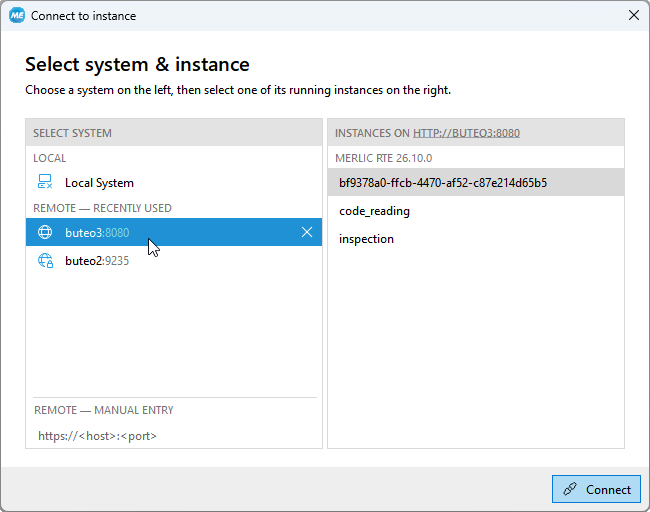
The icon next to the hostname indicates the connection status and the required security level for the connection with this instance.
Icon
Description

MERLIC instance on the local system is available for connection via Unix-domain sockets (UDS).

MERLIC instance is available for connection via unencrypted WebSocket connection. 
MERLIC instance is available for connection via TLS-encrypted WebSocket connection. The instance can only be connected if the required certificates are provided. You can also enter the hostname and port manually if the desired system is not listed. The port must match the one defined in the MERLIC Directory Agent configuration on the desired system. For more information, see Configuring the Directory Agent for Remote Connections.
- Select the MERLIC instance on the right. The list shows only MERLIC instances that are available for connection on the selected system. For remote systems, it shows only MERLIC RTE instances that are currently running on the selected system and whose services are exposed via the specified port. For the local system, also MERLIC Creator instances will be shown.
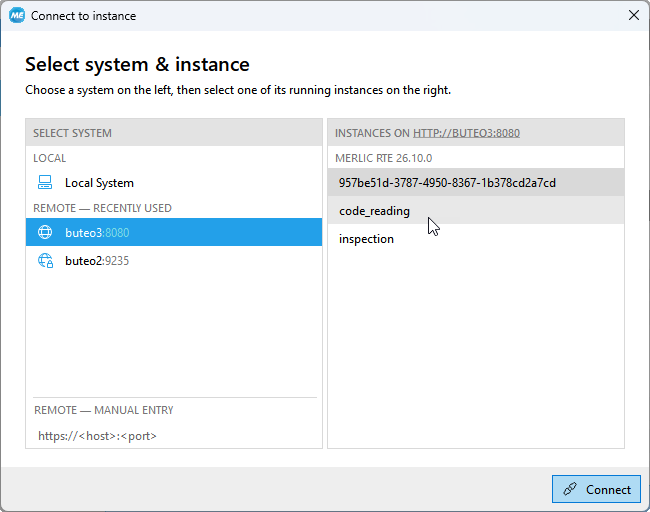
- Confirm your selection with "Connect".
The MERLIC RTE Setup will be connected to the selected MERLIC instance. The window title of the MERLIC RTE Setup shows the respective connection URL, which indicates the hostname of the connected system, the MERLIC instance, and the port on which the respective MERLIC services is exposed.
Only one user may connect to a MERLIC instance. If another user is already connected to the selected MERLIC instance, a warning occurs but you still have the possibility to force the connection to the MERLIC instance. Any unsaved configuration changes of the other user will be lost.
HTML Overview
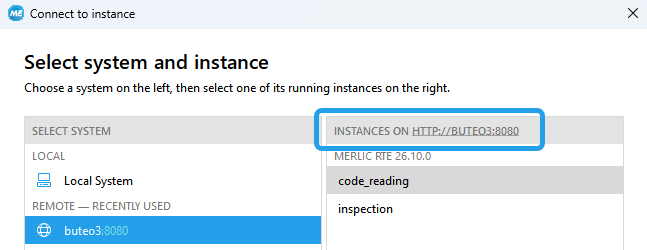
You can also use the connection dialog to open an HTML overview in a browser to access detailed information on the available MERLIC instances and their services on the selected system.
Click the link above the instance list to open the page in the browser. For more information, see HTML Overview of MERLIC Instances.
Connecting via the Command Line
When starting the MERLIC RTE Setup via command line, you can use the command line option "‑‑url" to specify the desired system and MERLIC instance you want to connect to in advance. In this case, the MERLIC RTE Setup will directly connect to the specified MERLIC instance.
- Open a command prompt and change to the "bin\x64-win64" directory within the MERLIC installation path, for example, "%PROGRAMFILES%\MVTec\MERLIC-26.10\bin\x64-win64".
- Enter the following command and use the command line option "‑‑url" to open the MERLIC RTE Setup with a connection to the specified system and MERLIC instance:Copy
merlic_rte_setup.exe --url <CONNECTION_URL>The exact format of the connection URL depends on which system you want to connect to. For more information, see section Specifying a Connection URL on page Starting the MERLIC RTE Setup.
The MERLIC RTE Setup will start and automatically connect to the system and MERLIC instance that is specified in the URL.
If you need to start the MERLIC RTE Setup repeatedly with a connection to the same system and MERLIC instance, you can create a shortcut for the command. This way, you can start the MERLIC RTE Setup with a double-click on your shortcut and the setup will automatically try to connect to the desired system and instance.
Reconnecting the System
In some cases, the connection to the selected MERLIC instance or the current service in the MERLIC RTE Setup, for example, the "Communication" tab, might be lost and you have to reconnect or start the required MERLIC application to continue the configuration.
Depending on the cause of the disconnection, different actions might be necessary to restore the connection. In the following, we list the most common use cases for the respective tabs in the MERLIC RTE Setup.
Missing Configuration Service for the "Image Sources" Tab
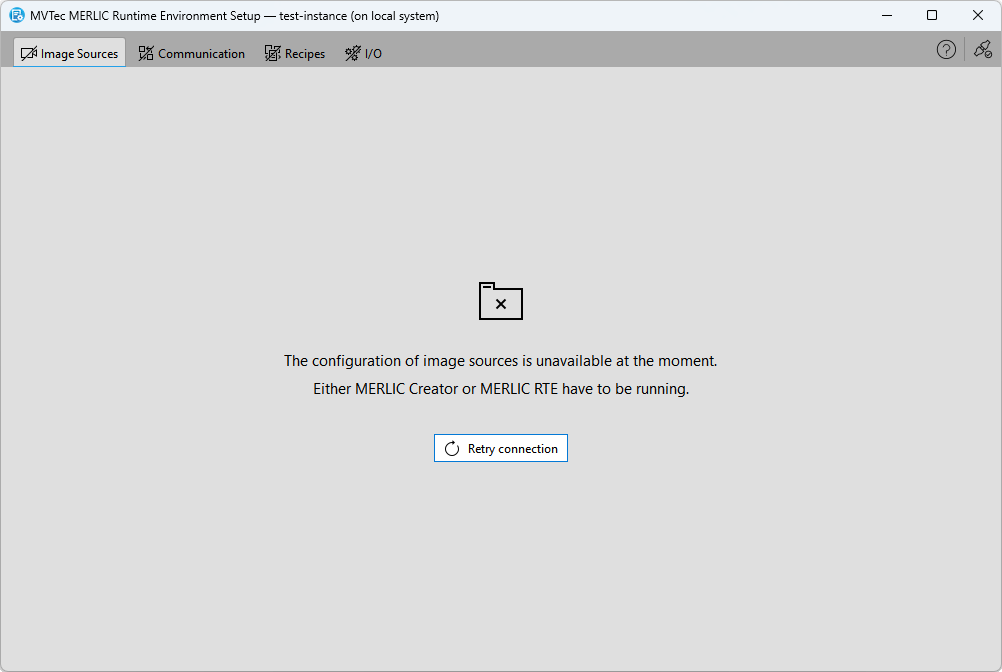
The configuration options on the "Image Sources" tab are only available if the MERLIC RTE Setup is connected to a MERLIC Creator instance on the local system or to a MERLIC RTE instance in specific MERLIC states. Otherwise, no image source can be configured because no service for the image source configuration is available.
On Local Systems
If you are connected to your local system and the configuration service for the "Image Sources" tab is lost, you have different option to reconnect.
- Restart the previously connected MERLIC instance again and then click the "Retry connection" button.
- Click the
 button on the top right to open the connection dialog, and connect to the local system again. You can then start a new MERLIC instance via the respective buttons.
On Remote Systems
If you were connected to a remote system while the connection to the MERLIC RTE instance was lost, you first have to restart the MERLIC RTE instance on the remote system. You can then click on "Retry connection" to reconnect. Make sure to start the same MERLIC RTE instance that was previously connected.
All unsaved changes at the image source configurations will be lost when the configuration service is lost.
Missing Configuration Service for the "Communication" Tab
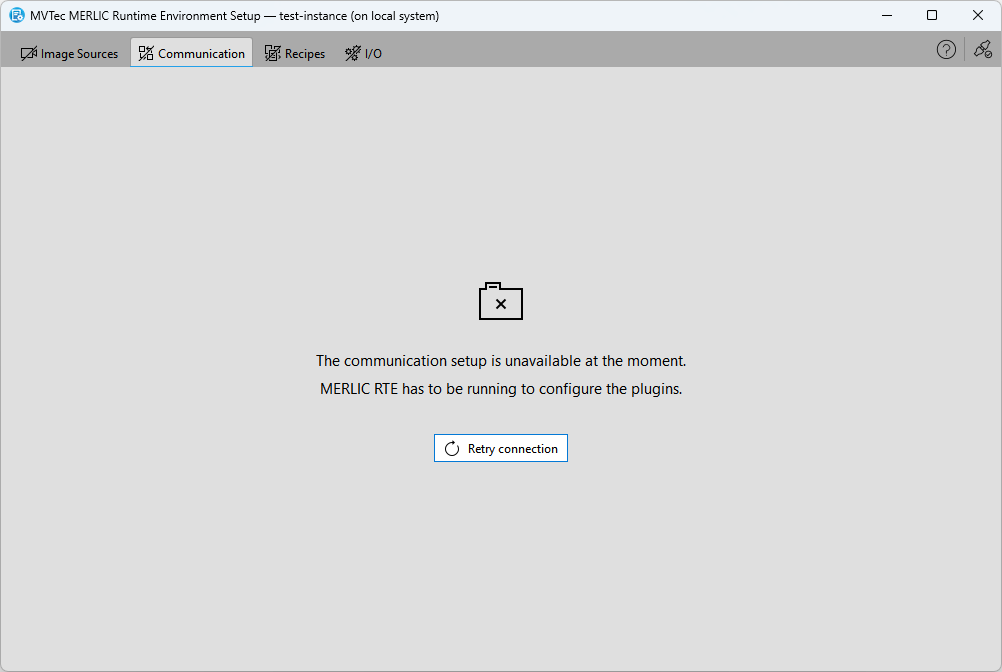
The configuration options on the "Communication" tab are only available if the MERLIC RTE Setup is connected to a MERLIC RTE instance.
On Local Systems
If you are connected to your local system and the configuration service for the "Communication" tab is lost, you have different options to reconnect.
- Restart the previously connected MERLIC RTE instance and then click the "Retry connection" button.
- Click the button on the top right to open the connection dialog. You can then select a MERLIC RTE instance. However, you still have to restart the MERLIC RTE instance outside of the MERLIC RTE Setup, for example, via the command line, if you want to reconnect to the same MERLIC RTE instance, whose connection was lost. Otherwise, the instance will not be available in the connection dialog.
On Remote Systems
If you were connected to a remote system while the connection to the MERLIC RTE instance was lost, you first have to restart the MERLIC RTE instance on the remote system. You can then click on "Retry connection" to reconnect. Make sure to start the same MERLIC RTE instance that was previously connected.
All unsaved changes at the configuration of communication plugins will be lost when the configuration service is lost.
The "Recipes" and "I/O" Tabs Are Not Available
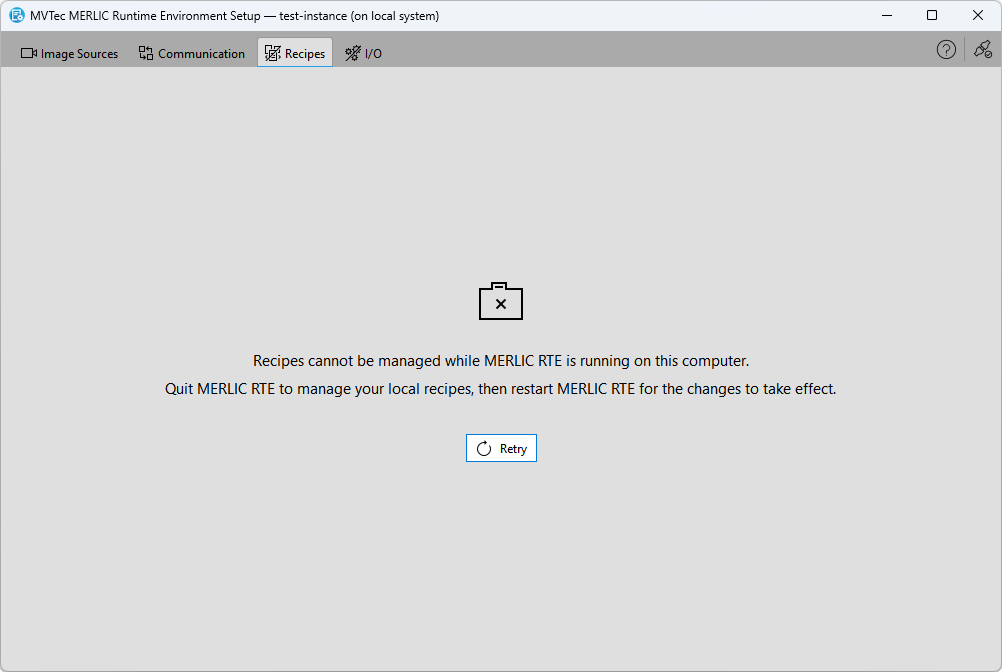
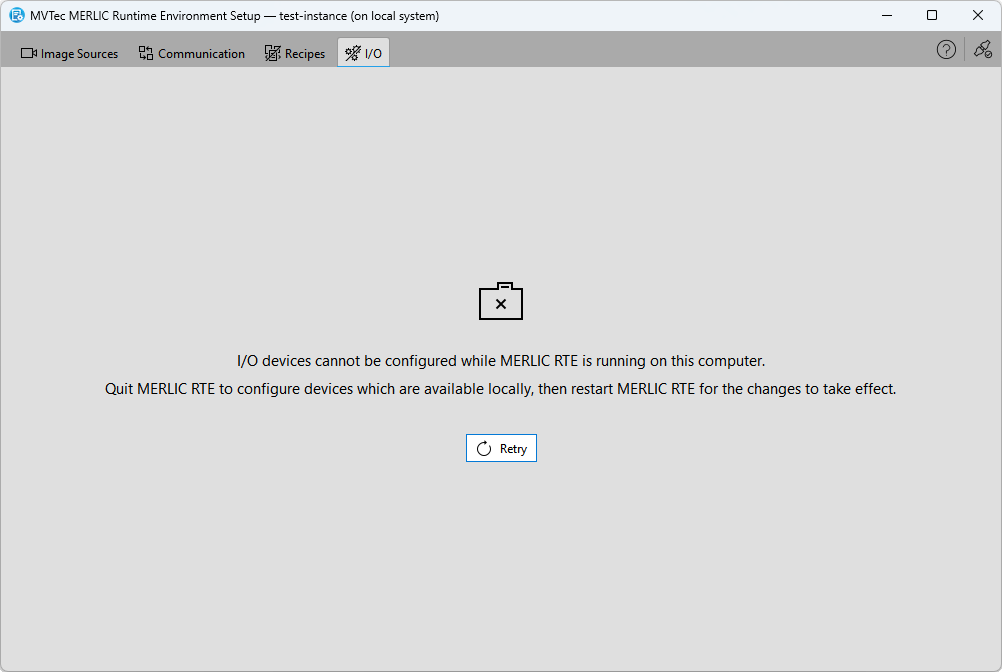
The configuration options on the "Recipes" and the "I/O" tabs of the MERLIC RTE Setup might not be available in some cases as described in the following.
MERLIC RTE is Running
Recipes and I/O plugins can only be configured if the MERLIC RTE Setup is currently not connected to a MERLIC RTE instance. Otherwise, the recipes and the configuration options cannot be accessed. This ensures that the configuration for MERLIC RTE is not changed during the processing. Make sure the MERLIC RTE Setup is not connected to any MERLIC RTE instance.
Connection to a Remote System
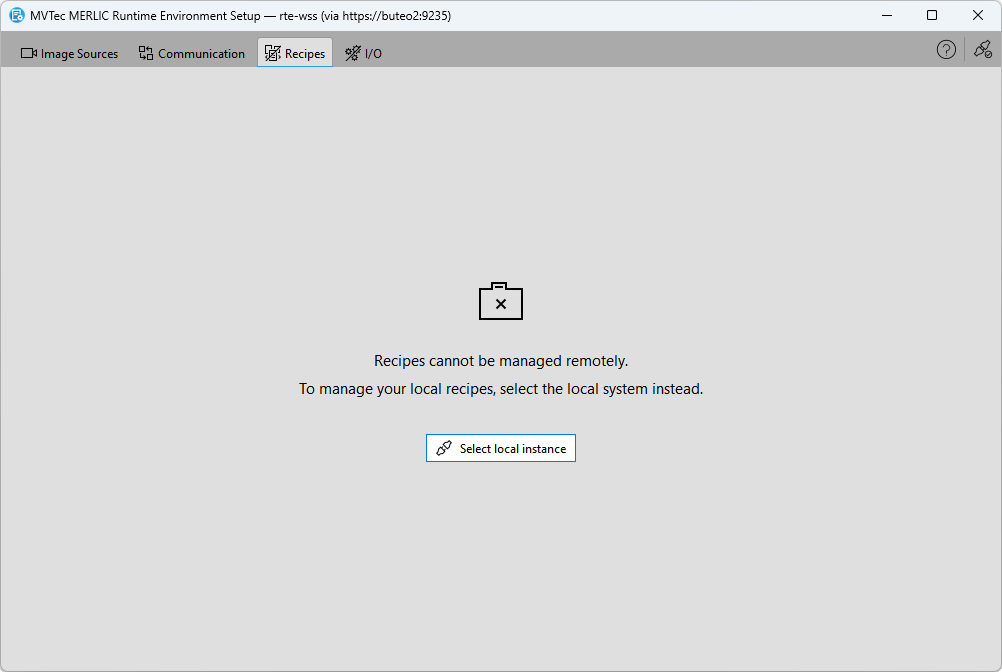
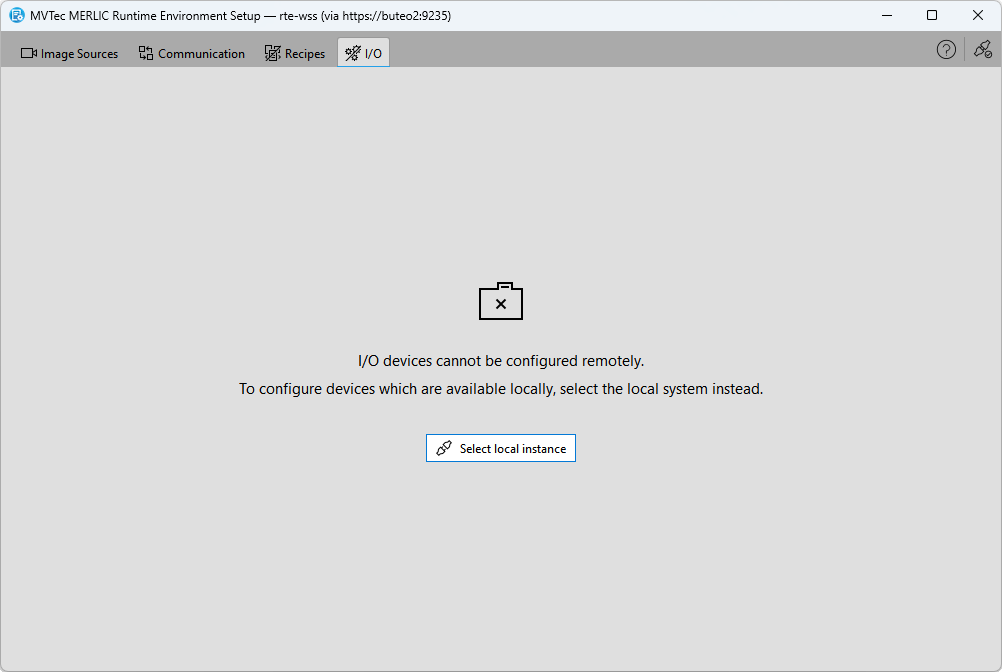
If the MERLIC RTE Setup is connected to a MERLIC instance on a remote system, the configuration options on the "Recipes" and "I/O" tab will not be available. The configuration of recipes and I/O plugins is only possible for local systems.
If you want to access the recipe management, you have to start the MERLIC RTE Setup on the system, where the recipes are located. The same applies to the configuration of I/O plugins.
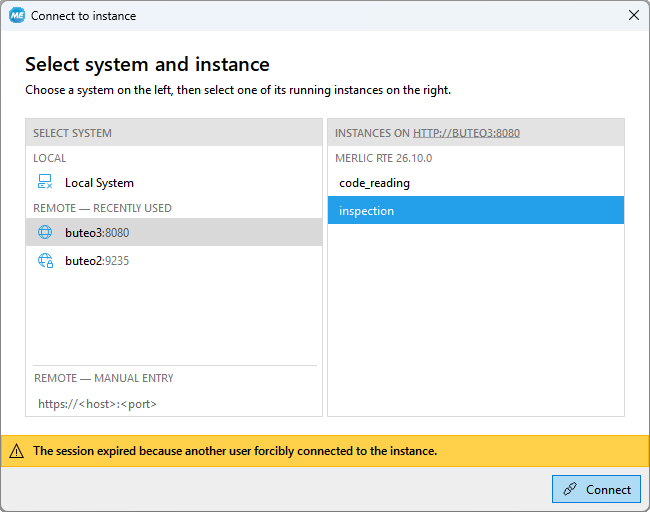
Expired Session
If another user forces a connection to the MERLIC instance to which you are currently connected, your session will be expired and the configuration cannot be continued. All unsaved changes will be lost. The connection dialog will be shown and you then have the possibility to force the connection to the respective MERLIC instance. The user who previously held the connection will receive the same message that the user's session expired.