HTML Overview of MERLIC Instances
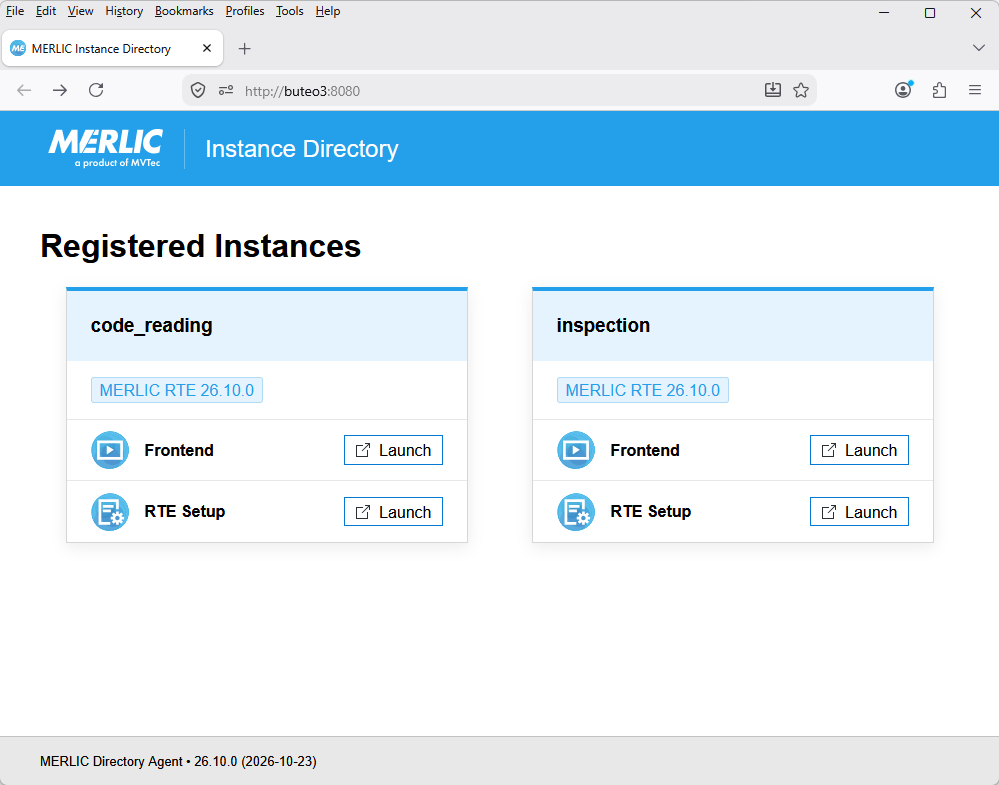
The MERLIC Directory Agent serves an HTML page that contains information on all registered MERLIC RTE instances and their MERLIC services that are available on the system. It can also be used as landing page to start the MERLIC clients from the browser.
When starting MERLIC RTE, the respective MERLIC instance and MERLIC services will be automatically registered in the MERLIC Directory Agent and the HTML page is served. You can then use this page to check which MERLIC RTE instances and services are registered on a specific system. If MERLIC is installed on your system, you can start MERLIC RTE Setup and MERLIC Frontend with a mouse click. They will then connect to the running MERLIC RTE instance.
Access via Connection Dialog
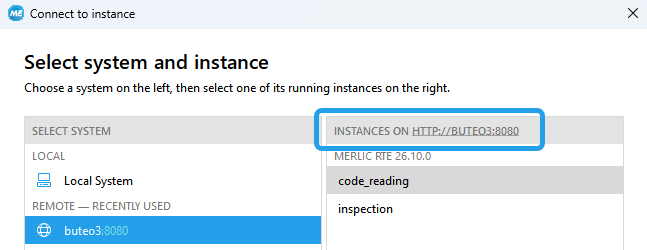
You can open the overview for a specific system via the graphical user interface of the "Connect to instance" dialog. This option is only available if any MERLIC instance is currently available for connection on the desired system.
- Open the connection dialog from the MERLIC Frontend or the MERLIC RTE Setup. For more information, see Connecting the MERLIC Frontend to a Remote Server and Connecting the MERLIC RTE Setup.
- Select the system and MERLIC instance whose overview you want to open in the browser.
- Click on the link above the instance list to open the HTML overview for the selected system.
The HTML overview lists all MERLIC instances that are available for connection on the specified system and port.
Example
Access Manually via URL
You can also open the HTML overview page by entering the respective URL directly in your browser. This way, you can look up the registered MERLIC instances and their services from any system, even without MERLIC installation.
Overview of Registered MERLIC Instances
To get an overview of the MERLIC instances that are currently registered on a system, open a browser and enter URL in the following format to specify the respective system and port:
http[s]://<HOST>:<PORT>You have to specify the hostname or IP address of the MERLIC server and the port on which the server listens. For connections without Transport Layer Security (TLS), you need to use "http://" and for TLS-encrypted connections "https://".
Example
To see an overview of all MERLIC instances that are currently registered on the system with hostname "merlic-server" via port 8090 and without TLS, you can enter the following URL:
http://merlic-server:8090Customizing the Overview
You can customize the HTML overview and use custom styles and markup for the page, for example, to integrate a customized HTML page to your framework.
MERLIC provides the HTML template and the respective resource files for the page with the installation. You can use these files as basis for your changes.
- On the host system, copy the files provided in the "www" folder within the MERLIC installation to a different location with write permissions.
- Adjust the contents of the HTML file and the referenced files as desired. You may make any changes to the HTML contents and its resource files, for example, using a different stylesheet, adding further resource files, or removing resource files if they are not required.
- Open the configuration file of the MERLIC Directory Agent. By default, it is located in "%APPDATA%\MVTec" on Windows and in "~/.config/MVTec/" under Linux systems.
- Add a section named "Assets", and define the routes and respective files that should be served on these routes. They are defined as key-value pairs. The keys represent the routes and the values the respective files. Copy
 "Assets": {
    "/": "<PATH_TO_HTML>/<HTML_FILE>",
    "/<ROUTE>": "<PATH_TO_RESOURCE>/<RESOURCE_FILE>",
  },
Make sure to define a route, that is, a key-value pair, for each resource file that is referenced in the main HTML page.
- Save your changes and restart the MERLIC Directory Agent for the changes to take effect.
Example
The following example defines four routes and maps them to the files in the folder "C:/Users/Public/Documents/MERLIC/www/". The route "/" references the main HTML page "index.html". If the example "Assets" section is defined in the configuration of the Directory Agent on the host system "merlic-server", and the Directory Agent is also configured to use port 8080 without Transport Layer Security (TLS), the URL "http://merlic-server:8090/" will show the customized "index.html" page.
 "Assets": {
    "/": "C:/Users/Public/Documents/MERLIC/www/index.html",
    "/styles.css": "C:/Users/Public/Documents/MERLIC/www/styles.css",
    "/component-styles.css": "C:/Users/Public/Documents/MERLIC/www/component-styles.css",
    "/components.js": "C:/Users/Public/Documents/MERLIC/www/components.js"
  },