Configuring the Digital Inputs and Outputs
To ensure a correct configuration of the input and output channels, the information about the available signals of MERLIC should also be considered. The assignment of the input and output channels to the respective commands and signals is crucial for the correct usage of MERLIC in process integration mode. For more information on the available signals and commands, see Commands and Signals (Digital I/O).
To check or modify the current configuration of the digital inputs and outputs of a device, you have to enable the device first. It will then be shown in the list of enabled devices and can be selected for configuration.
Enabling the I/O Device
First, you have to select and enable the desired device in the MERLIC RTE Setup:
- Open the MERLIC RTE Setup and go to the "I/O" tab.
- Click on "
 Refresh" to update the list of available I/O devices. For more information, see Setting Up I/O Devices.
 - Select desired device and enable it via double-click or by clicking the "
 Enable device" button.
After enabling the device, the respective configuration of the device will be shown on the right. If multiple I/O devices are enabled, make sure to select the desired device whose configuration you want to see.
Configuring the Digital Inputs
MERLIC assigns the input signals to the available device channels automatically according to the default configuration. The configuration area in the "I/O" tab displays the current pairs of MERLIC signals and digital I/O channels. The digital input channels are listed in the section "Input". You can change the default configuration of the channels manually in the configuration area.
For digital I/O devices the following signals are available:
|
Signal |
Description |
|---|---|
|
StartSingleJob |
Triggers a single execution of the MERLIC Vision App. |
|
PrepareRecipe |
Triggers a recipe change. The respective ID of the recipe to be loaded must be defined in advance via the signals "RecipeIdBit0" to "RecipeIdBit3". |
|
RecipeIdBit0 |
Represents the 1st bit of the recipe ID. |
|
RecipeIdBit1 |
Represents the 2nd bit of the recipe ID. |
|
RecipeIdBit2 |
Represents the 3rd bit of the recipe ID. |
|
RecipeIdBit3 |
Represents the 4th bit of the recipe ID. |
Assigning the Digital Input Channels
- Select the I/O device from the list of devices.
- For each signal whose configuration you want to modify, select the desired input channel from the respective drop-down menu.

- Save the configuration via the "
 Save" button. Your configuration is saved as long as the device is enabled. If you disable the device, that is, remove it from the list of enabled devices, the respective changes will be lost and the default configuration is restored.
In the example configuration below, the signal for "StartSingleJob" is transmitted via the input channel "di_0.0".

Configuring the Digital Outputs
MERLIC assigns the output signals to the available device channels automatically according to the default configuration. The configuration area in the "I/O" tab displays the current pairs of MERLIC signals and digital I/O channels. The list of available signals and digital output channels is shown in the section "Output". If desired, you can change the default configuration of the channels manually in the configuration area.
For digital I/O devices, the following signals are available for the transmission:
|
Signal |
Description |
|---|---|
|
Error |
Indicates if an error occurred. |
|
Ready |
Indicates if MERLIC is ready for execution |
|
ResultState |
Indicates the state of the state of the queried result data. If it is set to 1, the processing was carried out correctly and the queried results are up-to-date. If it is set to 0, the processing failed or was aborted. In this case, no results might be available or the existing result values might not be up-to-date, for example, the values might be outdated and from a previous execution.
|
|
Resultn |
Represents the n-th MVApp result that has been defined for the MVApp that is referenced in the recipe file. |
Assigning the Digital Output Channels
- Select the I/O device from the list of devices.
- For each signal whose configuration you want to modify, select a the desired output channel. You have to select a different channel for each signal.
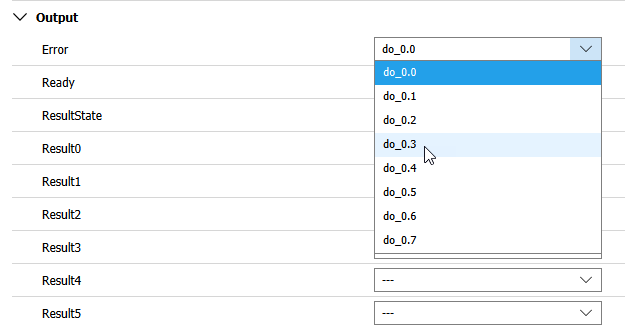
- Save the configuration via the " Save" button. Your configuration is saved as long as the device is enabled. If you disable the device, that is, remove it from the list of enabled devices, the respective changes will be lost and the default configuration is restored.
This way, you can select which output channel transmits a specific signal. Assigning an output channel to a result is optional. Therefore, it is possible to select the entry "--" instead of a channel.
As an alternative way to display a list of available devices for the process integration mode with their default configuration you can start MERLIC RTE with the command line option "--devices" from the directory where MERLIC is installed. For more information, see Starting MERLIC RTE on Windows.
It is mandatory to select a channel for the signals "Error" and "Ready" because they contain the decisive information about the current MERLIC state. In addition, channels cannot be assigned more than once.
Resetting the Configuration
To restore the default configuration for your device, you can reset the changes by clicking on " Reset to default" at the bottom of the "I/O" tab.