Tool Library
The Tool Library contains all available MERLIC tools A MERLIC tool is a modular unit with a specific functionality. It can be used to solve a specific task of an image processing application, to define conditions and expressions, or to communicate via various devices. Tools build the elementary part of a MERLIC Vision App. that can be used to create a MERLIC Vision App A MERLIC Vision App represents an image processing application created in MERLIC. It consists of the tools in the MERLIC Creator, the Designer widgets, and all settings that are used in the application..
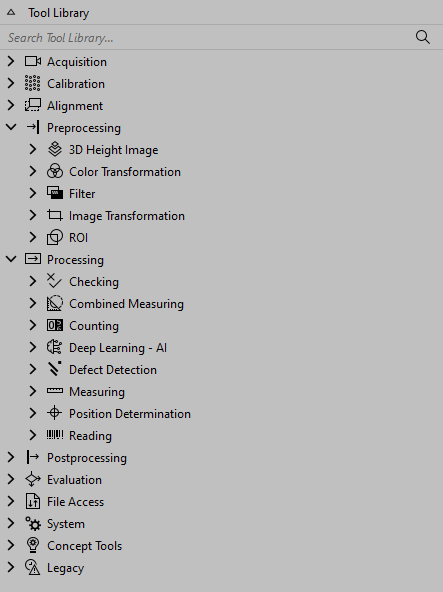
The tools are sorted by categories which roughly represent the steps of a typical machine vision application. Please refer to the MERLIC Tool Reference to get more information about the provided MERLIC tools.
Searching the Tool Library
If you are looking for a specific tool and need help finding the respective tool category, you may use the search filter of the Tool Library.
- Click on the search icon
 on the top right of the panel and type the search text into the input field.
 - To display all other tools and tool categories again, close the search field via the button
 .
.
The Tool Library shows all tools that fit to the search text including their respective tool category. If the name of a tool category fits to the search, it is also displayed as search result. This is also useful if you want to search for a tool by a specific keyword.
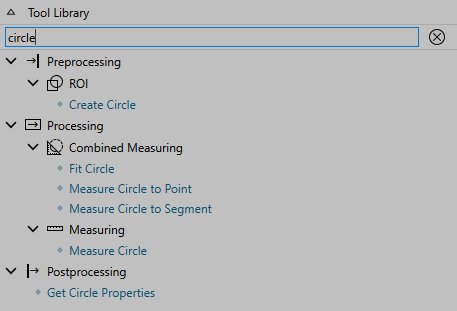
Navigating the Tool Library
Besides navigating the Tool Library via mouse clicks, you can also use keyboard shortcuts for the navigation in the Tool Library if the focus is already in the search bar or one of the tools within the Tool Library.
Moving Up and Down
To move up to the previous tool or tool category in the Tool Library, you can use the Up arrow key on your keyboard and to move down, you can use the Down arrow key. You can also move up to the search field of the Tool Library.
Expanding and Collapsing a Tool Category
To expand and collapse a tool category, you can use the Enter key. Alternatively, you can use the Right arrow key to expand and the Left arrow key to collapse the category.
Switching to the Search Field
To switch to the search field of the Tool Library, you can either use the Esc key or start moving up until you get to the search field using the Up arrow key.
Adding the Selected Tool
To add the currently selected tool to the Tool Flow, you can either use the Enter key or the Space key.
For more information about further shortcuts, see the topic Keyboard Shortcuts.


