Activating the User Management
By default the user management of a MERLIC Vision App is disabled and all users have read and write permissions in the Frontend. If you want to define access permissions of your MERLIC Vision App for the Frontend, you first have to enable the user management. Then you may access the settings of the user management and you can start creating user groups and the corresponding settings.
Activating the User Management
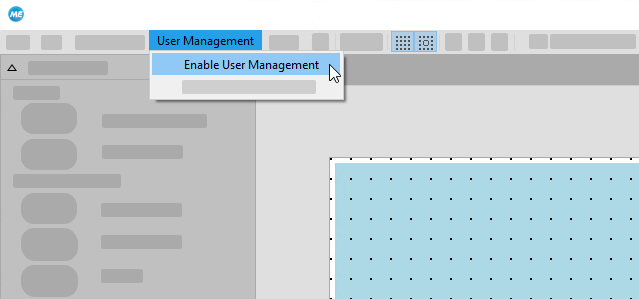
- Open the Designer menu entry "User Management".
- Click on the menu entry "Enable User Management". Now, you can access the user management settings via the menu entry "Edit User Management".
To get more information about the available settings for the user management, please see the chapter Setting up the User Management
The defined user management data and settings of your MERLIC Vision App are stored in a database file with the same name as the MERLIC Vision App but with the file ending .mudb. This file is mandatory when using the MERLIC Vision App with the user management settings. Thus it must not be deleted or removed from the directory in which the MERLIC Vision App is stored.
If the user management has previously been defined for the MERLIC Vision App and is now enabled anew, the existing database is used. However, if it cannot be found, a new database will be created.
Deactivating the User Management
- Open the Designer menu entry "User Management".
- Click on the menu entry "Enable User Management". A dialog opens that asks you for the administrator password.
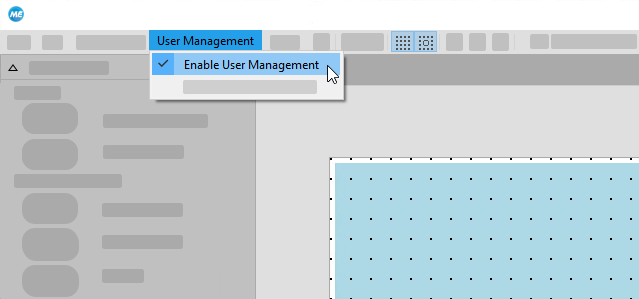
- Enter the administrator password in the dialog to disable the user management. The user management settings are now deactivated and cannot be accessed anymore.
If the menu entry is disabled, all users have unrestricted access to the MERLIC Vision App in the Frontend including all views.


