MVApp Parameters
An MVApp parameter data set represents a set of pre-defined input values for a specified MERLIC Vision App. It is stored in a MERLIC recipe A MERLIC recipe file is a crucial part for the MERLIC process integration. It is a separate file (with file ending .mrcp) that defines which MERLIC Vision App is loaded for the process integration. It also defines how the MVApp is parametrized because it contains a set of pre-defined input values for selected tool parameters. You can create multiple recipe files with individual sets of input values for one and the same MVApp. This enables you to reuse an MVApp with different parameter settings for various scenarios of your application. You can also use a recipe file to load an MVApp for a completely different image processing task. file and consists of a list of parameter values with the respective data type. This enables the parametrization of selected parameters of an MVApp via a MERLIC recipe file. You can create multiple recipes with different input values for one and the same MVApp. In the process integration MERLIC can be used in machine vision systems that are integrated in a manufacturing machine. The machine controller, e.g., a programmable logic controller (PLC), must be able to control an integrated vision system, to monitor the execution, and to query the results. Therefore, MERLIC provides a process integration mode to enable the communication with a machine controller. The process integration mode can be started with the application "MERLIC RTE" that is provided with the MERLIC installation. mode, you can select the recipe file with the MVApp parameter data set that fits to your current application.
Defining the set of MVApp parameters is essential for the creation of a recipe file. You have to define which tool parameters you want to parametrize via the recipe file and add these tool parameters to the set of MVApp parameters. This can be done in the MERLIC Creator as described below.
Defining the MVApp Parameters
To define the MVApp parameters, you have to open the MVApp, which shall be parametrized, in the MERLIC Creator. We recommend to set the desired values of the tool parameters first before you add them to the MVApp parameters. This ensures that the values in the recipe file are correctly set.
If everything is configured as desired, you can add the desired tool parameters to the MVApp parameters as follows:
- Select the tool whose parameter you want to define as MVApp parameter in the tool workspace.
- Click on the following icon at the tool parameter which needs to be parametrized via the recipe file:
 . You can also choose "Add to MVApp parameters..." after a right-click on the tool parameter.
 - Enter a unique name for the MVApp parameter into the new dialog.
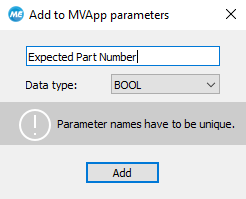
- Select the desired data type from the drop down list. You can choose from various data types of the standard IEC 61131. For more information about the data types, see Supported Data Types.
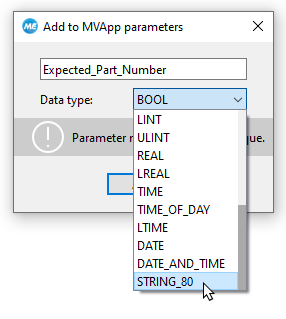
- Confirm your settings by clicking "Add".
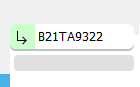
As soon as a tool parameter is set as MVApp parameter, the respective icon is highlighted in green .
In addition, the respective tool is also marked in the Tool Flow panel with the icon  to indicate that at least one parameter of this tool is set as an MVApp parameter.
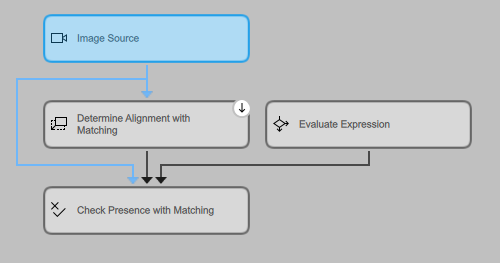
For more information on the visualization of different tool states, see Tool States.
Overview of MVApp Parameters
The panel "MVApp Parameters and Results" in the MERLIC Creator shows a table with all specified MVApp parameters. They are listed according to their data type. The table shows information for each MVApp parameter: the name of the MVApp parameter, information about the referenced tool parameter, the respective data type, and also the position of the MVApp parameter within the corresponding data type.
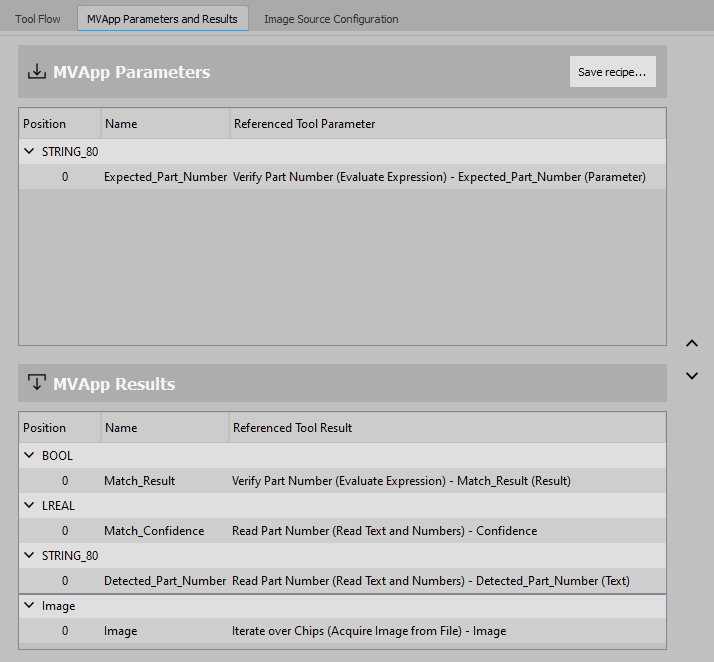
The position of a parameter can be adapted by dragging it with the mouse or the angle buttons on the right. This panel also provides the button "Save recipe..." that enables you to create a recipe with your data set of MVApp parameters and MVApp results. For more information, see Creating a MERLIC Recipe.
When creating a recipe file, the currently defined MVApp parameters are exported to the new recipe file in the same order as shown in the overview.
The first input value that is defined for a specific data type in the MERLIC recipe will be set for the first MVApp parameter that is listed in the MVApp parameters list for the respective data type.
Removing MVApp Parameters
To remove a parameter from the MVApp parameters, use the context menu of the tool parameter.
- Right-click on the respective tool parameter to open the context menu.
- Click on "Remove from MVApp parameters" to remove the tool parameter from the set of MVApp parameters.
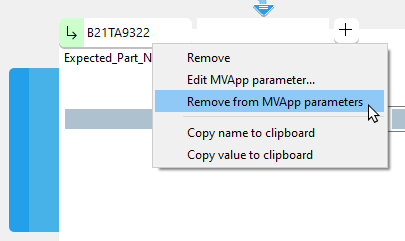
The connection to the recipe value will be removed and the highlighted color of the icon will also be removed. Make sure to adapt all existing recipe files which contained the parametrized MVApp parameter.


