"save-results" Plug-in
This plug-in can be used to automatically save data contained in MVApp results to a configurable directory on disk. In contrast to the example plug-in "save-images", this plug-in saves only non-image data and the source code of the plug-in is not available. The data will be stored in a file in CSV format. The "save-results" plug-in opens the file when the plug-in is started, MERLIC RTE is running, and a recipe is prepared. The data of the respective MVApp results will be collected and written to the file intermittently as soon as the accumulated data exceeds the predefined buffer size and when the file is closed. The file is closed when stopping the plug-in, unpreparing the recipe, or stopping MERLIC RTE.
The plug-in offers some configuration options to customize the output directory, the file name format, and the formatting.
Testing the Plug-in
You can use the plug-in in combination with any communication plug-in of your choice, that is, any plug-in that is configured via the "Communication" tab of the MERLIC RTE Setup. However, for some initial testing, you can use the "action-sender" example plug-in and one of our example recipes to trigger some iterations. You can send actions via the "action-sender" plug-in and the "save-results" plug-in will store the results on your disk. This allows you to check the available configuration options for the plug-in and the respective format and content of the resulting file before using the "save-results" plug-in in your final production.
- Open the MERLIC RTE Setup and go to the "Recipes" tab.
- Import a recipe that references a MERLIC Vision App that contains at least one MVApp result representing a non-image result. For testing, you may also use one of the example recipes, for example, "verify_chip_number_recipe.mrcp".
- Set the recipe as default recipe. If you skip this step and the recipe is not set as default when starting the two plug-ins, you have to load the recipe manually via the "action-sender" plug-in using the command "python.exe comm-send.py PrepareRecipe <Recipe ID>", that is, after step 9.
- Change to the "Communication" tab and start MERLIC RTE. When MERLIC RTE is running, the configuration service for the plug-ins is available.
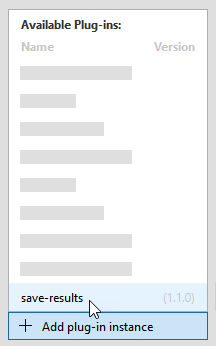
- Add the "save-results" plug-in to the list of plug-in instances on the left.
- Check the configuration of the plug-in. For more information, see the section Configuring the Plug-in.
- Start the execution of the plug-in either by clicking on the button "
 Start plug-in" on the bottom of the MERLIC RTE Setup or via the respective menu
  in the list of plug-in instances on the left. For more information on how to start and stop a plug-in, see Starting and Stopping Communication Plug-ins.
 - Add and start the "action-sender" plug-in the same way as the "save-results" plug-in.
- Open a command prompt and change to the directory of the "action-sender" plug-in, that is, to the directory "examples\communication_plugins\action-sender" within your MERLIC installation directory.
- Use the python script "comm-send.py" to start a single execution as shown below. The MVApp is executed once and the results are retrieved.Copy
python.exe comm-send.py StartSingleJobAlternatively, you can also start a continuous execution:
Copypython.exe comm-send.py StartContinuousTo get information on other available options, type "python.exe comm-send.py --help" for more usage information.
- The results will be collected for each iteration while the plug-in is still running. They will be written intermittently to the file if the accumulated data exceeds the predefined buffer size. The buffer size depends on the operating system and cannot be configured. The results will also be written when the file is closed which is caused by the following changes:
- The plug-in is stopped.
- The recipe is unprepared using the command "python.exe comm-send.py UnprepareRecipe".
- MERLIC RTE is stopped.
As soon as one of these conditions has been met, the results will be written to the file and you can check them in the directory that has been defined in the configuration of the "save-results" plug-in.
Configuring the Plug-in
The example plug-in can be configured in the "Communication" tab of the MERLIC RTE Setup. Simply open the MERLIC RTE Setup and add the plug-in to see the available configuration options for the plug-in. Keep in mind that you first have to start MERLIC RTE to enable the configuration.
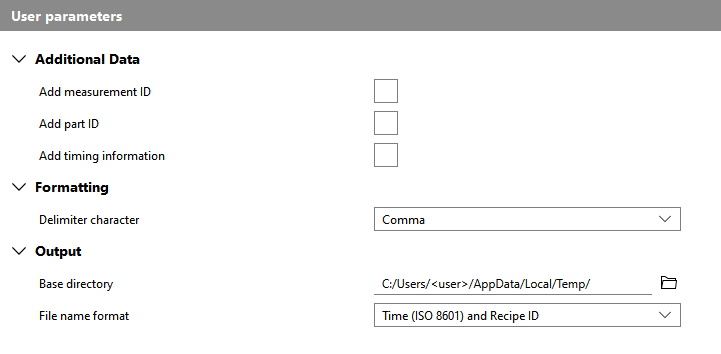
The parameters of the selected plug-in are shown on the right of the "Communication" tab. In the following, we will describe only the parameters in the section "User parameters" because these are the ones that can be configured.
Additional Data
The parameters in this category can be used to choose if any additional information on the respective jobs will also be saved in the CSV file.
Add measurement ID
This parameter defines whether the measurement ID of the respective jobs will be saved. If no measurement ID was specified, an empty string is returned. By default, the parameter is not set.
Add part ID
This parameter defines whether the part ID of the respective jobs will be saved. If no part ID was specified, an empty string is returned. By default, the parameter is not set.
Add timing information
This parameter defines whether various timing information will be saved. This includes information such as the start and end time of the execution, the duration of the processing, or the duration of the acquisition. By default, the parameter is not set.
Formatting
Delimiter character
This parameter defines the character that is used to separate the data entries that are stored with each iteration. By default, it is set to "Comma". The available options are listed in the following table.
|
Character |
Description |
|---|---|
|
Comma |
The results will be separated by a comma. |
|
Semicolon |
The results will be separated by a semicolon. |
|
Space |
The results will be separated by a space. |
|
Tab |
The results will be separated by a tab. |
Output
Base directory
This parameter defines the directory in which the data results will be saved. You can select the directory from the file system via the  button (on local systems) or you can type the path directly into the text field. By default, it is set to "%LOCALAPPDATA%/Temp" on Windows systems and to "/tmp" on Linux systems.
File name format:
This parameter defines the format of the file name for the saved results. By default, it is set to "Time (ISO 8601) and Recipe ID".
|
Format |
Description |
|---|---|
|
Recipe ID |
The file name consists of the prefix "MERLIC_recipe-" and the ID of the currently prepared recipe, for example, "MERLIC_recipe-2.csv". If this format is selected, existing result files could be deleted because only the ID of the currently loaded recipe is considered for the file name. If you are using the plug-in multiple times with the same recipe, the existing file of the previous session will be overwritten with the new results because the recipe ID will be same as before and thus, the file name will also be same. The results of previous session will be lost. |
|
Time (ISO 8601) and Recipe ID |
The file name consists of the current UTC time in ISO 8601 format and the ID of the currently prepared recipe, for example, "20230120T170327Z-2.csv". |


