MQTT Plug-in
This plug-in enables you to use MQTT The Message Queuing Telemetry Transport (MQTT) is a network protocol for device communication, especially with limited bandwidth. to integrate MERLIC as an MQTT client into a manufacturing machine and set up the communication to another MQTT client, for example, a programmable logic controller (PLC) or a SCADA Supervisory Control and Data Acquisition system via TCP. MQTT is an open OASIS Organization for the Advancement of Structured Information Standards standard messaging protocol for the exchange between IoT devices. MERLIC's MQTT plug-in uses MQTT version 3.1.1. The plug-in allows you to monitor the state and results of the process integration system but also to control it.
Operational Principles
Topics and Messages
For the communication via MQTT, messages with a length between 2 bytes and up to 256 megabytes can be used. Messages are organized in hierarchical topics and can have various message types, for example, to establish a connection, to publish data, and to acknowledge the receipt of data. The collection and distribution of the messages is managed by an MQTT message broker. The broker collects messages from all clients, and sends them to any client, that is subscribed to the respective topic. One message per topic can be retained for clients that subscribe to the topic at a later date.
MQTT Clients
An MQTT client can be any device that runs an MQTT library and that is able to communicate with the MQTT message broker. When using the MQTT plug-in, MERLIC itself acts as an MQTT client and is able to exchange messages with the MQTT broker.
To test the function of the MQTT plug-in, you can use any existing MQTT client device in your machine vision system setup or install a MQTT client software on your local system, for example, the MQTT Explorer.
MQTT Message Broker
An MQTT broker is a server that receives all messages from the clients and then routes the messages, for which a subscription is in place, to MQTT clients. You can use any available MQTT broker, for example, the Eclipse Mosquitto™ broker. A public instance is available at mqtt://test.mosquitto.org:1883.
Limitations
- The MQTT plug-in currently lacks security features, in particular certificate-based TLS/SSL encryption.
- Other plug-ins might interfere with the operation of the plug-in, for example, the simulated PLC, which is integrated in the "I/O" tab of the MERLIC RTE Setup.
Requirements
MQTT Broker and Client
If no MQTT broker is available on your network, you must install and run one. In addition, at least one MQTT client must be launched and connected.
Valid Configuration
You have to define a valid configuration with at least one recipe for the process integration mode. The configuration can be set in the MERLIC Runtime Environment Setup.
Operating the Process Integration Mode with the MQTT Plug-in
The following steps are necessary to operate the process integration mode, that is, MERLIC RTE, with the MQTT plug-in:
- Provide an MQTT message broker on your local system or via a remote connection.
- Provide an MQTT client to send messages on the topic "merlic/action" to the broker. Those messages can be used to control MERLIC in process integration mode.
- Start MERLIC RTE with a configuration of at least one valid recipe and configure the MQTT plug-in in the MERLIC RTE Setup. For more information, see the section Configuration Options.
- Start the MQTT plug-in with a connection to the MQTT message broker. For more information, see the section Starting the MQTT Plug-in.
- Optional: Use the MQTT client to send messages to the broker on the topic "merlic/action" to control MERLIC RTE.
- Optional: Provide an MQTT client to display and browse the messages published by the MQTT plug-in. The client can be the same as in step 2.
After the MQTT plug-in started, it automatically gathers information about the current state of the MERLIC vision system. It also automatically connects to the MQTT broker that has been defined for the plug-in instance in the section "MQTT Connection Details" within the MERLIC RTE Setup. The MQTT plug-in will publish the information from MERLIC in messages to the following designated MQTT topics:
- merlic/mode
- merlic/preparedRecipeIds
- merlic/recipes
- merlic/runningJobId
- merlic/state
MERLIC will transition from the initial state "Preoperational" to "Initialized", and then to "Ready" in case a default recipe was configured. In the state "Ready", a single execution of the vision system can be triggered by publishing {"actionType": "StartSingleJob"} to the topic "merlic/action". A continuous execution can be triggered using {"actionType": "StartContinuous"} and stopped with {"actionType": "Stop"}.
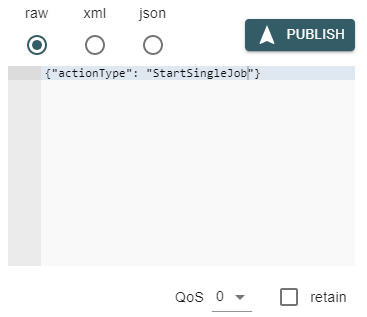
For more information, see the section Incoming Messages.
While the process integration mode is executed, that is, the MERLIC RTE application, results from the MVApp are published by the MQTT plug-in to the topic "merlic/recipes/0/result". The information is automatically updated and sent by the MQTT plug-in.
Starting the MQTT Plug-in
You can start the MQTT plug-in via the MERLIC RTE Setup and via the command line.
Via the MERLIC RTE Setup
You first have to make sure that MERLIC RTE is running. If not, you can start it from the MERLIC RTE Setup and proceed as follows:
- Open the menu of the MQTT plug-in instance via the
 icon and click on "
 Start".
 - Alternatively, select the MQTT plug-in instance on the left and click on the button " Start plug-in" on the bottom of the MERLIC RTE Setup.
Make sure that MERLIC RTE is configured according to your preferences before starting the MQTT plug-in. For example, when adding an instance of the MQTT plug-in in the MERLIC RTE Setup, the plug-in instance is added with the log level defined for MERLIC RTE. To log messages that are published to the MQTT message broker, you have to set the log level of MERLIC RTE to "debug" before starting MERLIC RTE and adding the plug-in instance.
Loading and Changing Recipes
In case a default recipe was configured, MERLIC will load it and transition from the initial state "Preoperational" to "Initialized", and then to "Ready". Without default recipe MERLIC stays in the state "Initialized" right after start-up. You can load the first recipe by publishing the following JSON message to the topic "merlic/action" using an MQTT client. The MQTT plug-in will receive the message automatically.
{
    "actionType": "PrepareRecipe",
    "recipeId": "0"
}
Other recipes can only be loaded while MERLIC is in the "Ready" state.
Configuration Options
To check and edit the configuration of the MQTT plug-in, MERLIC RTE must be running, but the plug-in must be stopped. You can work with multiple configurations that have different settings. Only the MERLIC RTE Setup should be used for the configuration as described in the following sections. It is possible, however, to check and change the settings manually in the file "MQTT.json", for example, in case the file is damaged.
Plug-in Parameters
Parameters of this type represent general parameters for the communication plug-in that cannot be adjusted in the configuration area of the "Communication" tab. They may show the version number of the plug-in, the current parameter value for the log level, the access level of the plug-in, and the setting for the validation of the plug-in configuration. These values need to be set in different locations or with different methods, respectively.
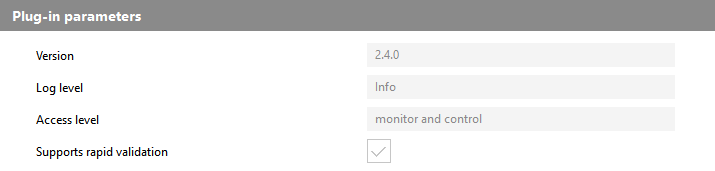
Version
This parameter shows the version number that has been defined during the plug-in implementation. It consists of a major, minor, and maintenance version. It is also shown when adding a new plug-in instance. The version is optional. Therefore, it is possible that no version number has been defined during the implementation.
Log level
This parameter shows the log level of the plug-in instance. By default, the log level is set to the log level of the respective MERLIC RTE process when adding the plug-in instance in the MERLIC RTE Setup.
Access level
This parameter shows the access level that is set for the plug-in. For the MQTT plug-in, the access level is set to "monitor and control" by default. This means that the plug-in can receive "events" and send "actions". The access level correlates with the capability that is defined in the implementation of the plug-in. The access level cannot be adjusted in the MERLIC RTE Setup.
Supports rapid validation
This parameter shows whether the plug-in supports the immediate validation of the current plug-in configuration. For this plug-in, the check box is ticked indicating that "rapid validation" is supported. This means that the configuration of the plug-in is validated with each modification of any editable parameter in the "Communication" tab of the MERLIC RTE Setup. If the plug-in does not support "rapid validation", the configuration of the plug-in is validated only when saving the configuration.
User Parameters
The "User parameters" represent the set of parameters that can be configured for the plug-in. They are displayed in different categories which can be expanded or closed.
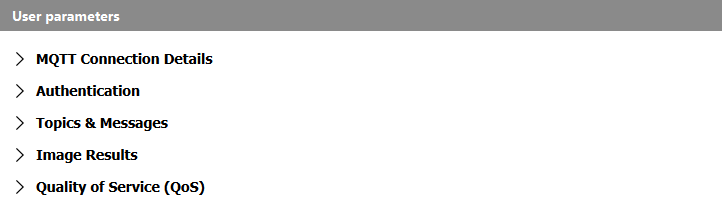
The following sections describe the parameters for each category.
MQTT Connection Details
The parameters in this category define the connection settings for the MQTT broker. If the MQTT broker is running on your local system on the conventional port 1883, the default configuration can be used without modifications. At the moment, neither certificate-based SSL/TLS nor pre-shared-key based TLS are supported.
The following image shows the available parameters for the MQTT connection with the respective default setting. A detailed description of the parameters follows after the image.

Hostname
This parameter defines the hostname or IP address of the MQTT broker. By default, the parameter is set to "localhost".
Port
This parameter defines the port on which the MQTT broker operates. By default, the parameter is set to 1883.
Authentication
The parameters in this category enable you to define user credentials in case you want to connect to an MQTT broker that requires password authentication.
The following image shows the available parameters for the authentication.

Authenticate with username/password
This parameter defines if authentication is used. By default, it is not selected and no user credentials are provided when connecting to the MQTT broker.
Username
This parameter defines the username for the authentication. It can only be set if the parameter "Authenticate with username/password" is selected.
Password
This parameter defines the password for the authentication. It can only be set if the parameter "Authenticate with username/password" is selected. By default, the password is not visible and is represented with bullet points instead. To see the password in plain text, click on the icon  .
.
The password is stored in plaintext. TLS encryption is currently not supported.
Topics & Messages
The parameters in this category define the settings for the messages sent by MERLIC RTE via the MQTT plug-in. The messages are published in JSON format.
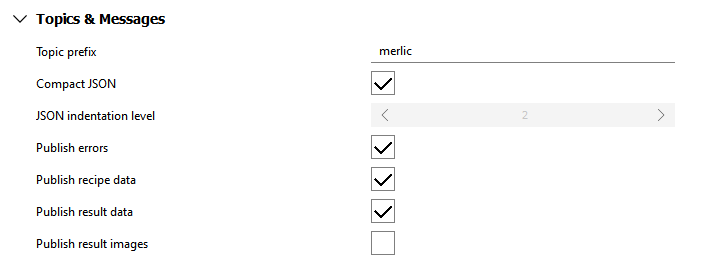
The following image shows the available parameters for the topics and messages with the respective default setting. A detailed description of the parameters follows after the image. For more information on the available topics and the respective JSON schema, see the section Overview of Topics.
Topic prefix
This parameter defines the topic prefix used by the MERLIC RTE to identify its messages. By default, the prefix is set to "merlic". For more information, see the section Outgoing Messages.
Compact JSON
If this parameter is set, the output will be in JSON format without white space or line breaks. By default, the parameter is already set.
JSON indentation level
This parameter defines the JSON indentation level, that is, the number of spaces used in the JSON messages. This option is only applicable if the parameter "Compact JSON" is not set. Usually an indentation level between 2 and 4 is used. By default, the parameter is set to 2.
Publish errors
If this parameter is set, errors which are reported by MERLIC RTE will be published to the topic "merlic/error" and its subtopics. Error messages are not retained, that is, they will only be delivered to subscribers of the topics at the time the error occurred. By default, the parameter is already set.
Publish recipe data
If this parameter is set, the recipe list is published to the topic "merlic/recipes". Additionally, for each recipe, a Boolean is published to a topic of the form "merlic/recipes/{id}/isPrepared" where {id} is the numeric recipe ID. The Boolean value indicates whether that recipe is currently prepared. These messages are retained such that clients subscribing to these topics while the plug-in is already running will receive the current recipe data. By default, the parameter is already set.
Publish result data
If this parameter is set, new results will be published to topics of the form "merlic/recipes/{id}/result" and its subtopics where {id} refers to the numeric recipe ID of the recipe for which the result was generated. Result messages are not retained, that is, they will only be delivered to subscribers of the topics at the time the result arrived. By default, the parameter is already set.
Publish result images
This parameter defines whether result images of the MVApp, which was executed as the recipe, will be retrieved and published. It is only enabled if the parameter "Publish result data" is set.
If "Publish result images" is set, the data of successfully retrieved result images will be published to the topic "{prefix}/recipes/{id}/result/images/{dataIndex}/data". This topic is the only one which does not convey JSON messages.
{dataIndex} refers to the numeric (0-based) index of the corresponding image result of the MVApp. If you choose to publish the result images, you have the possibility to specify some further settings for the result images such as a filter mode or the payload format for the image data. You can find the respective parameters in the category "Image Results" together with other configuration options for result images.
If the image could not be retrieved, for example, because it is no longer stored in MERLIC or because the conversion to the desired format failed, the error is published to "{prefix}/recipes/{id}/result/images/{dataIndex}/error". This topic uses the same "error.json" schema that is already used by the topic "{prefix}/error".
By default, the parameter is not set and thus no result images are published.
Image Results
The parameters in this category define how result images are published. They are enabled for configuration only if the parameter "Publish result images" in the category "Topics & Messages" is set.
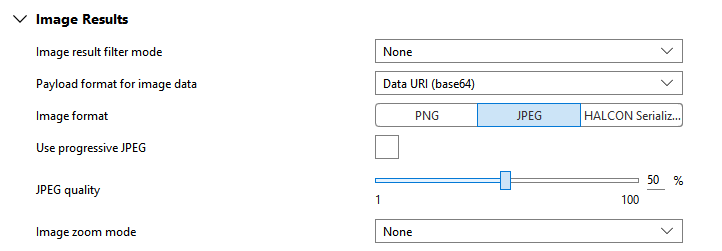
Image result filter mode
This parameter allows you to enable a filter that determines which image results will be retrieved. You can choose between the options below. By default, it is set to "None".
|
Mode |
Description |
|---|---|
|
None |
No filter is applied and all result images will be retrieved. |
|
Regular expression |
Only result images whose name matches the regular expression that is specified in the parameter Result name filter regex, will be retrieved. |
Result name filter regex
Payload format for image data
This parameter defines how the actual image data should be published on the MQTT topic. By default, the parameter is set to "Data URI (base64)".
|
Format |
Description |
|---|---|
|
Binary |
The image data is published as "raw" binary. It is the most simple option and the most efficient but many MQTT clients are not capable to handle or display binary data. |
|
Base64‑encoded string |
The image data is published as a base64-encoded string. It uses base64 encoding to represent the data cleanly as text (at a size overhead of 33%). |
|
Data URI (base64) |
The image data is published as a base64-encoded data URI. It also uses the base64 encoding but prefixes the payload with a data URI protocol scheme which includes the MIME type, that is, "image/jpeg", "image/png", or "application/octet-stream" for HALCON Serialized Item. |
Image format
|
Format |
Description |
|---|---|
|
PNG |
|
|
JPEG |
The images will be published as JPEG images. If this format is selected, the following additional parameters become available: |
|
HALCON Serialized Item |
|
In general, all images of the types "byte", "int1", "uint2", "int2", "int4", "int8", and "real" can be exported as an MVApp result and converted to the available image formats. However, images of type "real" are an exception because they can only be converted to the format "HALCON Serialized Item". For more information about the image formats and the respective pixel transformation, see the section Image Results in Configuring Communication Plug-ins
Use progressive JPEG
This parameter is only available if the parameter "Image format" is set to "JPEG".
JPEG quality
This parameter is only available if the parameter "Image format" is set to "JPEG". It defines the quality for the compression to JPEG in percent. By default, it is set to 50 %.
PNG compression
This parameter is only available if the parameter "Image format" is set to "PNG". It defines the level for the compression to PNG. It can be set to a value from 0 to 9. By default, it is set to 6.
Image zoom mode
This parameter allows you to resize the result images. The available options are listed in the table below. Depending on the selected mode, additional parameters will be enabled for configuration. By default, the parameter is set to "None".
|
Mode |
Description |
|---|---|
|
None |
|
|
Fixed width and height |
The images will be scaled to the size that is specified in the parameters Image width and Image height. |
|
Zoom factor |
The images will be resized along both dimensions by the factor that is specified in the parameter Image zoom factor. |
Image width
This parameter is only available if the parameter "Image zoom mode" is set to "Fixed width and height". It defines the width for the result images.
Image height
This parameter is only available if the parameter "Image zoom mode" is set to "Fixed width and height". It defines the height for the result images.
Image zoom factor
This parameter is only available if the parameter "Image zoom mode" is set to "Zoom factor". It defines the percentage value which is used to resize the images along both dimensions. You can also specify a value larger than 100%. By default, the parameter is set to 100 % which means that the original image size is kept.
Quality of Service (QoS)
The parameters in this category define the behavior of the broker in case of packet loss in transit, for example, due to data transmission errors or network congestion.
Each of the parameters can be set to the values 0, 1, or 2. The selected values are highlighted in blue. To select different ones, click on the respective values. The following table gives an overview of their meaning.
|
QoS value |
Description |
|---|---|
|
0 |
Messages are delivered only once regardless of whether they are acknowledged ("fire and forget"). |
|
1 |
Messages are delivered at least once until they are acknowledged ("acknowledged delivery"). |
| 2 |
Messages are delivered exactly once ("assured delivery"). |
The following image shows the available parameters with the respective default setting. A detailed description of the parameters follows after the image.
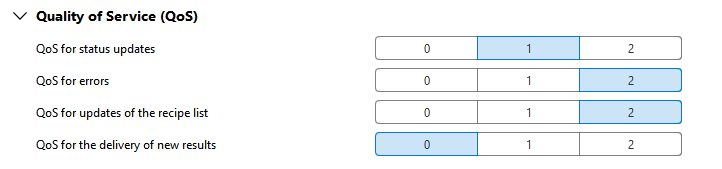
QoS for status updates
This parameter defines the QoS for status updates. By default, it is set to 1.
QoS for errors
This parameter defines the QoS for error messages. By default, it is set to 2. This parameter is only applicable if the parameter "Publish errors" is set.
QoS for updates of the recipe list
This parameter defines the QoS for updates of the recipe list. By default, it is set to 2. This parameter is only applicable if the parameter "Publish recipe data" is set.
QoS for the delivery of new results
This parameter defines the QoS for the delivery of new results. By default, it is set to 0. This parameter is only applicable if the parameter "Publish result data" is set.
Subscribing to MQTT Topics
Incoming Messages
The MQTT plug-in automatically subscribes to the topic "merlic/action". However, if the plug-in is started with access level "monitor", this topic is not subscribed. In case the plug-in is started with access level "control", no messages will be published on this topic. You can use any MQTT client to control the execution of MERLIC by sending the following "actionType" messages to the topic "merlic/action":
- SelectMode
- PrepareRecipe
- UnprepareRecipe
- StartSingleJob
- StartContinuous
- Halt
- Reset
- Stop
- Abort
Examples and Further Information
 Starting the Execution
Starting the execution
Starting the continuous execution of an MVApp with a recipe:
{
  "actionType": "StartContinuous",
  "recipeId": "3"
}
Starting a single job:
{
  "actionType": "StartSingleJob"
}
For both execution modes applies that no recipe ID must be specified because only the MVApp, that is referenced in the currently prepared recipe file, can be executed. If the recipe ID is specified, you have to ensure that the ID of the currently prepared recipe is given, otherwise an error occurs.
Starting the execution with parameter values
You can specify parameter values for the execution if you want to override the parameter values that are defined in the currently prepared recipe as shown in the following examples.
Start the continuous execution with parameters:
{
  "actionType": "StartContinuous",
  "parameters": [42, 3.141, "mvapp-parameter"]
}
Starting a single job with parameters:
{
  "actionType": "StartSingleJob",
  "parameters": [42, 3.141, "mvapp-parameter"]
}
For the specification of the parameter, the same rules apply as stated for the parameter "MV_PARAM_START_PARAMS" in the topic Available Actions in the Communication Plug-in Development Manual.
The specified parameter values in the JSON array need to correspond to the number of values defined in the recipe file, and their data type must be suitable to enable a lossless conversion into the data type of the respective parameter value in the recipe.
Currently, no lossless conversion into the data type REAL is possible. Therefore, we recommend using the data type LREAL for the respective parameters in the MVApp instead to ensure that these parameters can also be parametrized when starting the execution.
Starting the execution with optional metadata
You can specify a measurement ID or a part ID when starting a job:
{
  "actionType": "StartSingleJob",
  "measId": "optional-measurement-id",
  "partId": "S/N-123456789"
}
Both "measId" and "partId" are optional and may be omitted or set explicitly to null. When they are set, they will be referenced in the messages published to "merlic/recipes/{id}/result" for the results which are produced during the execution of the job.
Outgoing Messages
The MQTT plug-in automatically publishes information from MERLIC in process integration mode in messages to the following designated MQTT topics:
- merlic/mode
- merlic/preparedRecipeIds
- merlic/recipes
- merlic/runningJobId
- merlic/state
You can use any MQTT client to subscribe to messages published by the MQTT plug-in.
Each topic starts with the placeholder {prefix} which has to be substituted with a configurable prefix path according to the topics and messages setting. For the MQTT plug-in, it is merlic by default, for example, "merlic/state". Configuring a custom prefix facilitates the integration of the vision application into existing topic hierarchies and allows for the simultaneous operation of multiple distinct vision applications over the same MQTT broker.

For information about how to configure the information level see the section Topics & Messages.
Examples
Message to the topic "merlic/recipes/0/result" (if "Compact JSON" is deactivated):
{
  "id": 111,
  "recipeId": "0",
  "jobId": 111,
  "measId": "measurement-42",
  "partId": null,
  "timestamp": "2024-02-05T15:12:27.699Z",
  "processingTimes": {
    "executionStartTime": "2024-02-05T15:12:27.528Z",
    "executionEndTime": "2024-02-05T15:12:27.698Z",
    "acquisitionDurationMillis": 0.368,
    "processingDurationMillis": 168.952
  },
  "resultState": "Completed",
  "content": [
     {
      "name": "Match_Result",
      "value": true
    },
    {
      "name": "Match_Confidence",
      "value": 0.99
    },
    {
      "name": "Detected_Part_Number",
      "value": "B21TA9322"
    }
  ]
}
Retained Messages
The MQTT plug-in automatically marks some messages as retained to inform subscribers of the current status and the list of recipes. A client will receive the most recent retained message as soon as it subscribes to the topic, even if the plug-in published the message before the subscription. This behavior applies to state-like information only. Event-like information like errors and new results are not retained.
Overview of Topics
The following table lists all available topics with the respective JSON schema.
|
Topic |
Retained |
Example |
JSON schema |
|---|---|---|---|
|
{prefix}/action |
n/a |
|
|
|
{prefix}/error |
✘ |
|
|
|
{prefix}/error/brief |
✘ |
"brief error message" |
|
|
{prefix}/error/code |
✘ |
8565 |
|
|
{prefix}/error/message |
✘ |
"error message" |
|
|
{prefix}/mode |
✔ |
"Automatic", null |
|
|
{prefix}/preparedRecipeId |
✔ |
[], ["4"] |
|
|
{prefix}/recipes |
✔ |
|
|
|
{prefix}/recipes/{id}/isPrepared |
✔ |
false, true |
|
|
{prefix}/recipes/{id}/result |
✘ |
|
|
|
{prefix}/recipes/{id}/result/content/{idx}/value |
✘ |
5, 3.141592, "strings" |
|
|
{prefix}/recipes/{id}/result/images/{dataIndex}/data |
✘ |
"data:image/png;base64" |
Binary, base64, or Data URI (base64) |
|
{prefix}/recipes/{id}/result/images/{dataIndex}/error |
✘ |
|
|
|
{prefix}/state |
✔ |
"SingleExecution" |
|
|
{prefix}/status/runningJobId |
✔ |
42, null |
JSON Schemas
action.json
{
  "$schema": "http://json-schema.org/schema#",
  "type": "object",
  "properties": {
    "actionType": {
      "enum": [
        "SelectMode",
        "PrepareRecipe",
        "UnprepareRecipe",
        "StartSingleJob",
        "StartContinuous",
        "Halt",
        "Reset",
        "Stop",
        "Abort"
      ]
    }
  },
  "required": [
    "actionType"
  ],
  "allOf": [
    {
      "if": {
        "properties": {
          "actionType": {
            "const": "SelectMode"
          }
        }
      },
      "then": {
        "properties": {
          "mode": {
            "enum": [
              "Automatic",
              "FrontendAccess"
            ]
          }
        },
        "required": [
          "mode"
        ]
      }
    },
    {
      "if": {
        "properties": {
          "actionType": {
            "const": "PrepareRecipe"
          }
        }
      },
      "then": {
        "properties": {
          "recipeId": {
            "type": "string"
          }
        },
        "required": [
          "recipeId"
        ]
      }
    },
    {
      "if": {
        "properties": {
          "actionType": {
            "enum": [
              "UnprepareRecipe",
              "StartSingleJob",
              "StartContinuous"
            ]
          }
        }
      },
      "then": {
        "properties": {
          "recipeId": {
            "anyOf": [
              {
                "type": "string"
              },
              {
                "type": "null"
              }
            ]
          }
        }
      }
    },
    {
      "if": {
        "properties": {
          "actionType": {
            "enum": [
              "StartSingleJob",
              "StartContinuous"
            ]
          }
        }
      },
      "then": {
        "properties": {
          "measId": {
            "anyOf": [
              {
                "type": "string"
              },
              {
                "type": "null"
              }
            ]
          },
          "partId": {
            "anyOf": [
              {
                "type": "string"
              },
              {
                "type": "null"
              }
            ]
          },
          "parameters": {
            "anyOf": [
              {
                "type": "array"
              },
              {
                "type": "null"
              }
            ]
          }
        }
      }
    }
  ]
}{
"$schema": "http://json-schema.org/schema#",
"type": "object",
"properties": {
"code": {
"type": "integer",
"minimum": 0,
"maximum": 65535
},
"severity": {
"enum": [
"Warning",
"Error",
"Critical"
]
},
"cause": {
"enum": [
null,
"SelectMode",
"PrepareRecipe",
"UnprepareRecipe",
"StartSingleJob",
"StartContinuous",
"Halt",
"Reset",
"Stop",
"Abort"
]
},
"brief": {
"type": "string"
},
"message": {
"type": "string"
}
},
"required": [
"code",
"severity",
"cause",
"brief",
"message"
]
}{
"$schema": "http://json-schema.org/schema#",
"type": "string"
}{
"$schema": "http://json-schema.org/schema#",
"type": "integer",
"minimum": 0,
"maximum": 65535
}{
"$schema": "http://json-schema.org/schema#",
"type": "string"
}{
"$schema": "http://json-schema.org/schema#",
"enum": [
null,
"Automatic",
"FrontendAccess"
]
}{
"$schema": "http://json-schema.org/schema#",
"type": "array",
"items": {
"type": "string"
}
}{
"$schema": "http://json-schema.org/schema#",
"$defs": {
"recipe_parameters": {
"type": "array",
"items": {
"type": "object",
"properties": {
"name": {
"type": "string"
},
"description": {
"type": "string"
},
"valueType": {
"enum": [
"Scalar",
"Array"
]
},
"dataType": {
"enum": [
"Bool",
"Int8",
"UInt8",
"Int16",
"UInt16",
"Int32",
"UInt32",
"Int64",
"UInt64",
"Float",
"Double",
"String",
"Variant"
]
}
}
}
},
"data_infos": {
"type": "array",
"items": {
"type": "object",
"properties": {
"name": {
"type": "string"
},
"description": {
"type": "string"
}
}
}
}
},
"type": "array",
"items": {
"type": "object",
"properties": {
"id": {
"type": "string"
},
"description": {
"type": "string"
},
"acquisitionSequence": {
"type": ["string", "null"]
},
"inputs": {
"$ref": "#/$defs/recipe_parameters"
},
"outputs": {
"$ref": "#/$defs/recipe_parameters"
},
"outputData": {
"$ref": "#/$defs/data_infos"
}
},
"required": [
"id",
"inputs",
"outputs",
"outputData"
]
}
}{
"$schema": "http://json-schema.org/schema#",
"type": "boolean"
}{
"$schema": "http://json-schema.org/schema#",
"$defs": {
"scalar": {
"anyOf": [
{
"type": "boolean"
},
{
"type": "number"
},
{
"type": "string"
}
]
},
"timestampRfc3339": {
"type": "string",
"pattern": "^[0-9]{4}-(0[1-9]|1[0-2])-([0-2][0-9]|3[01])T([01][0-9]|2[0-3]):[0-5][0-9]:[0-5][0-9](\\.[0-9]{1,3})Z$"
}
},
"type": "object",
"properties": {
"id": {
"type": "integer",
"minimum": 0
},
"recipeId": {
"type": "string"
},
"jobId": {
"type": "integer",
"minimum": 1
},
"measId": {
"anyOf": [
{
"type": "string"
},
{
"type": "null"
}
]
},
"partId": {
"anyOf": [
{
"type": "string"
},
{
"type": "null"
}
]
},
"timestamp": {
"$ref": "#/$defs/timestampRfc3339"
},
"processingTimes": {
"anyOf": [
{
"type": "object",
"properties": {
"executionStartTime": {
"$ref": "#/$defs/timestampRfc3339"
},
"executionEndTime": {
"$ref": "#/$defs/timestampRfc3339"
},
"acquisitionDurationMillis": {
"type": "number"
},
"processingDurationMillis": {
"type": "number"
}
}
},
{
"type": "null"
}
]
},
"resultState": {
"type": "string",
"enum": [
"Completed",
"Processing",
"Aborted",
"Failed"
]
},
"content": {
"type": "array",
"items": {
"type": "object",
"properties": {
"name": {
"type": "string"
},
"value": {
"anyOf": [
{
"$ref": "#/$defs/scalar"
},
{
"type": "array",
"items": {
"$ref": "#/$defs/scalar"
}
}
]
}
},
"required": [
"name",
"value"
]
}
}
},
"required": [
"id",
"recipeId",
"jobId",
"timestamp",
"resultState",
"content"
]
}{
"$schema": "http://json-schema.org/schema#",
"$defs": {
"scalar": {
"anyOf": [
{
"type": "boolean"
},
{
"type": "number"
},
{
"type": "string"
}
]
}
},
"type": "object",
"properties": {
"id": {
"type": "integer",
"minimum": 0
},
"recipeId": {
"type": "string"
},
"jobId": {
"type": "integer",
"minimum": 1
},
"timestamp": {
"type": "string",
"pattern": "^[0-9]{4}-(0[1-9]|1[0-2])-([0-2][0-9]|3[01])T([01][0-9]|2[0-3]):[0-5][0-9]:[0-5][0-9]Z$"
},
"resultState": {
"type": "string",
"enum": [
"Completed",
"Processing",
"Aborted",
"Failed"
]
},
"content": {
"type": "array",
"items": {
"type": "object",
"properties": {
"name": {
"type": "string"
},
"value": {
"anyOf": [
{
"$ref": "#/$defs/scalar"
},
{
"type": "array",
"items": {
"$ref": "#/$defs/scalar"
}
}
]
}
},
"required": [
"name",
"value"
]
}
}
},
"required": [
"id",
"recipeId",
"jobId",
"timestamp",
"resultState",
"content"
]
}
result_content_value.json
{
  "$schema": "http://json-schema.org/schema#",
  "$defs": {
    "scalar": {
      "anyOf": [
        {
          "type": "boolean"
        },
        {
          "type": "number"
        },
        {
          "type": "string"
        }
      ]
    }
  },
  "anyOf": [
    {
      "$ref": "#/$defs/scalar"
    },
    {
      "type": "array",
      "items": {
        "$ref": "#/$defs/scalar"
      }
    }
  ]
}{
"$schema": "http://json-schema.org/schema#",
"type": ["null", "integer"]
}{
"$schema": "http://json-schema.org/schema#",
"enum": [
"Preoperational",
"Halted",
"Error",
"Initialized",
"Ready",
"SingleExecution",
"ContinuousExecution",
"FrontendAccess"
]
}

