Adjusting the Workspace
The workspace defines the area of the user interface that is displayed in the Frontend. You can use it to design your Frontend by inserting and adjusting the available widgets. All elements inside of the workspace will be visible in the Frontend.
Before inserting your widgets, you may want to adjust the workspace to your requirements.
Adjusting the Size
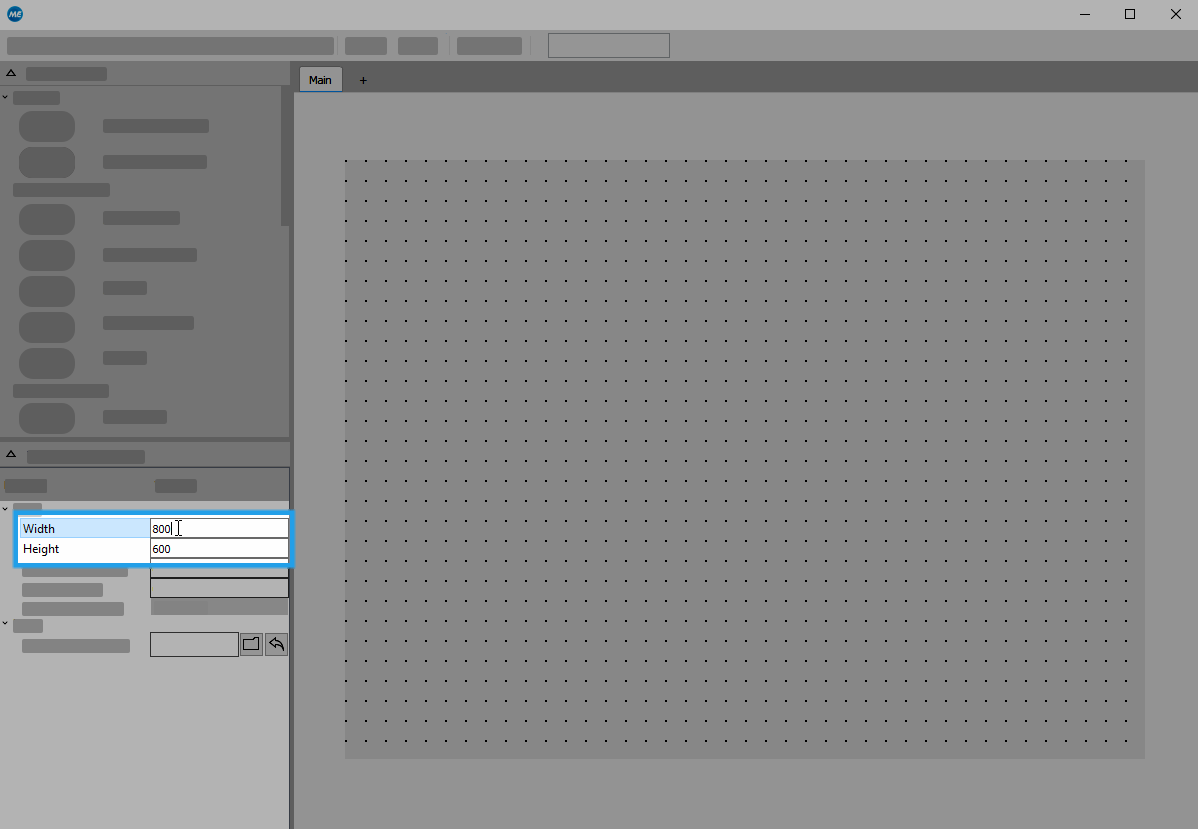
- Click on any part in the workspace to display its properties in the properties panel.
- Adjust the width of the workspace by typing the desired value in pixels into the input field of the property "Width".
- Adjust the height of the workspace by typing the desired value in pixels into the input field of the property "Height".
Adjusting the Background
Setting the Background Color
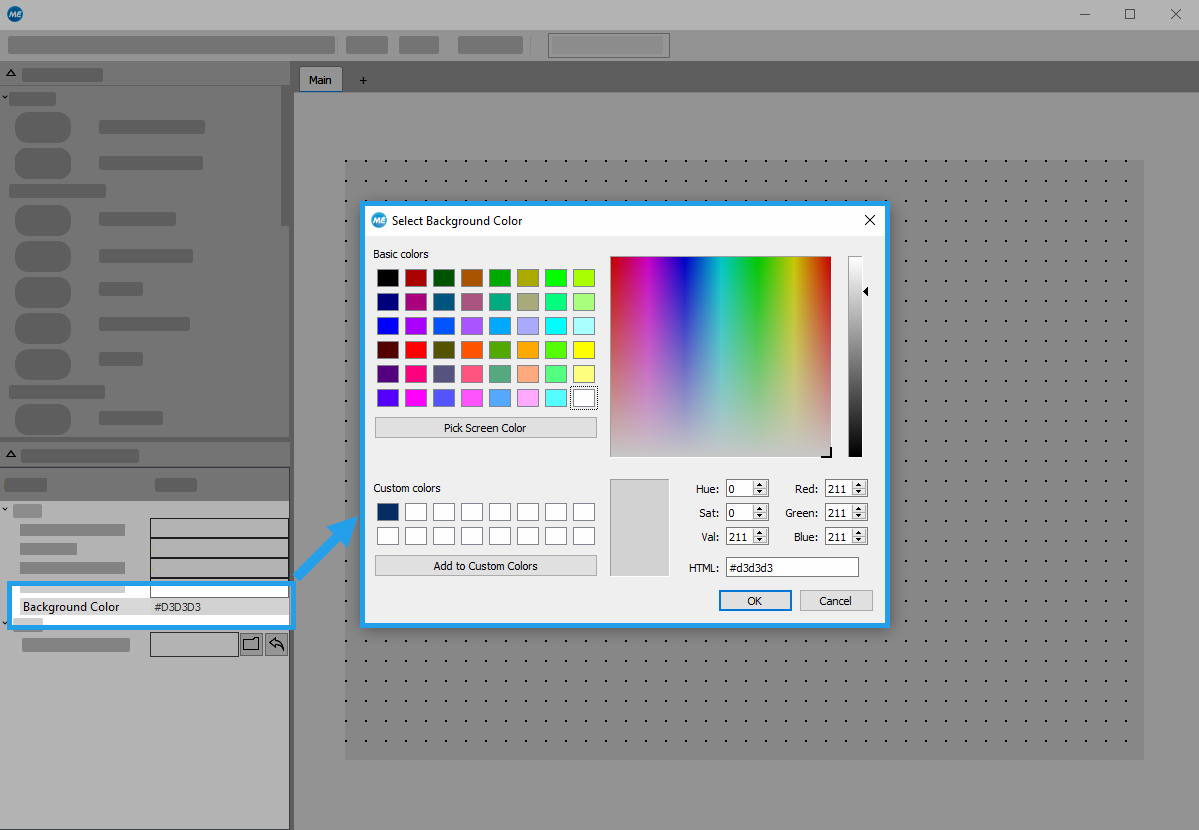
- Click into the input field of the property "Background Color" to open the color selection dialog.
- Select the desired color for the workspace.
Setting a Background Image
- Click on the button
 to open the file selection dialog.
 - Select the image you want to use as a background.
- Optionally, you may also adjust the position of the image by setting the desired offset values in pixels at the respective properties "Image Offset X" and "Image Offset Y".
In case a background image is also used, the image is displayed on top of the background color.
After customizing the workspace, you may continue by adding widgets to your design. Read the chapter Inserting and Deleting Widgets to get more information.


