Changing the Language of the MERLIC Frontend
MERLIC enables you to use the MERLIC Frontend in the language of your choice. If you change the language in the MERLIC Frontend, the new language is applied to the following texts:
- Title of the MERLIC Frontend window
- Menu bar (only for the standard languages of MERLIC)
- Texts that have been defined for widgets
- Names of connected tool parameters and results
Requirements
A prerequisite for this is that the language settings for the MERLIC Frontend have been adapted accordingly while designing the Frontend of the MERLIC Vision App. These language settings also enable you to change the default language in which the MERLIC Frontend is opened. The default language applies to all MERLIC Frontend, even if they are opened via a remote connection, i.e., the default language is independent from the applications. Therefore, the setting of the default language is stored in the MERLIC settings and not in the MERLIC Vision App.
To get more detailed information about how to configure the language settings for the MERLIC Frontend, please refer to the chapter Language Settings for the Frontend.
Changing the Language
The language in the MERLIC Frontend can be changed in two different ways:
- Using the menu bar of the MERLIC Frontend
- Using the provided Designer widget "Language Selection"
How to Change the Language in the Frontend via the Menu
If you want to change the language via the Frontend menu, you have to make sure that the menu bar is displayed. You can adjust this setting in the MERLIC Designer. To activate the visualization of the Frontend menu bar, open the Designer menu entry "Edit → Frontend Properties..." and check the option "Show Menu Bar".
- Click on the Frontend menu entry "Settings → Language". A list of all available languages will be displayed.
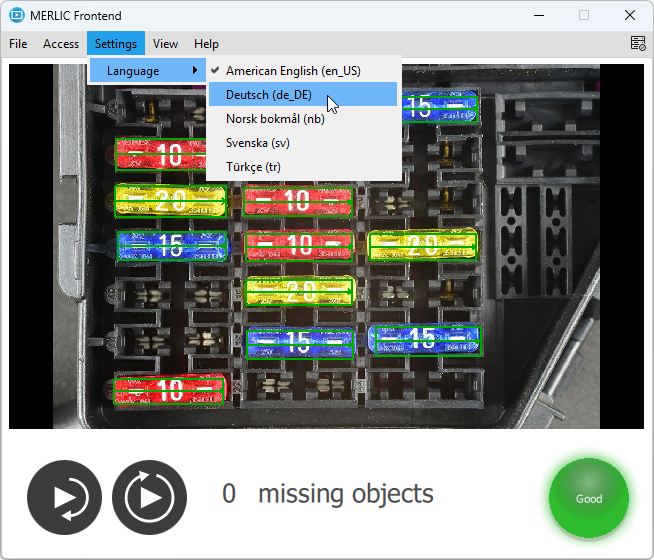
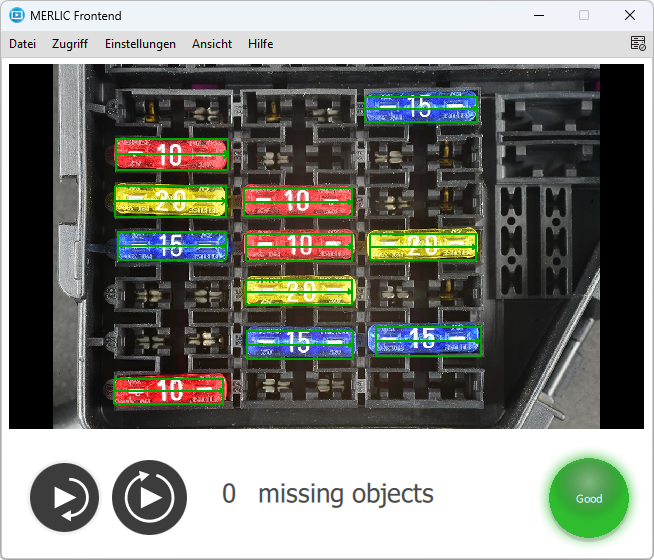
- Select the new language from the menu. The new language is instantly adopted in the Frontend.
How to Change the Language in the Frontend via a Designer Widget
MERLIC provides the "Language Selection" widget that can be used to change the language in the Frontend. If you want to change the language from a combo box, you may use this widget. However, you have to make sure that the widget has been inserted to the Frontend design of your MERLIC Vision App. If the widget is not part of the Frontend, the language can only be changed at the Frontend menu.
- Click on the "Language Selection" widget in the Frontend. A list of all available languages will be displayed.
- Select the new language from the list. The new language is instantly adopted in the Frontend. In case a translation has been provided for the texts that are used in the Frontend, the respective translated texts are displayed.
The widget texts must be translated in a separate translation process while creating the Frontend design because these texts can be individually defined by the user when designing a Frontend. To get more detailed information about the translation process for the widget texts, please refer to the chapter Translating the Frontend Texts.
Restrictions
In the translation process, only the widget texts that have been defined by the user within the Designer are exported to the translation file. Thus only those texts can be translated and displayed in the new language. Texts that are transferred from the MERLIC Creator, e.g., parameter values, are not exported to the translation file and will therefore always be displayed in the language of the MERLIC Creator.


