Configuring the Plug-in
In the "Communication" tab, you can add an instance of the REST plug-in, configure the parameters, and you can start and stop the plug-in directly in the user interface.
Both the RESTful API and the built-in web application, if enabled, will only be available while the plug-in is running.
Enabling the Configuration in the MERLIC RTE Setup
To enable the configuration of the plug-in in the "Communication" tab of the MERLIC RTE Setup, you first have to start MERLIC RTE and perform the following steps:
- Open the MERLIC RTE Setup and go to the "Communication" tab. If MERLIC RTE is not running, you can start it directly from the "Communication" tab.
-

- Make sure that the plug-in is currently not running. Otherwise, the parameters are not available for the configuration. You can see the current state of the plug-in at the respective status icon in the list of plug-in instances. If the status shows the icon
 , the plug-in is running. In this case, you have to stop it by clicking the "
 Stop plug-in" button on the bottom of the MERLIC RTE Setup. If the status shows the icon
  instead, the plug-in is currently not running.
-
The parameters of the selected REST plug-in are shown on the right of the "Communication" tab.
Plug-in Parameters
Parameters of this type represent general parameters for the communication plug-in that cannot be adjusted in the configuration area of the "Communication" tab. They may show the version number of the plug-in, the current parameter value for the log level, the access level of the plug-in, and the setting for the validation of the plug-in configuration. These values need to be set in different locations or with different methods, respectively.
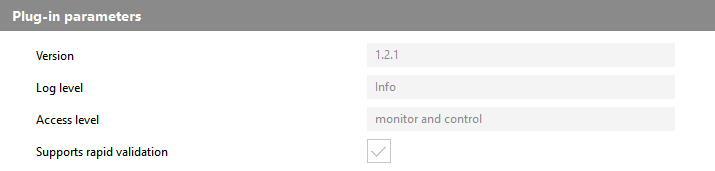
Version
This parameter shows the version number that has been defined during the plug-in implementation. It consists of a major, minor, and maintenance version. It is also shown when adding a new plug-in instance. The version is optional. Therefore, it is possible that no version number has been defined during the implementation.
Log level
This parameter shows the log level of the plug-in instance. By default, the log level is set to the log level of the respective MERLIC RTE process when adding the plug-in instance in the MERLIC RTE Setup.
Access level
This parameter shows the access level that is set for the plug-in. For the REST plug-in, the access level is set to "monitor and control" by default. This means that the plug-in can receive "events" and send "actions". The access level correlates with the capability that is defined in the implementation of the plug-in. The access level cannot be adjusted in the MERLIC RTE Setup.
Supports rapid validation
This parameter shows whether the plug-in supports the immediate validation of the current plug-in configuration. For this plug-in, the check box is ticked indicating that "rapid validation" is supported. This means that the configuration of the plug-in is validated with each modification of any editable parameter in the "Communication" tab of the MERLIC RTE Setup. If the plug-in does not support "rapid validation", the configuration of the plug-in is validated only when saving the configuration.
User Parameters
The "User parameters" represent the set of parameters that can be configured for the plug-in. They are displayed in different categories which can be expanded or closed.

The following sections describe the parameters for each category.
HTTP Server
The parameters in this category define the settings for the HTTP Server.
The following image shows an overview of the parameters with the respective default setting. A detailed description of the parameters follows after the image.

IP address
This parameter defines the Internet Protocol address (IP address) of the network interface on which the server should listen for connections. The parameter supports both Internet Protocol version 4 (IPv4) and version 6 (IPv6) addresses.
By default, it is set to "127.0.0.1" which means that the RESTful API and built-in web application will only be reachable from the local machine. If you want to reach them from another device in the same network, the corresponding IP address of the local machine in that network must be specified.
Port
This parameter defines the port on which the server should listen for new connections. By default, it is set to "8040".
Serve built-in web app
This parameter defines whether the built-in web application is served on the system specified above. By default, this option is enabled and you can see the web application in the web browser at http://127.0.0.1:8040 when the plug-in is running on default settings.
In-Memory Database
The parameters in this category define the settings for the buffer capacity of events, results, and errors. The capacity of actions and jobs is set to 1 MB and cannot be changed.
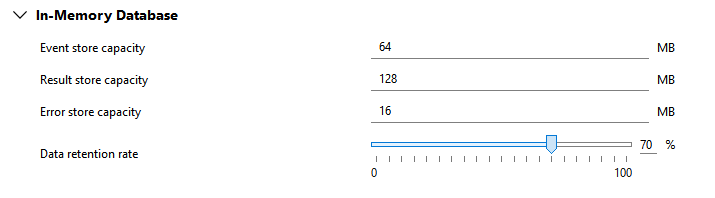
The following image shows an overview of the parameters with the respective default setting. A detailed description of the parameters follows after the image.
Event store capacity
This parameter defines the size of the buffer which is used to store the events. By default, it is set to 64 MB.
Result store capacity
This parameter defines the size of the buffer which is used to store the results. By default, it is set to 128 MB.
Error store capacity
This parameter defines the size of the buffer which is used to store the error information. By default, it is set to 16 MB.
Data retention rate
This parameter defines the percentage of how much memory is retained in the buffer when the memory is reclaimed because the capacity of the respective buffer is reached. By default, it is set to 70 %. This means that 30 % of the memory will be reclaimed and 70 % will be retained.
The specified retention rate applies to the buffer of all data types in the database including actions and jobs whose capacity is exactly 1 MB.


