Rotate Image
Use this tool to rotate an image in a certain direction by a predefined angle. The center for the rotation can be defined by a point ROI, i.e., a region of interest (ROI) in form of a point, either by drawing the ROI directly into the image or by connecting a point ROI from a previous tool. The resulting image is instantly displayed in the graphics window of the tool. It will still be a rectangular image and consequently any parts that are not covered by the rotated image get the default gray value.
Parameters
Basic Parameters
Image:
This parameter represents the input image to be rotated. If an image is available as a result of a previous tool, it is connected automatically and used as input image.
If a color image is used as an input image, all channels of the color image are used for the processing.
Angle:
This parameter defines the angle that determines how far and in which direction the image is rotated. The angle is given in degrees. As a default, it is set to 0° and the image is not rotated. To change the rotation angle, select the desired "Angle" at the corresponding parameter using the slider. The result, a "Rotated Image", is immediately displayed.
|
Value |
Description |
|---|---|
|
0 |
The image is not rotated. |
|
1 to 180 |
The image is rotated in counterclockwise direction. |
|
−1 to −180 |
The image is rotated in clockwise direction. |
Keep Image Size:
This parameter determines if the original image size is kept or not. As a default, the parameter value is set to 1, meaning that the output image will have the same width and height as the input image.
If you set "Keep Image Size" to 0, the image size will be adapted. For rotations around the default "ROI Rotation Center", the whole image will be in the resulting image "Rotate Image". For a specified "ROI Rotation Center", the resulting image "Rotated Image" will only be adapted in the positive coordinate direction, thus downwards and on the right side.
Additional Parameters
Alignment Data:
This parameter contains alignment data that are used to align the "ROI Rotation Center" and the image. By default the alignment data are defined in a way that no effect is visible. If you want to use specific alignment data, you have to connect the parameter to an appropriate result of a previous tool such as Determine Alignment with Matching, Determine Alignment with Straight Border, or Align Image.
ROI Rotation Center:
This parameter contains a region of interest, in this case a point ROI, used as the center of rotation. By default, the "ROI Rotation Center" is on the center of the image. To specify a different "ROI Rotation Center", you either have to connect the parameter to an appropriate ROI result of a previous tool or you have to draw a new point ROI into the image using the
 .
.This tool only supports the use of a single ROI. If the parameter contains multiple ROIs, either from a connection from a previous tool or by drawing multiple ROIs with the ROI buttons, only the first ROI will be used for the rotation. In case "Alignment Data" are available and connected from a previous tool, the "ROI Rotation Center" will be aligned internally and thus might not lie on the image center anymore.
Interpolation Method:
This parameter defines the interpolation method that is used to determine the resulting gray values of the rotated image. Gray-value interpolation is a useful method to enhance the quality of transformed images. As a default, the "constant" method is used for the rotation. Select a different method using the combo box of the corresponding parameter.
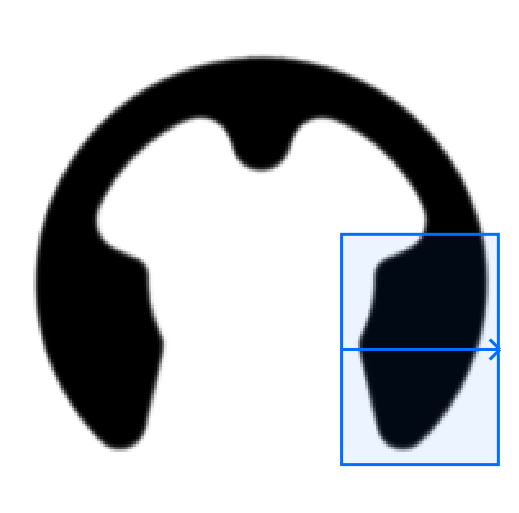
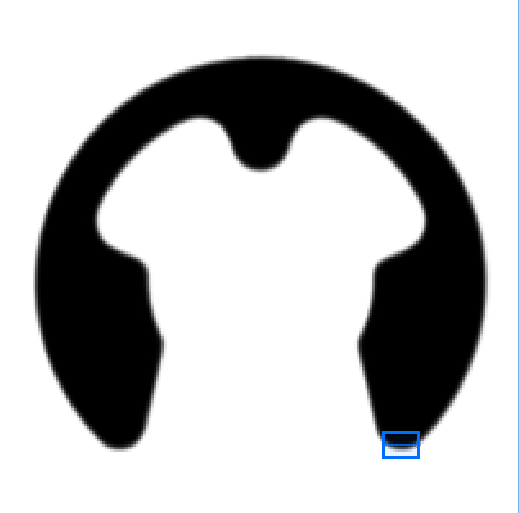
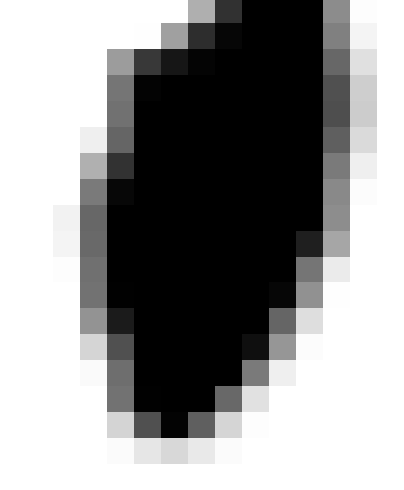
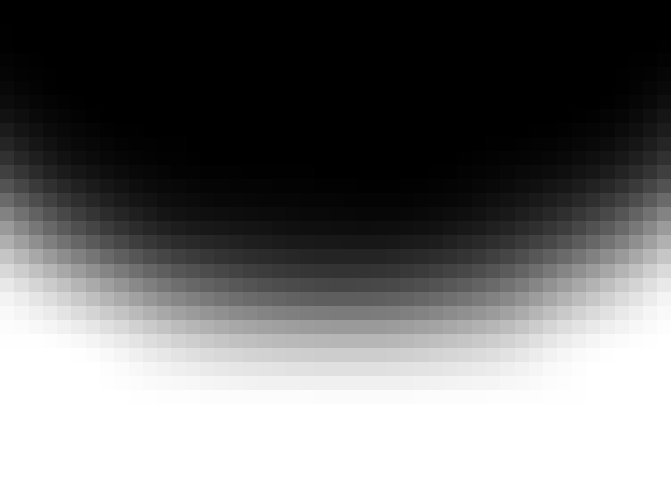
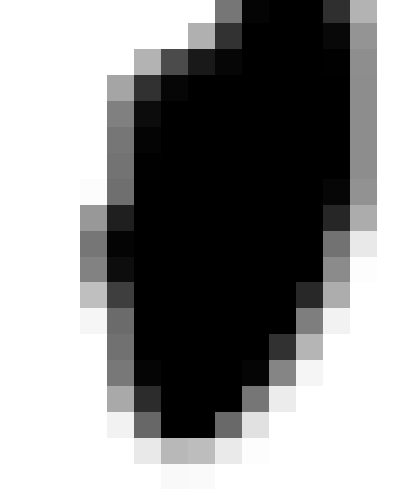
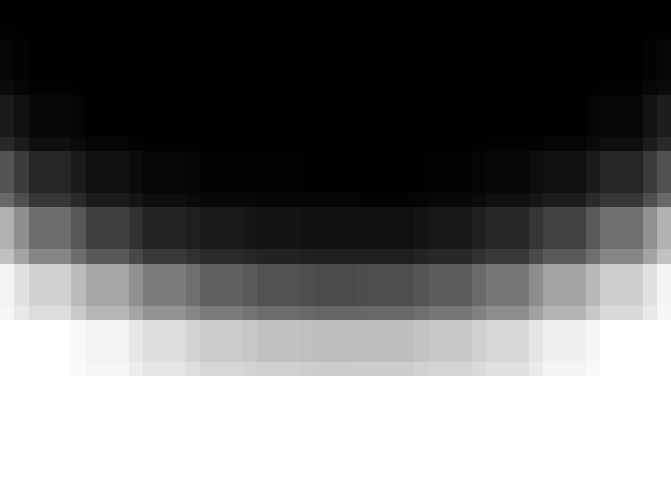
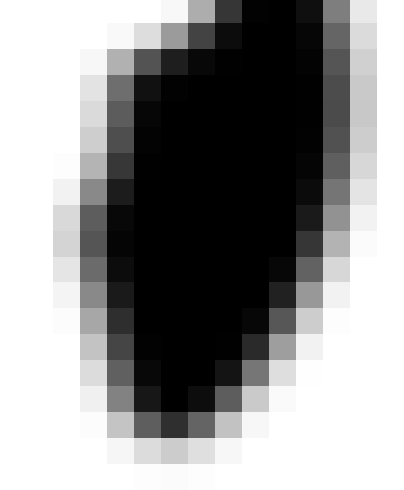
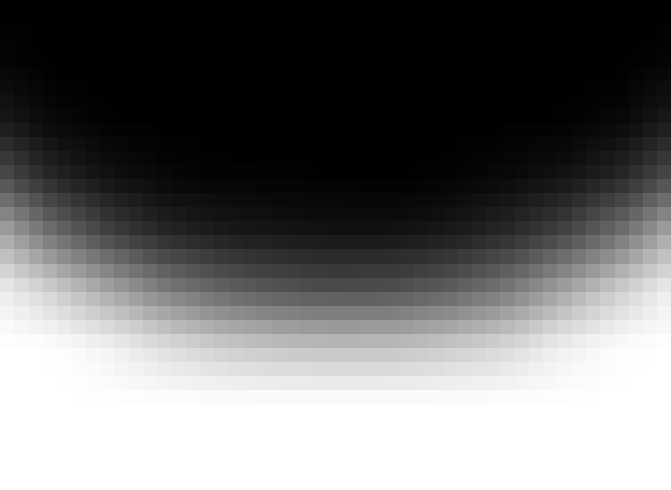
The table below describes the different interpolation methods with some example images. The example images show the result of the each interpolation method in case the image transformation contains a downscaling or an upscaling of the image. The region of interest (ROI) in the following images shows which image part is visible in the examples for downscaled images (left) and upscaled images (right).
|
Value |
Description |
Example downscaling |
Example upscaling |
|---|---|---|---|
|
bicubic |
This method determines the resulting gray value from 16 neighboring pixels in the original image. Highest quality for upscaling and highest run time |
|
|
|
bilinear |
This method determines the resulting gray value from the four surrounding nearest pixels in the original image. It produces better results with less undesired jagged edges for image transformations that include upscaling but no downscaling. If the image transformation contains a downscaling of the image, this method may lead to undesired artifacts in the image due to aliasing effects. Medium quality and run time |
|
|
|
constant |
This method determines the resulting gray value from the four surrounding nearest pixels in the original image using an equally weighted bilinear interpolation. In contrast to the "bilinear" interpolation this method integrates a smoothing of the image with a mean filter. This leads to a reduction of the undesired aliasing effects in case the image transformation contains a downscaling of the images. Medium quality and run time |
|
|
|
nearest neighbor |
This method determines the resulting gray value based on only one pixel in the original image, i.e., from the gray value of the nearest pixel. This means, no interpolation over multiple pixels is performed. Instead, the resulting pixel is assigned the gray value of the pixel in the original image whose center lies closest to the center of the resulting pixel. Possibly low quality, very fast |
|
|
|
weighted |
This method determines the resulting gray value from the four surrounding nearest pixels in the original image using a Gaussian weighted bilinear interpolation. For this method a Gaussian filter is used in the image transformation for the integrated smoothing of the image. This leads to a better reduction of the aliasing effects in case the image transformation contains a downscaling of the image. Compared to the interpolation method "constant", this method produces output images with a smoother appearance. However, the run time increases significantly for downscaled images. Good quality, slow |
|
|
Results
Basic Results
Rotated Image:
This result returns the image that has been rotated by the defined "Angle" around the "ROI Rotation Center".
Tool State:
"Tool State" returns information about the state of the tool and thus can be used for error handling. For more information, see Tool State Result
Additional Results
Rotated Alignment Data:
This result returns the adjusted alignment data based on the rotated image. It is only returned if "Alignment Data" from a previous tool have been used as input for this tool. These "Alignment Data" are adjusted to the rotation of the image and returned as "Rotated Alignment Data". The new alignment data can be used to align the ROIs of subsequent tools.
Processing Time:
This result returns the duration of the most recent execution of the tool in milliseconds. The result is provided as additional result. Therefore, it is hidden by default but it can be displayed via the  button beside the tool results. For more information see the section Processing Time in the tool reference overview.


