Read Text and Numbers with Deep Learning
Use this tool to read text and numbers in an image with deep learning technology.
In contrast to the existing MERLIC tool Read Text and Numbers, this tool uses a holistic deep-learning-based approach for optical character recognition (OCR). It localizes characters more robustly regardless of their position, orientation, and font type. Characters are automatically grouped which allows the identification of whole words. Due to this, misinterpretation of characters with similar appearances can be avoided and the reading performance increases.
Which of the tools, "Read Text and Numbers" or "Read Text and Numbers with Deep Learning", is best for your application depends on various factors. "Read Text and Numbers with Deep Learning" provides various advantages. It is able to find the text anywhere in the image. The position of the text must not be specified in advance. In addition, the tool uses a pre-trained Deep OCR reading model with a universal font that allows to read texts of different fonts in the image. Thus, you are not restricted to a specific font. Another advantage of this tool is that it can read text in any orientation without any prior alignment. This also allows to read text in other directions than left-to-right. On the other hand, this tool requires more memory and more time for the processing depending on the hardware that is used. If you are not sure, which of the two tools fits best for your application, you can test both tools and compare the results, the processing time, as well as other factors that are relevant for your application.
Deep OCR Model
A Deep OCR model, i.e., a deep learning model for optical character recognition, usually consists of two components:
- Detection model: this model detects words in the image, i.e., it localizes the word regions within the image.
- Reading model: this model recognizes and reads the words in the detected image part. It defines the character set which can be recognized.
Available Modes
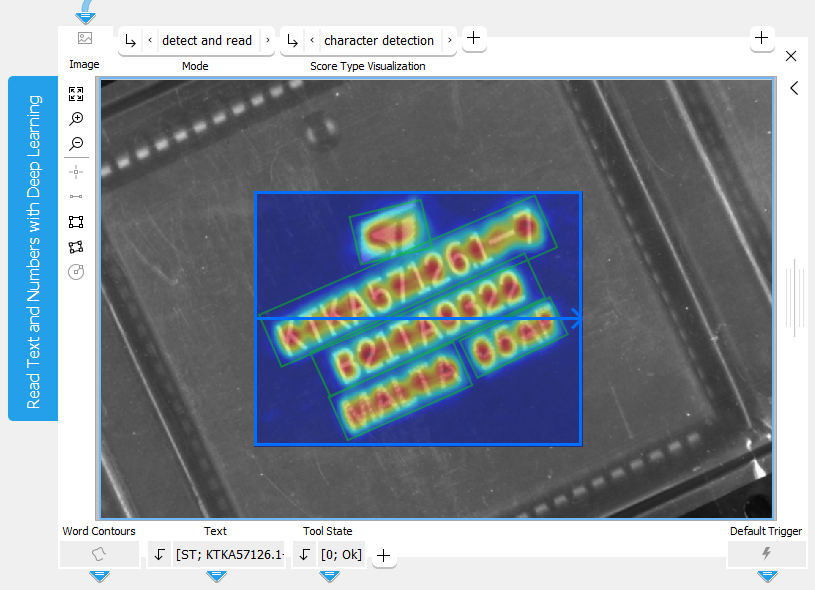
This tool can be used in two different modes. In the default mode ("detect and read"), the image is first processed by the detection component. In this step, the image is scanned for possible areas in which characters and texts might occur. The located areas are then further processed by the reading component of the Deep OCR model. In the second mode ("read"), only the reading step is performed. Therefore, this mode provides better performance. However, you have to specify the area in which words are expected manually.
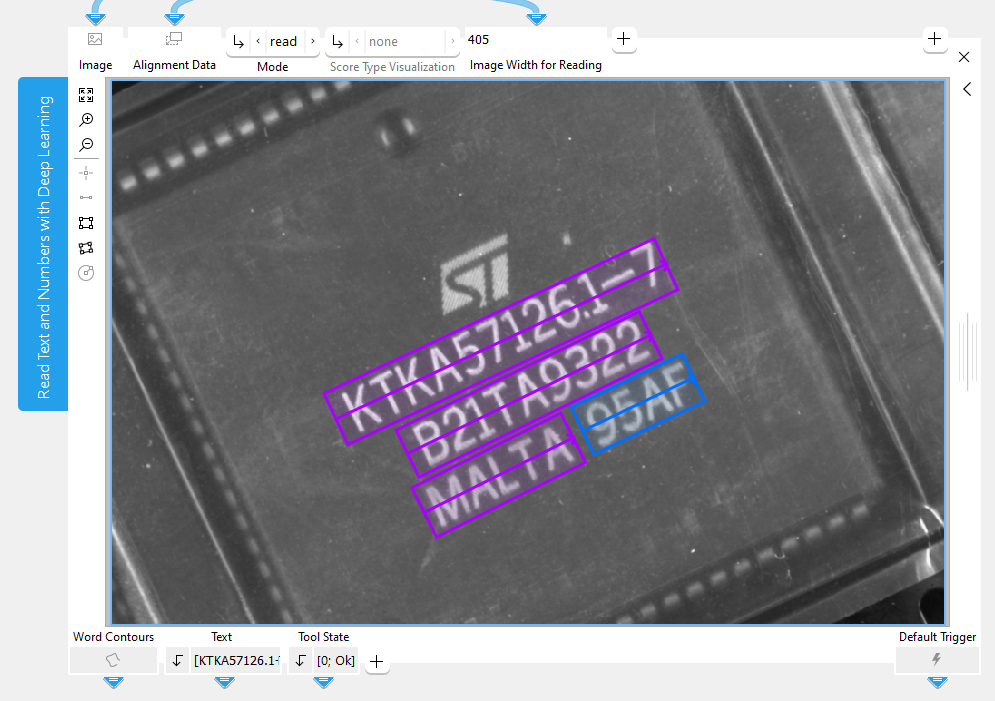
To achieve better results in both modes, you can restrict the area to be processed by one or multiple region of interests (ROIs). Then, the respective components of the Deep OCR model will be applied only on the restricted image area. Especially if you want to use only the reading component of the tool, we recommend to restrict the area to be checked tightly around the text to be read. If you want to read multiple lines of text with the reading component only, you have to draw an ROI over each word to ensure that each of them can be read.
The following example image shows the tool in the default mode "detect and read". The Deep OCR model searches and reads the text only within the specified ROI.
The following image shows the tool in the "read" mode with the required ROIs around the words to the read.
Support of Artificial Intelligence Acceleration Interfaces (AI²)
MERLIC comes with Artificial Intelligence Acceleration Interfaces (AI²) for the NVIDIA® TensorRT™ SDK and the Intel® Distribution of OpenVINO™ toolkit. Thus, you can use AI accelerator hardware as processing unit that is compatible with the NVIDIA® TensorRT™ or the OpenVINO™ toolkit to perform optimized inference on the respective hardware. This way, you can achieve significantly faster deep learning inference times. The respective hardware can be selected at the tool parameter "Processing Unit".
For more detailed information on the installation and the prerequisites, see the topic AI² Interfaces for Tools with Deep Learning.
Parameters
Some of the tool parameters apply only for the detection component of the Deep OCR model. This component is used only if the parameter "Mode" is set to "detect and read". The following table gives an overview which parameters are applied in the respective modes. Parameters that can not be applied in the selected mode are grayed out.
|
Parameter |
detect and read |
read |
|---|---|---|
|
✔ |
✘ |
|
|
✔ |
✘ |
|
|
✔ |
✘ |
|
|
✔ |
✘ |
|
|
✔ |
✘ |
|
|
✔ |
✘ |
|
|
✔ |
✘ |
|
|
✔ |
✘ |
|
|
✔ |
✘ |
|
|
✔ |
✘ |
|
|
✔ |
✔ |
|
|
✔ |
✘ |
|
|
✔ |
✔ |
|
|
✔ |
✔ |
|
|
✔ |
✔ |
|
|
✔ |
✔ |
For more detailed information, see the following documentation of all parameter and results of this tool
Basic Parameters
Image:
This parameter represents the input image. For this tool, byte images are required. If you need to convert the pixel type of your images, you can use the tool Convert Pixel Type.
Mode:
This parameter allows you to select which mode is used for the processing of the image, i.e., which component of the Deep OCR model is applied. By default, the parameter is set to "detect and read".
|
Value |
Description |
|---|---|
|
detect and read |
In this mode, both components will be used. First the detection step is applied to localize the word regions in the image. Then the reading step is performed to actually read the characters and words within the detected word regions. |
|
read |
In this mode, only the reading component is used. This means, only the reading step is performed. For this mode, we recommend to restrict the area to be checked to the immediate area around the text to achieve better results. This can be done either in a separate preprocessing step with the tool Crop Image or by using an ROI which is drawn tightly around the text in the image. If you want to read multiple words, you have to draw an ROI over each word to ensure that each of them can be read. |
Score Type Visualization:
This parameter defines which type of score map is visualized as overlay over the image to indicate certain properties of the pixels, e.g., how they contribute to certain characters or coherent words. By default, the parameter is set to "character detection". You can change the value at the corresponding connector. The following values can be selected:
|
Value |
Description |
|---|---|
|
none |
No score map will be visualized. |
|
character detection |
The score map for the character detection is visualized. The character score map indicates the location where characters have been detected. The higher the character score of a pixel, the higher it is evaluated to be near the center of a character. |
|
word connection |
The score map for the detection of connected characters that might represent a coherent word is visualized. The connection between two localized characters is evaluated, and the higher the resulting score, the higher the possibility that the two characters belong together to the same word. |
You can check the evaluated scores directly in the image. When you move the mouse pointer over the image part that is processed, the respective score at the current mouse position is instantly displayed in a tooltip. If you are hovering the mouse over a word segment, you can also see the text that has been read.
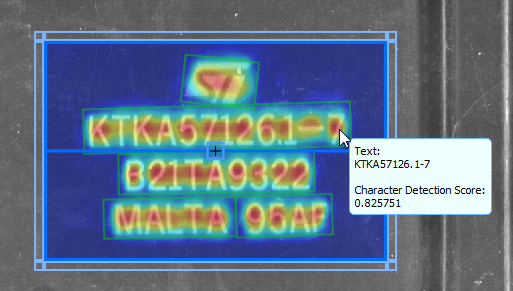
The selected score map is also part of the image that is returned in the result "Displayed Image". In case the parameter is set to "none", the resulting image in "Displayed Image" will show no score map.
This parameter is applied only if the detection component of the Deep OCR model is used. In case the parameter "Mode" is set to "read", no detection step is applied and therefore no score map can be visualized in the image.
Additional Parameters
ROI:
The parameter "ROI" defines the region of interest (ROI) for the detection and reading of text and numbers. By default no ROI is defined. If you want to use an ROI for the processing, you either have to connect the parameter to an appropriate ROI result of a previous tool to make sure that an ROI is transmitted to this tool or you have to draw new ROIs into the image using the available ROI buttons.
If an ROI has been drawn into the image, only the image part within the ROI will be processed. This way, you can define that the detection component of the Deep OCR model checks only in the specified image part for possible word regions. If you are using only the reading component of the Deep OCR model, i.e., if you have set the parameter "Mode" to "read", the text will be read only in the image part within the ROI. However, keep in mind that you have to draw an ROI around each word to ensure that each of them can be read.
If you are working in the "detect and read" mode and define multiple ROIs, each defined ROI will be processed separately as a word region.
You can achieve better results if you use an ROI to define the area to be processed, especially if only the reading component is used.
Alignment Data:
This parameter represents the alignment data that are used to align the ROI. By default no alignment data are connected and thus no effect is visible. If you want to use specific alignment data, you have to connect the parameter to an appropriate result of a previous tool such as Determine Alignment with Matching, Determine Alignment with Straight Border, Align Image, or Rotate Image.
Width of Detection Image:
This parameter defines the width of the images that will be processed by the detection component of the Deep OCR model. The network preserves the aspect ratio of the image by scaling it to a maximum of the defined width before processing it. Thus, the width can influence the results.
The parameter is defined in pixels and set to 512 px by default. The architecture of the Deep OCR model requires that the width is a multiple of 32. If you enter a value that is not the multiple of 32, it is rounded up to the nearest integer that is a multiple of 32.
If you want to use a large image width for the detection image, keep the following in mind: The larger the image size, the larger the detection model and therefore also the required memory consumption.
Height of Detection Image:
This parameter defines the height of the images that will be processed by the detection component of the Deep OCR model. The network preserves the aspect ratio of the image by scaling it to a maximum of this height before processing it. Thus, the height can influence the results.
The parameter is defined in pixels and set to 512 px by default. The architecture of the Deep OCR model requires that the height is a multiple of 32. If you enter a value that is not the multiple of 32, it is rounded up to the nearest integer that is a multiple of 32.
If you want to use a large image height for the detection image, keep the following in mind: The larger the image size, the larger the detection model and therefore also the required memory consumption.
Minimum Character Detection Score:
This parameter defines the lower threshold that is used for the character score map to estimate the dimensions of the characters. The parameter is set to 0.5 by default. You can change the minimum score at the corresponding connector to a value between 0 and 1. If you want to split up the suggested instances of the characters, you can increase the value. To merge neighboring instances, you can decrease the value.
Minimum Word Connection Score
This parameter defines the minimum score value that is required to recognize two characters as a coherent word. The connection between two localized characters is evaluated and if the resulting score is equal or higher than the defined score value in this parameter, the characters are determined to belong to the same word. The parameter is set to 0.3 by default. You can change the minimum score at the corresponding connector to a value between 0 and 1. If you want to split up the suggested instances of the words, you can increase the value. To merge neighboring instances of characters to a word, you can decrease the value.
Minimum Word Score:
This parameter defines the minimum score value that is required for a localized instance of characters to suggest this instance as a valid word. You can use this parameter to filter out uncertain words. The parameter is set to 0.7 by default. You can change the minimum score at the corresponding connector to a value between 0 and 1.
Minimum Word Area:
This parameter defines the minimum size that is required for the area of a localized word in order to be suggested. This parameter can be used to filter word suggestions that are too small. The parameter is set to 10 by default. You can change the size at the corresponding connector to a value between 0 and 1 000 000.
Automatic Detection of Orientation:
This parameter allows you to choose if you want to set the orientation for the word detection automatically or manually. It is defined as a Boolean value and set to 1 by default. This means that the orientation is determined automatically. If you want to define the orientation manually, you have to set the parameter to 0.
|
Value |
Description |
|---|---|
|
0 |
The orientation is not determined automatically. Instead, the orientation that is set in the parameter "Detection Orientation" is used. You can use this value, if you want to ensure that the text is detected and read only in a specific orientation and direction. |
|
1 |
The orientation is determined automatically. This means that the text will be detected and read in all kinds of directions. |
Detection Orientation:
This parameter defines the orientation angle for the word detection. It also defines the direction in which the text is read. It is defined in degrees and set to 0° by default. You can change the orientation at the corresponding parameter to a value between -180° and 180°. If you want to use the orientation defined in this parameter, you have to make sure to set the parameter "Automatic Detection of Orientation" to 0. Otherwise, the orientation will be determined automatically and the value of this parameter will be ignored.
You can set the orientation manually if your text is always placed in the same orientation and if you want to ensure that the text is always detected and read in a specific orientation and direction.
Detection Tiling:
This parameter defines if tiling is used on the image before it is processed in the detection component of the Deep OCR model. It is defined as a Boolean value and set to 0 by default. This means that no tiling is used and the image is zoomed instead. See the description in the following table for more details.
|
Value |
Description |
|---|---|
|
0 |
The image is zoomed to the size defined in the parameters "Width of Detection Image" and "Height of Detection Image". The zoomed image will then be processed by the detection component of the model. |
|
1 |
The image is not zoomed. In this case, the image is automatically split into overlapping tile images of the size defined in the parameters "Width of Detection Image" and "Height of Detection Image". These tile images, i.e., detection images, will then be processed separately by the detection component. This allows you to also process images that are much larger than the defined size for detection images without having to zoom the image in advance. |
Which of these values is best for your application depends on many factors such as the size of your images, the size of the text, the required speed, or the available memory. For example, if no zooming is performed, no information will be lost due to scaling artifacts. However, if the text in the image is very large, it will be probably large enough after zooming the image to be detected and read properly afterward. On the other hand, processing multiple smaller detection images requires less memory in the image but it also takes longer.
Recognition Alignment
This parameter specifies if word alignment is done before recognizing the text. Activating this parameter improves the recognition accuracy for inaccurately cropped words. Therefore, it can be used in scenarios where the position of the text within the image is only approximately known. This parameter is supposed to be used in "read" mode. This feature must be supported by the reading model, otherwise this parameter is not available. It is defined as a Boolean value and set to 0 by default.
|
Value |
Description |
|---|---|
|
0 |
The parameter is not activated. |
|
1 |
The parameter is activated. |
Detection Model File:
This parameter defines the file name of the detection model, i.e., the Deep OCR model component for the word detection. MERLIC provides two pretrained detection models.
By default, the detection model "pretrained_deep_ocr_detection.hdl" is set. If time and memory are important factors for you, you can use the detection model "pretrained_deep_ocr_detection_compact.hdl" instead. This model is slightly less precise than the default model, but it uses significantly less memory and is much faster during inference.
This parameter expects a model with file ending ".hdl". This type of file can usually be trained with the MVTec Deep Learning Tool. Currently, however, it is not yet possible to train a Deep OCR model for word detection in the MVTec Deep Learning Tool. Until this feature is provided, you can use one of the provided detection models.
Image Width for Reading:
This parameter defines the width of the images that will be processed by the reading component of the Deep OCR model. It is defined in pixels and to 120 px by default. You can change the width at the corresponding parameter to a value between 32 and 10 000.
The network first zooms the respective image part to the predefined height of 32 px while maintaining the aspect ratio of the image. If the width of the resulting image is smaller than the width defined in this parameter, the image part is padded with gray value 0 on the right. If it is larger, the image is zoomed to the width that is set for "Image Width for Reading". The resulting image will then be processed by the reading component of the Deep OCR model.
For the initial configuration of the tool, we recommend to set the width for this parameter to the width of the longest word to be read. This way, distortions that might occur in the resulting image due the internal zooming can be avoided.
Reading Model File:
This parameter defines the file name of the reading model, i.e., the Deep OCR model component for the word recognition. MERLIC provides the pretrained reading model "pretrained_deep_ocr_reading.hdl" that is ready to use and set by default.
This parameter expects a model with file ending ".hdl". This type of file can usually be trained with the MVTecDeep Learning Tool. Currently, however, it is not yet possible to train a Deep OCR model for word recognition in the MVTecDeep Learning Tool. Until this feature is provided, you can use the default reading model.
Processing Unit:
This parameter defines the device used for processing the images. The parameter is set to "auto" by default. In this mode, MERLIC tries to choose a suitable GPU as processing unit because it usually performs better than the CPU. However, this requires at least 4 GB of available memory on the respective GPU. If no suitable GPU is found, the CPU is used as fallback.
You can also choose the processing unit manually. Click on the parameter to select the device from the list of all available processing units. If you are choosing a GPU as processing unit, we recommend to check that enough memory is available for the used deep learning model. Otherwise, undesirable effects such as slower inference times might occur.
MERLIC also supports the use of AI accelerator hardware that is compatible with the NVIDIA® TensorRT™ SDK or the OpenVINO™ toolkit:
- NVIDIA® GPU
- CPU, Intel® GPU, Intel® VPU (MYRIAD and HDDL) with support of the OpenVINO™ toolkit
The respective devices are marked either with the prefix "TensorRT(TM)" or "OpenVINO(TM)". If you select a device that supports NVIDIA® TensorRT™ or the OpenVINO™ toolkit, the memory will be initialized on the device via the respective plug-in for the AI² interface. These types of processing units must be set manually because the "auto" mode of this parameter chooses only from the available GPUs and CPUs without any AI accelerator support.
As soon as an AI accelerator hardware has been selected as processing unit, the optimization of the deep learning model is started. After the optimization, some of the parameters that represent model parameters will be internally set to read-only. At the Tool Board, these parameters will be grayed out. Their values cannot be changed anymore as long as the selected AI accelerator is used as processing unit. To change these parameters, you first have to change the processing unit to a different one without any AI acceleration. After setting the parameters, you can set the processing unit back to the respective AI accelerator hardware.
The selected processing unit is usually used for both components (detection and reading) of the Deep OCR model. However, in some cases the number of models to be processed at the same time may be restricted, e.g., on Intel® Movidius™ Myriad™ VPUs only one component of the Deep OCR model can be processed. If the selected processing unit cannot be used for both components, it will be used only for the detection component of the Deep OCR model. The processing unit for the reading component will then be selected automatically by MERLIC.
CPUs with support of the OpenVINO™ toolkit can be used without any additional installation steps. They will be automatically available in the list of available processing units. If multiple processing units with the same name are available, an index number is assigned to their name. The same applies to GPUs with support of the NVIDIA® TensorRT™.
To use GPUs and VPUs with the support of the OpenVINO™ toolkit as processing unit, the Intel® Distribution of OpenVINO™ toolkit must be installed on your computer and MERLIC must be started in an OpenVINO™ toolkit environment. See the topic AI² Interfaces for Tools with Deep Learning for more detailed information on the prerequisites.
Besides the optimization via AI accelerator hardware, MERLIC supports further dynamic optimizations via the NVIDIA® CUDA® Deep Neural Network (cuDNN). This optimization can be enabled via the MERLIC preferences in the MERLIC Creator. For more information, see the topic MERLIC Preferences.
Precision:
This parameter defines the data type that is used internally for the optimization of the deep learning model for inference, i.e., it defines the precision to which the model is converted to. It is set to "high" by default.
The following table shows the model precisions which are supported in this tool.
|
Value |
Description |
|---|---|
|
high |
The deep learning model is converted to a precision of "float32". |
|
medium |
The deep learning model is converted to a precision of "float16". |
Most processing units support both types of precisions. However, there might be some processing units that support only one of these precisions. In this case, only the supported precision will be available at the parameter as soon as the respective device has been selected at the parameter "Processing Unit". If the processing unit is selected automatically, i.e., if "Processing Unit" is set to "auto", only the precision "high" is available.
Results
Basic Results
Word Contours:
This result returns the bounding boxes of the words that have been detected. They are returned as contours but only if the detection component of the Deep OCR model is used, i.e., if the parameter "Mode" is set to "detect and read". If the parameter "Mode" is set to "read", only the reading component is applied and therefore no contours will be returned for this result.
Text:
This result contains the text and the numbers that have been read. They are returned as a string. If more than one text entry or number has been read in multiple ROIs, the results are returned in a tuple.
You can see the read text also in the image. Move the mouse pointer over the detected word areas, i.e., the located ROIs with characters and text, and you can also see the text that has been read in a tooltip. This way, you can easily check the result for each detected word.
Tool State:
"Tool State" returns information about the state of the tool and thus can be used for error handling. Please see the topic Tool State Result for more information about the different tool state results.
Additional Results
Displayed Image:
This result represents the overlay of the processing image and the score map that has been selected in the parameter "Score Type Visualization". As the processing image shows through the score map, you can see more clearly where the detection component of the Deep OCR model detected characters or words, respectively.
A score map is only available if the detection component of the Deep OCR model is used, i.e., if the parameter "Mode" is set to "detect and read". In addition, the parameter "Score Type Visualization" must be set to "character detection" or "word connection". Otherwise, no score map is available and the resulting image returns only the processing image without any score map.
Preprocessed Image:
This result represents the image that has been processed in the detection step. If an ROI was used to restrict the area for the detection of any characters and text, only the image part within the ROI will be returned as "Preprocessed Image". In case multiple ROIs were used, the image part of the last processed ROI is returned.
The parameter "Detection Tiling" may also influence the resulting image. If it is set to 1, the input image is split in overlapping tile images, i.e., detection images, which are processed separately by the detection component of the Deep OCR model. In this case, the result "Preprocessed Image" returns the image that resulted by processing these detection images.
Character Confidences
This result returns a list of numeric values that indicate how likely each of the read characters in the text are the correct ones. The order of the returned confidence values correspond to the order of the strings returned in the "Text" result. For example, the first value returned in "Character Confidences" represents the confidence value for the first character of the first string returned in "Text" and so on. Accuracy increases as the confidence value approaches 1, indicating a stronger match with the character.
Used Processing Unit for Detection:
This result returns the processing unit that was used in the last iteration for the detection component of the Deep OCR model.
The selected processing unit is usually used for both components (detection and reading) of the Deep OCR model. However, in some cases the number of models to be processed at the same time may be restricted, e.g., for an Intel® Movidius™ Myriad™ VPU. In this case, the detection step is performed on a different processing unit than the reading step. You can use this result to check which processing unit was actually used for the detection component. This is also useful if you set the parameter "Processing Unit" to "auto".
Used Processing Unit for Reading:
This result returns the processing unit that was used in the last iteration for the reading component of the Deep OCR model.
The selected processing unit is usually used for both components (detection and reading) of the Deep OCR model. However, in some cases the number of models to be processed at the same time may be restricted, e.g., for an Intel® Movidius™ Myriad™ VPU. In this case, the detection step is performed on a different processing unit than the reading step. You can use this result to check which processing unit was actually used for the reading component. This is also useful if you set the parameter "Processing Unit" to "auto".
Precision Data Type:
This result returns the data type that was used internally for the optimization of the deep learning model for inference. You can use this result to check if the correct precision was used in case any problems occur.
If the parameter "Precision" is set to "high", the deep learning model should be converted to a precision of "float32". Therefore, this result is expected to return the data type "float32". If the parameter "Precision" is set to "medium", the deep learning model should be converted to a precision of "float16". In this case, the expected value for this result is the data type "float16". In case any problem occurred during an iteration of your MVApp, you could check if this result returns a different data type than expected and also have a look at the log file for more information. See the topic Logging for more information about the log files.
Processing Time:
This result returns the duration of the most recent execution of the tool in milliseconds. The result is provided as additional result. Therefore, it is hidden by default but it can be displayed via the  button beside the tool results. For more information see the section Processing Time in the tool reference overview.
Application Examples
This tool is used in the following MERLIC Vision App examples:
- read_best_before_date_with_orientation.mvapp