Creating Custom Sequences
To create a custom sequence for your image source configuration, you have to create an acquisition sequence file which contains the desired acquisition setup. The sequence file must be created as a JSON configuration file with a specific file ending (.seq). You can create as many custom sequences as you want for a configuration. If you want to change the configuration of an existing custom sequence, you have to make your adjustments in the respective sequence file.
Requirements
Acquisition sequences are part of an image source configuration. Therefore, you first have to create an image source configuration containing one or more image sources. Make sure to add all image sources you want to configure via acquisition sequences. If desired, you can also define alternative parameter sets for the image sources that should be loaded whenever your custom sequence is activated.
For more information, see Adding New Configurations and Image Sources and Saving Parameters of Cameras or Peripheral Devices.
Creating a Custom Sequence
In the following, we describe how to create a custom acquisition sequence based on a template for an acquisition file. The template can be used as starting point for the configuration.
- Open a new file in an editor of your choice and copy the content of following template to your file.
 TemplateCopy
{
"$schema": "http://download.mvtec.com/acquisition-sequence-v2.0.schema.json",
"Version": "2.0",
"Lanes": [
{
"DeviceType": "ImageSource",
"DeviceId": "Cam1",
"AlternativeParameterSet": "param_set_1",
"Actions": [
{
"Type": "SetParameter",
"Attributes": {
"ParameterName": "[Consumer]exposure",
"ParameterValue": 200.0
}
},
{
"Type": "AcquireImage",
"Attributes": {
"ImageName": "Image1"
}
},
{
"Type": "Delay",
"Attributes": {
"Milliseconds": 2000
}
},
{
"Type": "Barrier",
"Attributes": {
"BarrierName": "barrier1"
}
}
]
},
{
"DeviceType": "ImageSource",
"DeviceId": "Cam2",
"AlternativeParameterSet": "param_set_2",
"Actions": [
{
"Type": "Barrier",
"Attributes": {
"BarrierName": "barrier1"
}
},
{
"Type": "AcquireImage",
"Attributes": {
"ImageName": "Image2"
}
}
]
}
]
} -
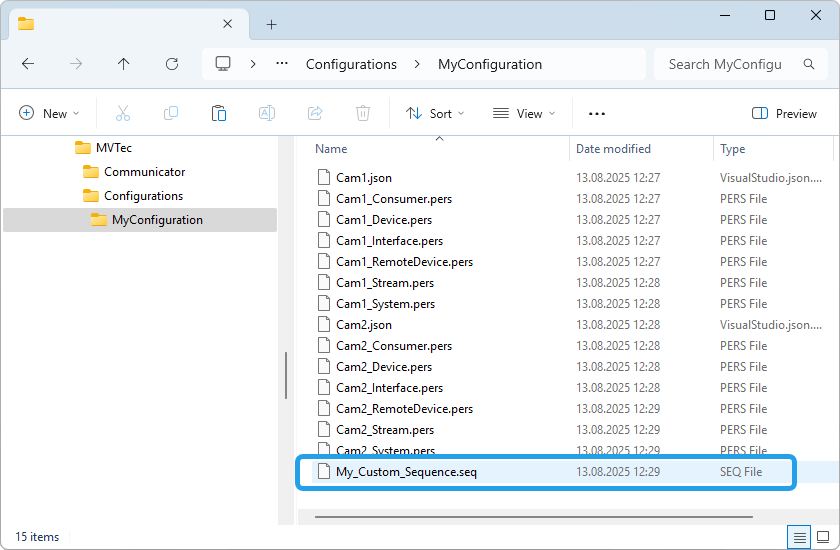
Save the file with file ending ".seq". Make sure to save the file in the directory of the image source configuration for which the acquisition sequence is being defined. The name of the sequence file defines the name of the acquisition sequence.
For each image source configuration, MERLIC creates a configuration directory in which the respective configuration files of the image sources are located. It contains a JSON file for each image source and PERS files for the persistent camera parameters. By default, these ISM configuration directories are created in the following directory: "%APPDATA%\MVTec\Configurations". The name of a configuration directory corresponds to the name of the image source configuration.
In the following example image, the sequence file has been added for the ISM configuration with the name "MyConfiguration". The respective path is therefore "%APPDATA%\MVTec\Configurations\MyConfiguration".
- Adjust the configuration in the sequence file to fit your image source configuration and use case:
- Adjust the number of "lanes" if required. The template provides an example configuration of two lanes because it contains the configuration for two camera devices. If you want to configure more than two image sources, add a new lane for each image source you want to configure.
- For each lane, adjust the value of the "DeviceId" attribute to the name of the image source for which the respective lane should be configured.
- Make sure that the "DeviceType" attribute is set to "ImageSource" for each lane. This also applies to lanes configuring non-streaming devices that are available GenICam Producer, for example, devices that are used only for illumination.
- For each lane, adjust the value of the "AlternativeParameterSet" attribute:
- If the primary parameter set should be used, set the attribute to null.
- If an alternative parameter set should be used, define the name of the desired parameter set.
- Adjust the configuration of the "Actions" section for each lane. It defines the set of "actions" that are applied to the respective image source, for example, acquiring an image. The following types of actions are available:
For more information on the structure and actions for acquisition sequences, see Structure of Sequence Files. For more information on some example sequences, see Samples of Acquisition Sequences.
- Save your changes. Keep in mind to check for a valid formatting of the file in JSON format to avoid errors when loading the configuration for an MVApp.
- Reload the ISM configurations including the sequence files so that your changes take effect. There are different ways to trigger a reload:
- Restart the MERLIC RTE Setup.
- In the "Image Sources" tab of the MERLIC RTE Setup, press the Alt key to change the "Refresh" button to a "Reload" button and click on "Reload".
Reloading the ISM configuration re-opens all cameras and will activate the default acquisition sequences, regardless of which acquisition sequence was previously active.
- Your custom acquisition sequence will now be visible in the overview for the respective image source configuration. If desired, select a default sequence for your image source configuration as described in Viewing and Activating Sequences.
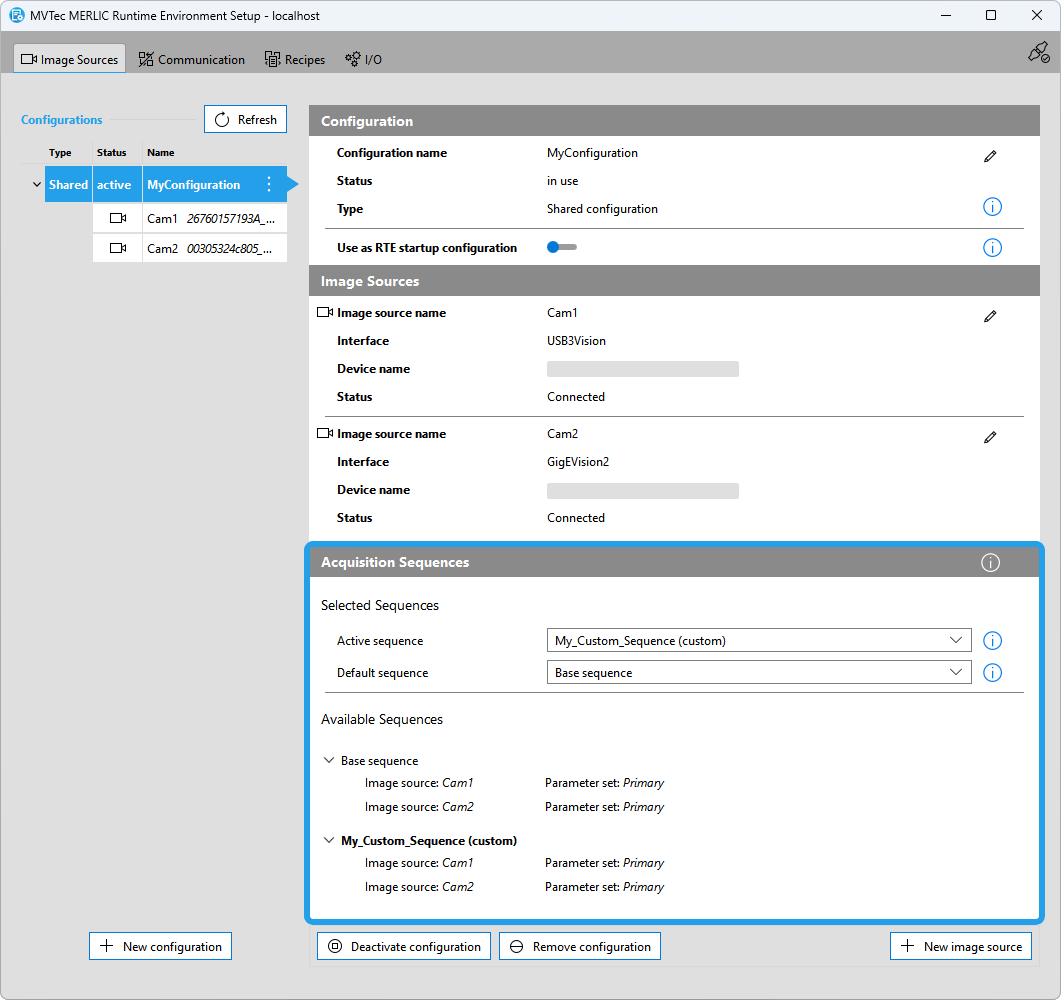
If the sequence file could not be loaded, for example, because it contains compatibility issues or syntactical errors, it is marked with an error icon in the MERLIC RTE Setup. In addition, the error details are logged in the log file for MERLIC Creator which is created by default in the directory "%LOCALAPPDATA%\MVTec\MERLIC\". The respective sequence cannot be used and it can neither be set as default sequence nor activated until the configuration in the sequence file has been fixed and the ISM configurations have been reloaded. For more information, see Troubleshooting Custom Sequences.
Keep in mind to update your custom sequence when new image sources have been added or removed from the respective image source configuration.
If any MERLIC processes (MERLIC Creator, MERLIC RTE Setup, ... ) were running while changing the configuration in the sequence files, remember to reload all ISM configurations via the MERLIC RTE Setup before setting up the MVApp in the MERLIC Creator. This ensures that all changes to the sequences will take effect in the MVApp.


